XP Mode, sharing files on guest machine

OK I used the Start menu and logged out. It reported it was ending the program and presented me with a black screen and a Logon to Windows XP box. The shutdown button is disabled and the only cours of action is to Log on or to X out of it at the top right corner. When I clicked that it stated it was hibernating the machine.
So it appears I can't win here.
 

My Computer My Computer

OS
Windows 7 Professional 64bit
A bit frustrated, yes, but that's not your fault ;)

Yes, expanding any Virtual PC virtual machine to full screen "hides" the toolbar, showing it only when the pointer is moved to top middle. This full screen toolbar has no Tools menu. Use XP Mode in windowed mode.

XP Mode full screen toolbar:

XPMode_fullscreen_toolbar.png

Default action when you close XP Mode is to hibernate. To change this, do as I told in my earlier post:
First, shut down (do not hibernate) XP Mode. Follow steps 4 and 5 in this post to learn how to change the default closing action of XP Mode.

Kari
 

My Computer My Computer

Computer type
Laptop
Computer Manufacturer/Model Number
HP ENVY 17-1150eg
OS
Windows 10 Pro x64 EN-GB
CPU
1.6 GHz Intel Core i7-720QM Processor
Memory
6 GB
Graphics Card(s)
ATI Mobility Radeon HD 5850 Graphics
Sound Card
Beats sound system with integrated subwoofer
Monitor(s) Displays
17" laptop display, 22" LED and 32" Full HD TV through HDMI
Screen Resolution
1600*900 (1), 1920*1080 (2&3)
Hard Drives
Internal: 2 x 500 GB SATA Hard Disk Drive 7200 rpm
External: 2TB for backups, 3TB USB3 network drive for media
Cooling
As Envy runs a bit warm, I have it on a Cooler Master pad
Keyboard
Logitech diNovo Media Desktop Laser (bluetooth)
Mouse
Logitech Performance Mouse MX
Internet Speed
50/10 Mbps VDSL
Antivirus
Windows Defender 4.3.9431.0
Browser
Maxthon 3.5.2., IE11
Well I have that sorted now I think Kari. Thankyou.

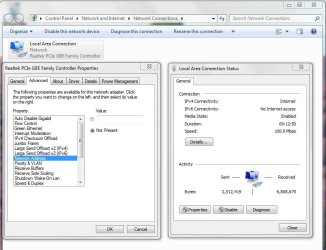
I have learned how to shut down XP Mode and that the WIN 7 Network Adapter was already set to the Realtek one, although it had an abbreviated name, it appears to be similar to the XP Mode listed one.

I took a screen shot of the Win 7 network settings screen and had difficulty in inserting it in this post here from my Mac but managed I think to attach it somehow, so hope it is sent with this.

The possible problem I found is that in the Realtek Family Controller Properties on the Win 7, under the Advanced tab, that the Network Address was Not Present.

moz-screenshot-3.png
 

Attachments

  • Win 7 Network Adapter.jpg
    Win 7 Network Adapter.jpg
    67.6 KB · Views: 10

My Computer My Computer

OS
Windows 7 Professional 64bit
That's completely another value, has no meaning in this. the right one of your two properties windows clearly show the precence of network adapter, and that your host is connected. That's OK, in other words.

Now follow the steps on posts 2 and 6 in this thread, or the tutorial here to stat sharing between host and XP Mode.

Kari
 

My Computer My Computer

Computer type
Laptop
Computer Manufacturer/Model Number
HP ENVY 17-1150eg
OS
Windows 10 Pro x64 EN-GB
CPU
1.6 GHz Intel Core i7-720QM Processor
Memory
6 GB
Graphics Card(s)
ATI Mobility Radeon HD 5850 Graphics
Sound Card
Beats sound system with integrated subwoofer
Monitor(s) Displays
17" laptop display, 22" LED and 32" Full HD TV through HDMI
Screen Resolution
1600*900 (1), 1920*1080 (2&3)
Hard Drives
Internal: 2 x 500 GB SATA Hard Disk Drive 7200 rpm
External: 2TB for backups, 3TB USB3 network drive for media
Cooling
As Envy runs a bit warm, I have it on a Cooler Master pad
Keyboard
Logitech diNovo Media Desktop Laser (bluetooth)
Mouse
Logitech Performance Mouse MX
Internet Speed
50/10 Mbps VDSL
Antivirus
Windows Defender 4.3.9431.0
Browser
Maxthon 3.5.2., IE11
Kari,
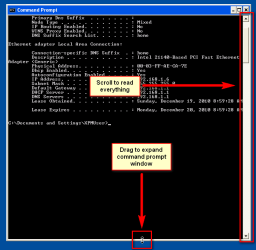
When I type in ipconfig /all and press enter as instructed, the results screen flashes on and off so quickly, that I cannot read it, and there is no evidence it even happened, like a button or tab on the task bar.
How do I get it to remain on screen please ?
 

My Computer My Computer

OS
Windows 7 Professional 64bit
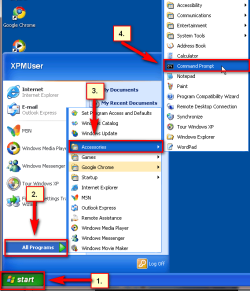
Did you open command prompt and type ipconfig /all there, as told in tutorial?

To open command prompt in XP Mode, click Start Menu > All Programs > Accessories > Command Prompt:

XPMode_command_prompt.png

To expand and scroll command prompt window in XP Mode:

XPMode_command_prompt_2.png

Kari
 

My Computer My Computer

Computer type
Laptop
Computer Manufacturer/Model Number
HP ENVY 17-1150eg
OS
Windows 10 Pro x64 EN-GB
CPU
1.6 GHz Intel Core i7-720QM Processor
Memory
6 GB
Graphics Card(s)
ATI Mobility Radeon HD 5850 Graphics
Sound Card
Beats sound system with integrated subwoofer
Monitor(s) Displays
17" laptop display, 22" LED and 32" Full HD TV through HDMI
Screen Resolution
1600*900 (1), 1920*1080 (2&3)
Hard Drives
Internal: 2 x 500 GB SATA Hard Disk Drive 7200 rpm
External: 2TB for backups, 3TB USB3 network drive for media
Cooling
As Envy runs a bit warm, I have it on a Cooler Master pad
Keyboard
Logitech diNovo Media Desktop Laser (bluetooth)
Mouse
Logitech Performance Mouse MX
Internet Speed
50/10 Mbps VDSL
Antivirus
Windows Defender 4.3.9431.0
Browser
Maxthon 3.5.2., IE11
Many thanks Kari. I was in the wrong place for that.

Now I need to know the last bit. Can you plase tell me where to find Network location type in XP Mode ?
8. Select the network location type you want for the virtual machine to have the settings for that location automatically applied. (see screenshot below)
 

My Computer My Computer

OS
Windows 7 Professional 64bit
That choice does not exit in XP. Ignore.
 

My Computer My Computer

Computer type
Laptop
Computer Manufacturer/Model Number
HP ENVY 17-1150eg
OS
Windows 10 Pro x64 EN-GB
CPU
1.6 GHz Intel Core i7-720QM Processor
Memory
6 GB
Graphics Card(s)
ATI Mobility Radeon HD 5850 Graphics
Sound Card
Beats sound system with integrated subwoofer
Monitor(s) Displays
17" laptop display, 22" LED and 32" Full HD TV through HDMI
Screen Resolution
1600*900 (1), 1920*1080 (2&3)
Hard Drives
Internal: 2 x 500 GB SATA Hard Disk Drive 7200 rpm
External: 2TB for backups, 3TB USB3 network drive for media
Cooling
As Envy runs a bit warm, I have it on a Cooler Master pad
Keyboard
Logitech diNovo Media Desktop Laser (bluetooth)
Mouse
Logitech Performance Mouse MX
Internet Speed
50/10 Mbps VDSL
Antivirus
Windows Defender 4.3.9431.0
Browser
Maxthon 3.5.2., IE11
OK I went and stuffed up again. OOops !
I tried to pick the network connection with the network setup wizard. Now they do not see each other, when before I used the wizard the Win 7 PC was able to see the XP Mode.
How do I erase the changes I made with the Wizard please ? (If this is possible at this hour of the morning)
 

My Computer My Computer

OS
Windows 7 Professional 64bit
Did you run wizard on both host and XP Mode? Can of them see the other at the moment?
 

My Computer My Computer

Computer type
Laptop
Computer Manufacturer/Model Number
HP ENVY 17-1150eg
OS
Windows 10 Pro x64 EN-GB
CPU
1.6 GHz Intel Core i7-720QM Processor
Memory
6 GB
Graphics Card(s)
ATI Mobility Radeon HD 5850 Graphics
Sound Card
Beats sound system with integrated subwoofer
Monitor(s) Displays
17" laptop display, 22" LED and 32" Full HD TV through HDMI
Screen Resolution
1600*900 (1), 1920*1080 (2&3)
Hard Drives
Internal: 2 x 500 GB SATA Hard Disk Drive 7200 rpm
External: 2TB for backups, 3TB USB3 network drive for media
Cooling
As Envy runs a bit warm, I have it on a Cooler Master pad
Keyboard
Logitech diNovo Media Desktop Laser (bluetooth)
Mouse
Logitech Performance Mouse MX
Internet Speed
50/10 Mbps VDSL
Antivirus
Windows Defender 4.3.9431.0
Browser
Maxthon 3.5.2., IE11
No I think I only selected the network type as Work Network on the Win 7 computer, and when I clicked on "View computers and devices on the network" I could see my XP Mode computer. But had troubles the other way for some reason. So I tried the network setup wizard in XP Mode, as I could not find how to pick the same Work Network I did for Win 7. Sorry impatience as I can see I am close to having this working, with many thanks to you Kari. Just have to change these settings.

I have changed the network name in Xp Mode to "WORKGROUP" as that is the name for the Win 7 computer network. But something else is wrong and the XP Mode wizard choices are not what I was needing regarding the connection details. Are you able to help further Kari ?
 

My Computer My Computer

OS
Windows 7 Professional 64bit
Sorry I did not say that I can not see other computer from either network. But I have direct internet access from both computers. They just still don't see each other.

Too late for me now, Must sleep. Will check in tomorrow. Made some real progress today.
Many thanks Kari.
 

My Computer My Computer

OS
Windows 7 Professional 64bit
Your host computer's network location should be set to Home. Change that. Then please, follow the steps mentioned in post #2 in this thread exactly as told.

Kari
 

My Computer My Computer

Computer type
Laptop
Computer Manufacturer/Model Number
HP ENVY 17-1150eg
OS
Windows 10 Pro x64 EN-GB
CPU
1.6 GHz Intel Core i7-720QM Processor
Memory
6 GB
Graphics Card(s)
ATI Mobility Radeon HD 5850 Graphics
Sound Card
Beats sound system with integrated subwoofer
Monitor(s) Displays
17" laptop display, 22" LED and 32" Full HD TV through HDMI
Screen Resolution
1600*900 (1), 1920*1080 (2&3)
Hard Drives
Internal: 2 x 500 GB SATA Hard Disk Drive 7200 rpm
External: 2TB for backups, 3TB USB3 network drive for media
Cooling
As Envy runs a bit warm, I have it on a Cooler Master pad
Keyboard
Logitech diNovo Media Desktop Laser (bluetooth)
Mouse
Logitech Performance Mouse MX
Internet Speed
50/10 Mbps VDSL
Antivirus
Windows Defender 4.3.9431.0
Browser
Maxthon 3.5.2., IE11
Hi Murray,

I've just had a look at your post. Did you have you open XP Mode as a full screen? If you did you will not see the tools drop down menu. When it is in full screen the menu bar will appear at the centre of the screen similar in nature to an RDP session. If you minimize XP Mode to be just an open window and not filling the entire screen you will get the Tool menu.
Hope this is of help.

Oh and you will only need to install the Virtual machine as the other two files are just patches which are not removed when you uninstall XP Mode, unless you removed them manually.

Sean
 

My Computer My Computer

OS
Windows 7
I am needing to have at this stage in a closed "network group" my Win 7 computer, my XP Mode, my Mac and my HTC Desire mobile phone, with ability to add more on later. However I also need to allow at least 2 other computers to have access to the internet through the same router, while not having access to my own closed network. This may make my needs more clear and I will keep searching for the answers at my end.

What do you mean by NO access to the closed network? If any part of a machine is connected to the internet it would not be closed. The only truly closed network would have absolutely NO access to the internet or any other network.

If you need a secure private network that has access to the internet then there are many ways to accomplish it, but I need to know what your goal is. -WS
 

My Computer My Computer

Computer type
PC/Desktop
Computer Manufacturer/Model Number
Dell OP7010
OS
Windows 7 Enterprise (x64); Windows Server 2008 R2 (x64)
Memory
16GB
Monitor(s) Displays
4 Dell 24" LCD
Screen Resolution
1280x1024
Keyboard
Dell
Mouse
Dell Optical
Internet Speed
40meg
G'Day WS,

Thankyou for your post. Probably I am not wording it right and will try to explain.

I have a Billion BiPAC 7401VGP router, which everyone in my family has access to. There is no server as such, although sometime I wish there were so I could have greater influence on what happens on our home network.

Up until now we all have access to the internet through this same router, but we cannot see each other. We had never set up a network as such, because I do not want some of the computers to have access to my own or my work computer. And we had no real need to transfer a lot between our separate computers. I am particularly concerned about viruses that may be bought back and infect our network. I understood that without a network set up that each computer was a stand-alone, with no direct link to any other computer.

Now with XP Mode installed I think there is a need to have a network for my own computers i.e. Personal Win 7, XP Mode, work Mac, and mobile HTC desire phone. So I can have good access between them, while still not letting the other family computers have direct access to mu computers. That is, if possible I would like to leave them accessing the internet as stand-alone computers, without being able to infect or access my own computers.

I do not know if this is possible. Perhaps a network without giving those other computers the password the join my own network. HomeGroup is only for Win 7 computers and is still only a subset of the local network, where all computers can be seen together. I do not know if I am explaining myself clearly or sufficiently.

At the moment I am still trying to get my Win 7 computer to see my XP Mode.
From XP Mode I can see all the computers in the network that are running from /My Network Places /View workgroup computers. I may be looking in the wrong place in Win 7. Is there and equivalent place to view workgroup computers ?

Does this put it into perspective for you WS ?

 

My Computer My Computer

OS
Windows 7 Professional 64bit
Hi Sean, Thanks but I found out about loosing the top toolbar the hard way. Uninstalling the laot cleaning my computer of all XP Mode links/files etc and then downloading and installing the lot again just to have it happen again. Luckily I found out the reason by accident. BUT I cannot work out why Microsoft would have it do that when it is supposed to be just like using a normal XP Pro system.

Anyway we have past all that and I'm on the home stretch now with I hope just another setting change or two to go.

Cheers.
 

My Computer My Computer

OS
Windows 7 Professional 64bit


Your host computer's network location should be set to Home. Change that. Then please, follow the steps mentioned in post #2 in this thread exactly as told.
Kari

Hi Kari,
Yes I have set my Win 7 host computer to location Home Network and have gone through again and checked all the items on post #2. Nothing had to be changed here, as I had done it previously.

Current situation is my Win 7 computer still cannot see any other computer on the network, and although this morning my XP Mode could see all the other computers running on the network, except my wireless Mac, now XP Mode in Network Places, viewing workgroup computers, the box says
"Workgroup is not accessible. You might not have permission to use this network resource. Contact administrator....... No more connections can be made to this remote computer at this time because there are already as many connections as the computer can accept."

What is happening here please ? I only need the one connection I think, don't I ?
I have not got my anti-virus software loaded yet. Are there other things happening here or was it just me ?
 

My Computer My Computer

OS
Windows 7 Professional 64bit
I don't know what to say. It's half past eleven AM here in Germany, I've spent last two hours installing Seven on two older PC's, setting up Virtual PC and XP Mode on both, and am able to start sharing straight away. Both XP Mode's find the network and are found by other computers, sharing working without problems.

I really do not know what we are missing.

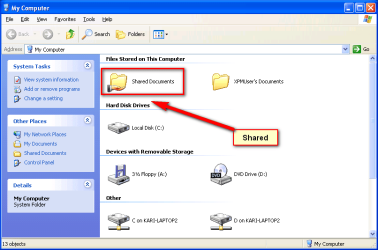
Just to check something, which of the following you can see when opening XP Mode's My Computer?

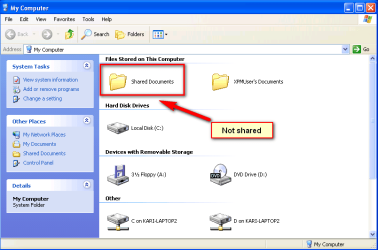
A hand symbol under the Shared Documents icon, indicating that sharing is allowed and this folder is shared in network:

XP_Sharing_4.png

No hand symbol under the Shared Documents icon, indicating that sharing is not allowed and this folder is not shared in network:

XP_Sharing_3.png

Kari
 

My Computer My Computer

Computer type
Laptop
Computer Manufacturer/Model Number
HP ENVY 17-1150eg
OS
Windows 10 Pro x64 EN-GB
CPU
1.6 GHz Intel Core i7-720QM Processor
Memory
6 GB
Graphics Card(s)
ATI Mobility Radeon HD 5850 Graphics
Sound Card
Beats sound system with integrated subwoofer
Monitor(s) Displays
17" laptop display, 22" LED and 32" Full HD TV through HDMI
Screen Resolution
1600*900 (1), 1920*1080 (2&3)
Hard Drives
Internal: 2 x 500 GB SATA Hard Disk Drive 7200 rpm
External: 2TB for backups, 3TB USB3 network drive for media
Cooling
As Envy runs a bit warm, I have it on a Cooler Master pad
Keyboard
Logitech diNovo Media Desktop Laser (bluetooth)
Mouse
Logitech Performance Mouse MX
Internet Speed
50/10 Mbps VDSL
Antivirus
Windows Defender 4.3.9431.0
Browser
Maxthon 3.5.2., IE11
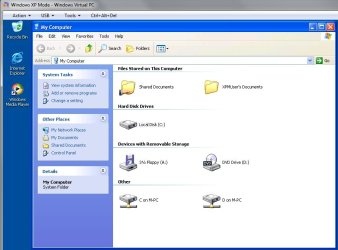
Yes Kari, it XP Mode files are shared.
 

Attachments

  • XP Shared Files.jpg
    XP Shared Files.jpg
    57.1 KB · Views: 2

My Computer My Computer

OS
Windows 7 Professional 64bit
Back
Top