SSD / HDD : Optimize for Windows Reinstallation

How to Optimize an SSD / HDD When You're Ready to Reinstall the Operating System

This will show how to remove / over-write all existing data from a Solid State Drive (SSD) or a Hard Disk Drive (HDD), it'll work for both, then how to create a partition and then format that partition before install begins so you have a clean drive to start the installation with.

   Note

Before you start this, in the Windows start menu search box type diskmgmt.msc right click the entry and click "Run as Administrator" if you get a User Account Control (UAC) prompt enter your user credentials and click Yes; make very sure you know the correct drive number of the drive you want to do this to if you have more than one SSD / HDD in the machine, you don't want to do the wrong one.
   Warning

Do not do this to any SSD or HDD that has data on it you don't want to lose, the first thing this does is to mark the drive as "Unallocated Space" and then writes zeroes ( 0's ) to the entire drive, it's known as a "Secure Erase" and it will make data un-recoverable, it cannot be done to just a single partition on a drive, it will do the whole drive.
You have been warned!
   Information

It may be a help to over-write the HDD Master Boot Record (MBR) before you start any other procedure using the diskpart clean command, rather than the clean all; it takes just seconds to complete so you will have "unallocated" space to use either the Windows installer to create and format the partition(s) or use diskpart for that, however you choose.

Let's get started!


Step One

Boot To DISKPART


If need be, view this tutorial at the link below for an out-line of the process.
How to Boot to DISKPART at PC Startup

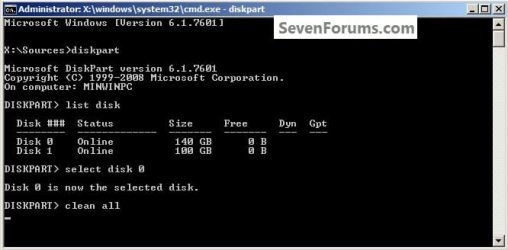
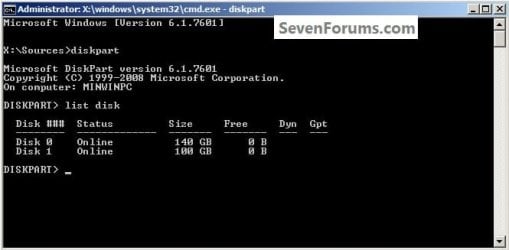
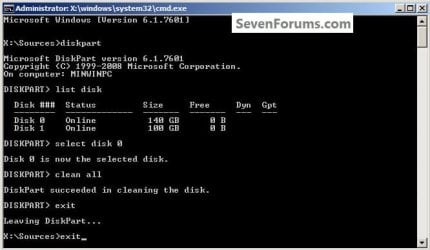
1) In the command window that opens type diskpart then hit the <enter> key then type list disk <enter> if you have more than one SSD / HDD in the machine it'll list them all.

Have a look here to view additional important information on this entire process.
click any image to enlarge
One_1.jpg
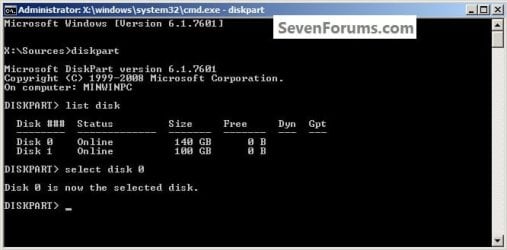
2) Now in the command window type select disk # (# = target disk number) then <enter>, you will get "Disk # is now the selected disk".
One_2.jpg
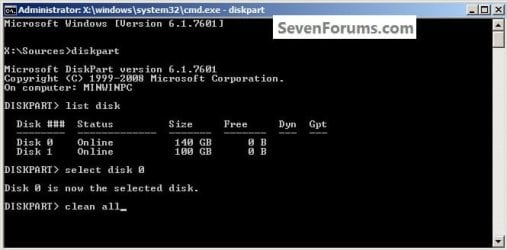
3) Now type clean <enter> you will get a blinking cursor telling you that clean all is working like in the second snip down, just relax and let it work.
One_3.1.jpg
One_3.2.jpg
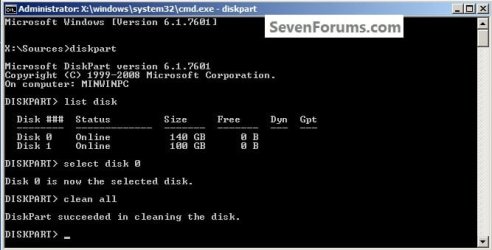
4) When it finishes you'll get "DiskPart succeeded in cleaning the disk" in the command window.
One_4.1.jpg
To leave diskpart at any time and return to the Windows 7 installer type exit two (2) separate times and hit <enter> after each and you will be returned to the installer to continue the installation process.
One_4.2.jpg


Step Two

Create a Partition


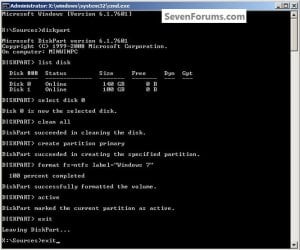
1) Create a single partition of the entire HDD / SSD

Still in the same command window, to create a partition of the entire HDD / SSD, it is suggested if you are using one of the larger, 1 - 2TB HDDs that you use the outline in #2 below to create a single 100GB partition to do the installation to or #3 below if you would like to include the new Windows 7 System Reserved partition, as we're now seeing serious issues with some trying to install to such large partitions.

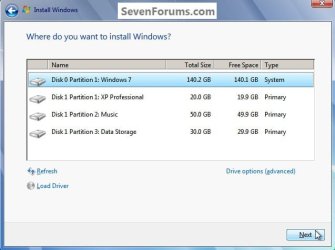
Do not format the created partition(s) with the installer if you create them using this process as the installer will delete all this info, the second snip shows how to select "where to install" during the installation process, click to highlight/select the "Windows 7" partition and click next.

Now skip down to #5 below to start the installation.
click any image to enlarge
Two_1.1.jpg
Two_1.2.jpg
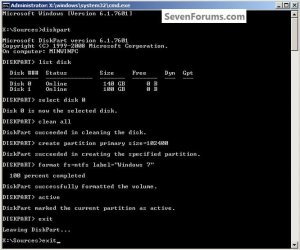
2) Create a specific size partition

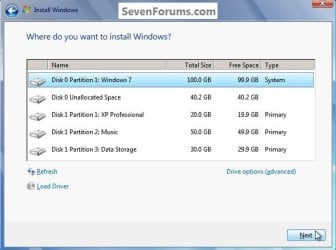
If you wanted to create a specific size partition, say 100GB you would add the size you want to create in MBs like in the command below.
create partition primary size=102400 <enter>
1024MB = 1GB - 1024x100 = 102400, you can use/create any size you like.

You can always extend the Windows partition to include the remaining unallocated space on the HDD / SSD or create additional Primary partitions or an Extended partition after the installation completes if you choose.

Do not format the created partition(s) with the installer if you create them using this process as the installer will delete all this info, the second snip shows how to select "where to install" during the installation process, click to highlight/select the "Windows 7" partition and click next.

Now skip down to #5 below to start the installation.
Two_2.1.jpg
Two_2.2.jpg
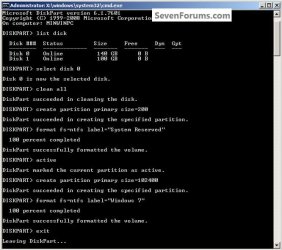
3) Create the System Reserved partition

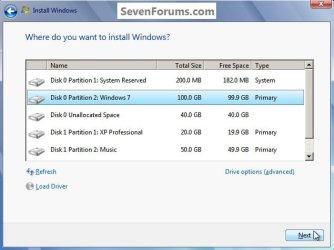
If you should want to add the "System Reserved" partition back after the clean all, see this snip; of course you would have to select to install Windows 7 to the partition labeled as "Windows 7" during the install and do not format either partition with the installer.

The reason for suggesting to create the System Reserved at 200MB instead of the new default of 100MB is an attempt to curb some of the issues we're now seeing with the partition being too small when dual/multi booting and it also being needed for use with the Windows 7 Backup and Restore and BitLocker programs.

You can always extend the Windows partition to include the remaining unallocated space on the HDD / SSD or create additional Primary partitions or an Extended partition after the installation completes if you choose.

The second snip shows how to select "where to install" during the installation process, click to highlight/select the "Windows 7" partition and click next.
Two_3.1.jpg
Two_3.2.jpg
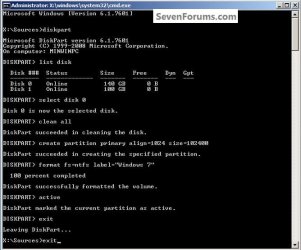
4) See this tutorial for the "align" argument

Align a Solid State Drive for Windows Installation
Two_4.1.jpg
5) That's it, you're now done with the command window, type exit <enter> to leave diskpart and exit <enter> again to close the command window; if you're using a Windows 7 full installer it will go to the "Select Language" screen to continue the installation process as usual.

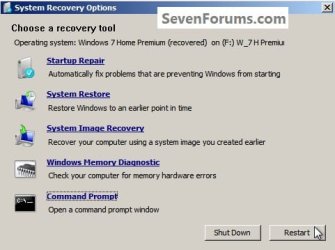
For those using a created repair CD or a Vista installer type exit <enter> to leave diskpart and exit <enter> again to close the command window; at the System Recovery Options dialog box that's still open click Restart to finish the process.
Restart.jpg
Enjoy! :)


Last edited by a moderator:
Hi,
Well if you don't trust magician then samsung ssd's shouldn't be used :)
The firmware does the trim operation which ultimately marks deleted blocks as writable thus your inquiry ;)
I suppose you can do it the old fashion way or the way Crucial ssd support posted to me a while back
Enter your bios and let the machine sit over night.
The ssd has power but no activity this is when the firmware is supposed to do it's trim operation.
 

My Computer

Computer type
PC/Desktop
Computer Manufacturer/Model Number
Custom assembled by me :}
OS
Win-7-Pro64bit 7-H-Prem-64bit
CPU
i7-5930K 2nd i9-9940x both water blocked VRM's too
Motherboard
ASUS SABERTOOTH X99 2nd ASUS x299 Apex
Memory
Trident-z 3200C14 2nd Trident-z 3600C16
Graphics Card(s)
EVGA 1080ti ftw3 2nd Titan Xp both water blocked
Sound Card
Built-in Realtek
Monitor(s) Displays
1-AOC G2460PG 24"G-Sync 144Hz/ 2nd 1-ASUS VG248QE 24" 144Hz
Screen Resolution
1920 x 1080 144Hz
Hard Drives
2-Samsung M.2 Evo & Evo Plus
2-Samsung 850 EVO 500GB SSD's/ 3-2.5 W.D. Black 1tb-&3-1tb/3-3.5 WD Black 1tb hdd's
PSU
EVGA SuperNOVA 1000-P2 2nd 1200-P2
Case
2-Corsair Obsidian Series 450D Black ATX Mid Tower
Cooling
Custom water loops
Keyboard
Logitech G710+/ 2nd Logitech G910
Mouse
2-RedDragon M901 Perdition 16400 dpi Gaming mouse = wired
Internet Speed
Comcast Ping 19ms 89.31mbps download speed 6.12mbps upload
Antivirus
Malwarebytes Pro/ Superantispyware Pro
Browser
FireFox & Pale moon
Other Info
2nd ASUS X299 Apex/Intel i9-9940x with Custom water loop/7H-Prem-x64/Corsair 450D case/Ram Trident-z 3600C16 4x8gb / Samsung970Evo plus 500gb SSD/Dual ssd EZ swap evo/PSU EVGA SuperNova 1200w-P2 80+Platinum/GPU Titan Xp /8-ML-140 on push-pull on 2-280GTX rads
Hi,
Well if you don't trust magician then samsung ssd's shouldn't be used :)
The firmware does the trim operation which ultimately marks deleted blocks as writable thus your inquiry ;)
I suppose you can do it the old fashion way or the way Crucial ssd support posted to me a while back
Enter your bios and let the machine sit over night.
The ssd has power but no activity this is when the firmware is supposed to do it's trim operation.

I don't agree that just cos I don't trust Magician I should not use Samsung SSDs. All I can do is quote ICIT2LOL who said:

A tip be watchful of the Magician software ... To be honest I personally do not use those add on softwares because a) that Magician for one is of not much use - well for me at least and b) I feel softwares like those can be handled using the Windows system;)

I totally agree with him and as I said all I use the non-magical Magician software is to check speeds, which I do with a few other apps as well. Just comparing. Why do I swear so much against Magician - cos it wasn't the fw back then but the way Magician's desktop utility pushed it while in the desktop environment, which in turn bricked a whole lot of ssd's. So ... use with caution.
 

My Computer

Computer type
Laptop
Computer Manufacturer/Model Number
HP
OS
Win 7 x64
Well done Ted. Loved it.:D
 

My Computer

Computer type
PC/Desktop
Computer Manufacturer/Model Number
SAMSUNG
OS
Windows 7
CPU
4GB
Motherboard
Intel
Memory
4GB
Graphics Card(s)
1GB
Monitor(s) Displays
17'
Hard Drives
500GB
Mouse
A4tech
Internet Speed
6Mbps
Antivirus
MSE
Browser
Firefox
Awesome tutorial. Just a few questions:

1) I have an SSD for my OS (Win7x64 Ultimate) and a 1tb internal SATA HDD for storage only (no OS). Once I 'clean all' on the HDD, should I format it as MBR or GPT?

2) My plan is to 'clean all' on both my SSD and HDD followed by a fresh OS install on the SSD. So, after I'm done with > Step One < can I create my partitions the conventional way - using the Windows setup dialog (i.e. the "Select Language" screen) - or is it a must to do it via CMD as > Step Two < suggests? Any difference?

3) Just a suggestion to > Step One < 3) should explain that the 'clean' and 'clean all' are both available and do different things. That is evident in a way because the word 'clean' is a link, containing the explanation, but just saying ...
 

My Computer

Computer type
Laptop
Computer Manufacturer/Model Number
HP
OS
Win 7 x64
Hello soewhaty, :)

Q1) Personally, MBR would be fine since the drive isn't over 2TB to be able to have a partition larger than 2TB.

Q2) There's really no need to do a "Clean" or "Clean all" on the disk if you're clean installing Windows to it.

Q3) The link in step 3 gives more details for "Clean" vs "Clean all" to help.
 

My Computer

Computer type
PC/Desktop
Computer Manufacturer/Model Number
Self built custom
OS
64-bit Windows 11 Pro for Workstations
CPU
Intel i7-8700K OC'd to 5 GHz
Motherboard
ASUS ROG Maximus XI Formula Z390
Memory
64 GB (4x16GB) G.SKILL TridentZ RGB DDR4 3600 MHz
Graphics Card(s)
ASUS ROG-STRIX-GTX1080TI-O11G-GAMING
Sound Card
Integrated
Monitor(s) Displays
2 x Samsung Odyssey G7 27"
Screen Resolution
2560x1440
Hard Drives
1TB Samsung 990 PRO M.2,
4TB Samsung 990 PRO PRO M.2,
TerraMaster F8 SSD Plus NAS
PSU
Seasonic Prime Titanium 850W
Case
Thermaltake Core P3
Cooling
Corsair Hydro H115i
Keyboard
Logitech wireless K800
Mouse
Logitech MX Master 4
Internet Speed
2 Gb/s Download and 100 Mb/s Upload
Antivirus
Malwarebyte Anti-Malware Premium
Browser
Google Chrome
Other Info
Logitech Z625 speaker system,
Logitech BRIO 4K Pro webcam,
HP Color LaserJet Pro MFP M477fdn,
APC SMART-UPS RT 1000 XL - SURT1000XLI,
Galaxy S23 Plus phone
Thank you for the reply, Brink. Appreciate your time! :)

On Q2) I think there really is the need (not a must, but a need) to do 'clean all' when the user deems necessary, as pointed out in this thread by Bare Foot Kid himself:

Contrary to popular belief, doing a full format with Windows 7 only over-writes the old disk format configuration data (the MBR) with the new and checks for sector errors, then marks the remaining space to be over-written as needed, it does not over-write (remove) any other data at all, it's all still there including code from previous Operating Systems and all of the old personal data.

It (a secure erase) is also very useful before starting the Windows installation process to correct for disk format errors of many kinds, to include over-writing the Linux / Grub boot loader, that is known to cause serious issues when installing Windows to a HDD / SSD that has had Grub as a loader in the past; also to correct installation errors when clean installing Windows 7 to a space that originally contained Windows XP.

A wipe is very effective to 'remove' any previous malware infections and start fresh.
Not doing a 'clean all' but simply formatting a drive and installing a fresh OS on it still leaves traces of old data, which you cannot be sure get overwritten (and thus wiped). With the amount of 'malware' in various forms, including even highly-reputable apps, 'clean all' is a rather good idea, IMO. Clearly not doing it all the time (especially not on SSDs) but still.

However, I'd really like to hear your opinion on the actual question I asked - after I'm done with > Step One < (from the OP) can I create my partitions the conventional way - using the Windows setup dialog (i.e. the "Select Language" screen) - or is it a must to do it via CMD as > Step Two < suggests? Any difference?

On Q3) Yes, u r right. I was just pointing out that the way it is written now makes it look like the only option for users is to type 'clean', when in fact that is not true.
 
Last edited:

My Computer

Computer type
Laptop
Computer Manufacturer/Model Number
HP
OS
Win 7 x64
It's certainly a personal choice if there's a need or want to do a "clean all". If you're keeping the computer, then there's really no need unless you just want to do a "clean" instead to wipe the drive to unallocated.

Personally, I find it best to do a clean install as outlined below by deleting all partitions on the disk during setup, and select the unallocated disk to install Windows on. Windows will setup the default system partitions on the disk for you. Afterwards, you can create any other partitions you may want.

:ar: Clean Install Windows 7 - Windows 7 Help Forums
 

My Computer

Computer type
PC/Desktop
Computer Manufacturer/Model Number
Self built custom
OS
64-bit Windows 11 Pro for Workstations
CPU
Intel i7-8700K OC'd to 5 GHz
Motherboard
ASUS ROG Maximus XI Formula Z390
Memory
64 GB (4x16GB) G.SKILL TridentZ RGB DDR4 3600 MHz
Graphics Card(s)
ASUS ROG-STRIX-GTX1080TI-O11G-GAMING
Sound Card
Integrated
Monitor(s) Displays
2 x Samsung Odyssey G7 27"
Screen Resolution
2560x1440
Hard Drives
1TB Samsung 990 PRO M.2,
4TB Samsung 990 PRO PRO M.2,
TerraMaster F8 SSD Plus NAS
PSU
Seasonic Prime Titanium 850W
Case
Thermaltake Core P3
Cooling
Corsair Hydro H115i
Keyboard
Logitech wireless K800
Mouse
Logitech MX Master 4
Internet Speed
2 Gb/s Download and 100 Mb/s Upload
Antivirus
Malwarebyte Anti-Malware Premium
Browser
Google Chrome
Other Info
Logitech Z625 speaker system,
Logitech BRIO 4K Pro webcam,
HP Color LaserJet Pro MFP M477fdn,
APC SMART-UPS RT 1000 XL - SURT1000XLI,
Galaxy S23 Plus phone
As Brink has stated; Clean or Clean All is a personal choice.
I have used both and I have also did installs as per Brinks tutorials without using either Clean or Clean all. All installs worked well.

I always use Clean or a 3rd party program to Clean the drive if the old install had any kind of infection. Please keep in mind, I'm paranoid and I use SSD's so it doesn't take long.

I do the same if the drive had Linux on it. Sometimes Linux leaves junk on a drive. I don't know why or how.

Once again it's a personal choice. I always use Brinks tutorial as a guide and things always work.

Jack
 

My Computer

Computer type
PC/Desktop
Computer Manufacturer/Model Number
Home made Desktop
OS
Windows 10 Pro. 64/ version 1709 Windows 7 Pro/64
CPU
Intel i7-6800K @ 4.3
Motherboard
ASUS X-99 Deluxe II
Memory
Corsair Platinum 16 gig @2400
Graphics Card(s)
EVGA GTX 1070 OC
Monitor(s) Displays
Asus 27" LED LCD/VE278Q
Screen Resolution
1920-1080 or 1280-720 HDMI
Hard Drives
INTEL SSD 730-240 Gb Sata 3.0/
PSU
EVGA Platium 1200W
Case
Phanteks Luxe Tempered Glass 8 fans/ one radiator
Cooling
XSPC/ Water Cooled CPU
Keyboard
Das 4 Professional
Mouse
Logitech M705/MX Anywhere 2-S
Internet Speed
100 mbits
Antivirus
Microsoft Security Essentials/ Malwarebytes Premium 3.0/ SAS
Browser
I.E. 11 default/Firefox/ ISP Time Warner Cable/Spectrum
Other Info
LG BluRay Burner/
Sound system-KLipsch-THX/
Icy Dock ssd Hot Swap bays.
Thanks for your time, guys!

Well, I'm definitely going to go for a 'clean all' right before I install the new OS (as explained in the OP). All I wanted to know is - after I'm done with > Step One < (from the OP) can I create my partitions the conventional way - using the Windows setup dialog (i.e. the "Select Language" screen) - or is it a must to do it via CMD as > Step Two < suggests? Any difference?
 

My Computer

Computer type
Laptop
Computer Manufacturer/Model Number
HP
OS
Win 7 x64
You could do either way to to create the partitions, but I would recommend to let Windows Setup create the partitions during the clean install instead.
 

My Computer

Computer type
PC/Desktop
Computer Manufacturer/Model Number
Self built custom
OS
64-bit Windows 11 Pro for Workstations
CPU
Intel i7-8700K OC'd to 5 GHz
Motherboard
ASUS ROG Maximus XI Formula Z390
Memory
64 GB (4x16GB) G.SKILL TridentZ RGB DDR4 3600 MHz
Graphics Card(s)
ASUS ROG-STRIX-GTX1080TI-O11G-GAMING
Sound Card
Integrated
Monitor(s) Displays
2 x Samsung Odyssey G7 27"
Screen Resolution
2560x1440
Hard Drives
1TB Samsung 990 PRO M.2,
4TB Samsung 990 PRO PRO M.2,
TerraMaster F8 SSD Plus NAS
PSU
Seasonic Prime Titanium 850W
Case
Thermaltake Core P3
Cooling
Corsair Hydro H115i
Keyboard
Logitech wireless K800
Mouse
Logitech MX Master 4
Internet Speed
2 Gb/s Download and 100 Mb/s Upload
Antivirus
Malwarebyte Anti-Malware Premium
Browser
Google Chrome
Other Info
Logitech Z625 speaker system,
Logitech BRIO 4K Pro webcam,
HP Color LaserJet Pro MFP M477fdn,
APC SMART-UPS RT 1000 XL - SURT1000XLI,
Galaxy S23 Plus phone
You could do either way to to create the partitions, but I would recommend to let Windows Setup create the partitions during the clean install instead.

I agree. That's why I asked cos that sounded like the easier thing to do. Thank you for the reply.
 

My Computer

Computer type
Laptop
Computer Manufacturer/Model Number
HP
OS
Win 7 x64
You're most welcome. :)
 

My Computer

Computer type
PC/Desktop
Computer Manufacturer/Model Number
Self built custom
OS
64-bit Windows 11 Pro for Workstations
CPU
Intel i7-8700K OC'd to 5 GHz
Motherboard
ASUS ROG Maximus XI Formula Z390
Memory
64 GB (4x16GB) G.SKILL TridentZ RGB DDR4 3600 MHz
Graphics Card(s)
ASUS ROG-STRIX-GTX1080TI-O11G-GAMING
Sound Card
Integrated
Monitor(s) Displays
2 x Samsung Odyssey G7 27"
Screen Resolution
2560x1440
Hard Drives
1TB Samsung 990 PRO M.2,
4TB Samsung 990 PRO PRO M.2,
TerraMaster F8 SSD Plus NAS
PSU
Seasonic Prime Titanium 850W
Case
Thermaltake Core P3
Cooling
Corsair Hydro H115i
Keyboard
Logitech wireless K800
Mouse
Logitech MX Master 4
Internet Speed
2 Gb/s Download and 100 Mb/s Upload
Antivirus
Malwarebyte Anti-Malware Premium
Browser
Google Chrome
Other Info
Logitech Z625 speaker system,
Logitech BRIO 4K Pro webcam,
HP Color LaserJet Pro MFP M477fdn,
APC SMART-UPS RT 1000 XL - SURT1000XLI,
Galaxy S23 Plus phone
Back
Top