Solved Repair Windows 7 boot menu on UEFI

vic4ever

New member
Local time
12:33 PM
Messages
27
I accidentally deleted the Windows 7 boot entry in the Windows Boot Manager. My laptop uses UEFI instead of BIOS. The OS is Windows 7 64bit Home Premium.

Here what I tried and its results:

  1. Use startup repair: I tried to use Startup Repair from a Windows 7 Installation Disk (actually, a USB). However, it said that the Recovery Options was not compatible. There are many causes as mentioned in Causes of incompatibility and I was able to eliminate these:
    • 64-bit Installation Disk: Checked
    • Windows 7 installer boot to UEFI: don't know how to check
    • CPU and OS architecture are the same: Processor (CPU?) Architecture is AMD64, OS is Windows_NT (don't know if the same or not)

    Many suggest to use startup repair but I don't know how to make this work.
  2. Use bootrec following Repair Windows 8 efi bootloader: three commands finished succesfully but I still doesn't see the Windows 7 boot entry in the Windows Boot Manager.
  3. Use diskpart: open diskpart from the command promt from the Windows 7 installation USB. I was able to see

    >>list disk
    Disk #### Status Size Free Dyn Gpt
    Disk 0 Online 698GB 1024KB *
    Disk 1 Online 3864MB 1024KB

    >>list volume


    Volume ### Ltr Label Fs Type Size Status Info
    Volume 0 F DVD-ROM No media
    Volume 1 C Data NTFS Partition 138GB Healthy
    Volume 2 D Entertain NTFS Partition 393GB Healthy
    Volume 3 E Recovery NTFS Partition 25GB Healthy
    Volume 4 SYSTEM NTFS Partition 200MB Healthy Hidden
    Volume 5 OS NTFS Partition 140GB Healthy Hidden
    Volume 6 G WinUSB NTFS Partition 3859MB Healthy

    I found that
    1. My disk is a GPT disk
    2. The Windows partition (volume 5) is hidden.

    I tried to unhide the windows partition using
    1. active: The selected disk is not a fixed MBR disk. The ACTIVE command can only be used on fixed MBR disks.
    2. attributes volume clear hidden: Virtual Disk Service error. The object is not found.

    This has something to do with the UEFI since my PC doesn't use MBR. I think if I can set the OS partition to active I can boot to Windows. But don't know whether this is correct and how to do it.

This is how i "accidentally" delete the windows 7 boot entry: I use EasyBCD 2.1 to add Ubuntu entry to the boot manager since after installing Ubuntu, I can't boot to Ubuntu. However, it was no use since EasyBCD couldn't identify any boot entry. I tried to add some Ubuntu entries and a Windows 7 entry for testing but still didn't see any of them in EasyBCD (in the Windows boot manager, they all appeared). Later, I realized that EasyBCD 2.1 didn't support EFI but EasyBCD 2.2 beta does. That's why the entries doesn't show up in EasyBCD 2.1. Then, I downloaded EasyBCD 2.2 and deleted the added entries leaving a Windows 7 and a Ubuntu entry. The problem may come from here when I delete the wrong Windows 7 entry.
 

My Computer My Computer

At a glance

Windows 7 Home Premium x64
OS
Windows 7 Home Premium x64
Lets start with the basic stuff first. In your bios, there should be a Windows Boot Manager listed in the Boot options. Is that set to first priority? USB flash drives need additional steps to make them useable in UEFI. The Windows USB maker will not work. Use an Install DVD if you have one, if not, download one from here.

http://www.mydigitallife.info/official-windows-7-sp1-iso-from-digital-river/

If you need to boot to the UEFI version of the Install DVD, you also need to go into the bios and select the UEFI DVD entry.

I will go through your post after this response, so let us know if you are able to run the Startup Repair, if needed.

What motherboard/system do you have?

Edit: EasyBCD is not UEFI aware. It may be able to repair some things, but I don't recommend using it, but since you say a beta does, I will do some testing.

Ubuntu has UEFI also and installs fine using it. No need to use some additional procedure to add it to the boot. Just use the Boot Menu F key to choose it from the list, or go into the Bios to set it first priority. The Boot Device list menu in a one time choice, and does not set that device to first priority in the bios.
 

My Computer My Computer

At a glance

Windows 7 x64i7-2600K8 GGTX 480
Computer Manufacturer/Model Number
Homebuilt
OS
Windows 7 x64
CPU
i7-2600K
Motherboard
Asus P8Z77-v Pro
Memory
8 G
Graphics Card(s)
GTX 480
Sound Card
Onboard
Monitor(s) Displays
LG W2753V
Screen Resolution
1920x1080
Hard Drives
Crucial M4 128 G SSD
Thank you very much for your help.

Lets start with the basic stuff first. In your bios, there should be a Windows Boot Manager listed in the Boot options. Is that set to first priority?

Yes. It is. The Windows Boot Manager is the first option.

If you need to boot to the UEFI version of the Install DVD, you also need to go into the bios and select the UEFI DVD entry.

I will go through your post after this response, so let us know if you are able to run the Startup Repair, if needed.

I use a USB stick instead of the Install DVD. I was able to select UEFI: JetFlashTranscend 4GB 1100 (the USB). There is another option without UEFI. I make the USB bootable using WinUsb Maker: http://www.joshcellsoftwares.com/2012/06/WinUSBMaker.html and format it under FAT32. Don't know if this is enough to boot it to UEFI.

I will try using a DVD as you said.

What motherboard/system do you have?

The system specifications are:

CPU : Intel® Core i7-3610QM (4×2.3GHz) (Cache 6MB) - Turbo Boost 3.3Ghz
Chipset : Intel® HM77 Express Chipset
Memory : 4GB DDR3 (Bus 1600MHz)
HDD : 750GB SATA 7200rpm

BIOS info
BIOS vendor: American Megatrends
Version: 206

Edit: EasyBCD is not UEFI aware. It may be able to repair some things, but I don't recommend using it, but since you say a beta does, I will do some testing.
You are correct. EasyBCD does not support UEFI.

Ubuntu has UEFI also and installs fine using it. No need to use some additional procedure to add it to the boot. Just use the Boot Menu F key to choose it from the list, or go into the Bios to set it first priority. The Boot Device list menu in a one time choice, and does not set that device to first priority in the bios.
Let me rephrase this: the Boot Device list is in the BIOS (access by pressing Delete when the computer starts). From the Boot Device list, I can select the order of the boot devices which may include: Windows Boot Manager, DVD, USB (UEFI or not)... The Windows Boot Manager is the Boot Menu F key that you mentioned ?
 

My Computer My Computer

At a glance

Windows 7 Home Premium x64
OS
Windows 7 Home Premium x64
Bios or firmware, whatever you want to call it, are set up differently by different manufacturers. On my Asus board, an F8, during the splash screen, will bring up a Boot Device menu so I do not have to go in the Bios for a one time choice. Del gets me actually into the Bios setup. Mine is AMI also.

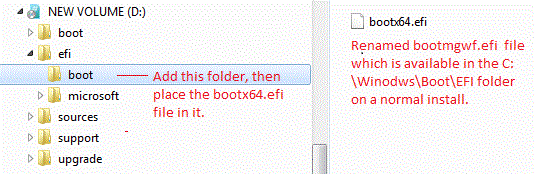
Even if your Flash Drive shows UEFI, it may not work. Check the file structure against the attachment to see if yours agrees. It also has to be formated in FAT32 to work.
 

Attachments

  • UEFI Flash.GIF
    UEFI Flash.GIF
    24.8 KB · Views: 172

My Computer My Computer

At a glance

Windows 7 x64i7-2600K8 GGTX 480
Computer Manufacturer/Model Number
Homebuilt
OS
Windows 7 x64
CPU
i7-2600K
Motherboard
Asus P8Z77-v Pro
Memory
8 G
Graphics Card(s)
GTX 480
Sound Card
Onboard
Monitor(s) Displays
LG W2753V
Screen Resolution
1920x1080
Hard Drives
Crucial M4 128 G SSD
Bios or firmware, whatever you want to call it, are set up differently by different manufacturers. On my Asus board, an F8, during the splash screen, will bring up a Boot Device menu so I do not have to go in the Bios for a one time choice. Del gets me actually into the Bios setup. Mine is AMI also.

Even if your Flash Drive shows UEFI, it may not work. Check the file structure against the attachment to see if yours agrees. It also has to be formated in FAT32 to work.
The file structure is the same since I was follow this guide to install Windows 7 in native EFI mode from USB. The USB is also formated in FAT32. I just recheck all of the above.
 

My Computer My Computer

At a glance

Windows 7 Home Premium x64
OS
Windows 7 Home Premium x64
More info, I just found out that the Windows partition is not only hidden but it is also a EFI System partition. Hope this helps.
 

My Computer My Computer

At a glance

Windows 7 Home Premium x64
OS
Windows 7 Home Premium x64
Your problem is you need to boot into UEFI and do a startup repair.

You can try doing a Bcdboot C:\Windows to see if it might help, but a Startup Repair is probably necessary.

One more thing, the USB flash Drives, even when they do boot correctly can be a little flaky during a repair operation. Possibly if you remove the flash drive, it will not give you that compatibility problem error. If you remove it too soon, you may get a driver error message, so wait until just before selecting "Repair", I believe. Another reason I recommend using the DVD, if possible.

The info on the partitions is probalby unnecessary, and yes, all GPT drives have a 128 mb hidden partition, and UEFI installs have a 100 mb EFI partition.

Edit: GPT drives don't use Active partitions.
 

My Computer My Computer

At a glance

Windows 7 x64i7-2600K8 GGTX 480
Computer Manufacturer/Model Number
Homebuilt
OS
Windows 7 x64
CPU
i7-2600K
Motherboard
Asus P8Z77-v Pro
Memory
8 G
Graphics Card(s)
GTX 480
Sound Card
Onboard
Monitor(s) Displays
LG W2753V
Screen Resolution
1920x1080
Hard Drives
Crucial M4 128 G SSD
I just tried to Bcdboot C:\Windows but it doesn't work. The error message is Failure when attempting to copy boot files. My C drive as I see does not contain any Windows directory.

I'm burning a DVD, I will try the DVD when it finishes.
 

My Computer My Computer

At a glance

Windows 7 Home Premium x64
OS
Windows 7 Home Premium x64
If you are looking at the directory from a command prompt window, the C: drive may not actually be C: so you might check d: also. If that were to be the case, the command would need a D: instead of C:

I need to check something on my system, and be back in a few minutes.
 

My Computer My Computer

At a glance

Windows 7 x64i7-2600K8 GGTX 480
Computer Manufacturer/Model Number
Homebuilt
OS
Windows 7 x64
CPU
i7-2600K
Motherboard
Asus P8Z77-v Pro
Memory
8 G
Graphics Card(s)
GTX 480
Sound Card
Onboard
Monitor(s) Displays
LG W2753V
Screen Resolution
1920x1080
Hard Drives
Crucial M4 128 G SSD
Ok, I got it. I just checked all the other drive but none of them contain the Windows folder. However, as I said above, the partition that contains the Windows folder is Volume 5 and it is hidden. I cannot specify it in the bcdboot command.
 

My Computer My Computer

At a glance

Windows 7 Home Premium x64
OS
Windows 7 Home Premium x64
Good and bad news, I was able to use startup repair but it said it cannot repair my computer.

The Startup Repair log said the root cause is No OS files found on disk.

Repair action: Partition table repair
Result: failed. Error code= 0x3b92
Time taken = 2230ms
 

My Computer My Computer

At a glance

Windows 7 Home Premium x64
OS
Windows 7 Home Premium x64
Something else I notice:
Volume 6 G WinUSB NTFS Partition 3859MB Healthy
Is this your flash drive?

Mine looks like this:
Volume 5 D FAT32 Removable 7690 MB Healthy

This is my entire readout:
Volume ### Ltr Label Fs Type Size Status Info
---------- --- ----------- ----- ---------- ------- --------- --------
Volume 0 F DVD-ROM 0 B No Media
Volume 1 C Windows 7 NTFS Partition 119 GB Healthy Boot
Volume 2 FAT32 Partition 100 MB Healthy System
Volume 3 E Data NTFS Partition 488 GB Healthy
Volume 4 G Video NTFS Partition 1374 GB Healthy
Volume 5 D FAT32 Removable 7690 MB Healthy
 

My Computer My Computer

At a glance

Windows 7 x64i7-2600K8 GGTX 480
Computer Manufacturer/Model Number
Homebuilt
OS
Windows 7 x64
CPU
i7-2600K
Motherboard
Asus P8Z77-v Pro
Memory
8 G
Graphics Card(s)
GTX 480
Sound Card
Onboard
Monitor(s) Displays
LG W2753V
Screen Resolution
1920x1080
Hard Drives
Crucial M4 128 G SSD
Volume 0 F DVD-ROM No media
Volume 1 C Data NTFS Partition 138GB Healthy
Volume 2 D Entertain NTFS Partition 393GB Healthy
Volume 3 E Recovery NTFS Partition 25GB Healthy
Volume 4 SYSTEM NTFS Partition 200MB Healthy Hidden
Volume 5 OS NTFS Partition 140GB Healthy Hidden
Volume 6 G WinUSB NTFS Partition 3859MB Healthy

Volume 1 and 2 is my logical partition. 3 is for the Asus Recovery partition. 4 is the EFI partition. 5 is the Windows partition. 6 is the flash drive.

It is strange since on my current PC, it said that the flash drive is FAT32.
58079007.png
 

My Computer My Computer

At a glance

Windows 7 Home Premium x64
OS
Windows 7 Home Premium x64
The Startup Repair log said the root cause is No OS files found on disk.
That doesn't sound good.. Do you think you may have overwritten the OS while trying to install Ubuntu?

And one more question, when you tried to install Ubuntu, did you know you had a UEFI system?

Your Diskpart readout shows a 138 GB and 140 GB partition (hidden). Possibly the hidden one was from Ubuntu, but which one do you feel is your OS partition?

If you installed Ubuntu in MBR mode, on the same GPT drive you had Windows 7, I may try to duplicate and see what happens. You might think about using Partition Wizard, or G-Parted from the "Try" install of Ubuntu to look at your system. Maybe Ubuntu hid the Windows 7 partition and Partition Wizard could unhide it or straighten out your drive. I will know more after testing.
 

My Computer My Computer

At a glance

Windows 7 x64i7-2600K8 GGTX 480
Computer Manufacturer/Model Number
Homebuilt
OS
Windows 7 x64
CPU
i7-2600K
Motherboard
Asus P8Z77-v Pro
Memory
8 G
Graphics Card(s)
GTX 480
Sound Card
Onboard
Monitor(s) Displays
LG W2753V
Screen Resolution
1920x1080
Hard Drives
Crucial M4 128 G SSD
I will stop for a while so we can get back in sync, but you can't have logical partitions on a GPT drive..., at least not in Windows? Maybe that is messing you up.

edit: Partition Wizard may be able to convert your logical partitions to primary. Since you can have as many primary partitions as you want on a GPT drive, it should not be a limiting factor.
 

My Computer My Computer

At a glance

Windows 7 x64i7-2600K8 GGTX 480
Computer Manufacturer/Model Number
Homebuilt
OS
Windows 7 x64
CPU
i7-2600K
Motherboard
Asus P8Z77-v Pro
Memory
8 G
Graphics Card(s)
GTX 480
Sound Card
Onboard
Monitor(s) Displays
LG W2753V
Screen Resolution
1920x1080
Hard Drives
Crucial M4 128 G SSD
The Startup Repair log said the root cause is No OS files found on disk.
That doesn't sound good.. Do you think you may have overwritten the OS while trying to install Ubuntu?
No, I don't think so. I use VistaPE (Windows Vista running on a DVD) and use a software to open the volume 5 partition: the Windows folder and other files are still there.

And one more question, when you tried to install Ubuntu, did you know you had a UEFI system?
No, I did not. If I was, I wouldn't have used EasyBCD.

Your Diskpart readout shows a 138 GB and 140 GB partition (hidden). Possibly the hidden one was from Ubuntu, but which one do you feel is your OS partition?
I'm sure that the hidden one is the OS partition.

If you installed Ubuntu in MBR mode, on the same GPT drive you had Windows 7, I may try to duplicate and see what happens. You might think about using Partition Wizard, or G-Parted from the "Try" install of Ubuntu to look at your system. Maybe Ubuntu hid the Windows 7 partition and Partition Wizard could unhide it or straighten out your drive. I will know more after testing.
Ok. I will use G-Parted to unhide the partition and get back to you. By the way, thank you very much :party:
 

My Computer My Computer

At a glance

Windows 7 Home Premium x64
OS
Windows 7 Home Premium x64
Volumes and Partitions are not the same thing.
Can you list partitions and post output ?

diskpart
>sel disk 0
>list par

And unhiding is just changing the id of partition
>sel par # - # is partition number
>set id=07 - NTFS
>set id=17 - NTFS hidden


And for transferring .iso to USB I would use "Windows 7 USB DVD Download Tool".
 
Last edited:

My Computer My Computer

At a glance

Win 8 RP, Win 7, XPIntel
Computer Manufacturer/Model Number
Acer Notebook
OS
Win 8 RP, Win 7, XP
CPU
Intel
The more I think about it, the possibility of the Logical partition causing a problem is a good conclusion.

Your flashdrive showing as NTFS, when you show it being FAT32, plus the Hidden Partition, and other things.

I would use Partition Wizard, the Home version, bootable which free, and remove any partitions placed on the drive by Ubuntu. Then use it to change your logical partitions to primary, or just remove them also if you can.

I am currently installing the test bed.... :geek:
 
Last edited:

My Computer My Computer

At a glance

Windows 7 x64i7-2600K8 GGTX 480
Computer Manufacturer/Model Number
Homebuilt
OS
Windows 7 x64
CPU
i7-2600K
Motherboard
Asus P8Z77-v Pro
Memory
8 G
Graphics Card(s)
GTX 480
Sound Card
Onboard
Monitor(s) Displays
LG W2753V
Screen Resolution
1920x1080
Hard Drives
Crucial M4 128 G SSD
I have just use GParted to find out about the partitions. There are strange things:

  1. The OS and the Recovery are not hidden as their hidden flags are not set.
  2. There are two boot partition: the 200MB EFI system partition and the OS partition.

Here are some info of the partitions:
screenshotfrom201208221.png

screenshotfrom201208221t.png

screenshotfrom201208221.png


I don't know what to do next. Hide the OS partition and then unhide it ?
 

My Computer My Computer

At a glance

Windows 7 Home Premium x64
OS
Windows 7 Home Premium x64
Sorry, I had to edit a response. I suggest removing just the partitions placed on the drive by Ubuntu. And converting the logical ones to primary.

Logical partitions have shown some problems when dealing with UEFI
 

My Computer My Computer

At a glance

Windows 7 x64i7-2600K8 GGTX 480
Computer Manufacturer/Model Number
Homebuilt
OS
Windows 7 x64
CPU
i7-2600K
Motherboard
Asus P8Z77-v Pro
Memory
8 G
Graphics Card(s)
GTX 480
Sound Card
Onboard
Monitor(s) Displays
LG W2753V
Screen Resolution
1920x1080
Hard Drives
Crucial M4 128 G SSD
Back
Top