Windows Explorer Auto Arrange - Disable

How to Disable Auto Arrange in Windows 7 Explorer to have Free Sorting


   Information
In Windows 7, auto arrange is enabled by default so that all file and folder names in Windows Explorer are sorted alphabetically no matter what folder view you used.

This is basically like having how you can arrange icons how you like on your desktop in every folder in Windows Explorer now.

This will show you how to disable Auto Arrange in Windows 7 to be able to sort your files and folders in any random order and position you like in each opened folder in Windows Explorer and in the Pin to Start Menu area at the top of the Start Menu without it having to be sorted alphabetically by name. Windows 7 will also remember these random folder sortings (order and position), and open as how they were when the folder window was last closed.

   Note
When You Disable Auto Arrange:
  • While using Extra Large Icons, Large Icons, Medium Icons, Small Icons, and Extended Tiles folder views, you can arrange files/folders in any random order and position.
  • While using Details folder view, you can only arrange files/folders in any order and not in any random position.
  • While using Extra Large Icons, Large Icons, Medium Icons, Small Icons, and Extended Tiles folder views, you can click on View (Menu bar) and check Auto arrange to have the black indicator line back inbetween files/folders when arranging files/folders in any order. This turns off the ability to arrange files/folders by random positions though.
  • While using Extra Large Icons, Large Icons, Medium Icons, Small Icons, and Extended Tiles folder views, you can click on View (Menu bar) and uncheck Auto arrange to be able to arrange files/folders in any order and random positions.
  • The Auto arrange and Align to grid options can be turned on and off at will in the View (Menu bar and right click context menu) when available (not grayed out) while using Extra Large Icons, Large Icons, Medium Icons, Small Icons, or Extended Tiles folder views.
  • If you have items arranged by random positions and switch from a Extra Large Icons, Large Icons, Medium Icons, Small Icons, and Extended Tiles folder view to a List, Details, Extended Tiles, or Content folder view, the random positions will be reset but still placed in a order of arrangement instead.
  • If you unzip a file in a folder, move a folder, or rename a folder, it will refresh and auto arrange the files in that specific folder only after each time you do this. Auto arrange is still disabled for that folder, but you will need to arrange the files back to whatever non-auto arranged order you like again after unzipping a file in a folder, move a folder, or rename a folder.
   Warning
DO NOT USE this tutorial in any other OS than Windows 7.
  • While this tutorial will allow you to disable auto arrange in the main Libraries folder itself, it will not disable auto arrange in any of the other library folders (ex: Documents, Music, Pictures, Videos).
  • Free sorting is not available if you use "Group by" folder views instead of only "Sort by" folder views.
  • Free sorting is not available in the List and Content folder views.
  • When you disable Auto Arrange, you will have Extend Tiles folder view instead of Tiles available in all folders except the Computer windows.

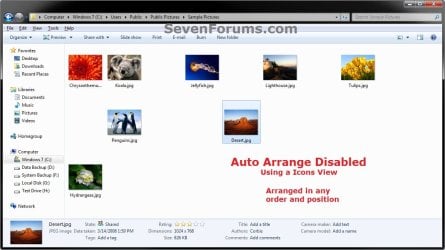
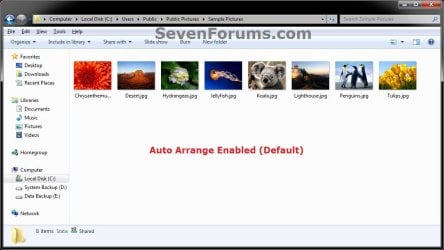
EXAMPLE: Auto Arrange Enabled and Disabled
NOTE: Notice in the screenshot with Auto Arrange disabled, the files can be dragged around the Windows Explorer window to sort how you like without having to be in alphabetical order.
Default.jpg

Disabled-1.jpg

Disabled-2.jpg


OPTION ONE

To Disable Auto Arrange in Windows 7 Windows Explorer


   Warning
It is also recommended to create a restore point before doing this option in case you would like to undo any unwanted unknown side affects that OPTION TWO may not undo. This way, you could also do a system restore with this restore point to undo this option completely.


1. Click on the Download button below to download the BAT file below.
Disable_Windows_7_Explorer_Auto_Arrange.bat

Download


2. Save the .bat file to your desktop.

3. Close everything that you have running first, then run the downloaded .bat file.

4. If prompted, click on Run.
NOTE: If you like, you can stop getting the Run prompt by unblocking the downloaded .bat file.

5. You will now notice your screen flicker and a command prompt open as the explorer process is restarted.

6. Let the command prompt count down to finish on it's own without pressing a key.

7. When it's finished, you will see the Computer window open.

8. Auto arrange in Windows Explorer is now disabled.


OPTION TWO

To Enable Auto Arrange in Windows 7 Windows Explorer


NOTE: This is the default setting.
1. Click on the Download button below to download the BAT file below.
Enable_Windows_7_Explorer_Auto_Arrange.bat

Download


2. Save the .bat file to your desktop.

3. Close all opened explorer windows first, then run the downloaded .bat file.

4. If prompted, click on Run.
NOTE: If you like, you can stop getting the Run prompt by unblocking the downloaded .bat file.

5. You will now notice your screen flicker and a command prompt open as the explorer process is restarted.

6. When it's finished, you will see the Computer window open.

7. Auto arrange in Windows Explorer is now enabled again.
That's it,
Shawn


Attachments

Last edited:
After 'option 1': On my C-drive, the autosort is correctly disabled when renaming a file. However, on my external drive the autosort is _still_ in effect when renaming a file! How come? How to fix?

From 'option 1' I skipped to taskkill (as I don't want to reset my explorer settings) and I did only the 'General Items' registry section (as I don't use (at all) the default specialized folders such as 'My pictures' and so on).
 

My Computer My Computer

Computer type
PC/Desktop
OS
Win7 Pro; 64bit
CPU
i7
Motherboard
Asrock
Memory
16GB
Graphics Card(s)
HDMI & D-Sub combined
Sound Card
Onboard
Monitor(s) Displays
43" and 17"
Screen Resolution
Mainly 1920x1080
Hard Drives
Many
PSU
Many Watts
Case
As quiet as possible
Cooling
As quiet as possible
Keyboard
Mechanical
Mouse
IntelliMouse Optical
Internet Speed
20 Mbit
Antivirus
Only the build-in by Microsoft (Win10), or Symantec (Win7).
Browser
Many
Other Info
Old things are often better or nicer than new things... ;)
Hello blueyellow, and welcome to Seven Forums. :)

That would be correct when renaming a file. Please see the blue note box at the top of the tutorial for more details about this.

If you don't let option 1 do all of what's in the .bat file, then it will not work properly. The taskkill part will only kill and restart explorer to apply the changes made to disable auto arrange.
 

My Computer My Computer

Computer type
PC/Desktop
Computer Manufacturer/Model Number
Self built custom
OS
64-bit Windows 11 Pro for Workstations
CPU
Intel i7-8700K OC'd to 5 GHz
Motherboard
ASUS ROG Maximus XI Formula Z390
Memory
64 GB (4x16GB) G.SKILL TridentZ RGB DDR4 3600 MHz
Graphics Card(s)
ASUS ROG-STRIX-GTX1080TI-O11G-GAMING
Sound Card
Integrated
Monitor(s) Displays
2 x Samsung Odyssey G7 27"
Screen Resolution
2560x1440
Hard Drives
1TB Samsung 990 PRO M.2,
4TB Samsung 990 PRO PRO M.2,
TerraMaster F8 SSD Plus NAS
PSU
Seasonic Prime Titanium 850W
Case
Thermaltake Core P3
Cooling
Corsair Hydro H115i
Keyboard
Logitech wireless K800
Mouse
Logitech MX Master 4
Internet Speed
2 Gb/s Download and 100 Mb/s Upload
Antivirus
Malwarebyte Anti-Malware Premium
Browser
Google Chrome
Other Info
Logitech Z625 speaker system,
Logitech BRIO 4K Pro webcam,
HP Color LaserJet Pro MFP M477fdn,
APC SMART-UPS RT 1000 XL - SURT1000XLI,
Galaxy S23 Plus phone
welcome to Seven Forums.
Thx.:)
That would be correct when renaming a file. Please see the blue note box at the top of the tutorial for more details about this.
Are you specifically referring to 'While using Details folder view, you can only arrange files/folders in any order and not in any random position.'? (I can interprete that in multiple ways.)
If so, then why does renaming a file on the C-drive not cause an autosort trigger, but it does if I rename a file on an external drive? Do you mean this thread gives no solution to the autosort after renaming a file?

If you don't let option 1 do all of what's in the .bat file, then it will not work properly.
I'm still hesitating; I might do the explorer default settings (before the taskkill) too, depending on the answers above (if it has no use anyway for the renaming problem, then why do it...). Another reason of the hesitation is that I used other modifications like registry-settings which able ungroup similar taskbar items, classic startmenu, modifying the start-button, and other mods. It might interfere with those settings.
But I can of course create a registry backup, and restore if wanted.

The taskkill part will only kill and restart explorer to apply the changes made to disable auto arrange.
Yes, I understand that. But I don't know if all the registry (after the taskkill part) settings are needed if I never use the specialized folders and always use details view. (I don't use thumbnail view for pictures either; I only use graphics programs to show my pics. Also I don't like the creation of thumbs.db files.) If I open explorer, I see no libraries etc; I don't want to see that. I only see 'My computer' plus the drive letters. (I really hate Microsoft deciding which folder names to use. That's not something Microsoft should do. It greatly adds to people making errors and losing their files.)
 

My Computer My Computer

Computer type
PC/Desktop
OS
Win7 Pro; 64bit
CPU
i7
Motherboard
Asrock
Memory
16GB
Graphics Card(s)
HDMI & D-Sub combined
Sound Card
Onboard
Monitor(s) Displays
43" and 17"
Screen Resolution
Mainly 1920x1080
Hard Drives
Many
PSU
Many Watts
Case
As quiet as possible
Cooling
As quiet as possible
Keyboard
Mechanical
Mouse
IntelliMouse Optical
Internet Speed
20 Mbit
Antivirus
Only the build-in by Microsoft (Win10), or Symantec (Win7).
Browser
Many
Other Info
Old things are often better or nicer than new things... ;)
I was referring to this part below in the note box.

If you unzip a file in a folder, move a folder, or rename a folder, it will refresh and auto arrange the files in that specific folder only after each time you do this. Auto arrange is still disabled for that folder, but you will need to arrange the files back to whatever non-auto arranged order you like again after unzipping a file in a folder, move a folder, or rename a folder.


After you run the .bat file as instructed in the steps, you will still be able to set folder views how you like.
 

My Computer My Computer

Computer type
PC/Desktop
Computer Manufacturer/Model Number
Self built custom
OS
64-bit Windows 11 Pro for Workstations
CPU
Intel i7-8700K OC'd to 5 GHz
Motherboard
ASUS ROG Maximus XI Formula Z390
Memory
64 GB (4x16GB) G.SKILL TridentZ RGB DDR4 3600 MHz
Graphics Card(s)
ASUS ROG-STRIX-GTX1080TI-O11G-GAMING
Sound Card
Integrated
Monitor(s) Displays
2 x Samsung Odyssey G7 27"
Screen Resolution
2560x1440
Hard Drives
1TB Samsung 990 PRO M.2,
4TB Samsung 990 PRO PRO M.2,
TerraMaster F8 SSD Plus NAS
PSU
Seasonic Prime Titanium 850W
Case
Thermaltake Core P3
Cooling
Corsair Hydro H115i
Keyboard
Logitech wireless K800
Mouse
Logitech MX Master 4
Internet Speed
2 Gb/s Download and 100 Mb/s Upload
Antivirus
Malwarebyte Anti-Malware Premium
Browser
Google Chrome
Other Info
Logitech Z625 speaker system,
Logitech BRIO 4K Pro webcam,
HP Color LaserJet Pro MFP M477fdn,
APC SMART-UPS RT 1000 XL - SURT1000XLI,
Galaxy S23 Plus phone
Hello Brink,

Thank you for the batch. Finally a way of arranging the pictures as I see fit. I experienced that if I arrange multiple pictures it's stays true to the grid but makes the rows much longer and I have to scroll to the right to see all pictures. Is there a way to solve this other than dragging to a different spot?

My other question is that when I dragged the pictures to a new spot, open one of those pictures with windows viewer and use the arrows keys to scroll through the pictures, the order stays like it originally was and not in the order I put them in. Is there a way to solve this?

Thanks in advance!
 

My Computer My Computer

Computer type
PC/Desktop
OS
Windows 7 Ultimate 32 bit
Hello mixxmunky, and welcome to Seven Forums. :)

Does increasing the width of Windows Explorer's border help?

I'm not aware of a way that helps with Windows Photo Viewer.
 
Last edited:

My Computer My Computer

Computer type
PC/Desktop
Computer Manufacturer/Model Number
Self built custom
OS
64-bit Windows 11 Pro for Workstations
CPU
Intel i7-8700K OC'd to 5 GHz
Motherboard
ASUS ROG Maximus XI Formula Z390
Memory
64 GB (4x16GB) G.SKILL TridentZ RGB DDR4 3600 MHz
Graphics Card(s)
ASUS ROG-STRIX-GTX1080TI-O11G-GAMING
Sound Card
Integrated
Monitor(s) Displays
2 x Samsung Odyssey G7 27"
Screen Resolution
2560x1440
Hard Drives
1TB Samsung 990 PRO M.2,
4TB Samsung 990 PRO PRO M.2,
TerraMaster F8 SSD Plus NAS
PSU
Seasonic Prime Titanium 850W
Case
Thermaltake Core P3
Cooling
Corsair Hydro H115i
Keyboard
Logitech wireless K800
Mouse
Logitech MX Master 4
Internet Speed
2 Gb/s Download and 100 Mb/s Upload
Antivirus
Malwarebyte Anti-Malware Premium
Browser
Google Chrome
Other Info
Logitech Z625 speaker system,
Logitech BRIO 4K Pro webcam,
HP Color LaserJet Pro MFP M477fdn,
APC SMART-UPS RT 1000 XL - SURT1000XLI,
Galaxy S23 Plus phone
Hello Brink,

Thanks for the fast reply. Increasing the borders is not helping, but for me that's not the main problem. It takes some extra work to get it all in place, but that's okay if there is no other solution.

The main question stays that when I arranged all the pictures I can't use Windows Photo Viewer, Picture Manager or Photo Gallery to scroll through the pictures in the way I arranged them. I have to open them single handed to view the pictures in my order. I didnt understand your answer to my question. Do you mean you are not aware? Or is it the first time you heard about this problem?
 

My Computer My Computer

Computer type
PC/Desktop
OS
Windows 7 Ultimate 32 bit
Sorry. Yes, that's not aware on how to fix the Windows Photo Viewer issue. Gotta love auto correct sometimes.
 

My Computer My Computer

Computer type
PC/Desktop
Computer Manufacturer/Model Number
Self built custom
OS
64-bit Windows 11 Pro for Workstations
CPU
Intel i7-8700K OC'd to 5 GHz
Motherboard
ASUS ROG Maximus XI Formula Z390
Memory
64 GB (4x16GB) G.SKILL TridentZ RGB DDR4 3600 MHz
Graphics Card(s)
ASUS ROG-STRIX-GTX1080TI-O11G-GAMING
Sound Card
Integrated
Monitor(s) Displays
2 x Samsung Odyssey G7 27"
Screen Resolution
2560x1440
Hard Drives
1TB Samsung 990 PRO M.2,
4TB Samsung 990 PRO PRO M.2,
TerraMaster F8 SSD Plus NAS
PSU
Seasonic Prime Titanium 850W
Case
Thermaltake Core P3
Cooling
Corsair Hydro H115i
Keyboard
Logitech wireless K800
Mouse
Logitech MX Master 4
Internet Speed
2 Gb/s Download and 100 Mb/s Upload
Antivirus
Malwarebyte Anti-Malware Premium
Browser
Google Chrome
Other Info
Logitech Z625 speaker system,
Logitech BRIO 4K Pro webcam,
HP Color LaserJet Pro MFP M477fdn,
APC SMART-UPS RT 1000 XL - SURT1000XLI,
Galaxy S23 Plus phone
but it does not work in any of the "Tiles" view settings????
 

My Computer My Computer

Computer type
PC/Desktop
Computer Manufacturer/Model Number
Asus
OS
Windows 7 Ultimate 32bit
CPU
Pentium 4 3.20 GHz
Motherboard
P5VDC-X
Memory
2GB DDR2
Graphics Card(s)
Nvidia GeForce G210 Asus
Hard Drives
Western Digital 1TB Blue
Keyboard
X7
Mouse
X6
Browser
Google Chrome
Hello AceDuk, :)

Yes, but it will be called "Extended Tiles" when auto arrange is disabled.
 

My Computer My Computer

Computer type
PC/Desktop
Computer Manufacturer/Model Number
Self built custom
OS
64-bit Windows 11 Pro for Workstations
CPU
Intel i7-8700K OC'd to 5 GHz
Motherboard
ASUS ROG Maximus XI Formula Z390
Memory
64 GB (4x16GB) G.SKILL TridentZ RGB DDR4 3600 MHz
Graphics Card(s)
ASUS ROG-STRIX-GTX1080TI-O11G-GAMING
Sound Card
Integrated
Monitor(s) Displays
2 x Samsung Odyssey G7 27"
Screen Resolution
2560x1440
Hard Drives
1TB Samsung 990 PRO M.2,
4TB Samsung 990 PRO PRO M.2,
TerraMaster F8 SSD Plus NAS
PSU
Seasonic Prime Titanium 850W
Case
Thermaltake Core P3
Cooling
Corsair Hydro H115i
Keyboard
Logitech wireless K800
Mouse
Logitech MX Master 4
Internet Speed
2 Gb/s Download and 100 Mb/s Upload
Antivirus
Malwarebyte Anti-Malware Premium
Browser
Google Chrome
Other Info
Logitech Z625 speaker system,
Logitech BRIO 4K Pro webcam,
HP Color LaserJet Pro MFP M477fdn,
APC SMART-UPS RT 1000 XL - SURT1000XLI,
Galaxy S23 Plus phone
Hey there,

First of all, thanks for a great tutorial, I managed to follow it successfully on Windows 7 x64 and get the auto-arrange functionality back. The problem that I'm now having is that the fix also seems to modify the spacing of icons in Explorer, especially in Details view, which looks a lot like the old XP view - funnily enough, I've gotten used to Windows 7's spacing, and would much prefer it. Does anyone know how I can keep the auto-arrange option there and still use the default Windows 7 spacing for details view? If necessary, I'm happy to edit the .dll files manually, I just need to know all the values that the .reg files change.

Thanks!
 

My Computer My Computer

Computer type
PC/Desktop
OS
Windows 7 Ultimate 64-Bit
CPU
Intel Core i3-2100 @ 3.10GHz (Dual-Core)
Motherboard
ASRock H61M-HVS
Memory
16GB DDR3
Graphics Card(s)
Intel Graphics HD (Integrated)
Hard Drives
Kingston 128GB SSD (OS Drive)
HITACHI 1TB HDD (Storage Drive)
Hello Hashim, :)

You can right click on the .reg file, and click on "Edit" to see all the changes it makes in the registry to help.
 

My Computer My Computer

Computer type
PC/Desktop
Computer Manufacturer/Model Number
Self built custom
OS
64-bit Windows 11 Pro for Workstations
CPU
Intel i7-8700K OC'd to 5 GHz
Motherboard
ASUS ROG Maximus XI Formula Z390
Memory
64 GB (4x16GB) G.SKILL TridentZ RGB DDR4 3600 MHz
Graphics Card(s)
ASUS ROG-STRIX-GTX1080TI-O11G-GAMING
Sound Card
Integrated
Monitor(s) Displays
2 x Samsung Odyssey G7 27"
Screen Resolution
2560x1440
Hard Drives
1TB Samsung 990 PRO M.2,
4TB Samsung 990 PRO PRO M.2,
TerraMaster F8 SSD Plus NAS
PSU
Seasonic Prime Titanium 850W
Case
Thermaltake Core P3
Cooling
Corsair Hydro H115i
Keyboard
Logitech wireless K800
Mouse
Logitech MX Master 4
Internet Speed
2 Gb/s Download and 100 Mb/s Upload
Antivirus
Malwarebyte Anti-Malware Premium
Browser
Google Chrome
Other Info
Logitech Z625 speaker system,
Logitech BRIO 4K Pro webcam,
HP Color LaserJet Pro MFP M477fdn,
APC SMART-UPS RT 1000 XL - SURT1000XLI,
Galaxy S23 Plus phone
Hello Hashim, :)

You can right click on the .reg file, and click on "Edit" to see all the changes it makes in the registry to help.

Hey Brink,

I tried that, but none of it really made sense to me, so I was hoping to get a list of all the values related to the UI that those registry files change, if that's possible. I'd really appreciate it.
 

My Computer My Computer

Computer type
PC/Desktop
OS
Windows 7 Ultimate 64-Bit
CPU
Intel Core i3-2100 @ 3.10GHz (Dual-Core)
Motherboard
ASRock H61M-HVS
Memory
16GB DDR3
Graphics Card(s)
Intel Graphics HD (Integrated)
Hard Drives
Kingston 128GB SSD (OS Drive)
HITACHI 1TB HDD (Storage Drive)
To be honest, I'm not sure the spacing can be changed. :(
 

My Computer My Computer

Computer type
PC/Desktop
Computer Manufacturer/Model Number
Self built custom
OS
64-bit Windows 11 Pro for Workstations
CPU
Intel i7-8700K OC'd to 5 GHz
Motherboard
ASUS ROG Maximus XI Formula Z390
Memory
64 GB (4x16GB) G.SKILL TridentZ RGB DDR4 3600 MHz
Graphics Card(s)
ASUS ROG-STRIX-GTX1080TI-O11G-GAMING
Sound Card
Integrated
Monitor(s) Displays
2 x Samsung Odyssey G7 27"
Screen Resolution
2560x1440
Hard Drives
1TB Samsung 990 PRO M.2,
4TB Samsung 990 PRO PRO M.2,
TerraMaster F8 SSD Plus NAS
PSU
Seasonic Prime Titanium 850W
Case
Thermaltake Core P3
Cooling
Corsair Hydro H115i
Keyboard
Logitech wireless K800
Mouse
Logitech MX Master 4
Internet Speed
2 Gb/s Download and 100 Mb/s Upload
Antivirus
Malwarebyte Anti-Malware Premium
Browser
Google Chrome
Other Info
Logitech Z625 speaker system,
Logitech BRIO 4K Pro webcam,
HP Color LaserJet Pro MFP M477fdn,
APC SMART-UPS RT 1000 XL - SURT1000XLI,
Galaxy S23 Plus phone
How come? What exactly changes it in the first place, if it's not in the explicit design of the reg fies?
 

My Computer My Computer

Computer type
PC/Desktop
OS
Windows 7 Ultimate 64-Bit
CPU
Intel Core i3-2100 @ 3.10GHz (Dual-Core)
Motherboard
ASRock H61M-HVS
Memory
16GB DDR3
Graphics Card(s)
Intel Graphics HD (Integrated)
Hard Drives
Kingston 128GB SSD (OS Drive)
HITACHI 1TB HDD (Storage Drive)
I'm not 100% sure what to adjust the values to for affecting the spacing like that.
 

My Computer My Computer

Computer type
PC/Desktop
Computer Manufacturer/Model Number
Self built custom
OS
64-bit Windows 11 Pro for Workstations
CPU
Intel i7-8700K OC'd to 5 GHz
Motherboard
ASUS ROG Maximus XI Formula Z390
Memory
64 GB (4x16GB) G.SKILL TridentZ RGB DDR4 3600 MHz
Graphics Card(s)
ASUS ROG-STRIX-GTX1080TI-O11G-GAMING
Sound Card
Integrated
Monitor(s) Displays
2 x Samsung Odyssey G7 27"
Screen Resolution
2560x1440
Hard Drives
1TB Samsung 990 PRO M.2,
4TB Samsung 990 PRO PRO M.2,
TerraMaster F8 SSD Plus NAS
PSU
Seasonic Prime Titanium 850W
Case
Thermaltake Core P3
Cooling
Corsair Hydro H115i
Keyboard
Logitech wireless K800
Mouse
Logitech MX Master 4
Internet Speed
2 Gb/s Download and 100 Mb/s Upload
Antivirus
Malwarebyte Anti-Malware Premium
Browser
Google Chrome
Other Info
Logitech Z625 speaker system,
Logitech BRIO 4K Pro webcam,
HP Color LaserJet Pro MFP M477fdn,
APC SMART-UPS RT 1000 XL - SURT1000XLI,
Galaxy S23 Plus phone
I'm not 100% sure what to adjust the values to for affecting the spacing like that.

Ah ok. Did you write it or did someone else?
 

My Computer My Computer

Computer type
PC/Desktop
OS
Windows 7 Ultimate 64-Bit
CPU
Intel Core i3-2100 @ 3.10GHz (Dual-Core)
Motherboard
ASRock H61M-HVS
Memory
16GB DDR3
Graphics Card(s)
Intel Graphics HD (Integrated)
Hard Drives
Kingston 128GB SSD (OS Drive)
HITACHI 1TB HDD (Storage Drive)
I wrote it, but the values are not documented, so it'll be a guessing game to figure out the correct value data for this specific item. :(
 

My Computer My Computer

Computer type
PC/Desktop
Computer Manufacturer/Model Number
Self built custom
OS
64-bit Windows 11 Pro for Workstations
CPU
Intel i7-8700K OC'd to 5 GHz
Motherboard
ASUS ROG Maximus XI Formula Z390
Memory
64 GB (4x16GB) G.SKILL TridentZ RGB DDR4 3600 MHz
Graphics Card(s)
ASUS ROG-STRIX-GTX1080TI-O11G-GAMING
Sound Card
Integrated
Monitor(s) Displays
2 x Samsung Odyssey G7 27"
Screen Resolution
2560x1440
Hard Drives
1TB Samsung 990 PRO M.2,
4TB Samsung 990 PRO PRO M.2,
TerraMaster F8 SSD Plus NAS
PSU
Seasonic Prime Titanium 850W
Case
Thermaltake Core P3
Cooling
Corsair Hydro H115i
Keyboard
Logitech wireless K800
Mouse
Logitech MX Master 4
Internet Speed
2 Gb/s Download and 100 Mb/s Upload
Antivirus
Malwarebyte Anti-Malware Premium
Browser
Google Chrome
Other Info
Logitech Z625 speaker system,
Logitech BRIO 4K Pro webcam,
HP Color LaserJet Pro MFP M477fdn,
APC SMART-UPS RT 1000 XL - SURT1000XLI,
Galaxy S23 Plus phone
I wrote it, but the values are not documented, so it'll be a guessing game to figure out the correct value data for this specific item. :(

I see. :/

I'm gonna try and figure out whether it can be done - judging by a thread I've come across, it looks like the only options are to manually modify the corresponding .dll file, or to find some purported registry keys that hold the values. This is the thread, the posts I've linked to in particular talk more about the problem as it relates to this registry edit.

http://www.sevenforums.com/customiz...e-list-item-height-spacing-4.html#post1141935

http://www.sevenforums.com/customiz...e-list-item-height-spacing-5.html#post1258766

Maybe those'll make more sense to you than they do me.
 

My Computer My Computer

Computer type
PC/Desktop
OS
Windows 7 Ultimate 64-Bit
CPU
Intel Core i3-2100 @ 3.10GHz (Dual-Core)
Motherboard
ASRock H61M-HVS
Memory
16GB DDR3
Graphics Card(s)
Intel Graphics HD (Integrated)
Hard Drives
Kingston 128GB SSD (OS Drive)
HITACHI 1TB HDD (Storage Drive)
I'll look and see. :)
 

My Computer My Computer

Computer type
PC/Desktop
Computer Manufacturer/Model Number
Self built custom
OS
64-bit Windows 11 Pro for Workstations
CPU
Intel i7-8700K OC'd to 5 GHz
Motherboard
ASUS ROG Maximus XI Formula Z390
Memory
64 GB (4x16GB) G.SKILL TridentZ RGB DDR4 3600 MHz
Graphics Card(s)
ASUS ROG-STRIX-GTX1080TI-O11G-GAMING
Sound Card
Integrated
Monitor(s) Displays
2 x Samsung Odyssey G7 27"
Screen Resolution
2560x1440
Hard Drives
1TB Samsung 990 PRO M.2,
4TB Samsung 990 PRO PRO M.2,
TerraMaster F8 SSD Plus NAS
PSU
Seasonic Prime Titanium 850W
Case
Thermaltake Core P3
Cooling
Corsair Hydro H115i
Keyboard
Logitech wireless K800
Mouse
Logitech MX Master 4
Internet Speed
2 Gb/s Download and 100 Mb/s Upload
Antivirus
Malwarebyte Anti-Malware Premium
Browser
Google Chrome
Other Info
Logitech Z625 speaker system,
Logitech BRIO 4K Pro webcam,
HP Color LaserJet Pro MFP M477fdn,
APC SMART-UPS RT 1000 XL - SURT1000XLI,
Galaxy S23 Plus phone
Back
Top