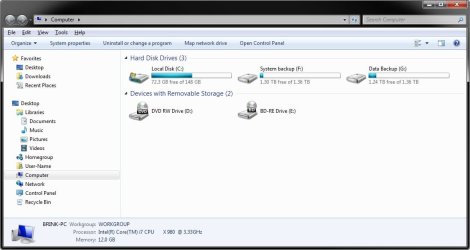
Control Panel - Add or Remove from Navigation Pane

How to Add or Remove Control Panel from Navigation Pane in Windows 7


   Information
This will show you how to add or remove Control Panel in the Windows Explorer Navigation Pane in Windows 7.

   Warning

  • You can only do this tutorial while logged into an administrator account.
  • This will affect all user accounts on the computer.
  • This will also add or remove the default Control Panel desktop icon as well.
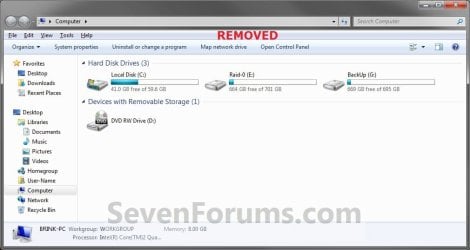
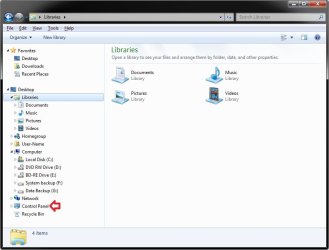
EXAMPLE: Control Panel in Navigation Pane
NOTE: This is the Control Panel added (default) (left screenshot below) and removed (right screenshot below) from the Navigation Pane when you have the Show all folders option checked or not checked.
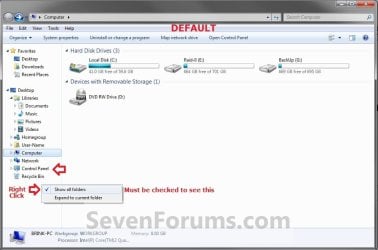
Default.jpg

Added-2.jpg

Removed.jpg
Here's How:
1. Open the Start Menu and type regedit.exe in the search line, then press enter.

2. If prompted by UAC, then click on Yes.

3. In Regedit, go to the location below: (See screenshot below step 4)
Code:
HKEY_CLASSES_ROOT\CLSID\{26EE0668-A00A-44D7-9371-BEB064C98683}\ShellFolder
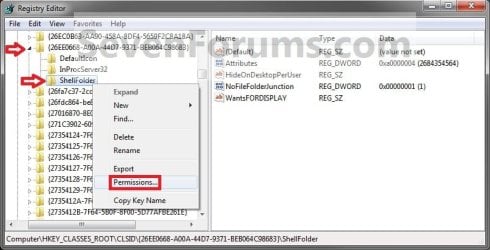
4. In the left pane of regedit, right click on the ShellFolder key and click on Permissions. (See screenshot below)
Step1.jpg
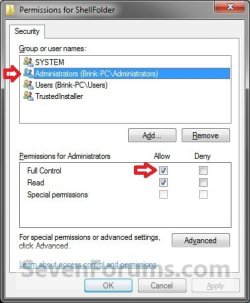
5. At the top, select the Administrators group. At the bottom, check the Allow box to the right of Full Control and click on OK. (See screenshot below)
Step2.jpg
6. Do either step 7 or 8 to add or remove your user profile folder from the navigation pane.

7. To Add Control Panel to the Navigation Pane
NOTE: This is the default setting.
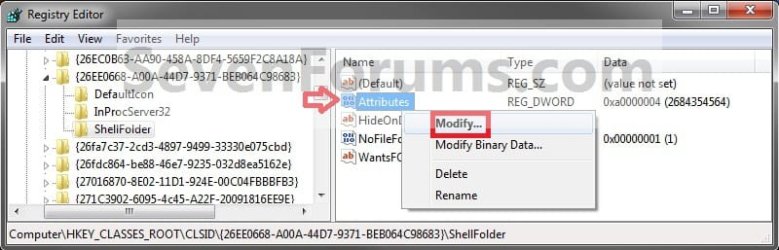
A) In the right pane of regedit, right click on Attributes, click on Modify, type in a0000004 and click on OK. (see screenshots below)
NOTE: This is to have the Control Panel display under Desktop when you have Show all folders checked.
Step3.jpg

Step4.jpg
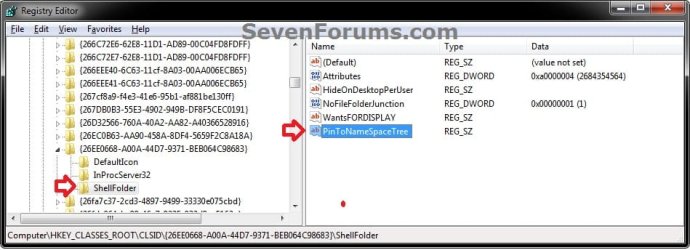
B) In the right pane of ShellFolder, right click on a empty space, click on New and String Value, copy and paste the name below, and press Enter. (see screenshot below)
NOTE: This is to have Control Panel display as a separate group in the navigation pane when you do not have Show all folders checked.
PinToNameSpaceTree

Reg-Add.jpg
C) Go to step 9.
8. To Remove Control Panel from the Navigation Pane
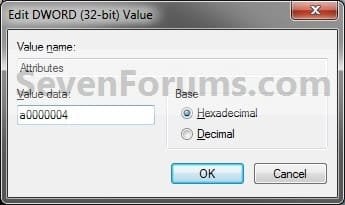
A) In the right pane of regedit, right click on Attributes, click on Modify, type in a0900004 and click on OK. (see screenshot below)
NOTE: This is to not have the Control Panel display under Desktop when you have Show all folders checked.
Step3.jpg

Step5.jpg
B) In the right pane of ShellFolder, right click on PinToNameSpaceTree (if there), and click on Delete. (see screenshot below)
NOTE: This is to not have the Control Panel display as a separate group in the navigation pane when you do not have Show all folders checked.
Reg-Add.jpg
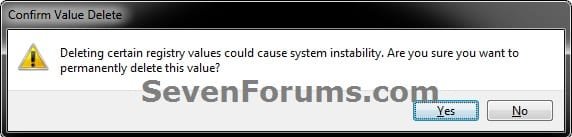
C) Click on Yes to confirm deletion. (see screenshot below)
Delete.jpg
D) Continue on to step 9.
9. If you have 64-bit Windows 7 Installed

   Note
To also add or remove Control Panel from the "Open" and "Save as" type windows as well in 64-bit Windows 7, you will also need to do this step.

If you have a 32-bit Windows 7 installed, then skip this step since doing steps 1 to 7/8 will add or remove Control Panel from the "Open" and "Save as" type windows as well.

A) In Regedit, go to the location below:
Code:
HKEY_LOCAL_MACHINE\SOFTWARE\Wow6432Node\Classes\CLSID\{26EE0668-A00A-44D7-9371-BEB064C98683}\ShellFolder
B) Repeat steps 4 to 7/8 above.
10. Close regedit.

11. Restart the computer to fully apply.
That's it,
Shawn


Last edited:
Fantastic, thank you sir! I found that CLSID, but had no clue what attribute value to use. This once was a Folder Options -> View setting.
 

My Computer

Computer type
PC/Desktop
Computer Manufacturer/Model Number
Custom Build
OS
Windows 7 Home Premium 64-Bit OEM
CPU
Intel Core i5-760
Motherboard
GigaByte GA-H55M-UD2H
Memory
Kingston HyperX KHX1333 (8GB)
Graphics Card(s)
Sapphire Radeon HD4550 512 MB DDR3
Sound Card
On-board
Monitor(s) Displays
Samsung SyncMaster 2233
Screen Resolution
1920 x 1080
Hard Drives
(1) Crucial M500 120 GD SSD
(3) WDC Cavier Black 1000 GB HDD
Keyboard
Microsoft Wireless Sculpt Ergonomic Keyboard
Mouse
Microsoft Wireless Mobile Mouse 4000
You're wecome Clayton. :)
 

My Computer

Computer type
PC/Desktop
Computer Manufacturer/Model Number
Self built custom
OS
64-bit Windows 11 Pro for Workstations
CPU
Intel i7-8700K OC'd to 5 GHz
Motherboard
ASUS ROG Maximus XI Formula Z390
Memory
64 GB (4x16GB) G.SKILL TridentZ RGB DDR4 3600 MHz
Graphics Card(s)
ASUS ROG-STRIX-GTX1080TI-O11G-GAMING
Sound Card
Integrated
Monitor(s) Displays
2 x Samsung Odyssey G7 27"
Screen Resolution
2560x1440
Hard Drives
1TB Samsung 990 PRO M.2,
4TB Samsung 990 PRO PRO M.2,
TerraMaster F8 SSD Plus NAS
PSU
Seasonic Prime Titanium 850W
Case
Thermaltake Core P3
Cooling
Corsair Hydro H115i
Keyboard
Logitech wireless K800
Mouse
Logitech MX Master 4
Internet Speed
2 Gb/s Download and 100 Mb/s Upload
Antivirus
Malwarebyte Anti-Malware Premium
Browser
Google Chrome
Other Info
Logitech Z625 speaker system,
Logitech BRIO 4K Pro webcam,
HP Color LaserJet Pro MFP M477fdn,
APC SMART-UPS RT 1000 XL - SURT1000XLI,
Galaxy S23 Plus phone
Found this tutorial just now. Another way in Windows 7 x64 at least:-
Open Start > Control Panel > Personalization. If Menus not showing, hit Alt key.
On Tools menu, click Folder Options. In the General Tab 'Navigation pane' section, untick "Show all folders". Click OK. To change back, tick "Show all folders". No scary regedit.

http://www.sevenforums.com/tutorials/853-navigation-pane-show-all-folders.html
 

My Computer

OS
Windows 7 PRO x64
Hello,

I've tested this tweak today. it's half working for me
newwink.gif


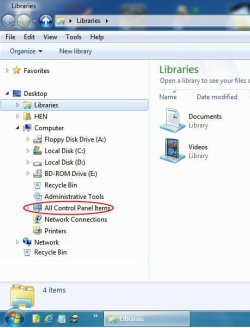
Control panel is hiden but All Control Panel Items is NOT (see here bellow image)

Regards
 

Attachments

  • WinExplor7.jpg
    WinExplor7.jpg
    57.8 KB · Views: 7,579

My Computer

OS
Windows 7 Ultimate x32
Hello Coucou, and welcome to Seven Forums.

Did you add "All Control Panel Items" and the items under it in that group to your "Computer" window using some other method previously? I do not have those there by default, but only the normal Control Panel that is removed using the tutorial.

Default.jpg
 

My Computer

Computer type
PC/Desktop
Computer Manufacturer/Model Number
Self built custom
OS
64-bit Windows 11 Pro for Workstations
CPU
Intel i7-8700K OC'd to 5 GHz
Motherboard
ASUS ROG Maximus XI Formula Z390
Memory
64 GB (4x16GB) G.SKILL TridentZ RGB DDR4 3600 MHz
Graphics Card(s)
ASUS ROG-STRIX-GTX1080TI-O11G-GAMING
Sound Card
Integrated
Monitor(s) Displays
2 x Samsung Odyssey G7 27"
Screen Resolution
2560x1440
Hard Drives
1TB Samsung 990 PRO M.2,
4TB Samsung 990 PRO PRO M.2,
TerraMaster F8 SSD Plus NAS
PSU
Seasonic Prime Titanium 850W
Case
Thermaltake Core P3
Cooling
Corsair Hydro H115i
Keyboard
Logitech wireless K800
Mouse
Logitech MX Master 4
Internet Speed
2 Gb/s Download and 100 Mb/s Upload
Antivirus
Malwarebyte Anti-Malware Premium
Browser
Google Chrome
Other Info
Logitech Z625 speaker system,
Logitech BRIO 4K Pro webcam,
HP Color LaserJet Pro MFP M477fdn,
APC SMART-UPS RT 1000 XL - SURT1000XLI,
Galaxy S23 Plus phone
TNX Brink for replying,

I did NOT add "All Control Panel Items" and the items under it to my "Computer".

Here how it looks like after applying Remove Control Panel

Regards
 

Attachments

  • WinExplor7_2.JPG
    WinExplor7_2.JPG
    39.2 KB · Views: 17,419

My Computer

OS
Windows 7 Ultimate x32
Just out of curiosity, what does your Computer window look like?

Did you install any all-in-one type tweaking program that may have had an option to add these items?

Just trying to determine how they got there for you.

Computer.jpg
 

My Computer

Computer type
PC/Desktop
Computer Manufacturer/Model Number
Self built custom
OS
64-bit Windows 11 Pro for Workstations
CPU
Intel i7-8700K OC'd to 5 GHz
Motherboard
ASUS ROG Maximus XI Formula Z390
Memory
64 GB (4x16GB) G.SKILL TridentZ RGB DDR4 3600 MHz
Graphics Card(s)
ASUS ROG-STRIX-GTX1080TI-O11G-GAMING
Sound Card
Integrated
Monitor(s) Displays
2 x Samsung Odyssey G7 27"
Screen Resolution
2560x1440
Hard Drives
1TB Samsung 990 PRO M.2,
4TB Samsung 990 PRO PRO M.2,
TerraMaster F8 SSD Plus NAS
PSU
Seasonic Prime Titanium 850W
Case
Thermaltake Core P3
Cooling
Corsair Hydro H115i
Keyboard
Logitech wireless K800
Mouse
Logitech MX Master 4
Internet Speed
2 Gb/s Download and 100 Mb/s Upload
Antivirus
Malwarebyte Anti-Malware Premium
Browser
Google Chrome
Other Info
Logitech Z625 speaker system,
Logitech BRIO 4K Pro webcam,
HP Color LaserJet Pro MFP M477fdn,
APC SMART-UPS RT 1000 XL - SURT1000XLI,
Galaxy S23 Plus phone
In fact, during my unattended installation I'm launching my here bellow tweeks registery. I checked for control panel into it... nada
 
Last edited:

My Computer

OS
Windows 7 Ultimate x32
Yep, that's what it was. The entry below in your REG file is what added it. The CLSID key {21EC2020-3AEA-1069-A2DD-08002B30309D} in it is for the "All Control Panel Items". The MyComputer key indicates the CLSID being placed in the Computer window.

Code:
HKEY_LOCAL_MACHINE\SOFTWARE\Microsoft\Windows\CurrentVersion\Explorer\[B]MyComputer[/B]\NameSpace\[B]{21EC2020-3AEA-1069-A2DD-08002B30309D}[/B]

The REG file below will remove it for you. :)
 

Attachments

My Computer

Computer type
PC/Desktop
Computer Manufacturer/Model Number
Self built custom
OS
64-bit Windows 11 Pro for Workstations
CPU
Intel i7-8700K OC'd to 5 GHz
Motherboard
ASUS ROG Maximus XI Formula Z390
Memory
64 GB (4x16GB) G.SKILL TridentZ RGB DDR4 3600 MHz
Graphics Card(s)
ASUS ROG-STRIX-GTX1080TI-O11G-GAMING
Sound Card
Integrated
Monitor(s) Displays
2 x Samsung Odyssey G7 27"
Screen Resolution
2560x1440
Hard Drives
1TB Samsung 990 PRO M.2,
4TB Samsung 990 PRO PRO M.2,
TerraMaster F8 SSD Plus NAS
PSU
Seasonic Prime Titanium 850W
Case
Thermaltake Core P3
Cooling
Corsair Hydro H115i
Keyboard
Logitech wireless K800
Mouse
Logitech MX Master 4
Internet Speed
2 Gb/s Download and 100 Mb/s Upload
Antivirus
Malwarebyte Anti-Malware Premium
Browser
Google Chrome
Other Info
Logitech Z625 speaker system,
Logitech BRIO 4K Pro webcam,
HP Color LaserJet Pro MFP M477fdn,
APC SMART-UPS RT 1000 XL - SURT1000XLI,
Galaxy S23 Plus phone
You're most welcome. :)
 

My Computer

Computer type
PC/Desktop
Computer Manufacturer/Model Number
Self built custom
OS
64-bit Windows 11 Pro for Workstations
CPU
Intel i7-8700K OC'd to 5 GHz
Motherboard
ASUS ROG Maximus XI Formula Z390
Memory
64 GB (4x16GB) G.SKILL TridentZ RGB DDR4 3600 MHz
Graphics Card(s)
ASUS ROG-STRIX-GTX1080TI-O11G-GAMING
Sound Card
Integrated
Monitor(s) Displays
2 x Samsung Odyssey G7 27"
Screen Resolution
2560x1440
Hard Drives
1TB Samsung 990 PRO M.2,
4TB Samsung 990 PRO PRO M.2,
TerraMaster F8 SSD Plus NAS
PSU
Seasonic Prime Titanium 850W
Case
Thermaltake Core P3
Cooling
Corsair Hydro H115i
Keyboard
Logitech wireless K800
Mouse
Logitech MX Master 4
Internet Speed
2 Gb/s Download and 100 Mb/s Upload
Antivirus
Malwarebyte Anti-Malware Premium
Browser
Google Chrome
Other Info
Logitech Z625 speaker system,
Logitech BRIO 4K Pro webcam,
HP Color LaserJet Pro MFP M477fdn,
APC SMART-UPS RT 1000 XL - SURT1000XLI,
Galaxy S23 Plus phone
Hi Brink,

Sorry for bothering you again.

I've added that registry to my tweaks registery file MyTweaks.bat (launching MyTweaks.reg). When MyTweaks.bat file is launched by Autounattend.xml (SynchronousCommand).

I noticed that ControlPanel registry is not applied.
1) Is there a command "Run as Administrator" (.bat or .cmd) to force that registry to be applied?

2) As other few registries are not applied too, allthoug they were tested working.
Do you think if I launch that MyTweaks.bat file as RunOnce/RunOnceEx all the registries will be applied?
Code:
HKEY_LOCAL_MACHINE\SOFTWARE\Microsoft\Windows\CurrentVersion\RunOnceEx\MyTweaks]
"MyTweaks"="c:\Windows\Setup\scripts\MyTweaks.bat"

Regards
 

My Computer

OS
Windows 7 Ultimate x32
Hi Brink,

Sorry for bothering you again.

I've added that registry to my tweaks registery file MyTweaks.bat (launching MyTweaks.reg). When MyTweaks.bat file is launched by Autounattend.xml (SynchronousCommand).

I noticed that ControlPanel registry is not applied.
1) Is there a command "Run as Administrator" (.bat or .cmd) to force that registry to be applied?

2) As other few registries are not applied too, allthoug they were tested working.
Do you think if I launch that MyTweaks.bat file as RunOnce/RunOnceEx all the registries will be applied?
Code:
HKEY_LOCAL_MACHINE\SOFTWARE\Microsoft\Windows\CurrentVersion\RunOnceEx\MyTweaks]
"MyTweaks"="c:\Windows\Setup\scripts\MyTweaks.bat"

Regards

Does it help if you run the bat file from an elevated command prompt?

http://www.sevenforums.com/tutorials/783-elevated-command-prompt.html

http://www.sevenforums.com/tutorials/3718-elevated-command-prompt-shortcut.html

Regards,
JDobbsy1987
 

My Computer

Computer type
PC/Desktop
Computer Manufacturer/Model Number
Self Built
OS
Windows 8.1 Pro x64
CPU
Intel Core i5-2500K @ 3.30GHz - S1155
Motherboard
Asus P8P67 LE Rev3, Intel P67, S115
Memory
8GB Corsair DDR3 XMS3, PC3-12800
Graphics Card(s)
NVIDIA GeForce GTX 650
Sound Card
On-Board
Monitor(s) Displays
3 x 24" {Extended Display}
Screen Resolution
1920 x 1080
Hard Drives
300GB Seagate Barracuda 7200
PSU
550W Coolermaster GX550
Case
Silverstone Precision PS04B
Cooling
Stock
Keyboard
Logitech K120
Mouse
World of Warcraft Cataclysm MMO Gaming Mouse
Internet Speed
80 MB
Antivirus
MSE / Windows Defender
Browser
Chrome
Hi Brink,

Sorry for bothering you again.

I've added that registry to my tweaks registery file MyTweaks.bat (launching MyTweaks.reg). When MyTweaks.bat file is launched by Autounattend.xml (SynchronousCommand).

I noticed that ControlPanel registry is not applied.
1) Is there a command "Run as Administrator" (.bat or .cmd) to force that registry to be applied?

2) As other few registries are not applied too, allthoug they were tested working.
Do you think if I launch that MyTweaks.bat file as RunOnce/RunOnceEx all the registries will be applied?
Code:
HKEY_LOCAL_MACHINE\SOFTWARE\Microsoft\Windows\CurrentVersion\RunOnceEx\MyTweaks]
"MyTweaks"="c:\Windows\Setup\scripts\MyTweaks.bat"

Regards


Coucou,

You would just need to remove that one line below from your MyTweaks.reg file. If you like, reupload it, and I'll remove it for you, then upload the modified version back for you.

Code:
[HKEY_LOCAL_MACHINE\SOFTWARE\Microsoft\Windows\CurrentVersion\Explorer\MyComputer\NameSpace\{21EC2020-3AEA-1069-A2DD-08002B30309D}]
 

My Computer

Computer type
PC/Desktop
Computer Manufacturer/Model Number
Self built custom
OS
64-bit Windows 11 Pro for Workstations
CPU
Intel i7-8700K OC'd to 5 GHz
Motherboard
ASUS ROG Maximus XI Formula Z390
Memory
64 GB (4x16GB) G.SKILL TridentZ RGB DDR4 3600 MHz
Graphics Card(s)
ASUS ROG-STRIX-GTX1080TI-O11G-GAMING
Sound Card
Integrated
Monitor(s) Displays
2 x Samsung Odyssey G7 27"
Screen Resolution
2560x1440
Hard Drives
1TB Samsung 990 PRO M.2,
4TB Samsung 990 PRO PRO M.2,
TerraMaster F8 SSD Plus NAS
PSU
Seasonic Prime Titanium 850W
Case
Thermaltake Core P3
Cooling
Corsair Hydro H115i
Keyboard
Logitech wireless K800
Mouse
Logitech MX Master 4
Internet Speed
2 Gb/s Download and 100 Mb/s Upload
Antivirus
Malwarebyte Anti-Malware Premium
Browser
Google Chrome
Other Info
Logitech Z625 speaker system,
Logitech BRIO 4K Pro webcam,
HP Color LaserJet Pro MFP M477fdn,
APC SMART-UPS RT 1000 XL - SURT1000XLI,
Galaxy S23 Plus phone
TNX JDobbsy1987 and Brink for yr reply.
Maybe I didn't express my self clearly.
Here bellow MyTweaks.bat. What to add/modify to make it elevated runnig
Code:
@ECHO OFF
ECHO.
REGEDIT /S "%systemroot%\Setup\Scripts\MyTweaks.reg"
EXIT

The following reg is not concerned
Code:
[HKEY_LOCAL_MACHINE\SOFTWARE\Microsoft\Windows\CurrentVersion\Explorer\MyComputer\NameSpace\{21EC2020-3AEA-1069-A2DD-08002B30309D}]
Here 2 regs among others to be Run as Admin
Code:
; Remove Control Panel from the Windows 7 Explorer Navigation Panel
[HKEY_CLASSES_ROOT\CLSID\{26EE0668-A00A-44D7-9371-BEB064C98683}\ShellFolder]
"Attributes"=dword:a0900004
;--------------------------------------------------------------------------------
; Remove Favorites from the Windows 7 Explorer Navigation Panel
[HKEY_CLASSES_ROOT\CLSID\{323CA680-C24D-4099-B94D-446DD2D7249E}\ShellFolder]
"Attributes"=dword:a9400100
Regards
 

My Computer

OS
Windows 7 Ultimate x32
Coucou,

You should go ahead and post this issue with getting the BAT file to run elevated automatically in a new thread since it's no longer on topic with the tutorial. This way you will be able to get more help with it there. :)
 

My Computer

Computer type
PC/Desktop
Computer Manufacturer/Model Number
Self built custom
OS
64-bit Windows 11 Pro for Workstations
CPU
Intel i7-8700K OC'd to 5 GHz
Motherboard
ASUS ROG Maximus XI Formula Z390
Memory
64 GB (4x16GB) G.SKILL TridentZ RGB DDR4 3600 MHz
Graphics Card(s)
ASUS ROG-STRIX-GTX1080TI-O11G-GAMING
Sound Card
Integrated
Monitor(s) Displays
2 x Samsung Odyssey G7 27"
Screen Resolution
2560x1440
Hard Drives
1TB Samsung 990 PRO M.2,
4TB Samsung 990 PRO PRO M.2,
TerraMaster F8 SSD Plus NAS
PSU
Seasonic Prime Titanium 850W
Case
Thermaltake Core P3
Cooling
Corsair Hydro H115i
Keyboard
Logitech wireless K800
Mouse
Logitech MX Master 4
Internet Speed
2 Gb/s Download and 100 Mb/s Upload
Antivirus
Malwarebyte Anti-Malware Premium
Browser
Google Chrome
Other Info
Logitech Z625 speaker system,
Logitech BRIO 4K Pro webcam,
HP Color LaserJet Pro MFP M477fdn,
APC SMART-UPS RT 1000 XL - SURT1000XLI,
Galaxy S23 Plus phone
Hi Brink,

I posted a new thread HERE. I got a success runing MyTweaks.reg elevated, but still the following registries are NOT applied.
Code:
; Remove Control Panel from the Windows 7 Explorer Navigation Panel
[HKEY_CLASSES_ROOT\CLSID\{26EE0668-A00A-44D7-9371-BEB064C98683}\ShellFolder]
"Attributes"=dword:a0900004
;--------------------------------------------------------------------------------
; Remove Favorites from the Windows 7 Explorer Navigation Panel
[HKEY_CLASSES_ROOT\CLSID\{323CA680-C24D-4099-B94D-446DD2D7249E}\ShellFolder]
"Attributes"=dword:a9400100

On reflection, I noticed that the problem is NOT (or not only) run elevate. It's the Permissions for Administrators group Full Control box not cheked Allow (step 5).
Is there any how to do that automatically?

Regards
 
Last edited:

My Computer

OS
Windows 7 Ultimate x32
Finalyy I got it

I've downloaded SetAcl HERE

I got success with the bellow cmd
thumbup.gif

setacl.cmd
Code:
setacl.exe -on "HKCR\CLSID\{26EE0668-A00A-44D7-9371-BEB064C98683}" -ot reg -rec yes -actn setowner -ownr "n:Administrateurs" 
setacl.exe -on "HKCR\CLSID\{26EE0668-A00A-44D7-9371-BEB064C98683}" -ot reg -rec yes -actn ace -ace "n:Administrateurs;p:full" 
 
setacl.exe -on "HKCR\CLSID\{323CA680-C24D-4099-B94D-446DD2D7249E}" -ot reg -rec yes -actn setowner -ownr "n:Administrateurs" 
setacl.exe -on "HKCR\CLSID\{323CA680-C24D-4099-B94D-446DD2D7249E}" -ot reg -rec yes -actn ace -ace "n:Administrateurs;p:full"
As my system is french i had to type "Administrateurs" instead of "Administrators"

Regards
 

My Computer

OS
Windows 7 Ultimate x32
That's great news Coucou. Those pesky language differences struck again. ;)
 

My Computer

Computer type
PC/Desktop
Computer Manufacturer/Model Number
Self built custom
OS
64-bit Windows 11 Pro for Workstations
CPU
Intel i7-8700K OC'd to 5 GHz
Motherboard
ASUS ROG Maximus XI Formula Z390
Memory
64 GB (4x16GB) G.SKILL TridentZ RGB DDR4 3600 MHz
Graphics Card(s)
ASUS ROG-STRIX-GTX1080TI-O11G-GAMING
Sound Card
Integrated
Monitor(s) Displays
2 x Samsung Odyssey G7 27"
Screen Resolution
2560x1440
Hard Drives
1TB Samsung 990 PRO M.2,
4TB Samsung 990 PRO PRO M.2,
TerraMaster F8 SSD Plus NAS
PSU
Seasonic Prime Titanium 850W
Case
Thermaltake Core P3
Cooling
Corsair Hydro H115i
Keyboard
Logitech wireless K800
Mouse
Logitech MX Master 4
Internet Speed
2 Gb/s Download and 100 Mb/s Upload
Antivirus
Malwarebyte Anti-Malware Premium
Browser
Google Chrome
Other Info
Logitech Z625 speaker system,
Logitech BRIO 4K Pro webcam,
HP Color LaserJet Pro MFP M477fdn,
APC SMART-UPS RT 1000 XL - SURT1000XLI,
Galaxy S23 Plus phone
Back
Top