Convert MBR Disk to GPT Disk

How to Convert a MBR Disk to a GPT Disk

   Information
A disk is a separate physical hard drive. This will show you how to convert a MBR (Master Boot Record) disk to a GPT (GUID - Globally Unique Identifer) disk in Windows Disk Manager or in a command prompt. By default Windows uses MBR disks.

While all Windows can boot from a MBR disk, you can only boot from a GPT disk if your motherboard has an enabled UEFI BIOS and you have an operating system (Windows 7 or Windows 8) that supports booting to GPT that is installed with UEFI.

You can still have a separate GPT disk as a data disk if your operating system (see below) supports reading a GPT disk, even if your system disk that Windows is installed on is still a MBR disk.


   Note
Differences Between MBR and GPT Disks:
  • MBR disks are supported (readable) by all Windows operating systems.
    • GPT disks are only supported (readable) by Windows server 2003 SP1 +, XP 64-bit, Vista, Windows 7, Windows Server 2008, Windows 8, and above.
  • MBR disks use the standard BIOS partition table.
    • GPT disks use UEFI.
  • MBR disks supports up to 2TB per single partition.
    • GPT disks supports up to 256TB per single partition in Windows.
  • MBR disks supports up to 4 Primary partitions or 3 Primary partitions and 1 Extended partition with up to 128 logical volumes in the extended partition.
    • GPT disks supports up to 128 Primary partitions.
  • Removable disks are MBR disks by default.
    • Removable disks cannot be converted into a GPT disk.
   Warning

  • You must be an administrator to do this in Windows.
  • Before you convert a disk, close any programs that are running on or from that disk.
  • Before you convert a disk, be sure to backup anything that you do not want to lose on that disk to a separate physical disk location first. Converting the disk requires that all partitions and volumes are deleted on the disk.
  • If you disable the Disk Defragmenter service, then you will get the error below when you try to do anything in Disk Management. If you get this error, then make sure that the Disk Defragmenter service is set to only Manual.
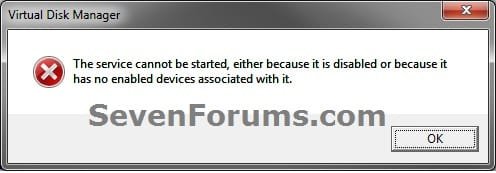
Error.jpg
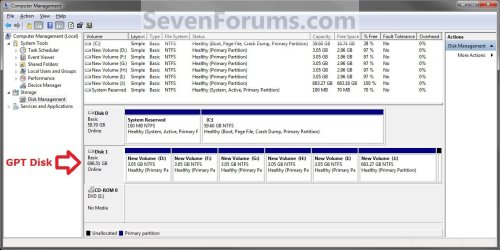
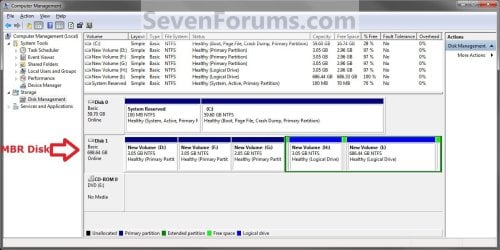
EXAMPLE: GPT disk vs MBR disk in Disk Management
GPT_Disk_Example.jpg

MBR_Disk_Example.jpg


OPTION ONE

In Disk Management


1. Open the Control Panel (icons view), and click on the Administrative Tools icon, then close the Control Panel window.

2. Click on Computer Management in Administrative Tools, then close the Administrative Tools window.

3. If prompted by UAC, click on Yes.

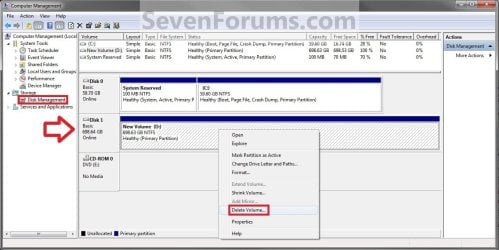
4. In the left pane under Storage, click on Disk Management. (See screenshot below)
Step1.jpg
5. In the disk (ex: Disk 1) that you want to convert to a GPT disk, right click on each partition and volume on the disk and click on Delete Volume until the whole disk is unallocated space. (See screenshot above)

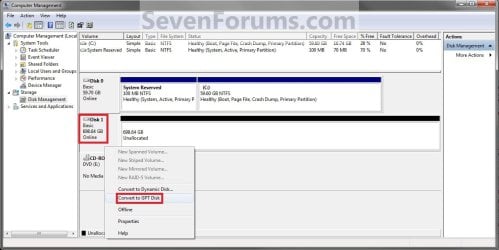
6. Right click on the disk (ex: Disk 1) that you want to convert to a GPT disk, and click on Convert to GPT Disk. (See screenshot below)
Step2.jpg
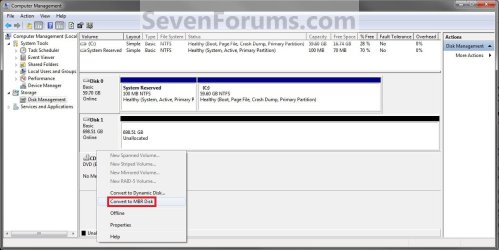
7. When finished shortly, you can confirm that the disk is a GPT disk if you right click on the disk and it has Convert to MPR Disk instead now. (See screenshot below)
Step3.jpg
8. You can now create partitions on the now GPT disk if you like.

9. When done, close Disk Management.


OPTION TWO

In a Command Prompt


1. Open an elevated command prompt, and go to step 3 below.

OR

2. Open a command prompt at boot, and go to step 3 below.
Command_GPT.jpg
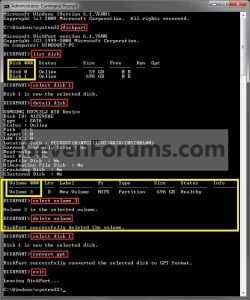
3. In the command prompt, type diskpart and press enter. (See screenshot above)

4. Type list disk and press enter.
NOTE: Make note of the disk number (ex: Disk 1) that you want to convert to a GPT disk.

5. Type select disk # and press enter.
NOTE: Substitute # with the actual disk number that you want to convert to a GPT disk. For example, select disk 1.

6. Do step 7 or 8 below for what you would like to do.

7. To Use the "Clean" Command to make Disk Unallocated
NOTE: This is the easiest method. It will wipe the disk clean all at once leaving it as unallocated space afterwards.
A) In the command prompt, type clean and press enter.

B) Go to step 9 below.
8. To Manually make Disk Unallocated
NOTE: This method has you manually delete each volume on the disk before converting the disk to GPT.
A) Type detail disk and press enter. If the disk does not have any volumes listed, then you can go to step 8E below.
NOTE: This will give you a list of all the volume numbers on the selected disk number that you will need to delete in steps 7 and 8 below.

B) Type select volume # and press enter.
NOTE: Substitute # with a volume number listed in step 8A. For example, select volume 3.

C) Type delete volume and press enter.

D) Repeat steps 8B and 8C for each volume # listed in step 8A until you have deleted all volume #'s.

E) When done, type select disk # and press enter.
NOTE: You would use the same one from step 5 above. For example, select disk 1.
9. Type convert gpt and press enter.

10. When done, type exit and press enter.

11. Close the command prompt.

12. You can now create partitions on the now GPT disk if you like for a data disk, or start installing the supported Windows if you like. (See information box at the top of the tutorial.).
NOTE: Restart the computer if you did step 2 instead.
That's it,
Shawn


Last edited:
I got an old Windows 7 system installed in MBR.

Following a disk change, I took the opportunity to tryto convert it to GPT, doinc the following:
With the help of a live DVD, I:
1. Created a GUID partition table on the new disk
2. Created a EFI System Partition of 100 MiB FAT32 (following Microsoft's instructions)
3. Created a Microsoft Reserved Partition of 128 MiB NTFS (following Microsoft's instructions) in which I copied the content of the old MSR from the MBR disk
4. Created & copied NTFS partitions (1 system + 1 data) from the old MBR disk to the new GPT one

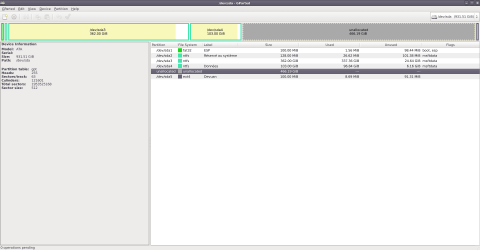
Here is the state of the new GPT disk:
Disk-GPT_partitions.png

Rebooting by deactivating LaunchCSM & Legacy OpROM, I do not see my disk in the BIOS list.
I suppose this is logical, since the ESP partition is empty... but is it? WOuld it be another problem/mishap?

I tried to use my usual Windows 7 Recovery DVD, by I got an error:
Windows 7 Recovery DVD said:
This version of System Recovery Options is not compatible with the version of windows you are trying to repair. Try using a recovery disc that is compatible with this version of windows.

Microsoft docs say I need to have access to Diskpart.efi or Diskpart.exe to populate this ESP partition.
How can I move forward?
 

My Computer

Computer type
PC/Desktop
Computer Manufacturer/Model Number
Asus G750JM-T4114H
OS
Seven Professional x64
CPU
Intel Core i7 4700HQ
Motherboard
Double chipsets: Haswell MB IMC & Lynx Point HM87
Memory
2 * 8 Gio DDR3-1600 SDRAM
Graphics Card(s)
NVidia GeForce GTX 860M 2 Gio
Sound Card
Realtek ALC282 (chipset integrated)
Monitor(s) Displays
17"3
Screen Resolution
1920*1080 px (16:9)
Hard Drives
2 * Seagate ST950042 0AS (500Gio 7200rpm)
No RAID
Mouse
Razer Copperhead (Asus OEM)
This version of System Recovery Options is not compatible with the version of windows you are trying to repair. Try using a recovery disc that is compatible with this version of windows.

You need to boot the media in efi mode.

If you are using the "recovery disc" created within windows by recdisc.exe, it does not support efi.
Win7 does not support secure boot. Officially, win 7 also requires csm

My boot media does support efi and requires csm:
17514x64v20.iso
 

My Computers

System One System Two

  • Computer type
    PC/Desktop
    OS
    7 X64
    CPU
    i5 8400
    Motherboard
    gigabyte b365m ds3h
    Memory
    2x8gb 3200mhz
    Hard Drives
    various
    PSU
    pure power 11 400w cm
    Case
    Coolermaster
    Cooling
    cryorig m9i
  • Computer type
    PC/Desktop
    OS
    7x64
    CPU
    g5400
    Motherboard
    ga b365m ds3h
    Memory
    8gb ddr4 2400
    PSU
    xfx pro 450w
Tried different ways to put your ISO on 2 distinct USB sticks from a GNU/Linux live env:

  • direct dd iso to disk
  • manually creating GPT partition table + FAT32 partition (boot, esp flags)
  • tried bootiso which creates a MBR partition table + FAT32 partition
So far, the same error...
Reboot and Select proper Boot device
or Insert Boot Media in selected Boot device and press a key
I really do not want to resort to restoring MBR like on the old disk; but I am slowing getting there.
 

My Computer

Computer type
PC/Desktop
Computer Manufacturer/Model Number
Asus G750JM-T4114H
OS
Seven Professional x64
CPU
Intel Core i7 4700HQ
Motherboard
Double chipsets: Haswell MB IMC & Lynx Point HM87
Memory
2 * 8 Gio DDR3-1600 SDRAM
Graphics Card(s)
NVidia GeForce GTX 860M 2 Gio
Sound Card
Realtek ALC282 (chipset integrated)
Monitor(s) Displays
17"3
Screen Resolution
1920*1080 px (16:9)
Hard Drives
2 * Seagate ST950042 0AS (500Gio 7200rpm)
No RAID
Mouse
Razer Copperhead (Asus OEM)
I got an old Windows 7 system installed in MBR. Following a disk change, I took the opportunity to tryto convert it to GPT
[...]
I really do not want to resort to restoring MBR like on the old disk

Why not? Neither EFI nor GPT gains you anything at all unless your boot disk is greater than 2TB or unless you are using an OS that supports Secure Boot (Win 8.x/10). If neither of those is true, there is no point to converting a Win7 installation to EFI/GPT.
 

My Computer

Computer type
PC/Desktop
Computer Manufacturer/Model Number
Dell Optiplex 7050
OS
Windows 7/8.1/10 multiboot
CPU
Intel Core i7-7700
Motherboard
Dell, Intel Q270 chipset
Memory
48GB (2x16GB Crucial DDR4-3200 + 2x8GB Hynix DDR4-2400)
Graphics Card(s)
Intel HD630 + AMD Radeon R7 450 PCIe
Monitor(s) Displays
Asus VC279 (27")
Screen Resolution
1920x1080
Hard Drives
Toshiba M.2 NVMe (256GB),
Samsung 960 Evo (500GB),
WD Red Plus 80EFBX (8TB)
Why not? Neither EFI nor GPT gains you anything at all unless your boot disk is greater than 2TB or unless you are using an OS that supports Secure Boot (Win 8.x/10). If neither of those is true, there is no point to converting a Win7 installation to EFI/GPT.
The 2 TiB reason might become valid in a near future.
There is an opportunity (almost said "a window"...) to tackle that MBR problem right now.
 

My Computer

Computer type
PC/Desktop
Computer Manufacturer/Model Number
Asus G750JM-T4114H
OS
Seven Professional x64
CPU
Intel Core i7 4700HQ
Motherboard
Double chipsets: Haswell MB IMC & Lynx Point HM87
Memory
2 * 8 Gio DDR3-1600 SDRAM
Graphics Card(s)
NVidia GeForce GTX 860M 2 Gio
Sound Card
Realtek ALC282 (chipset integrated)
Monitor(s) Displays
17"3
Screen Resolution
1920*1080 px (16:9)
Hard Drives
2 * Seagate ST950042 0AS (500Gio 7200rpm)
No RAID
Mouse
Razer Copperhead (Asus OEM)
Last edited:

My Computer

Computer type
PC/Desktop
Computer Manufacturer/Model Number
Asus G750JM-T4114H
OS
Seven Professional x64
CPU
Intel Core i7 4700HQ
Motherboard
Double chipsets: Haswell MB IMC & Lynx Point HM87
Memory
2 * 8 Gio DDR3-1600 SDRAM
Graphics Card(s)
NVidia GeForce GTX 860M 2 Gio
Sound Card
Realtek ALC282 (chipset integrated)
Monitor(s) Displays
17"3
Screen Resolution
1920*1080 px (16:9)
Hard Drives
2 * Seagate ST950042 0AS (500Gio 7200rpm)
No RAID
Mouse
Razer Copperhead (Asus OEM)
The 2 TiB reason might become valid in a near future.
There is an opportunity (almost said "a window"...) to tackle that MBR problem right now.


That doesn't apply if you are adding a 2 tb drive later. What matters is where windows is installed.
 

My Computers

System One System Two

Having read through all 19 pages of this thread, I have a few questions. I have Win7 Pro 64-bit installed on a laptop that supports both legacy BIOS and UEFI, currently set to BIOS. The current hard drive is a 1TB MBR drive that I'm trying to replace with a 2TB drive. The plan is to dual-boot Win7 and Debian Linux, so the Win7 boot partition on the new drive will be only about 128GB. I want to sector-by-sector clone the 1TB to the 2TB (rather than reinstalling Win7) in order to preserve some registry info for a program I can no longer reinstall (end of Win7 support from the company) and then move/resize the partitions to make room for the Linux install. I've been tossing around the idea of switching to UEFI/GPT.

1. Am I correct that there's no way to do a sector-by-sector clone of a GPT drive? Or does that apply to only GPT boot drives?

2. Am I correct that cloning a drive or restoring a disk image from an MBR drive to a GPT will change the target drive back to MBR?

3. Am I correct that GPT doesn't give much benefit unless my Win partition is 2TB or more? Or is it the entire boot drive being 2TB or more?
 

My Computer

Computer type
Laptop
Computer Manufacturer/Model Number
HP ProBook
OS
Win7 Professional 64-bit SP1
CPU
AMD A10-8700P Radeon R6
Memory
16 GiB
Back
Top