Dual Boot - Windows 7 and Linux

How to Correctly Setup a Dual Boot with Windows 7 and LinuxMint13

   Information
Historically, dual booting Windows and a Linux distribution was fraught with risks due to the propensity of the Linux GRUB loader to interfere with and corrupt the Windows bootloader. This often left the Windows installation unbootable, which then required several complex steps in order to rescue the Windows installation.

In recent distributions, the Linux GRUB loader has now been updated to GRUB2, which tends not to have an adverse effect on the Windows bootloader. This tutorial will show you the easiest method to successfully dual-boot Windows 7 and Linux, using the LinuxMint13 Cinnamon distribution as an example. This method has also been tested on, and works with, Ubuntu 12.04 and Fedora 17.

Please note the goal of this tutorial is to show you how to dual-boot correctly without compromising your Windows 7 installation. Whilst the fundamentals of installing a Linux distribution are briefly covered for the purposes of this tutorial, more detail on how to use Linux are outside its scope and will not be covered. For more information on using Linux distributions, you are welcome to visit the LinuxMint, Ubuntu or Fedora sites.

   Warning
Note that this technique will only work on a computer that uses Legacy BIOS - it will not work on a computer that uses UEFI.

Please take careful note : If you currently:

  • Use, or plan to use, Windows Bitlocker Drive Encryption, or

  • Require access to OEM installation recovery functionality,
then you cannot use the methods outlined in this tutorial, and should not proceed any further.

The reasons for this are that this dual-boot technique requires you to delete the 100MB System Reserved partition. Without this partition, both Bitlocker Drive Encryption, and the Recovery functions employed by OEM's accessed during Windows boot, will no longer work.


:note: Requirements:
In order to undertake this tutorial, you will need the following :

Hardware:-

  • 1Gb or larger USB thumb/flash drive (to hold your bootable Partition Wizard and LinuxMint13 installation)
Software:-


Knowledge or skills:-

  • Creating bootable versions of Partition Wizard and LinuxMint13 on either CD, DVD or USB

  • Booting a computer from either a CD/DVD or USB drive.

  • Manipulating (deleting, moving and re-sizing) Windows NTFS disk partitions


:note: Before you begin : Insurance against mistakes

Mistakes made during partition manipulation can render your system unbootable. In order to protect yourself against such inadvertent mistakes, I strongly recommend you create an image of your current system prior to commencing with this tutorial.

Please refer to either of this tutorial for help on imaging your system:http://www.sevenforums.com/tutorials/73828-imaging-free-macrium.html
In the event that you do make a mistake, the image you created will allow you to revert to your original installation with a minimum of fuss. This step is important, especially for novices - don't be tempted to skip it.


Part A - Create the bootable Partition Wizard and Linux USB

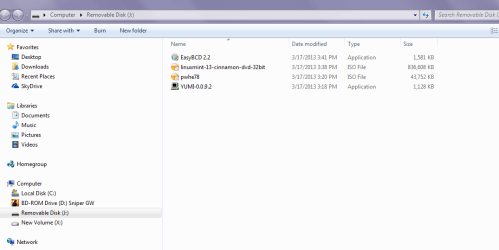
YUMI can support several bootable ISO's concurrently, so its advantageous to install both Partition Wizard and LinuxMint13 to the USB flash drive, one after the other.

Step 1
Download YUMI, Partition Wizard and LinuxMint13 from the links provided earlier.

Step 2
Insert your USB flash drive into the computer, and then run YUMI.

Step 3
On the YUMI interface, do the following:

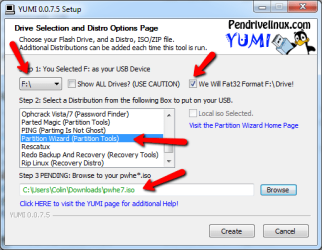
- select the drive letter corresponding to the USB flash drive
- place a tick in the Format Drive box (the USB flash will be formatted to FAT32)
- scroll down the distribution list and select Partition Wizard (Partition Tools)
- browse to locate and select the Partition Wizard ISO you downloaded earlier

The completed panel should look very similar to that shown below.m1.png
Step 4
Click the Create button to install Partition Wizard to the USB flash drive.

   Warning
Take note of the format warning message that is displayed - the entire USB flash drive will be formatted to the required FAT32 format, so double check to see that the correct USB device is selected.

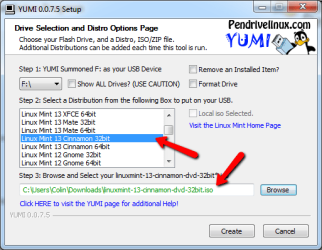
Once complete, you will be asked whether you wish to install another ISO/Distro. Click Yes, and then select the LinuxMint13 ISO as shown below. Clickm2.png
Click the Create button to write the install LinuxMint13 to the USB flash drive. Once complete, exit YUMI. For ease of reference, we will simply refer to this flash drive as the YUMI flash drive from here on in.

You have now completed Part A of the tutorial.


Part B - Manipulate the Windows 7 Partitions

Prior to installing LinuxMint13, you need to make changes to the existing Windows 7 partitions. Specifically, you need to perform these steps:

  1. Copy the Windows boot manager to the System C: partition
  2. Delete the 100MB System Reserved partition
  3. Resize the System partition (C: drive) into the unallocated space after deleting the System Reserved partition
  4. Create unallocated space for the LinuxMint13 installation by shrinking the Data partition (F: drive)
All this can be accomplished using EasyBCD, and the Partition Wizard installation on the USB flash drive.

If you are unfamiliar with Partition Wizard, then I recommend reading this tutorial before proceeding further:http://www.sevenforums.com/tutorials/93322-partition-wizard-use-bootable-cd.html
   Note
For the purposes of this tutorial, we will assume you have a reasonably common Windows 7 partition layout, as shown below, and comprising of:

  • Primary 100MB System Reserved partition, and

  • Primary System partition (C: drive), and

  • Logical Data partition (F: drive)
pw_start.png
   Tip
If your partition layout is different, and you aren't sure how to proceed, then reply to this tutorial seeking advice. Be sure to include a screen capture of your Windows 7 disk management screen that clearly shows your partition layout.


Step 1 - Copy boot manager to System C: partition
Install EasyBCD to your computer. Run EasyBCD and now follow the very simple steps explained in the short tutorial below, to copy the Windows 7 boot manager from the 100MB System Reserved partition to the System C: partition:http://www.sevenforums.com/tutorials/209885-bootmgr-move-c-easybcd.html
Once you have performed this step, close EasyBCD.

Check to ensure that the boot manager has been copied correctly by examining the partition layout in the Windows Disk Management screen. Your System C: partition status should now include the Boot option under the partition status, as shown in the example below.m3.png
Close the Disk Management screen when you have verified that the Boot status is correct.

Step 2 - Delete the 100MB System Reserved partition
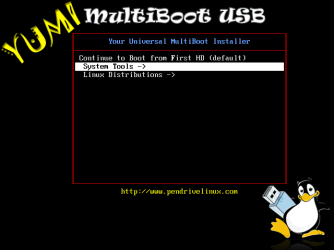
Insert the YUMI flash drive into your computer, and boot from it. Run Partition Wizard by selecting it from the System Tools menu, as shown below.yy1.png
yy2.png
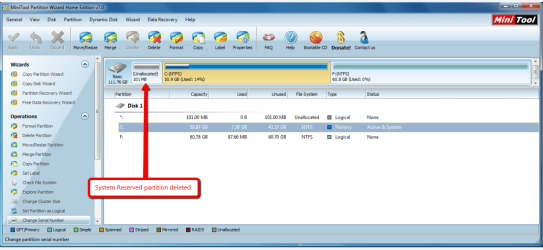
Once Partition Wizard has opened, delete the 100MB System Reserved Partition - you will now have 100MB unallocated space sitting to the left of your System partition, as shown below.pww2.png
Step 3 - Resize the System partition into the unallocated space
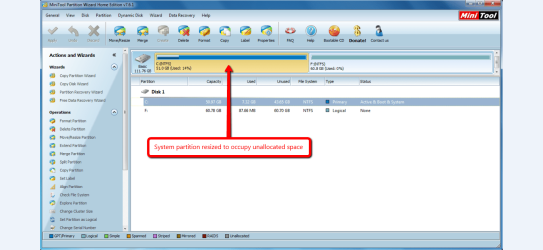
Stretch the System partition to the left, into the unallocated space created in step 2 above, so that you only have a System partition and Data partition as shown below.pww3.png
Step 4 - Create unallocated space for the LinuxMint13 installation
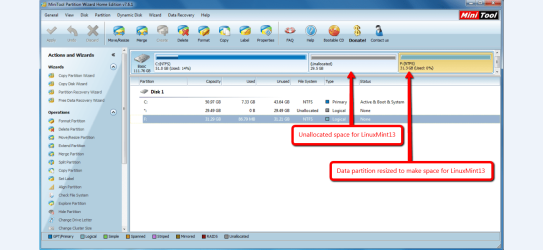
Shrink the Data partition to the right, thereby creating unallocated space between the System partition and Data partition, as shown below. This unallocated space is where LinuxMint13 will be installed too.pww4.png
   Tip
You can also shrink the System partition, or use combinations of resizing both the System partition and Data partition to create the unallocated space for the LinuxMint13 installation. LinuxMint13 requires a minimum of 8.6GB, but I usually assign more space for updates, data etc.

Reboot your system to complete the partition manipulation.

You have now completed Part B of the tutorial.


Part C - Install LinuxMint13

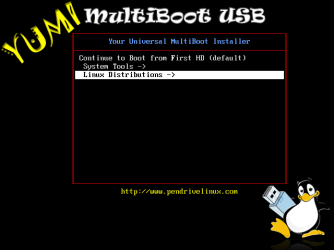
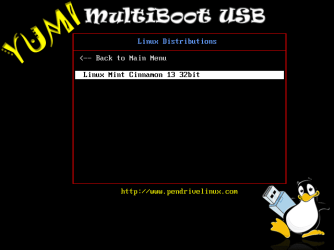
Insert the YUMI flash drive into your computer, and boot from it. Run the LinuxMint13 boot menu/installer by selecting it from from the Linux Distributions menu, as shown below.lx00.png
lx01.png
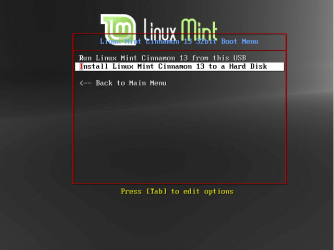
From the LinuxMint boot menu, choose to install to a hard disk, as shown below.lx02.png
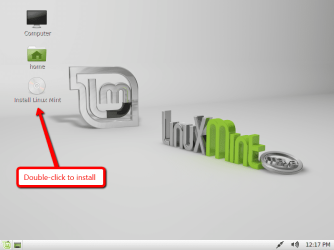
Once the LinuxMint13 desktop loads, select the Install Linux Mint option by double-clicking it, as shown below.lx03.png
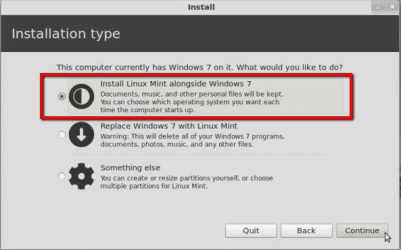
Follow the the prompts to select your language. When prompted to select your installation type, be sure to choose the option labelled Install Linux Mint alongside Windows 7, as shown below.lx1.png
LinuxMint13 will now be installed into the unallocated space created in PART B of the tutorial. Whilst installation is proceeding, follow the remainder of the prompt screens to specify your locality, keyboard layout and machine name and user account details.

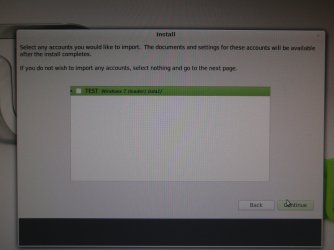
You will be prompted as to whether you wish to import any existing Windows 7 account details (contacts, favorites, bookmarks etc.) into the LinuxMint13 installation (as shown below) - highlight the listed Windows 7 option shown and and click Continue to do that, or simply click Continue to skip this step.PA280042.jpg
Once installation has been completed, you will be prompted to reboot your system as shown below.lx09.png
Once your system reboots, you will be presented with the Linux GRUB screen - don't panic, this is perfectly normal. PART D of this tutorial will show you how to easily customise your boot order.

You have now completed PART C of the tutorial.


Part D - Customise the Windows 7/LinuxMint13 boot order

   Note
The boot screen images in this part of the tutorial use Ubuntu as an example - this is simply for convenience for the tutorial. The boot screens for LinuxMint13 will look very similar, obviously with the word Ubuntu replaced by the word LinuxMint13.

EasyBCD allows you to easily customise the boot sequence so that the familiar Windows boot screen is the screen from which you select the operating system to boot.

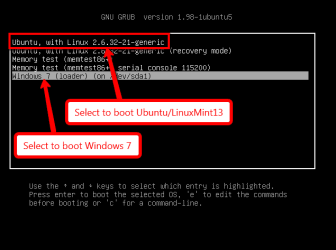
When you first boot your PC after installing LinuxMint13, you will be presented with the GRUB screen, as shown below.boot1.png
Select the Windows 7 option to boot in Windows as normal, and then run EasyBCD.

Now complete the following steps :

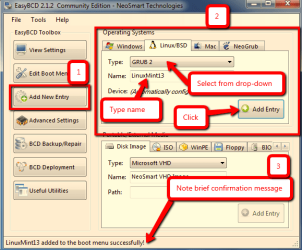
Step 1 - Add the LinuxMint13 boot entry
Replicate the steps shown in the image below to add the LinuxMint13 boot entry. Take note of the confirmation message that appears briefly at the bottom of the panel.ecb1.png
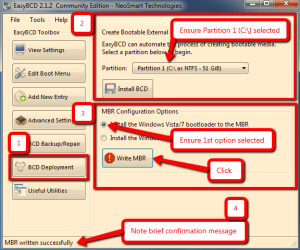
Step 2 - Add the Windows 7 boot entry
Replicate the steps shown in the image below to write the Windows 7 bootloader.Take note of the confirmation message that appears briefly at the bottom of the panel.ecb2.png
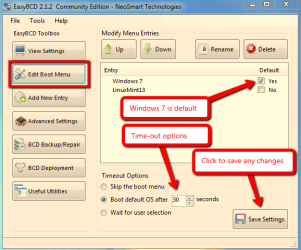
Step 3 - Review the Windows 7 / LinuxMint13 boot sequence
Review the default boot options, and make any changes if you wish.ecb3.png
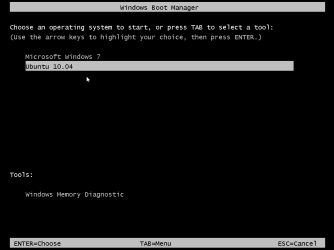
Close EasyBCD and reboot your computer. You will now see the Windows 7 boot screen with the Windows 7 and LinuxMint13 boot options (Ubuntu is shown in this example).boot2.png
If you select the Windows 7 option, your computer will boot into Windows 7 as normal. If you select the LinuxMint13 option, then the GRUB boot screen will appear, and from that you select the LinuxMint13 option to boot it, as shown below.boot1.png
You have now completed the entire tutorial.

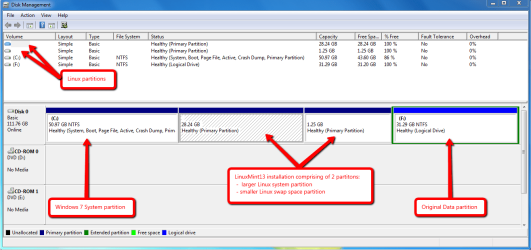
This is how the dual-boot installation look in Windows 7 Disk Manager - note the blank entries marked with arrows : Windows cannot read the format of Linux partitions.dm1.png
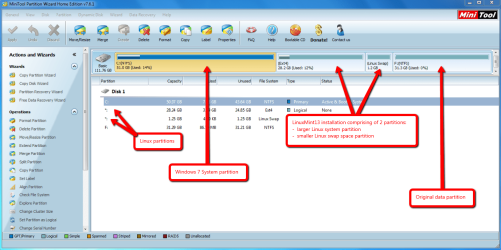
And this is how the dual-boot installation looks in Partition Wizard.pwx.png
   Tip
If you ever wish to remove the LinuxMint13 partitions, simple delete them using Partition Wizard - your Windows installation will be unaffected since the boot manager still resides on the first partition of the disk. Be sure to reset the boot entry using EasyBCD for aesthetics using Step 4 and Step 5 here.


Thats all there is to it : dual-booting Windows 7 and LinuxMint13 the easy way!

Regards,
Golden

 
Last edited:
Hi Golden:) There doesn't seem to be anything in the BIOS about disabling secure boot. In fact there is nothing about secure boot at all. I have looked on Linux forums and there seems to be several different ways around the problem. They are all complex, involving Command Line changes in both Winboot and GRUB, or use GRUB2 or GRUB legacy. Pretty much Dutch to me, as I don't really have the knowledge base re GRUB and it's various incarnations. They all seem a bit contradictory. I don't think the Linux community has got it's head round this yet. It seems a very unfortunate development for Linux, as I imagine a lot of people dual boot with Windows. This effectively prevents casual users experimenting with Linux distros, whilst keeping Windows as their main OS.

Thanks, John:)
 

My Computer My Computer

Computer Manufacturer/Model Number
The Monolith. 3.1
OS
Windows 7 Home Premium 64 bit
CPU
i7 [email protected]
Motherboard
Gigabyte Z77-D3H
Memory
2x4GB Corsair Vegeance DDR3
Graphics Card(s)
XFX GTX 260 Black Edition
Sound Card
none-through large stereo hi fi
Monitor(s) Displays
Croosover 27MDP LED IPS Dell 2408 WFP
Screen Resolution
2560x1440 1920x1200
Hard Drives
1x Samsung 840Pro 128GB SSD
1x Samsung Spinpoint F1 1TB
PSU
Corsair AX 850 Watt
Case
Cooler Master ACTS 840
Cooling
Be Quiet! Dark Rock Pro
Keyboard
Enermax Aurora
Mouse
Logitech Ballmouse
Internet Speed
20MBPS
Unless you have a new Windows 8 PC it should not have Secure Boot.

If your UEFI BIOS has a Compatibility Support Module (CSM) you can set to Dual, then you can install the other OS in BIOS mode to an MBR formatted disk.

Once you make that setting unplug the Win7 HD, follow these same steps to Bypass UEFI to Install WIn7.

When you plug back in Win7 HD, set it first to boot in BIOS using whatever it is called to boot first now. Then when needed trigger the Linux HD using BIOS Boot Menu key at boot.

UEFI is still new to us and only coming online full stream now. So let us know what works for you to help others.
 
John,

Another option to experiment with Linux on a more casual basis is via a virtual machine using VMWare Player, running within Windows 7.

Regards,
Golden
 

My Computer My Computer

Computer type
PC/Desktop
Computer Manufacturer/Model Number
Golden Mk. I.4
OS
Windows 10 Pro x64 ; Xubuntu x64
CPU
Intel i7 860 @ 2.80 GHz O/C'ed to 4.0GHz
Motherboard
Gigabyte P55A-UD3R Rev.1. Award BIOS F13
Memory
16GB Corsair Vengance DDR3 @ 661 MHz Dual Channel (9-9-9-24)
Graphics Card(s)
EVGA NVidia GTX 560 1024MB
Sound Card
Realtek Integrated
Monitor(s) Displays
Dual Samsung SyncMaster 2494HS
Screen Resolution
1920*1080 and 1920*1080
Hard Drives
1*Samsung 840 EVO 120GB SSD;
1*OCZ Vertex 2 60GB SSD;
2*Samsung F3 SpinPoint 1TB in RAID0;
1*Samsung F1 SpinPoint 1TB;
2*Western Digital 1TB External USB 3.0
1*Western Digital 500GB External USB 3.0
1*Seagate 500GB External USB 2.0
PSU
Thermaltake ToughPower QFan 750W
Case
Thermaltake Element S VK60001W2Z
Cooling
Corsair H60 Water Cooling, 2*230mm and 2*80mm case fans
Keyboard
Logitech G110
Mouse
Logitech MX518
Thanks for your replies gregrocker and Golden.

As you say Greg, I don't have W8, the mobo just says EFI, so I presume this is not a secure boot situation. I have W7 installed on the SSD, along with programmes such as Photoshop, Lightroom etc. I'm using this as my Windows boot drive.
I'd be reluctant to do a fresh install of W7, as I've just got this one running satisfactorily:)
As I say, Linux Mint is installed on a 500GB drive. I'd like to keep the two OSs separate, and this has always been the simplest option in the past.
I've run Linux within Windows using the WUBI method in the past, but it is clunky compared to a proper install. I'm told that WUBI will not work with EFI boot loaders anyway.
I could, as you suggest Golden, try running it in VMWare, but I suspect the result would be similarly unsatisfactory. Also, one of the points for me, is that with Linux on another drive, if I have problems with Windows, I can get online with Linux and come here for help.
I've done this in the past, and it's saved my bacon:)
Damn EFI, this was such a simple procedure previously. Having looked at various Linux forums, I can see this issue is one that many are struggling with. I've seen about 5 different solutions, all of which are complex and involve messing around in the command line on both OSs.
I'm reluctant to do that, in case I screw my Windows install.
Maybe I'll just wait. I get the feeling that the Linux distros will be looking at including a solution in their next releases, as it in their interest to do so. Mint is based on Ubuntu, so a six monthly release cycle.

Thanks very much for your input guys, John :)
 

My Computer My Computer

Computer Manufacturer/Model Number
The Monolith. 3.1
OS
Windows 7 Home Premium 64 bit
CPU
i7 [email protected]
Motherboard
Gigabyte Z77-D3H
Memory
2x4GB Corsair Vegeance DDR3
Graphics Card(s)
XFX GTX 260 Black Edition
Sound Card
none-through large stereo hi fi
Monitor(s) Displays
Croosover 27MDP LED IPS Dell 2408 WFP
Screen Resolution
2560x1440 1920x1200
Hard Drives
1x Samsung 840Pro 128GB SSD
1x Samsung Spinpoint F1 1TB
PSU
Corsair AX 850 Watt
Case
Cooler Master ACTS 840
Cooling
Be Quiet! Dark Rock Pro
Keyboard
Enermax Aurora
Mouse
Logitech Ballmouse
Internet Speed
20MBPS
Do you have Compatibility Support Module (CSM) in BIOS setup so that you can set it to have both mode: UEFI and BIOS? This way you can install any OS to an MBR disk normally.
 
Thanks Littlejay. I agree with Greg : if your OS are on different HDD's, then its easier just selecting the HDD using the one-time bootup key.
Ah I was wondering this just a while ago as I wanted to make the dual boot but really didn't necessarily to use the same drive.

So I have an older (4 yo) XP machine that I have with a drive with XP up to date on it and a drive with 7 and have just been switching the SATA cables to boot into which I want. Now seeing this tutorial it seems I can do this without having to do that and maybe slip yet another drive in with Mint on it.

While I am thinking of it is the new Mint 14 better than the 13? and also I had ideas of having yet another drive with Ubuntu on it so I have the four OS's all in one machine. The only reason for the Mint and Ubuntu is that is I read somewhere that the Ubuntu had better resolution on the monitor - seems a bit far fetched but am wondering.
 

My Computer My Computer

Computer type
PC/Desktop
Computer Manufacturer/Model Number
Own build (new) Desk1 / Asus ROG Win 7 / Desk2 1st build
OS
Desk1 7 Home Prem / Desk2 10 Pro / Main lap Asus ROG 10 Pro 2 laptop Toshiba 7 Pro Asus P2520 7 & 10
CPU
Desk1 i5 3750K / Laptop i7 GTX 860M / Desk2 i5 2500
Motherboard
Desk1 Asus P877-V / Desk2 Gigabyte H67 UD3H / Laptop ?
Memory
Desk1 8GB (1866) / Desk2 16GB (1333) / Laptop 8Gb DDR3
Graphics Card(s)
Desk 1& 2NVidia GTX 650 & Laptops on board Intel
Sound Card
Desk 1 & 2 -XONAR DG Realtek High Def audio Laptop
Monitor(s) Displays
Desk 1 Benq HD 2450 / Desk2 Philips 24" / Laptop 17.5"
Screen Resolution
1920x1080 D1 & D2 & Laptop 1
Hard Drives
Desk1 Samsung 120GB 830 SSD
Asus ROG 256GB 850 Pro SSD
Desk2 Samsung 840 256 SSD
Toshiba 120GB EVO
PSU
Desk 1 Corsair HX 1050/ Laptop ? / Desk 2 Corsair HX 650
Case
Desk 1 Cooler HAF XM ? Toshiba laptop / Desk2 Coolermaster
Cooling
Fans on all Desk1 -2 Desk2 - all Coolermasters 5 Laptop ?
Keyboard
Desk 1 MS Sidewinder X6 Desk 2 MS Sidewinder X 4
Mouse
Desk 1&2 - Gigabyte MS 900 gamer - laptop - Logitec wireless
Internet Speed
ADSL2+
Other Info
One other Desktop (tester) and spare Toshba laptop both with SSD's
Running Kaspersky 2016 ISS on all machines config'd identically
Logitec audio stereo systems on each machine (x3)
Canon MG5250MFC
Router/modem TP-Link running WPA2SK
John,

Yes, if you have multiple HDD's with different OS's, just use the one -time boot key. Mint14 and Ubuntu will give you the same resolution.
 

My Computer My Computer

Computer type
PC/Desktop
Computer Manufacturer/Model Number
Golden Mk. I.4
OS
Windows 10 Pro x64 ; Xubuntu x64
CPU
Intel i7 860 @ 2.80 GHz O/C'ed to 4.0GHz
Motherboard
Gigabyte P55A-UD3R Rev.1. Award BIOS F13
Memory
16GB Corsair Vengance DDR3 @ 661 MHz Dual Channel (9-9-9-24)
Graphics Card(s)
EVGA NVidia GTX 560 1024MB
Sound Card
Realtek Integrated
Monitor(s) Displays
Dual Samsung SyncMaster 2494HS
Screen Resolution
1920*1080 and 1920*1080
Hard Drives
1*Samsung 840 EVO 120GB SSD;
1*OCZ Vertex 2 60GB SSD;
2*Samsung F3 SpinPoint 1TB in RAID0;
1*Samsung F1 SpinPoint 1TB;
2*Western Digital 1TB External USB 3.0
1*Western Digital 500GB External USB 3.0
1*Seagate 500GB External USB 2.0
PSU
Thermaltake ToughPower QFan 750W
Case
Thermaltake Element S VK60001W2Z
Cooling
Corsair H60 Water Cooling, 2*230mm and 2*80mm case fans
Keyboard
Logitech G110
Mouse
Logitech MX518
John,

Yes, if you have multiple HDD's with different OS's, just use the one -time boot key. Mint14 and Ubuntu will give you the same resolution.
Ok mate I'll go the Mint at the moment I am just trying to set up the 7 again.:(
 

My Computer My Computer

Computer type
PC/Desktop
Computer Manufacturer/Model Number
Own build (new) Desk1 / Asus ROG Win 7 / Desk2 1st build
OS
Desk1 7 Home Prem / Desk2 10 Pro / Main lap Asus ROG 10 Pro 2 laptop Toshiba 7 Pro Asus P2520 7 & 10
CPU
Desk1 i5 3750K / Laptop i7 GTX 860M / Desk2 i5 2500
Motherboard
Desk1 Asus P877-V / Desk2 Gigabyte H67 UD3H / Laptop ?
Memory
Desk1 8GB (1866) / Desk2 16GB (1333) / Laptop 8Gb DDR3
Graphics Card(s)
Desk 1& 2NVidia GTX 650 & Laptops on board Intel
Sound Card
Desk 1 & 2 -XONAR DG Realtek High Def audio Laptop
Monitor(s) Displays
Desk 1 Benq HD 2450 / Desk2 Philips 24" / Laptop 17.5"
Screen Resolution
1920x1080 D1 & D2 & Laptop 1
Hard Drives
Desk1 Samsung 120GB 830 SSD
Asus ROG 256GB 850 Pro SSD
Desk2 Samsung 840 256 SSD
Toshiba 120GB EVO
PSU
Desk 1 Corsair HX 1050/ Laptop ? / Desk 2 Corsair HX 650
Case
Desk 1 Cooler HAF XM ? Toshiba laptop / Desk2 Coolermaster
Cooling
Fans on all Desk1 -2 Desk2 - all Coolermasters 5 Laptop ?
Keyboard
Desk 1 MS Sidewinder X6 Desk 2 MS Sidewinder X 4
Mouse
Desk 1&2 - Gigabyte MS 900 gamer - laptop - Logitec wireless
Internet Speed
ADSL2+
Other Info
One other Desktop (tester) and spare Toshba laptop both with SSD's
Running Kaspersky 2016 ISS on all machines config'd identically
Logitec audio stereo systems on each machine (x3)
Canon MG5250MFC
Router/modem TP-Link running WPA2SK
Hi Golden and gregrocker:)

I looked in the BIOS Greg, and also the mobo manual, and I cannot find anything to do with a Compatibility Support Module.
There seems to be movement from the Linux side on this. See here:

Linux Foundation's Secure Boot bootloader now available - The H Open: News and Features

and here:

Linux Foundation Secure Boot System Released | James Bottomley's random Pages

This all sounds a bit messy and not quite ready for mainstream yet. In other words, it sounds too complicated for me:)
As I said, I imagine the various distros will incorporate this into the install iso. as soon as possible. Linux Mint attempts to be idiot proof (not from this idiot though:) so I would have thought they're working on it as we speak. They really need to do this because, apart from real Linux geeks, I imagine a lot of people are dabblers like me.

Thanks for your input, John:)

ps. sorry guys, can't rep you at the moment.
 

My Computer My Computer

Computer Manufacturer/Model Number
The Monolith. 3.1
OS
Windows 7 Home Premium 64 bit
CPU
i7 [email protected]
Motherboard
Gigabyte Z77-D3H
Memory
2x4GB Corsair Vegeance DDR3
Graphics Card(s)
XFX GTX 260 Black Edition
Sound Card
none-through large stereo hi fi
Monitor(s) Displays
Croosover 27MDP LED IPS Dell 2408 WFP
Screen Resolution
2560x1440 1920x1200
Hard Drives
1x Samsung 840Pro 128GB SSD
1x Samsung Spinpoint F1 1TB
PSU
Corsair AX 850 Watt
Case
Cooler Master ACTS 840
Cooling
Be Quiet! Dark Rock Pro
Keyboard
Enermax Aurora
Mouse
Logitech Ballmouse
Internet Speed
20MBPS
Hiyya Golden I ma going to try this on a tester machine and I am just wondering re using the Partition Wizard I have this installed already on the machine can I use that instead of making a bootable drive / disk of it?

Sorry to be a bit dumb but it just looked a bit like double handling. But so far so good and the tutorial is really set out:)

John
 

My Computer My Computer

Computer type
PC/Desktop
Computer Manufacturer/Model Number
Own build (new) Desk1 / Asus ROG Win 7 / Desk2 1st build
OS
Desk1 7 Home Prem / Desk2 10 Pro / Main lap Asus ROG 10 Pro 2 laptop Toshiba 7 Pro Asus P2520 7 & 10
CPU
Desk1 i5 3750K / Laptop i7 GTX 860M / Desk2 i5 2500
Motherboard
Desk1 Asus P877-V / Desk2 Gigabyte H67 UD3H / Laptop ?
Memory
Desk1 8GB (1866) / Desk2 16GB (1333) / Laptop 8Gb DDR3
Graphics Card(s)
Desk 1& 2NVidia GTX 650 & Laptops on board Intel
Sound Card
Desk 1 & 2 -XONAR DG Realtek High Def audio Laptop
Monitor(s) Displays
Desk 1 Benq HD 2450 / Desk2 Philips 24" / Laptop 17.5"
Screen Resolution
1920x1080 D1 & D2 & Laptop 1
Hard Drives
Desk1 Samsung 120GB 830 SSD
Asus ROG 256GB 850 Pro SSD
Desk2 Samsung 840 256 SSD
Toshiba 120GB EVO
PSU
Desk 1 Corsair HX 1050/ Laptop ? / Desk 2 Corsair HX 650
Case
Desk 1 Cooler HAF XM ? Toshiba laptop / Desk2 Coolermaster
Cooling
Fans on all Desk1 -2 Desk2 - all Coolermasters 5 Laptop ?
Keyboard
Desk 1 MS Sidewinder X6 Desk 2 MS Sidewinder X 4
Mouse
Desk 1&2 - Gigabyte MS 900 gamer - laptop - Logitec wireless
Internet Speed
ADSL2+
Other Info
One other Desktop (tester) and spare Toshba laptop both with SSD's
Running Kaspersky 2016 ISS on all machines config'd identically
Logitec audio stereo systems on each machine (x3)
Canon MG5250MFC
Router/modem TP-Link running WPA2SK
Hiyya Golden I ma going to try this on a tester machine and I am just wondering re using the Partition Wizard I have this installed already on the machine can I use that instead of making a bootable drive / disk of it?

Sorry to be a bit dumb but it just looked a bit like double handling. But so far so good and the tutorial is really set out:)

John

If you're resizing then you should use the disk as any other method (including PW Home version) besides Disk Mgmt and PW Disk can fail with data loss.

Back up your files and a System Image anyway.
 
Last edited by a moderator:
Ok I'll make bootable disk then.
 

My Computer My Computer

Computer type
PC/Desktop
Computer Manufacturer/Model Number
Own build (new) Desk1 / Asus ROG Win 7 / Desk2 1st build
OS
Desk1 7 Home Prem / Desk2 10 Pro / Main lap Asus ROG 10 Pro 2 laptop Toshiba 7 Pro Asus P2520 7 & 10
CPU
Desk1 i5 3750K / Laptop i7 GTX 860M / Desk2 i5 2500
Motherboard
Desk1 Asus P877-V / Desk2 Gigabyte H67 UD3H / Laptop ?
Memory
Desk1 8GB (1866) / Desk2 16GB (1333) / Laptop 8Gb DDR3
Graphics Card(s)
Desk 1& 2NVidia GTX 650 & Laptops on board Intel
Sound Card
Desk 1 & 2 -XONAR DG Realtek High Def audio Laptop
Monitor(s) Displays
Desk 1 Benq HD 2450 / Desk2 Philips 24" / Laptop 17.5"
Screen Resolution
1920x1080 D1 & D2 & Laptop 1
Hard Drives
Desk1 Samsung 120GB 830 SSD
Asus ROG 256GB 850 Pro SSD
Desk2 Samsung 840 256 SSD
Toshiba 120GB EVO
PSU
Desk 1 Corsair HX 1050/ Laptop ? / Desk 2 Corsair HX 650
Case
Desk 1 Cooler HAF XM ? Toshiba laptop / Desk2 Coolermaster
Cooling
Fans on all Desk1 -2 Desk2 - all Coolermasters 5 Laptop ?
Keyboard
Desk 1 MS Sidewinder X6 Desk 2 MS Sidewinder X 4
Mouse
Desk 1&2 - Gigabyte MS 900 gamer - laptop - Logitec wireless
Internet Speed
ADSL2+
Other Info
One other Desktop (tester) and spare Toshba laptop both with SSD's
Running Kaspersky 2016 ISS on all machines config'd identically
Logitec audio stereo systems on each machine (x3)
Canon MG5250MFC
Router/modem TP-Link running WPA2SK
John, as Greg stated, its best to use the bootable Partition Wizard - especially since you will be manipulating the C: and System Reserved partition, and you want to do that outside of the Windows boot environment to avoid issues.
 

My Computer My Computer

Computer type
PC/Desktop
Computer Manufacturer/Model Number
Golden Mk. I.4
OS
Windows 10 Pro x64 ; Xubuntu x64
CPU
Intel i7 860 @ 2.80 GHz O/C'ed to 4.0GHz
Motherboard
Gigabyte P55A-UD3R Rev.1. Award BIOS F13
Memory
16GB Corsair Vengance DDR3 @ 661 MHz Dual Channel (9-9-9-24)
Graphics Card(s)
EVGA NVidia GTX 560 1024MB
Sound Card
Realtek Integrated
Monitor(s) Displays
Dual Samsung SyncMaster 2494HS
Screen Resolution
1920*1080 and 1920*1080
Hard Drives
1*Samsung 840 EVO 120GB SSD;
1*OCZ Vertex 2 60GB SSD;
2*Samsung F3 SpinPoint 1TB in RAID0;
1*Samsung F1 SpinPoint 1TB;
2*Western Digital 1TB External USB 3.0
1*Western Digital 500GB External USB 3.0
1*Seagate 500GB External USB 2.0
PSU
Thermaltake ToughPower QFan 750W
Case
Thermaltake Element S VK60001W2Z
Cooling
Corsair H60 Water Cooling, 2*230mm and 2*80mm case fans
Keyboard
Logitech G110
Mouse
Logitech MX518
John, as Greg stated, its best to use the bootable Partition Wizard - especially since you will be manipulating the C: and System Reserved partition, and you want to do that outside of the Windows boot environment to avoid issues.
Thanks Colin I was wondering why even though Greg did explain it to me but as usual a bot slow on the uptake - will do.:)
 

My Computer My Computer

Computer type
PC/Desktop
Computer Manufacturer/Model Number
Own build (new) Desk1 / Asus ROG Win 7 / Desk2 1st build
OS
Desk1 7 Home Prem / Desk2 10 Pro / Main lap Asus ROG 10 Pro 2 laptop Toshiba 7 Pro Asus P2520 7 & 10
CPU
Desk1 i5 3750K / Laptop i7 GTX 860M / Desk2 i5 2500
Motherboard
Desk1 Asus P877-V / Desk2 Gigabyte H67 UD3H / Laptop ?
Memory
Desk1 8GB (1866) / Desk2 16GB (1333) / Laptop 8Gb DDR3
Graphics Card(s)
Desk 1& 2NVidia GTX 650 & Laptops on board Intel
Sound Card
Desk 1 & 2 -XONAR DG Realtek High Def audio Laptop
Monitor(s) Displays
Desk 1 Benq HD 2450 / Desk2 Philips 24" / Laptop 17.5"
Screen Resolution
1920x1080 D1 & D2 & Laptop 1
Hard Drives
Desk1 Samsung 120GB 830 SSD
Asus ROG 256GB 850 Pro SSD
Desk2 Samsung 840 256 SSD
Toshiba 120GB EVO
PSU
Desk 1 Corsair HX 1050/ Laptop ? / Desk 2 Corsair HX 650
Case
Desk 1 Cooler HAF XM ? Toshiba laptop / Desk2 Coolermaster
Cooling
Fans on all Desk1 -2 Desk2 - all Coolermasters 5 Laptop ?
Keyboard
Desk 1 MS Sidewinder X6 Desk 2 MS Sidewinder X 4
Mouse
Desk 1&2 - Gigabyte MS 900 gamer - laptop - Logitec wireless
Internet Speed
ADSL2+
Other Info
One other Desktop (tester) and spare Toshba laptop both with SSD's
Running Kaspersky 2016 ISS on all machines config'd identically
Logitec audio stereo systems on each machine (x3)
Canon MG5250MFC
Router/modem TP-Link running WPA2SK
Hiyya Golden Mate have a little problem in that I set the machine to boot from the USB and it goes to a black screen witha flashing white cursor and after about two minutes it lets out this continuous high pitched sound like the initial RAM beep. I then have to shut it down and now don't know what could be the problem. I have tried formatting the stick to FAT32 and NFTS with the same result??

Any ideas please? - should I have the separate items on different drives
 

Attachments

  • DUAL.PNG
    DUAL.PNG
    20.8 KB · Views: 152

My Computer My Computer

Computer type
PC/Desktop
Computer Manufacturer/Model Number
Own build (new) Desk1 / Asus ROG Win 7 / Desk2 1st build
OS
Desk1 7 Home Prem / Desk2 10 Pro / Main lap Asus ROG 10 Pro 2 laptop Toshiba 7 Pro Asus P2520 7 & 10
CPU
Desk1 i5 3750K / Laptop i7 GTX 860M / Desk2 i5 2500
Motherboard
Desk1 Asus P877-V / Desk2 Gigabyte H67 UD3H / Laptop ?
Memory
Desk1 8GB (1866) / Desk2 16GB (1333) / Laptop 8Gb DDR3
Graphics Card(s)
Desk 1& 2NVidia GTX 650 & Laptops on board Intel
Sound Card
Desk 1 & 2 -XONAR DG Realtek High Def audio Laptop
Monitor(s) Displays
Desk 1 Benq HD 2450 / Desk2 Philips 24" / Laptop 17.5"
Screen Resolution
1920x1080 D1 & D2 & Laptop 1
Hard Drives
Desk1 Samsung 120GB 830 SSD
Asus ROG 256GB 850 Pro SSD
Desk2 Samsung 840 256 SSD
Toshiba 120GB EVO
PSU
Desk 1 Corsair HX 1050/ Laptop ? / Desk 2 Corsair HX 650
Case
Desk 1 Cooler HAF XM ? Toshiba laptop / Desk2 Coolermaster
Cooling
Fans on all Desk1 -2 Desk2 - all Coolermasters 5 Laptop ?
Keyboard
Desk 1 MS Sidewinder X6 Desk 2 MS Sidewinder X 4
Mouse
Desk 1&2 - Gigabyte MS 900 gamer - laptop - Logitec wireless
Internet Speed
ADSL2+
Other Info
One other Desktop (tester) and spare Toshba laptop both with SSD's
Running Kaspersky 2016 ISS on all machines config'd identically
Logitec audio stereo systems on each machine (x3)
Canon MG5250MFC
Router/modem TP-Link running WPA2SK
Hi Guys.

Not to throw a pall over this latest correspondence, but I just thought I'd let you know that I tried the dual boot again-Win7 on SSD and Linux Mint 14 on a separate HDD-and failed again.
I used Gummiboot and a tutorial from Linux Mint Forums. Once again I hit problems with the EFI boot manager on my mobo.
This resulted in an inability to boot either OS. I panicked and attempted to reinstall W7 on my SSD. However, my mobo could not see any drives in in the BIOS, so Windows loaded files, then asked me where to put the OS. There were no SATA ports showing any of my 4 drives.
I disconnected all of the drives, and all cables from the mobo, SATAs, power cables etc. Left it in bits overnight.
The next day I reconnected the SSD and the two Windows storage drives, and there was my W7 install on the SSD.
Looking through various Linux forums I'm seeing a litany of failures to achieve dual boot. This is not helped by the purist attitudes of some Linux gurus, who tend to think people should give up the idea of a dual boot, and move to Linux only:)
Also, Linus Torvalds has said he refuses to make any alterations in the Linux kernel, to accommodate a signed driver for Linux that was acceptable to MS. He says this would require constant updates, new signed drivers, every time he changes the kernel.
I believe Red Hat/Fedora are working on a combination/merging, of the three main ways around the signed driver issue. It is important for them, as Fedora runs on a lot of servers, especially in the developing world. Also European cities, for example Munich, are moving their entire administration/civil service IT to a specially designed Linux OS, for both security purposes and economic reasons.
I think this issue will be solved soon, probably by Google merging Android with Chrome OS. This will give Google the jump on MS, as they will have an OS that is coherent on both PCs and mobile 'phones, tablets etc, except ARM devices.
Personally, my brain hurts from trying, and failing, about four times now.
Cheers, and good luck, John:)
 

My Computer My Computer

Computer Manufacturer/Model Number
The Monolith. 3.1
OS
Windows 7 Home Premium 64 bit
CPU
i7 [email protected]
Motherboard
Gigabyte Z77-D3H
Memory
2x4GB Corsair Vegeance DDR3
Graphics Card(s)
XFX GTX 260 Black Edition
Sound Card
none-through large stereo hi fi
Monitor(s) Displays
Croosover 27MDP LED IPS Dell 2408 WFP
Screen Resolution
2560x1440 1920x1200
Hard Drives
1x Samsung 840Pro 128GB SSD
1x Samsung Spinpoint F1 1TB
PSU
Corsair AX 850 Watt
Case
Cooler Master ACTS 840
Cooling
Be Quiet! Dark Rock Pro
Keyboard
Enermax Aurora
Mouse
Logitech Ballmouse
Internet Speed
20MBPS
Thanks John I found the source of that awful noise - it was my UPS howling it's head off for some reason and this has only happened since I tried the dual boot process. So perhaps you are right in that the proverbial spanner drops into the work.

However I do have this old tester here that I can stick three different HDD's in and have XP on one 7 on another and I can squeeze some life out of an old 80GB SATA I have lying around for the Linux.

So in theory I can set the BIOS to either #1 #2 #3 drive or just just plug one in at a time. I don't really mind as it is just a tester and I am trying various hardwares and apps out in it.
 

My Computer My Computer

Computer type
PC/Desktop
Computer Manufacturer/Model Number
Own build (new) Desk1 / Asus ROG Win 7 / Desk2 1st build
OS
Desk1 7 Home Prem / Desk2 10 Pro / Main lap Asus ROG 10 Pro 2 laptop Toshiba 7 Pro Asus P2520 7 & 10
CPU
Desk1 i5 3750K / Laptop i7 GTX 860M / Desk2 i5 2500
Motherboard
Desk1 Asus P877-V / Desk2 Gigabyte H67 UD3H / Laptop ?
Memory
Desk1 8GB (1866) / Desk2 16GB (1333) / Laptop 8Gb DDR3
Graphics Card(s)
Desk 1& 2NVidia GTX 650 & Laptops on board Intel
Sound Card
Desk 1 & 2 -XONAR DG Realtek High Def audio Laptop
Monitor(s) Displays
Desk 1 Benq HD 2450 / Desk2 Philips 24" / Laptop 17.5"
Screen Resolution
1920x1080 D1 & D2 & Laptop 1
Hard Drives
Desk1 Samsung 120GB 830 SSD
Asus ROG 256GB 850 Pro SSD
Desk2 Samsung 840 256 SSD
Toshiba 120GB EVO
PSU
Desk 1 Corsair HX 1050/ Laptop ? / Desk 2 Corsair HX 650
Case
Desk 1 Cooler HAF XM ? Toshiba laptop / Desk2 Coolermaster
Cooling
Fans on all Desk1 -2 Desk2 - all Coolermasters 5 Laptop ?
Keyboard
Desk 1 MS Sidewinder X6 Desk 2 MS Sidewinder X 4
Mouse
Desk 1&2 - Gigabyte MS 900 gamer - laptop - Logitec wireless
Internet Speed
ADSL2+
Other Info
One other Desktop (tester) and spare Toshba laptop both with SSD's
Running Kaspersky 2016 ISS on all machines config'd identically
Logitec audio stereo systems on each machine (x3)
Canon MG5250MFC
Router/modem TP-Link running WPA2SK
Once again I hit problems with the EFI boot manager on my mobo.
This resulted in an inability to boot either OS.

John - as far as I know, you cannot install Linux under UEFI, or at least not very easily??? You would have to revert to classic BIOS (for both Linux and Windows 7) to install as a dual boot.

This tutorial was specifically written for BIOS - I have never tried this using UEFI.

@John ICIT2LOL - the UPS should have no effect on trying to boot from a USB. have you tried unplugging it to see what happens?

Regards,
Golden
 

My Computer My Computer

Computer type
PC/Desktop
Computer Manufacturer/Model Number
Golden Mk. I.4
OS
Windows 10 Pro x64 ; Xubuntu x64
CPU
Intel i7 860 @ 2.80 GHz O/C'ed to 4.0GHz
Motherboard
Gigabyte P55A-UD3R Rev.1. Award BIOS F13
Memory
16GB Corsair Vengance DDR3 @ 661 MHz Dual Channel (9-9-9-24)
Graphics Card(s)
EVGA NVidia GTX 560 1024MB
Sound Card
Realtek Integrated
Monitor(s) Displays
Dual Samsung SyncMaster 2494HS
Screen Resolution
1920*1080 and 1920*1080
Hard Drives
1*Samsung 840 EVO 120GB SSD;
1*OCZ Vertex 2 60GB SSD;
2*Samsung F3 SpinPoint 1TB in RAID0;
1*Samsung F1 SpinPoint 1TB;
2*Western Digital 1TB External USB 3.0
1*Western Digital 500GB External USB 3.0
1*Seagate 500GB External USB 2.0
PSU
Thermaltake ToughPower QFan 750W
Case
Thermaltake Element S VK60001W2Z
Cooling
Corsair H60 Water Cooling, 2*230mm and 2*80mm case fans
Keyboard
Logitech G110
Mouse
Logitech MX518
Yes mate I have tried it twice now and both times it sets that UPS off. I'll try it again tomorrow from a non UPS point.

The computer is an old one (originally XP) with a single core Pentium 4 630 and 4GB DDR RAM so I am thinking maybe that has something to do with it. Though it does boot 7 and XP (separate drives not plugged in together) ) almost as fast as my Sandy Bridge and quite the fastest oldy I have ever had.

The board is an Intel 915GAV (J2E1) (chipset i914P/i915G) all temps are really good.

So as per my post I might just have to put Mint on it's own dedicated drive .
 

My Computer My Computer

Computer type
PC/Desktop
Computer Manufacturer/Model Number
Own build (new) Desk1 / Asus ROG Win 7 / Desk2 1st build
OS
Desk1 7 Home Prem / Desk2 10 Pro / Main lap Asus ROG 10 Pro 2 laptop Toshiba 7 Pro Asus P2520 7 & 10
CPU
Desk1 i5 3750K / Laptop i7 GTX 860M / Desk2 i5 2500
Motherboard
Desk1 Asus P877-V / Desk2 Gigabyte H67 UD3H / Laptop ?
Memory
Desk1 8GB (1866) / Desk2 16GB (1333) / Laptop 8Gb DDR3
Graphics Card(s)
Desk 1& 2NVidia GTX 650 & Laptops on board Intel
Sound Card
Desk 1 & 2 -XONAR DG Realtek High Def audio Laptop
Monitor(s) Displays
Desk 1 Benq HD 2450 / Desk2 Philips 24" / Laptop 17.5"
Screen Resolution
1920x1080 D1 & D2 & Laptop 1
Hard Drives
Desk1 Samsung 120GB 830 SSD
Asus ROG 256GB 850 Pro SSD
Desk2 Samsung 840 256 SSD
Toshiba 120GB EVO
PSU
Desk 1 Corsair HX 1050/ Laptop ? / Desk 2 Corsair HX 650
Case
Desk 1 Cooler HAF XM ? Toshiba laptop / Desk2 Coolermaster
Cooling
Fans on all Desk1 -2 Desk2 - all Coolermasters 5 Laptop ?
Keyboard
Desk 1 MS Sidewinder X6 Desk 2 MS Sidewinder X 4
Mouse
Desk 1&2 - Gigabyte MS 900 gamer - laptop - Logitec wireless
Internet Speed
ADSL2+
Other Info
One other Desktop (tester) and spare Toshba laptop both with SSD's
Running Kaspersky 2016 ISS on all machines config'd identically
Logitec audio stereo systems on each machine (x3)
Canon MG5250MFC
Router/modem TP-Link running WPA2SK
Having Mint on its own drive will also work nicely......but how will you install it? You will still need to use the USB method right?
 

My Computer My Computer

Computer type
PC/Desktop
Computer Manufacturer/Model Number
Golden Mk. I.4
OS
Windows 10 Pro x64 ; Xubuntu x64
CPU
Intel i7 860 @ 2.80 GHz O/C'ed to 4.0GHz
Motherboard
Gigabyte P55A-UD3R Rev.1. Award BIOS F13
Memory
16GB Corsair Vengance DDR3 @ 661 MHz Dual Channel (9-9-9-24)
Graphics Card(s)
EVGA NVidia GTX 560 1024MB
Sound Card
Realtek Integrated
Monitor(s) Displays
Dual Samsung SyncMaster 2494HS
Screen Resolution
1920*1080 and 1920*1080
Hard Drives
1*Samsung 840 EVO 120GB SSD;
1*OCZ Vertex 2 60GB SSD;
2*Samsung F3 SpinPoint 1TB in RAID0;
1*Samsung F1 SpinPoint 1TB;
2*Western Digital 1TB External USB 3.0
1*Western Digital 500GB External USB 3.0
1*Seagate 500GB External USB 2.0
PSU
Thermaltake ToughPower QFan 750W
Case
Thermaltake Element S VK60001W2Z
Cooling
Corsair H60 Water Cooling, 2*230mm and 2*80mm case fans
Keyboard
Logitech G110
Mouse
Logitech MX518
Back
Top