Installation SSD

Kylezo

New member
Local time
9:12 AM
Messages
28
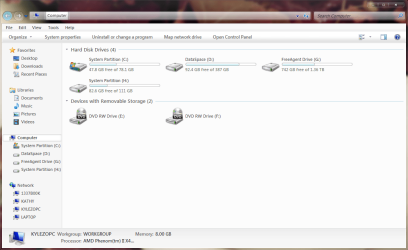
I have Windows 7 Home x64 on a 500GB HDD, partitioned to 78GB C: (for OS) and 387GB D: (for user libraries, programs, etc).

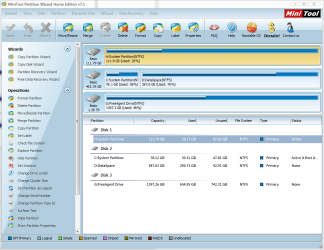
What I want to accomplish, ultimately, is to clone the C partition to the new SSD (120GB) and keep it at a 120GB partition, and expand the D: to take up the entire 500GB HDD for data. Then I will be back to C: for OS (120GB SSD) and D: for data (500GB HDD) I first used DriveImage XML to backup C: and restore to H: (the letter assigned to the SSD after my external HDD and optical drives), then attempt to boot from H:. Well, that did not go well. It either booted from C: anyways (even if I took C: off the boot list in UEFI BIOS), or, when I physically unplugged the disk, said that I must "Reboot and select proper boot device or insert boot medial in selected boot device and press key", yadda yadda. So, I try the diskpart/DIXML method 15 more times, with no success of course. I also try this random method, as well as reading tons of other guides and info pages, before I decide to just give up and use Paragon Migrate OS to SSD (I enjoy learning new things and doing them myself, but when it's impossible...). I clean the SSD using diskpart from an elevated cmd prompt, and I let Paragon do everything - I just point to my OS install, point to the SSD, and click GO.

Apparently Paragon thought everything was fine. I follow the next instructions to restart, get into BIOS, change boot order - system boots from C:, not H:. Awesome, lovely. I unplug C: HDD to force system to boot from HDD: "Reboot and select proper boot device or insert boot medial in selected boot device and press key.". Ok, so apparently there are no boot files in the disk image that Paragon created/moved. So now I'm out of ideas. I was planning to boot from the new OS, change C: on the HDD to some random letter (X:), and change H: to C:, then format X: and expand D: over the top of X:. Not happening T_T

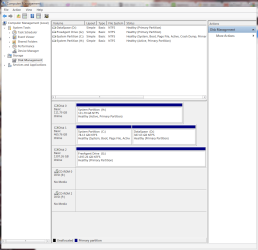
I'll attach some screenshots to help out.
 

Attachments
  • MSDM.PNG
    MSDM.PNG
    34.4 KB · Views: 35
  • PM.PNG
    PM.PNG
    65.9 KB · Views: 25
  • Sys.PNG
    Sys.PNG
    50 KB · Views: 18
Last edited:

My Computer

Computer Manufacturer/Model Number
Self built
OS
Windows 7 Home x64
CPU
AMD Phenom II x4 960T 'Zosma'
Motherboard
ASRock 990FX Extreme 4
Memory
Patriot Signature 2x4GB 1600
Graphics Card(s)
Sapphire Radeon HD 6870
Sound Card
Onboard
Monitor(s) Displays
Dell SP2309W
Screen Resolution
2048x1152
Hard Drives
Seagate 500GB 7200RPM internal HDD
Kingston HyperX 3k 120GB
PSU
Corsair CX500
Case
Sigma Aluminum
Cooling
4x120mm case fans; stock CPU HSF; NB 20mm fan; passive SB HS
Internet Speed
Garbage
Just tried these instructions for using Windows 7 Backup & Restore feature to create a system image of the OS C: partition. Created the image on my USB drive, booted from my Win 7 DVD, excluded the 500GB HDD in the restore wizard, and it gave me an error saying something along the lines of that I couldn't exclude my internal HDD because it was needed for the restore. I can't imagine why, since the image is on a different HDD and the target disk is the SSD...this is SO EFFING ANNOYING. I've had my share of computer troubles before but this should NOT be this complicated. I have 6 different partitioning/cloning/imaging utilities and NONE of them will do the simple job of cloning my OS to a new drive? Give me a break...
 

My Computer

Computer Manufacturer/Model Number
Self built
OS
Windows 7 Home x64
CPU
AMD Phenom II x4 960T 'Zosma'
Motherboard
ASRock 990FX Extreme 4
Memory
Patriot Signature 2x4GB 1600
Graphics Card(s)
Sapphire Radeon HD 6870
Sound Card
Onboard
Monitor(s) Displays
Dell SP2309W
Screen Resolution
2048x1152
Hard Drives
Seagate 500GB 7200RPM internal HDD
Kingston HyperX 3k 120GB
PSU
Corsair CX500
Case
Sigma Aluminum
Cooling
4x120mm case fans; stock CPU HSF; NB 20mm fan; passive SB HS
Internet Speed
Garbage
I'm back...once again!

Sorry to vent my frustration in that last post but...well you know how it can be.

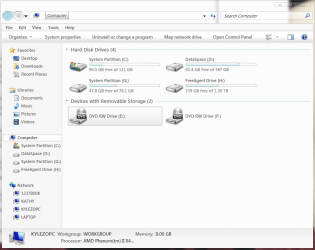
I was sitting here, with my system powered off, wondering what to do...decided I might as well start from scratch, diskpart/clean/format/offset/re-image, whatever...and I thought I booted from my internal HDD on my boot list, but apparently Paragon worked the 4th time I tried it, because I'm now on C: with 111GB capacity, my old C: partition has been renamed to G:, and through the magic of the unknown, I'm where I wanted to be. So, I wish I could share my solution with the interwebs so as to help the next fellow, but search me - I'm clueless. A victory, albeit an empty one.
 

Attachments

  • MSDM1.PNG
    MSDM1.PNG
    35.8 KB · Views: 16
  • Sys1.PNG
    Sys1.PNG
    35.3 KB · Views: 8
Last edited:

My Computer

Computer Manufacturer/Model Number
Self built
OS
Windows 7 Home x64
CPU
AMD Phenom II x4 960T 'Zosma'
Motherboard
ASRock 990FX Extreme 4
Memory
Patriot Signature 2x4GB 1600
Graphics Card(s)
Sapphire Radeon HD 6870
Sound Card
Onboard
Monitor(s) Displays
Dell SP2309W
Screen Resolution
2048x1152
Hard Drives
Seagate 500GB 7200RPM internal HDD
Kingston HyperX 3k 120GB
PSU
Corsair CX500
Case
Sigma Aluminum
Cooling
4x120mm case fans; stock CPU HSF; NB 20mm fan; passive SB HS
Internet Speed
Garbage
Spoke too soon. Rebooted after applying some system optimizations, and C: changed back to G:, G: to C:, and when I turned the HDD off from the boot order menu, it told me I had no valid boot media again. So, I go back into BIOS, turn HDD back on, restart, F11 to take me to boot menu, select the SSD, and it boots from HDD again. I dont' know how I possibly got on the system from the SSD if it is saying I don't have a proper boot device. So in summary, my install is still hosed...I think. But I can't be sure, since it runs sometimes off the SSD randomly. which makes zero sense.

I booted back from the Hitachi (HDD) using the F11 boot menu function of my mobo...since selecting the SSD doesn't work. And it booted from my SSD. Screenshots attached.

Basically, if I turn the HDD off in the boot settings, it wont boot from the SSD. If I turn it ON, put boot priority as Optical > SSD > HDD, and select HDD from the boot menu, then it boots from the SSD. I suspect this has something to do with boot files being on the HDD or something? I have no idea. It's as if it's using the HDD to boot, and running the OS from the SSD, which is quite beyond my capacity to understand. This makes the last part of my master plan impossible: reformatting the old C: (78GB partition of my HDD) and merging it with the larger HDD partition so I have 1 partition on the HDD and 1 OS partition on my SSD: because it seems the SSD running the OS is dependent on the HDD, and I'm afraid if I wipe the OS install from the HDD, I will no longer be able to boot. Please advise.
 

My Computer

Computer Manufacturer/Model Number
Self built
OS
Windows 7 Home x64
CPU
AMD Phenom II x4 960T 'Zosma'
Motherboard
ASRock 990FX Extreme 4
Memory
Patriot Signature 2x4GB 1600
Graphics Card(s)
Sapphire Radeon HD 6870
Sound Card
Onboard
Monitor(s) Displays
Dell SP2309W
Screen Resolution
2048x1152
Hard Drives
Seagate 500GB 7200RPM internal HDD
Kingston HyperX 3k 120GB
PSU
Corsair CX500
Case
Sigma Aluminum
Cooling
4x120mm case fans; stock CPU HSF; NB 20mm fan; passive SB HS
Internet Speed
Garbage
You had it correct in the screenshot so what optimizations did you apply that messed it up?

You were all set to delete G and resize data partition to the left using free Partition Wizard bootable CD, or create another partition there.

Unplug the HD, make sure SSD is set first to boot in BIOS setup, boot the Win7 DVD or Repair CD to run Startup Repair - Run 3 Separate Times until Win7 boots on its own as System Active partition.
 
Why are you trying to force another letter on the reimaged Win7 on SSD? Win7 is designed to always see itself as C unless incorrectly installed from another OS instead of boot, or directed to reimage to another letter instead of C..

I'm not trying to force anything...I just followed the prompts on...

...the Paragon app which works great. But this time select to reimage to C or Auto on the SSD, mark Active, and include the MBR and track 0/1 if offered.

I don't recall any options in the program to mark anything active, for the MBR, or anything of that nature. It's simply "autodetecting OS installs.......select a disk to clone to........DONE!". Of course in my case, done = not done.

I'll run startup repair a few more times, thanks for the troubleshooting links. I'm quite sure it's marked Active, but I'll give it a go. Unplugging the HDD has resulted in the boot media error I posted several times.

Then plug back in the HD, making sure SSD remains set first to boot in BIOS, boot the old Win7 if needed using the one-time BIOS Boot Menu key until you're sure you're ready to get rid of it, then delete it in Disk Mgmt or run Diskpart Delete Partition Override command, then create a new partition in Disk Mgmt, or resize your data partition to the left using free Partition Wizard bootable CD.

I don't have a bootable CD for Partition Wizard yet but I suppose I can make one. Is that really necessary if I'm using the OS from the SSD partition (if indeed I ever succeed)? I also have EaseUS which can merge partitions on the fly, so in all likelihood I will just format the old OS partition and merge with that.

If you didn't select H partition then Win7 may only have assumed H when viewed from the extant Win7, and may still boot up as C on the SSD when repaired. Or if you don't mind Win7 being oddly on the H partition you can just do the repairs straightaway to see how it sorts once booted.

I don't really have a problem with the OS being on H: but it seems like that would be inviting trouble, and it should be quite simple to get it to C:.

I'll look through your links, thank you!
 

My Computer

Computer Manufacturer/Model Number
Self built
OS
Windows 7 Home x64
CPU
AMD Phenom II x4 960T 'Zosma'
Motherboard
ASRock 990FX Extreme 4
Memory
Patriot Signature 2x4GB 1600
Graphics Card(s)
Sapphire Radeon HD 6870
Sound Card
Onboard
Monitor(s) Displays
Dell SP2309W
Screen Resolution
2048x1152
Hard Drives
Seagate 500GB 7200RPM internal HDD
Kingston HyperX 3k 120GB
PSU
Corsair CX500
Case
Sigma Aluminum
Cooling
4x120mm case fans; stock CPU HSF; NB 20mm fan; passive SB HS
Internet Speed
Garbage
Tried to boot from the HDD - boot media error. So I selected the SSD from the boot list - it booted from the HDD. I'm extremely worried now that I have corrupt boot info, but I will follow instructions you posted.
 

My Computer

Computer Manufacturer/Model Number
Self built
OS
Windows 7 Home x64
CPU
AMD Phenom II x4 960T 'Zosma'
Motherboard
ASRock 990FX Extreme 4
Memory
Patriot Signature 2x4GB 1600
Graphics Card(s)
Sapphire Radeon HD 6870
Sound Card
Onboard
Monitor(s) Displays
Dell SP2309W
Screen Resolution
2048x1152
Hard Drives
Seagate 500GB 7200RPM internal HDD
Kingston HyperX 3k 120GB
PSU
Corsair CX500
Case
Sigma Aluminum
Cooling
4x120mm case fans; stock CPU HSF; NB 20mm fan; passive SB HS
Internet Speed
Garbage
I rewrote my post after reading through it all again. You need to repair the SSD install while its marked Active and set first to boot in BIOS setup. Startup Repair - Run 3 Separate Times

I only offered the PW CD as the safest way to resize data partition to the left if needed, otherwise you can Delete G and replace with another data partition in Disk Mgmt. Partition Wizard Move/Resize Partition Video Help.

The easiest way to link data is to rightclick on User folders on HD to add to related Library - Include a Folder - Windows 7 Forums.
 
You had it correct in the screenshot so what optimizations did you apply that messed it up?

You were all set to delete G and resize data partition to the left using free Partition Wizard bootable CD, or create another partition there.

Unplug the HD, make sure SSD is set first to boot in BIOS setup, boot the Win7 DVD or Repair CD to run Startup Repair - Run 3 Separate Times until Win7 boots on its own as System Active partition.

It seems that way, doesn't it?

The optimizations didn't screw anything up. Literally all I did was turn off superfetch, indexing, and page file, then restarted.

I unplug HDD - can't boot. I unplug SSD - can't boot. This is why I'm worried, lol. It makes no sense.
 

My Computer

Computer Manufacturer/Model Number
Self built
OS
Windows 7 Home x64
CPU
AMD Phenom II x4 960T 'Zosma'
Motherboard
ASRock 990FX Extreme 4
Memory
Patriot Signature 2x4GB 1600
Graphics Card(s)
Sapphire Radeon HD 6870
Sound Card
Onboard
Monitor(s) Displays
Dell SP2309W
Screen Resolution
2048x1152
Hard Drives
Seagate 500GB 7200RPM internal HDD
Kingston HyperX 3k 120GB
PSU
Corsair CX500
Case
Sigma Aluminum
Cooling
4x120mm case fans; stock CPU HSF; NB 20mm fan; passive SB HS
Internet Speed
Garbage
Oops, we are replying to each other at the same time and changing stuff - haha! I'm getting ready to unplug HDD and run repair off DVD. Hopefully that works. Thank you!

Reading through the link - slowly but surely learning new stuff. I suspect having 2 partitions marked as active is causing some of my issues? Anyways, I'm carrying on now. Unplugging the HDD, as usual, renders the system un-bootable - but selecting the HDD from the boot menu runs the OS from the SSD. I'm still not sure how to run it from the HDD anymore...
 

My Computer

Computer Manufacturer/Model Number
Self built
OS
Windows 7 Home x64
CPU
AMD Phenom II x4 960T 'Zosma'
Motherboard
ASRock 990FX Extreme 4
Memory
Patriot Signature 2x4GB 1600
Graphics Card(s)
Sapphire Radeon HD 6870
Sound Card
Onboard
Monitor(s) Displays
Dell SP2309W
Screen Resolution
2048x1152
Hard Drives
Seagate 500GB 7200RPM internal HDD
Kingston HyperX 3k 120GB
PSU
Corsair CX500
Case
Sigma Aluminum
Cooling
4x120mm case fans; stock CPU HSF; NB 20mm fan; passive SB HS
Internet Speed
Garbage
Make sure SSD remains set to boot first in BIOS setup since it holds the System boot files now according to the screenshot.

You definitely want all three of those - especially paging file - on the SSD to take advantage of the faster speeds. If you just turned them off on HD to flush them from it, that's fine. But you want them on the SSD.
 
Oops, we are replying to each other at the same time and changing stuff - haha! I'm getting ready to unplug HDD and run repair off DVD. Hopefully that works. Thank you!

Reading through the link - slowly but surely learning new stuff. I suspect having 2 partitions marked as active is causing some of my issues? Anyways, I'm carrying on now. Unplugging the HDD, as usual, renders the system un-bootable - but selecting the HDD from the boot menu runs the OS from the SSD. I'm still not sure how to run it from the HDD anymore...


Here we are: editing, changing, and replying...haha.

Would it be wise for me to mark the old OS partition as "inactive" before going ahead with fixes?
 

My Computer

Computer Manufacturer/Model Number
Self built
OS
Windows 7 Home x64
CPU
AMD Phenom II x4 960T 'Zosma'
Motherboard
ASRock 990FX Extreme 4
Memory
Patriot Signature 2x4GB 1600
Graphics Card(s)
Sapphire Radeon HD 6870
Sound Card
Onboard
Monitor(s) Displays
Dell SP2309W
Screen Resolution
2048x1152
Hard Drives
Seagate 500GB 7200RPM internal HDD
Kingston HyperX 3k 120GB
PSU
Corsair CX500
Case
Sigma Aluminum
Cooling
4x120mm case fans; stock CPU HSF; NB 20mm fan; passive SB HS
Internet Speed
Garbage
That's fine. It's not going to matter as long as HD is unplugged during repairs and SSD remains set first to boot from here on out.

It's very common to need to repair reimaged Win7 like this, even mark it Active to write System boot files to it if they didn't make it onboard. But it's strange it was exactly correct when it finally started and then went south.

But it should repair unless something crippled it. Why did you turn off those important System functions?
 
That's fine. It's not going to matter as long as HD is unplugged during repairs and SSD remains set first to boot from here on out.

It's very common to have to repair reimaged Win7 like this, even mark it Active to write System boot files to it if they didn't image over. But it's strange it was exactly correct when it finally started and then went south.

But it should repair unless something crippled it. Why did you turn off those important System functions?

I turned off pagefile for space and flushing reasons, like you stated, but I'm not planning on turning indexing back on - when was the last time I used search? Never, except in start menu, and even then it's pretty much only to bring up a command prompt...and SSDs are quite fast enough that I don't think indexing is going to do much for me. As far as superfetch goes...every optimization guide I read advised that it's not necessary for an SSD. I'll turn it back on I suppose, if you think I should. Also, I found this in one of your links:

2) To mark the selected partition as "Inactive" click to see this snip below.

If there is more than 1 partition marked "Active" that will cause WinRE to not be able to complete the repairs properly as the active flag is the designation of where the new boot files are to be created / repaired, if so the other partitions will have to be marked as "Inactive" for the repairs to be completed.

To see how to mark the selected partition as "Inactive" click this snip below.

So, I'm going to assume this really did have something to do with causing my issues. It seems to be all about moving the boot files over.... I don't understand why cloning didn't just create MORE boot files, but maybe that's my noobishness showing, and it doesn't work that way? It's not really a 1:1 raw clone in that case, and that's what I thought I did with DriveImage XML.
 

My Computer

Computer Manufacturer/Model Number
Self built
OS
Windows 7 Home x64
CPU
AMD Phenom II x4 960T 'Zosma'
Motherboard
ASRock 990FX Extreme 4
Memory
Patriot Signature 2x4GB 1600
Graphics Card(s)
Sapphire Radeon HD 6870
Sound Card
Onboard
Monitor(s) Displays
Dell SP2309W
Screen Resolution
2048x1152
Hard Drives
Seagate 500GB 7200RPM internal HDD
Kingston HyperX 3k 120GB
PSU
Corsair CX500
Case
Sigma Aluminum
Cooling
4x120mm case fans; stock CPU HSF; NB 20mm fan; passive SB HS
Internet Speed
Garbage
The only way a second Active partition on another HD (you can only have one per HD) can interfere is to derail the System Boot files to its partition during an install or repair if it is in a preceding position. It is the Active flag which tells the installer or Repair function where to write or repair the System Boot files. If there is more than one Active flag it will write them to the first Active partition.

In your case I do not know how you lost on the HD the System flag which should have remained intact. You can have two or more independently booted OS's with their own System boot files when you have multiple HD's. You should have wound up with one each on SSD and HD. Instead the System flag disappeared from HD, which is OK if you don't plan to boot it again as you could have using one-time BIOS Boot Menu key if it still had its System flag.

SuperPrefetch is a genius feature of the Win7 OS and should never be turned off. Paging file is required and should be set to System Managed. Indexing is your choice but it's unnecessary to deny yourself the ability to type anything in Start Search box to find it quickly. These are best practices based on thousands of installs we've helped with here, take em or leave em.
 
Run #1 of startup repair from the DVD - "No problems detected". Starting run #2 now.
 

My Computer

Computer Manufacturer/Model Number
Self built
OS
Windows 7 Home x64
CPU
AMD Phenom II x4 960T 'Zosma'
Motherboard
ASRock 990FX Extreme 4
Memory
Patriot Signature 2x4GB 1600
Graphics Card(s)
Sapphire Radeon HD 6870
Sound Card
Onboard
Monitor(s) Displays
Dell SP2309W
Screen Resolution
2048x1152
Hard Drives
Seagate 500GB 7200RPM internal HDD
Kingston HyperX 3k 120GB
PSU
Corsair CX500
Case
Sigma Aluminum
Cooling
4x120mm case fans; stock CPU HSF; NB 20mm fan; passive SB HS
Internet Speed
Garbage
See if Win7 starts in between repairs. Make sure nothing else is plugged in.
 
Well, with run #2 it seems to have booted properly.

I had SSD > DVD > BIOS in boot priority, and was just restarting unattended since it would always skip over the improperly managed SSD to the DVD. I think I'm fixed now, HDD is not plugged in and running from SSD. How should I double check that I'm good to go? want some screenshots? hah.

My guess is that following the Frankenstein instructions that I linked to in my first post moved some boot files and was what hosed my HDD to begin with - it took me into WinRE, so I'm quite sure that is where the damage was done, and I'm sure that it is also why I only had to run WinRE 1 or 2 more times.

I still have to format/merge my HDD partitions but I think I'm out of the woods now - thank you!
 

My Computer

Computer Manufacturer/Model Number
Self built
OS
Windows 7 Home x64
CPU
AMD Phenom II x4 960T 'Zosma'
Motherboard
ASRock 990FX Extreme 4
Memory
Patriot Signature 2x4GB 1600
Graphics Card(s)
Sapphire Radeon HD 6870
Sound Card
Onboard
Monitor(s) Displays
Dell SP2309W
Screen Resolution
2048x1152
Hard Drives
Seagate 500GB 7200RPM internal HDD
Kingston HyperX 3k 120GB
PSU
Corsair CX500
Case
Sigma Aluminum
Cooling
4x120mm case fans; stock CPU HSF; NB 20mm fan; passive SB HS
Internet Speed
Garbage
Spoke too soon again.

Took the DVD out, and select proper boot device error pops up. Now, even with the HDD unplugged, I can only boot with the DVD IN the system. That makes absolutely no sense to me. SSD > DVD boot order results in "press any key to boot from CD/DVD" which kicks me into SSD OS when it times out. taking DVD out also removes that prompt and renders the system unbootable. I bet if I plugged in the HDD it would work fine.... sigh

edit: I literally just popped the DVD in during the boot device error, then press a key: it says press a key to boot from DVD, then I wait and it boots from the SSD. Seriously, WTF? I am pretty sure my boot files aren't on the DVD. Why is my SSD unbootable? Also, I ran startup repair again and it said no problems again. Clearly, there are problems, WinRE...clearly.
 

My Computer

Computer Manufacturer/Model Number
Self built
OS
Windows 7 Home x64
CPU
AMD Phenom II x4 960T 'Zosma'
Motherboard
ASRock 990FX Extreme 4
Memory
Patriot Signature 2x4GB 1600
Graphics Card(s)
Sapphire Radeon HD 6870
Sound Card
Onboard
Monitor(s) Displays
Dell SP2309W
Screen Resolution
2048x1152
Hard Drives
Seagate 500GB 7200RPM internal HDD
Kingston HyperX 3k 120GB
PSU
Corsair CX500
Case
Sigma Aluminum
Cooling
4x120mm case fans; stock CPU HSF; NB 20mm fan; passive SB HS
Internet Speed
Garbage
I would not use Easeus, as even the boot disk on any partition manager besides Partition Wizard bootable CD or Disk Mgmt can fail with total data loss. We've never had a PW CD failure in thousands of operations helped with here since before Win7 release.

You want to delete G partition, rightclick on D to drag its left border all the way left as shown here: Partition Wizard Move/Resize Partition Video Help.
 
Back
Top