Solved Need help removing google chrome

Here is a post where I ramble on about making decent screenshots. Near the bottom of that post, there is a link to a tutorial on how to upload images to this forum. Posting images that way is better than us downloading your Word docs.

Please try this slightly different path to start chrome without any extensions:
Code:
"%ProgramFiles(x86)%\Google\Chrome\Application\chrome.exe" --disable-extensions
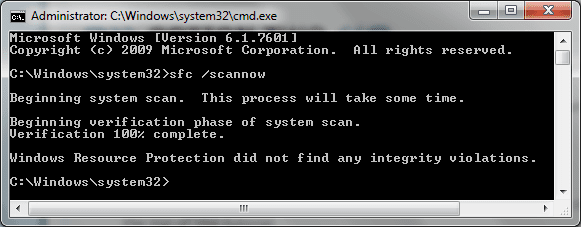
If that fails, please post a screenshot of the cmd window.

That line worked for me:
View attachment 336758

Here is the command prompt screenshot.View attachment Command Prompt.docx
 

My Computer

Computer type
Laptop
Computer Manufacturer/Model Number
Thinkpad E420S
OS
Windows 7 Home Premium - 64 bit
CPU
Intel Core i5-2430M @2.4 GHz
Memory
8 GB
Antivirus
avast
Browser
Firefox
There should be a space before the "--disable-extensions" part.

What do you get when you try just this:
Code:
"%ProgramFiles(x86)%"

...and how about this:
Code:
 "%ProgramFiles%\Google\Chrome\Application\chrome.exe" --disable-extensions

Did MS Paint not work for you to paste/save screenshots?

The W7 snippet tool will also save images so that you can attach them to a post without using Word.
 

My Computer

Computer type
Laptop
Computer Manufacturer/Model Number
Employer provided Dell Latitude
OS
W7 Pro SP1 64bit
CPU
i7
Memory
8GB
Graphics Card(s)
Intel HD Graphics
Hard Drives
crappy SSD
Antivirus
Employer mandated Symantec Endpoint Protection
Browser
Pale Moon 64bit, IE11 64bit & Chrome 64bit
and how about this:
Code:
 "%ProgramFiles%\Google\Chrome\Application\chrome.exe" --disable-extensions
Did MS Paint not work for you to paste/save screenshots?

The W7 snippet tool will also save images so that you can attach them to a post without using Word.[/QUOTE]

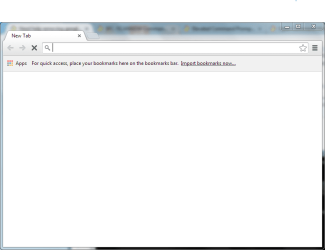
I used your code above and Chrome tried to open but stopped. See screenshot below:
Chrome Trying to Open.PNG
 

My Computer

Computer type
Laptop
Computer Manufacturer/Model Number
Thinkpad E420S
OS
Windows 7 Home Premium - 64 bit
CPU
Intel Core i5-2430M @2.4 GHz
Memory
8 GB
Antivirus
avast
Browser
Firefox
I installed Chrome into a virtual machine.
Restarted the computer.
I ran the bat and reg files from my earlier post.
Restarted the computer.
Installed Chrome again.
Chrome worked - as expected.

You could try Process Monitor again.
 

My Computer

Computer type
Laptop
Computer Manufacturer/Model Number
Employer provided Dell Latitude
OS
W7 Pro SP1 64bit
CPU
i7
Memory
8GB
Graphics Card(s)
Intel HD Graphics
Hard Drives
crappy SSD
Antivirus
Employer mandated Symantec Endpoint Protection
Browser
Pale Moon 64bit, IE11 64bit & Chrome 64bit

My Computer

Computer type
Laptop
Computer Manufacturer/Model Number
Thinkpad E420S
OS
Windows 7 Home Premium - 64 bit
CPU
Intel Core i5-2430M @2.4 GHz
Memory
8 GB
Antivirus
avast
Browser
Firefox
I installed Chrome into a virtual machine.
Restarted the computer.
I ran the bat and reg files from my earlier post.
Restarted the computer.
Installed Chrome again.
Chrome worked - as expected.

Is it advisable to use virtual machine as:
1. My Window 7 is the Home Premium version when the recommended is Professional, Enterprise or Ultimete; and
2. No technical support for Windows XP?
 

My Computer

Computer type
Laptop
Computer Manufacturer/Model Number
Thinkpad E420S
OS
Windows 7 Home Premium - 64 bit
CPU
Intel Core i5-2430M @2.4 GHz
Memory
8 GB
Antivirus
avast
Browser
Firefox
The virtual machine that I tested on is W7 pro 64bit running inside of the free program named VirtualBox.

I was not suggesting that you should try or use a virtual machine. I was just stating that not much has changed with the Chrome browser since I made the bat and reg file. Those files worked for me. I was able to install Chrome after using them.

Just out of curiosity, will Process Monitor continue to run if you are in the Windows Safe Mode with Networking? If so, then we have two programs that are not working for you in the normal mode for Windows.

You might see if Process Explorer will run for you in the normal mode of Windows. Please see this post to download and configure Process Explorer to send into to VirusTotal. The first link in that post should take you to the website to download the latest version (which has changed since that thread was made).

I would suggest starting Process Explorer by right clicking on procexp.exe and selecting Run as administrator.
 

My Computer

Computer type
Laptop
Computer Manufacturer/Model Number
Employer provided Dell Latitude
OS
W7 Pro SP1 64bit
CPU
i7
Memory
8GB
Graphics Card(s)
Intel HD Graphics
Hard Drives
crappy SSD
Antivirus
Employer mandated Symantec Endpoint Protection
Browser
Pale Moon 64bit, IE11 64bit & Chrome 64bit
Just out of curiosity, will Process Monitor continue to run if you are in the Windows Safe Mode with Networking? If so, then we have two programs that are not working for you in the normal mode for Windows.
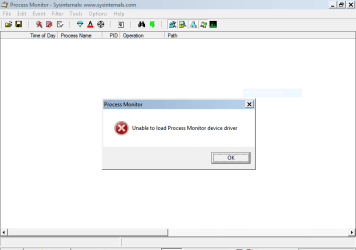
I tried running Process Monitor Windows Safe Mode with Networking but get the following error message:
Cannot Run Process Monitor Safe Mode.PNG

Just to be sure, I click on RUN without first EXTRACT all files first.
 

My Computer

Computer type
Laptop
Computer Manufacturer/Model Number
Thinkpad E420S
OS
Windows 7 Home Premium - 64 bit
CPU
Intel Core i5-2430M @2.4 GHz
Memory
8 GB
Antivirus
avast
Browser
Firefox
I get the same error for Process Monitor while in the safe mode.
Sorry, I should have tested that before asking you to do it.

Did Process Explorer run for you in the normal mode?
If so, did the Virustotal info show any problems?
 

My Computer

Computer type
Laptop
Computer Manufacturer/Model Number
Employer provided Dell Latitude
OS
W7 Pro SP1 64bit
CPU
i7
Memory
8GB
Graphics Card(s)
Intel HD Graphics
Hard Drives
crappy SSD
Antivirus
Employer mandated Symantec Endpoint Protection
Browser
Pale Moon 64bit, IE11 64bit & Chrome 64bit
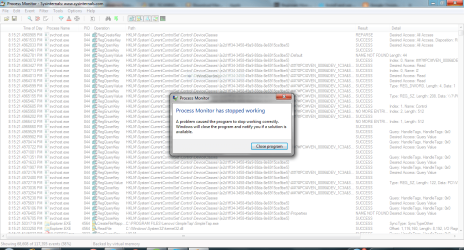
I ran Process Monitor (not able to run as admin) but I am not sure what the results meant.
I saved a copy. Can I mail it to you?
 

My Computer

Computer type
Laptop
Computer Manufacturer/Model Number
Thinkpad E420S
OS
Windows 7 Home Premium - 64 bit
CPU
Intel Core i5-2430M @2.4 GHz
Memory
8 GB
Antivirus
avast
Browser
Firefox
Sure - you can e-mail it my way.
 

My Computer

Computer type
Laptop
Computer Manufacturer/Model Number
Employer provided Dell Latitude
OS
W7 Pro SP1 64bit
CPU
i7
Memory
8GB
Graphics Card(s)
Intel HD Graphics
Hard Drives
crappy SSD
Antivirus
Employer mandated Symantec Endpoint Protection
Browser
Pale Moon 64bit, IE11 64bit & Chrome 64bit
Zip file fixed Chrome issue

Thank you for posting the zip files...finally solved my problem with google chrome which was not starting.

Steps I took before launching the zip files:

1) Uninstalled Google Chrome from Add/remove programs
2) Rebooted computer
3) Reinstalled Google Chrome ...still not launching
4) Uninstalled Chrome with Revo uninstaller + deleted all the leftover folders and files (Advanced)
5) reinstalled Chrome....still not launching
6) Runned both files in he zip provided and PROBLEM FIXED!!

Thank you so much!!:party:;)

Username: Revo?

Download Revo Uninstaller Freeware - Free and Full Download - Uninstall software, remove programs, solve uninstall problems

Free version, take normal precautions for installing freeware (watch for toolbars, etc)

Ldeathsoul: Username is guiding you - this is a suggestion to consider.
Don't take any action on Revo, yet.

I've not used Revo since Process Monitor usually finds what I need. I fired up the free version of Revo while Process Monitor was watching it. Revo looks in the same area of the registry that Programs and Features uses to show apps that can be uninstalled. Once Revo finds an item in that list, it offers to uninstall it and clean up some stuff. The Hunter Mode will try and find/clean stuff by letting you identify an app by its window.

In this case, the OP had removed the registry listing that let Chrome show in Programs and Features (and Revo). The OP had already removed the Chrome folders, so no exe to create a window to allow Revo to find the app via the Hunter Mode.


Hey Bill ... I did find some thing its suppose to clear the Registry and Chrome and folders .. It is not some thing which i care to Post on here ... As i have no means of testing it at the moment ... I will send you the Link in a PM though ... Personally i doubt if it would be of any help in this case ...
Slartybart (a.k.a. Bill) was kind enough to send me that link that you found. Thanks for digging that up. I found lots of links to the remove.reg file, but none of them were alive. Unfortunately, the reg file is pretty much useless since it has aged.


Most of the info below is for the OP, but some generic stuff is included for others that might find the post someday. (e.g. the OP probably does not need the batch file, but it won't hurt to run it anyway.)

The files attached to this post will also age and someday be useless (which is why stuff like this should not be a tutorial - I don't want to keep updating the info). The files were created to help the OP re-install Chrome. The info was gathered using two types of installs for Google Chrome 32.0.1700.76. The files are not meant to be a way to uninstall Chrome. They are meant to allow you to install Chrome.

Chrome uses a ton of registry entries and Chrome has two types of installs: local machine and user level... so lots of variation in the reg entries. Like I mentioned in my ramblings in this post, lots more stuff installs if you install the local machine version.

Attached to this post is:
...a batch file to (remove some of Chrome's folders)
...and a reg file (to remove some of Chrome's registry entries).

Neither is meant for the tin foil hat crowd. Only a small percentage of Chrome's registry entries are removed so that the Chrome installer can run without telling the user that Chrome is already installed.

I would suggest making a system restore point before using the files attached to this post:
http://www.sevenforums.com/tutorials/697-system-restore-point-create.html

Just so that we are on the same page...
...I would also suggest showing certain extensions:
http://www.sevenforums.com/tutorials/10570-file-extensions-hide-show.html


The batch file needs to be run with elevated privileges.
e.g. download the zip file (remove-chrome.zip)
open the zip file via Windows (file) Explorer
copy the batch file (1-remove-chrome-files.bat) to the desktop
right click on the batch file
select Run as admin... from the context menu
The batch file ends in a pause to let you see stuff.
Manually close the window.

The reg file should automatically ask for admin privileges.
(assuming User Account Control is on)
...download the zip file (remove-chrome.zip)
open the zip file via Windows (file) Explorer
copy the reg file (2-remove-chrome.reg) to the desktop
double click on the reg file
Deal with User Account Control, another warning and hopefully, a success dialog box.

The batch file and the reg file should work for 32bit or 64bit installations and handle both the local machine install or the user level install.


1-remove-chrome-files.bat
Code:
taskkill /im chrome.exe /f /t
taskkill /im GoogleUpdate.exe /f /t
taskkill /im GoogleCrashHandler.exe /f /t
taskkill /im GoogleCrashHandler64.exe /f /t
taskkill /im GoogleUpdateBroker.exe /f /t
taskkill /im GoogleUpdateHelper.msi /f /t
taskkill /im GoogleUpdateOnDemand.exe /f /t
taskkill /im GoogleUpdateSetup.exe /f /t
taskkill /im chrmstp.exe /f /t
 
rem app files
rd "%userprofile%\AppData\Local\Google" /s/q
rd "%PROGRAMFILES(X86)%\Google" /s/q
rd "%PROGRAMFILES%\Google" /s/q
 
rem desktop shorcuts
del "%PUBLIC%\Desktop\Google Chrome.lnk" /q
del "%userprofile%\Desktop\Google Chrome.lnk" /q
 
rem start menu folders
rd "%PROGRAMDATA%\Microsoft\Windows\Start Menu\Programs\Google Chrome" /s/q
rd "%userprofile%\AppData\Roaming\Microsoft\Windows\Start Menu\Programs\Google Chrome" /s/q
 
rem pinned items
del "%userprofile%\AppData\Roaming\Microsoft\Internet Explorer\Quick Launch\Google Chrome*.lnk" /q
del "%userprofile%\AppData\Roaming\Microsoft\Internet Explorer\Quick Launch\User Pinned\TaskBar\Google Chrome*.lnk" /q
 
pause
2-remove-chrome.reg
Code:
Windows Registry Editor Version 5.00
 
[-HKEY_CURRENT_USER\SOFTWARE\Classes\ChromeHTML.TORP4NTRM2HPD6PBO73NDJHVXY]
[-HKEY_CURRENT_USER\SOFTWARE\Classes\ChromeHTML.LKEJWHP2LBRR4IXANFX7X5ZSO4]
 
[-HKEY_CURRENT_USER\SOFTWARE\Google]
[-HKEY_CURRENT_USER\Software\Microsoft\Windows\CurrentVersion\App Paths\chrome.exe]
[-HKEY_CURRENT_USER\Software\Microsoft\Windows\CurrentVersion\Uninstall\Google Chrome]
[-HKEY_LOCAL_MACHINE\SOFTWARE\Classes\ChromeHTML]
[-HKEY_LOCAL_MACHINE\SOFTWARE\Clients\StartMenuInternet\Google Chrome]
[-HKEY_LOCAL_MACHINE\SOFTWARE\Google]
[-HKEY_LOCAL_MACHINE\SOFTWARE\Microsoft\Windows\CurrentVersion\App Paths\chrome.exe]
 
 
[-HKEY_LOCAL_MACHINE\SOFTWARE\Wow6432Node\Clients\StartMenuInternet\Google Chrome]
[-HKEY_LOCAL_MACHINE\SOFTWARE\Wow6432Node\Microsoft\MediaPlayer\ShimInclusionList\chrome.exe]
[-HKEY_LOCAL_MACHINE\SOFTWARE\Wow6432Node\Microsoft\Windows\CurrentVersion\App Paths\chrome.exe]
[-HKEY_LOCAL_MACHINE\SOFTWARE\Wow6432Node\Microsoft\Windows\CurrentVersion\Uninstall\Google Chrome]
[-HKEY_LOCAL_MACHINE\SOFTWARE\Wow6432Node\Classes\AppID\GoogleUpdate.exe]
[-HKEY_LOCAL_MACHINE\SOFTWARE\Wow6432Node\Clients\StartMenuInternet\Google Chrome]
[-HKEY_LOCAL_MACHINE\SOFTWARE\Wow6432Node\Google]
[-HKEY_LOCAL_MACHINE\SOFTWARE\Wow6432Node\Microsoft\Windows\CurrentVersion\Uninstall\Google Chrome]
[-HKEY_LOCAL_MACHINE\SOFTWARE\Wow6432Node\Microsoft\Windows NT\CurrentVersion\Image File Execution Options\GoogleUpdate.exe]
[-HKEY_LOCAL_MACHINE\SOFTWARE\Wow6432Node\MozillaPlugins\@tools.google.com/Google Update;version=3]
[-HKEY_LOCAL_MACHINE\SOFTWARE\Wow6432Node\MozillaPlugins\@tools.google.com/Google Update;version=9]
[-HKEY_LOCAL_MACHINE\SOFTWARE\Wow6432Node\Microsoft\Active Setup\Installed Components\{8A69D345-D564-463c-AFF1-A69D9E530F96}]
[-HKEY_LOCAL_MACHINE\SOFTWARE\Classes\Wow6432Node\AppID\GoogleUpdate.exe]
 
[-HKEY_LOCAL_MACHINE\SOFTWARE\Clients\StartMenuInternet\Google Chrome]
[-HKEY_LOCAL_MACHINE\SOFTWARE\Microsoft\MediaPlayer\ShimInclusionList\chrome.exe]
[-HKEY_LOCAL_MACHINE\SOFTWARE\Microsoft\Windows\CurrentVersion\App Paths\chrome.exe]
[-HKEY_LOCAL_MACHINE\SOFTWARE\Microsoft\Windows\CurrentVersion\Uninstall\Google Chrome]
[-HKEY_LOCAL_MACHINE\SOFTWARE\Classes\AppID\GoogleUpdate.exe]
[-HKEY_LOCAL_MACHINE\SOFTWARE\Clients\StartMenuInternet\Google Chrome]
[-HKEY_LOCAL_MACHINE\SOFTWARE\Google]
[-HKEY_LOCAL_MACHINE\SOFTWARE\Microsoft\Windows\CurrentVersion\Uninstall\Google Chrome]
[-HKEY_LOCAL_MACHINE\SOFTWARE\Microsoft\Windows NT\CurrentVersion\Image File Execution Options\GoogleUpdate.exe]
[-HKEY_LOCAL_MACHINE\SOFTWARE\MozillaPlugins\@tools.google.com/Google Update;version=3]
[-HKEY_LOCAL_MACHINE\SOFTWARE\MozillaPlugins\@tools.google.com/Google Update;version=9]
[-HKEY_LOCAL_MACHINE\SOFTWARE\Microsoft\Active Setup\Installed Components\{8A69D345-D564-463c-AFF1-A69D9E530F96}]
[-HKEY_LOCAL_MACHINE\SOFTWARE\Classes\AppID\GoogleUpdate.exe]
 
 
[-HKEY_LOCAL_MACHINE\SOFTWARE\Classes\AppID\GoogleUpdate.exe]
[-HKEY_LOCAL_MACHINE\SOFTWARE\Classes\Google.OneClickCtrl.9]
[-HKEY_LOCAL_MACHINE\SOFTWARE\Classes\Google.OneClickProcessLauncherMachine]
[-HKEY_LOCAL_MACHINE\SOFTWARE\Classes\Google.OneClickProcessLauncherMachine.1.0]
[-HKEY_LOCAL_MACHINE\SOFTWARE\Classes\Google.Update3WebControl.3]
[-HKEY_LOCAL_MACHINE\SOFTWARE\Classes\GoogleUpdate.CoCreateAsync]
[-HKEY_LOCAL_MACHINE\SOFTWARE\Classes\GoogleUpdate.CoCreateAsync.1.0]
[-HKEY_LOCAL_MACHINE\SOFTWARE\Classes\GoogleUpdate.CoreClass]
[-HKEY_LOCAL_MACHINE\SOFTWARE\Classes\GoogleUpdate.CoreClass.1]
[-HKEY_LOCAL_MACHINE\SOFTWARE\Classes\GoogleUpdate.CoreMachineClass]
[-HKEY_LOCAL_MACHINE\SOFTWARE\Classes\GoogleUpdate.CoreMachineClass.1]
[-HKEY_LOCAL_MACHINE\SOFTWARE\Classes\GoogleUpdate.CredentialDialogMachine]
[-HKEY_LOCAL_MACHINE\SOFTWARE\Classes\GoogleUpdate.CredentialDialogMachine.1.0]
[-HKEY_LOCAL_MACHINE\SOFTWARE\Classes\GoogleUpdate.OnDemandCOMClassMachine]
[-HKEY_LOCAL_MACHINE\SOFTWARE\Classes\GoogleUpdate.OnDemandCOMClassMachine.1.0]
[-HKEY_LOCAL_MACHINE\SOFTWARE\Classes\GoogleUpdate.OnDemandCOMClassMachineFallback]
[-HKEY_LOCAL_MACHINE\SOFTWARE\Classes\GoogleUpdate.OnDemandCOMClassMachineFallback.1.0]
[-HKEY_LOCAL_MACHINE\SOFTWARE\Classes\GoogleUpdate.OnDemandCOMClassSvc]
[-HKEY_LOCAL_MACHINE\SOFTWARE\Classes\GoogleUpdate.OnDemandCOMClassSvc.1.0]
[-HKEY_LOCAL_MACHINE\SOFTWARE\Classes\GoogleUpdate.ProcessLauncher]
[-HKEY_LOCAL_MACHINE\SOFTWARE\Classes\GoogleUpdate.ProcessLauncher.1.0]
[-HKEY_LOCAL_MACHINE\SOFTWARE\Classes\GoogleUpdate.Update3COMClassService]
[-HKEY_LOCAL_MACHINE\SOFTWARE\Classes\GoogleUpdate.Update3COMClassService.1.0]
[-HKEY_LOCAL_MACHINE\SOFTWARE\Classes\GoogleUpdate.Update3WebMachine]
[-HKEY_LOCAL_MACHINE\SOFTWARE\Classes\GoogleUpdate.Update3WebMachine.1.0]
[-HKEY_LOCAL_MACHINE\SOFTWARE\Classes\GoogleUpdate.Update3WebMachineFallback]
[-HKEY_LOCAL_MACHINE\SOFTWARE\Classes\GoogleUpdate.Update3WebMachineFallback.1.0]
[-HKEY_LOCAL_MACHINE\SOFTWARE\Classes\GoogleUpdate.Update3WebSvc]
[-HKEY_LOCAL_MACHINE\SOFTWARE\Classes\GoogleUpdate.Update3WebSvc.1.0]
[-HKEY_LOCAL_MACHINE\SOFTWARE\Classes\MIME\Database\Content Type\application/x-vnd.google.oneclickctrl.9]
[-HKEY_LOCAL_MACHINE\SOFTWARE\Classes\MIME\Database\Content Type\application/x-vnd.google.update3webcontrol.3]
[-HKEY_LOCAL_MACHINE\SOFTWARE\Clients\StartMenuInternet\Google Chrome]
[-HKEY_LOCAL_MACHINE\SOFTWARE\Microsoft\Windows NT\CurrentVersion\Image File Execution Options\GoogleUpdate.exe]
[-HKEY_LOCAL_MACHINE\SOFTWARE\Microsoft\Windows NT\CurrentVersion\Schedule\TaskCache\Tree\GoogleUpdateTaskMachineCore]
[-HKEY_LOCAL_MACHINE\SOFTWARE\Microsoft\Windows NT\CurrentVersion\Schedule\TaskCache\Tree\GoogleUpdateTaskMachineUA]
[HKEY_LOCAL_MACHINE\SOFTWARE\RegisteredApplications]
"Google Chrome"=-
 
[-HKEY_LOCAL_MACHINE\SYSTEM\CurrentControlSet\services\gupdate]
[-HKEY_LOCAL_MACHINE\SYSTEM\CurrentControlSet\services\gupdatem]
Your computer might not have a key like ChromeHTML.TORP4NTRM2HPD6PBO73NDJHVXY. It won't hurt to try and remove the key - even if it is not there. It won't hurt to leave the key - if you have a different one. "Extra" registry keys will rarely slow your computer down in a measurable way. (Send me a PM if you ever find an extra entry that impacts speed.) Don't use automated registry cleaners. CCleaner's registry cleaner is so conservative, it did not even remove the keys needed to allow this OP to re-install Chrome. You can use CCleaner's registry cleaner if you just cannot stand the though of not running one from time to time. CCleaner's registry cleaner should do no harm - but it will probably do no good either.


During my hours of testing, I noticed that some of the registry entries were coming right back. This was due to one of Google's updater apps running. I would suggest running the batch file first, then the merge the reg file. The batxh file should kill Chrome's/Google's exes - then delete them so that you can remove the registry entries and re-install Chrome.

I'll repeat this again:
The files attached to this post were created to help the OP re-install Chrome. The info was gathered using two types of installs for Google Chrome 32.0.1700.76. The files are not meant to be a way to uninstall Chrome. They are meant to allow you to install Chrome.

If you are having trouble uninstalling Chrome, then:
...try the files mentioned above
...re-install Chrome
...uninstall Chrome the normal way.

 

My Computer

Computer type
Laptop
OS
Windows 7 Ultimate x64
problems with chrome

the same thing as the other ones...
I had chrome which did not update (saying updates have been disabled by the administrator, there is no ad, the computer is alone) and crashed egularly. I deleted it, wanted to reinstall, now it downloads, but does not install. "Due to inconsistent update policy", they say. I suppose there are remnants left and your post should enable me to get rid of them.
Just checking what should do... open the two files, run them, and try to reinstall? but there are no live links. I don't know what to do...
I've tried for hours and am getting really upset and tense...
 

My Computer

Computer type
PC/Desktop
Computer Manufacturer/Model Number
acer
OS
win 7 64
CPU
inte I 5
Motherboard
?
Memory
8 mb
Graphics Card(s)
ATI mobility radeon HD5650
Hard Drives
!000 gb
Antivirus
avg
Browser
IE Mozilla, problems to install chrome
chrome canary

well, after trying to delete and delete my chrome foldes, I finally downloaded chrome canary. I just don't know how stable it is. But my deleting was not enough to enable me to get a regular chrome...
 

My Computer

Computer type
PC/Desktop
Computer Manufacturer/Model Number
acer
OS
win 7 64
CPU
inte I 5
Motherboard
?
Memory
8 mb
Graphics Card(s)
ATI mobility radeon HD5650
Hard Drives
!000 gb
Antivirus
avg
Browser
IE Mozilla, problems to install chrome
Please help! Can't re-install Chrome!

Hi all,

Looks like everyone is able to fix this but me.
It all started when the google updates started failing. I then tried to uninstall it normally from Control Panel but even though it was removed from the list, the application was still active and working. The update continued to fail.

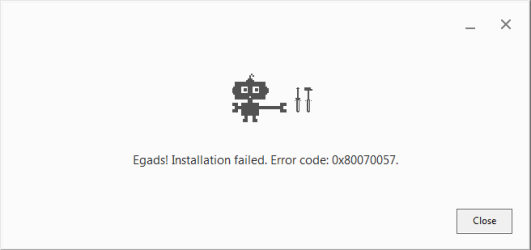
Today, I followed all the intructions provided, run the .bat and .reg. I'm no longer able to run Chrome but still get the same error when trying to re-install it. See attached screenshot.

I don't know what else to do.
 

Attachments

  • chrome_error.PNG
    chrome_error.PNG
    4.4 KB · Views: 46

My Computer

Computer type
PC/Desktop
OS
Windows 7 Professional x64
I'm not exactly sure what options this person used, but here's what they said over on code.google.com:
Issue 422990 - chromium - Cannot update Chrome/install Chrome on some Windows machines - An open-source project to help move the web forward. - Google Project Hosting[
Status: Started
Nov 26, 2014
#13 [email protected] I don't know if this helps, but I was having this problem in Dell Kace which is similar to Nitenit.

It was running the setup with additional parameters like this: ChromeStandaloneSetup.exe ChromeStandaloneSetup.exe /silent /install

Once I switched it override the default installation it ran it correctly
It isn't clear which way the setup was called that worked.
ChromeStandaloneSetup.exe
-- or --
ChromeStandaloneSetup.exe /silent /install

I also Googled Google Search results
 

My Computer

Computer type
Laptop
Computer Manufacturer/Model Number
HP Pavilion dv6-6c10us
OS
x64 (6.3.9600) Win8.1 Pro & soon dual boot x64 (6.1.7601) Win7_SP1 HomePrem
CPU
AMD A6-3420M APU with Radeon(tm) HD Graphics
Motherboard
Hewlett-Packard 1805
Memory
6.00 GB
Graphics Card(s)
AMD Radeon(TM) HD 6520G
Sound Card
(1) AMD High Definition Audio Device (2) IDT High Definiti
Monitor(s) Displays
HP W2072a 20" LCD (1600 x 900) @ 60 Hz
Screen Resolution
1366 x 768 x 32 bits (4294967296 colors) @ 60 Hz
Hard Drives
ST640LM0 00 HM641JI SATA Disk Device
Keyboard
Logitech k520 wireless KB
Mouse
Logitech m320 wireless mouse (bundled with KB)
Internet Speed
15/5 | 54 MB Wireless 'n'
Antivirus
Realtime: Defender or Avast | On-demand: Malwarebytes, ESET
Browser
IE 11 on Win8, IE 10 on win 7
Other Info
Media: [Gimp, Audacity, VLC] || Comm: [WEmail 2012, Skype] || Productivity: [OpenOffice,| Textpad] || Utils: [Sysinternals, cCleaner, Speccy, Defraggler]
problems with chrome

please... I don't think I'm great with computers, but I've of course tried to install with the standalone and the offline link. No, t does not work. Nothing does. Google will fix it sooner or later... but I am upset.
 

My Computer

Computer type
PC/Desktop
Computer Manufacturer/Model Number
acer
OS
win 7 64
CPU
inte I 5
Motherboard
?
Memory
8 mb
Graphics Card(s)
ATI mobility radeon HD5650
Hard Drives
!000 gb
Antivirus
avg
Browser
IE Mozilla, problems to install chrome
The link gives you two ways to install the standalone

Try it this way:
Launch an elevated Command Prompt (right click, select Run as administrator...)

I'll use the Downloads folder in my examples
I'll also use Dad as an example of the user
C:\Users\Dad\Downloads gives you an idea of the location I'll use in the example

Navigate to the folder that has the Chrome standalone installer in it.

In the Command Prompt window, enter the following commands:
cd C:\Users\Dad\Downloads

ChromeStandaloneSetup​
If that fails, try the standalone setup with options. Here are the commands:
cd C:\Users\Dad\Downloads

ChromeStandaloneSetup /silent /install​

That's the best I can do - hope it helps
 

My Computer

Computer type
Laptop
Computer Manufacturer/Model Number
HP Pavilion dv6-6c10us
OS
x64 (6.3.9600) Win8.1 Pro & soon dual boot x64 (6.1.7601) Win7_SP1 HomePrem
CPU
AMD A6-3420M APU with Radeon(tm) HD Graphics
Motherboard
Hewlett-Packard 1805
Memory
6.00 GB
Graphics Card(s)
AMD Radeon(TM) HD 6520G
Sound Card
(1) AMD High Definition Audio Device (2) IDT High Definiti
Monitor(s) Displays
HP W2072a 20" LCD (1600 x 900) @ 60 Hz
Screen Resolution
1366 x 768 x 32 bits (4294967296 colors) @ 60 Hz
Hard Drives
ST640LM0 00 HM641JI SATA Disk Device
Keyboard
Logitech k520 wireless KB
Mouse
Logitech m320 wireless mouse (bundled with KB)
Internet Speed
15/5 | 54 MB Wireless 'n'
Antivirus
Realtime: Defender or Avast | On-demand: Malwarebytes, ESET
Browser
IE 11 on Win8, IE 10 on win 7
Other Info
Media: [Gimp, Audacity, VLC] || Comm: [WEmail 2012, Skype] || Productivity: [OpenOffice,| Textpad] || Utils: [Sysinternals, cCleaner, Speccy, Defraggler]
Thanks man, finally able to install chrome. smooth solution
 

My Computer

Computer type
PC/Desktop
OS
Windows 10 64 bit
Back
Top