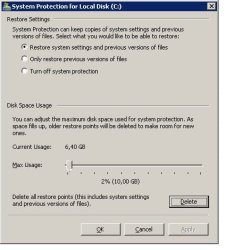
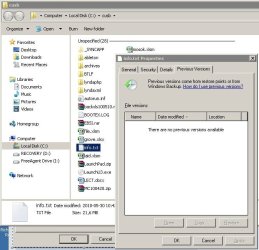
Previous Versions are now working!
I'm happy to report that using the info from the two articles reference previously in this thread have enabled Restore Previous Versions (RPV) on my system. I'm going to try to lay this out for everyone, but realize that since I tried all of the suggested solutions, my summary may not represent the shortest path.
First, my relevant system specs (in case yours are different and this doesn't work, we may have a clue why):
- Windows 7 Pro x64 SP1 with all recommended patches installed (per Patch Watch)
- File and printer sharing on (which may be important)
- HomeGroup connections off (which may be important); I.e., set to "Use user accounts and passwords..."
The key
does seem to be that network shares (aka administrative shares or disk shares) must be enabled for RPV to work.
Here's my best guess at the simplest troubleshooting and resolution process:
- Open the Computer Management control panel; expand System Tools\Shared Folders\ and select Shares.
- You should see something like this, where all of your logical drives are present in the center-panel list with the "$" behind them:
If you already see that "shares" exist for all of your logical drives: You can try going to the Network & Sharing control panel, selecting "Change advanced sharing settings," and verifying that "File and printer sharing" is on and "HomeGroup connections" is set to "Use user accounts..." (assuming that you're willing to live with those settings). After making any necessary changes, restart Windows, cross your fingers, and retry Restore Previous Versions from any logical drive that has System Protection enabled.
If you already had those settings in place, skip to step 7.
Otherwise, continue with step 3.
- Go to the Microsoft Support article "Overview of problems that may occur when administrative shares are missing".
Note: This article has a lot of scary things to say about possible malware infections; don't necessary assume that this is your problem. If following all the remaining steps in thie procedure doesn't restore your disk shares, however, you may want to consider this possibility and follow the recommended actions for detecting and removing malware infections.
- Scroll down to the "Resolution" section.
- Under "To verify whether a computer is affected by this issue...," follow steps 1 and 2.
- After rebooting, restart the Computer Management control panel; expand System Tools\Shared Folders\ and select Shares.
If your disk shares now exist, retry Restore Previous Versions from any logical drive that has System Protection enabled.
If your disk shares still don't exist, or if they do, but RPV still doesn't work, continue with step 7 of this procedure.
- Disclaimer: I cannot vouch for the helpfulness of this step (but I did it, so it may help you).
Go to the blog article "Administrative Shares In Windows 7" and complete the second procedure (just below the
; what he confusingly calls "step 2") and restart Windows; note that you've already done everything else that he recommends.
Hopefully, if you've gotten this far, RPV is now working for you.
Why shares were turned off on my system to begin with is beyond me. Perhaps some other third-party utility that I've installed turned them off (I'll be looking for a consequential malfunction) or else a decision I made during the initial Windows 7 install is at fault (I did my own clean install on a bare drive). I'm sure that malware wasn't at the root of the missing shares on my system, as the significant behavior in that instance would be that shares wouldn't automatically turn on on system start-up, even after making the above changes (and that, as a former IT manager, I practice the system and network security philosophy of "it's not paranoia if they really
are out to get you").