Replacing a existing drive with a larger drive

dpullem

New member
Local time
3:26 PM
Messages
2
Hello,

I have 4 - 250gb SATA drives on my WIN7 machine. One has WIN7, One has Vista (I dual boot) and the other two are used for storage. I want to replace one of the storage drives with a larger capacity drive 1TB.

In looking inside the cabinet I cant tell which drive has what on it.

Can I just unplug the cable on one drive at a time and identify it that way? Or would it create a problem, such as, Windows renaming the 3 remaining drives?

What's the best way to do this?

Thanks

Don
 

My Computer My Computer

OS
Windows 7
Enter BIOs setup and look at HD's to determine which HD is plugged into which port 0, 1, 2, 3.

If this isn't enough, type CMD into Start Search box, rightclick to run as Admin, type "Diskpart," , then "list disk"

Now copy down which drive is in which slot judging by size and content.
 
You can pull out them one by one to check what they are containing. The windows won't rename them.
 

My Computer My Computer

Computer Manufacturer/Model Number
home made
OS
Windows 7 RTM x64
CPU
AMD X2 5000+
Motherboard
Asrock
Memory
4GB
Graphics Card(s)
Nvidia 9400GT
Sound Card
onboard 6Ch
Monitor(s) Displays
Medion 22" + HannSpree 22"
Screen Resolution
1680X1050 + 1920X1080
Hard Drives
Intel SSD 80GB
WD 1.5 TB
WD 1 TB
Samsung 1TB X 3
PSU
noname
Case
noname
Cooling
Zalman
Keyboard
DeLUX multimedia keyboard
Mouse
Microsoft
Internet Speed
25MB/s
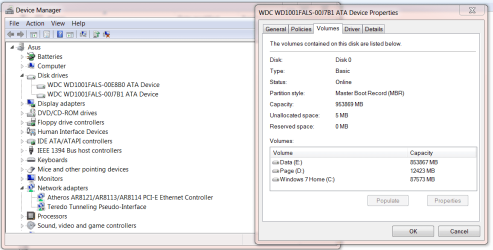
You can look in Device Manager and see if the drives are identified by model number. Then select properties and volume and populate to see what is on each drive.

Drive.PNG

Jim :geek:
 

My Computer My Computer

Computer type
PC/Desktop
Computer Manufacturer/Model Number
Home Built
OS
Windows 8.1 Pro w/Media Center 64bit, Windows 7 HP 64bit
CPU
Phenom II X6 1100T
Motherboard
ASUS M5A99X EVO
Memory
Crucial Balistic 8gb DDR3-1866 CL9
Graphics Card(s)
MSI R6850 Cyclone IGD5 PE
Sound Card
On Board
Monitor(s) Displays
ASUS VE258Q 25" LED with DVI-HDMI-DisplayPort
Screen Resolution
1920 x 1080
Hard Drives
Two WD Cavier Black 2TB Sata III, WD My Book Essential 2TB USB 3.0
PSU
Seasonic X650 80 Plus GOLD Modular
Case
Corsair 400R
Cooling
Antec Kuhler H2O 620, Two 120mm and four 140mm
Keyboard
Logitech K120
Mouse
Logitech Marble Mouse USB, Logitech Precision Game Pad
Internet Speed
15MB
Antivirus
Norton IS 2013, Malwarebytes Pro Beta 2
Browser
IE-11, FF-27
Other Info
APC UPS ES 750, Netgear WNR3500L Gigabit & Wireless N Router with SamKnows Test Program, Motorola SB6120 Gigabit Cable Modem. Brother HL-2170W Laser Printer, Epson V300 Scanner
type CMD into Start Search box, rightclick to run as Admin, type "Diskpart," , then "list disk"
If all disks are the same size and are fully occupied with partitions, you will not be able to tell them apart because the free space will always be shown as zero. For that you have to use a little trick. Shrink a few MBs off a partition on each drive and leave it as unallocated space. If you use a different number of MBs per drive, you will be able to tell them apart because those shrunk MBs will show as free space. Example Disk1:

DISKPART> list disk
Disk ### Status Size Free
-------- ---------- ------- -------
Disk 0 Online 233 GB 0 B
Disk 1 Online 233 GB 1199 MB
Disk 2 Online 15 GB 0 B

Now you know which port serves which disk.
 

My Computer My Computer

Computer Manufacturer/Model Number
HP, Dell, Gateway, Toshiba - 4 laptops and 2 desktops
OS
Vista, Windows7, Mint Mate, Zorin, Windows 8
CPU
from 1.6GHz Duo to i7
Monitor(s) Displays
2x HP w2207
Hard Drives
5x HDD, 7x SSD, 12x Externals
Keyboard
with trackball - no mices
Mouse
Trackball mice
Internet Speed
DSL 6000
Thanks!!

Thanks to everyone who replied. I appreciate you taking the time and sharing your knowledge.

Don
 

My Computer My Computer

OS
Windows 7
Back
Top