Solved shrink free disk space

i have tried the suggestions I got. But things have gotten a long way from my original post. I could not shrink the linux partition while it was installed so I erased it. I then tried to shrink that partition so I could expand the windows partition using disk mgmt.
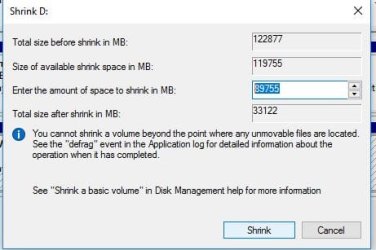
when I try to shrink the space The size of the disk partition is the same as the minimum size, so any smaller size I enter to change to just gets the message that it is unacceptable. I cannot shrink it
 

My Computer

Computer type
PC/Desktop
Computer Manufacturer/Model Number
custom, HP case
OS
windows 7
CPU
Pintium 4 CPU 2,8 GHz
Memory
2.00 GB RAM
Antivirus
none
dorothyr

Personally, I have found, over the years, the Windows Disk Management is pathetic. Never works, or should I say seldom works for what you need.

I never even try to use Windows Disk Management anymore!

3rd party apps are much more robust.

You totally lost me & confusing all of us now.

Can you post disk management image again, the current one?
I have no clue what your drive looks like now.

What is the issue with your Windows 7?
Can't use win 7 to communicate, no support for it. You are saying you don't have an internet connection or what?

Snick
 

My Computer

Computer type
PC/Desktop
Computer Manufacturer/Model Number
HP Desktop & Compaq Laptop
OS
Win 10 x64, Linux Lite, Win 7 x64, BlackArch, & Kali
Hard Drives
Samsung 850 Pro 256Gb,
Hitachi HDD 1Tb,
Crucial MX SSD 250Gb
Segate 3Tb USB 3.0 Ext. Backup HDD
Internet Speed
150Mbps dn, 20Mbps up
Antivirus
Avast Free, Malwarebytes Anti-Exploit & Anti-Ransomware
Browser
Firefox, Chrome, Opera, & VPN
dorothyr

Did you peruse the info I provided links to?
 

My Computer

Computer type
PC/Desktop
Computer Manufacturer/Model Number
HP Desktop & Compaq Laptop
OS
Win 10 x64, Linux Lite, Win 7 x64, BlackArch, & Kali
Hard Drives
Samsung 850 Pro 256Gb,
Hitachi HDD 1Tb,
Crucial MX SSD 250Gb
Segate 3Tb USB 3.0 Ext. Backup HDD
Internet Speed
150Mbps dn, 20Mbps up
Antivirus
Avast Free, Malwarebytes Anti-Exploit & Anti-Ransomware
Browser
Firefox, Chrome, Opera, & VPN
Haven't looked at the info yet. It was dinner time.

Read the first line in my last post. I deleted Linux because I could not shrink its partition. It is no longer a concern. The space it used to occupy is of concern as I cannot shrink it. Repartitioning windows is supposed to be a simple task.

No I do not use internet with Windows 7. Why would I when it is no longer supported? That is what Linux was for.
 

My Computer

Computer type
PC/Desktop
Computer Manufacturer/Model Number
custom, HP case
OS
windows 7
CPU
Pintium 4 CPU 2,8 GHz
Memory
2.00 GB RAM
Antivirus
none
I can’t use Utube links. I do not have unlimited internet and I have used up over half my monthly allotment already.
Thanks anyway.
 

My Computer

Computer type
PC/Desktop
Computer Manufacturer/Model Number
custom, HP case
OS
windows 7
CPU
Pintium 4 CPU 2,8 GHz
Memory
2.00 GB RAM
Antivirus
none
dorothyr

Here's the step by step, I worked through the steps on my machine.
I use AOMEI Partition Assistant Standard, and AOMEI Backupper Free and Pro (they were giving away free pro keys free)

Free space is the space not filled on your drive, you cannot delete free space, you can shrink the size of the partition and then the remainder of the drive becomes unallocated, you create a new partition, then choose the format Ext4 is preferred for Linux. If you choose Ext3 it will work too, that is the old format like windows FAT32, & exFAT.

As I said I don't like/use Win Disk Management. My choice.

Remember if/when you reinstall Linux, you have to have a swap file/partition, Linux on all the distros I've installed do this and they give you choices.

  1. Download and install AOMEI Partition Assistant Standard. < click this link
  2. Install AOMEI
  3. Open AOMEI
  4. Right-Click the partition that contains free space.
  5. Click resize/move partition.
  6. Grab the right side of the partition (the o) and move it to where you want it.
  7. This will shrink the size of your drive partition and create unallocated space.
  8. Click OK
  9. Upper left corner should say apply and an orange box with 01
  10. Click Apply, Click OK, if you have to restart yes.
  11. You will now see unallocated space.
  12. Right click unallocated space, click create partition if you wish to create a partition.
  13. If you are creating a Linux partition, you want ext3 or (ext4 preferred) format. Ext4 is the new standard default format for Linux.
  14. Click OK
  15. Again the upper left corner apply with orange box 01
  16. Click OK. If you are prompted to restart yes.
There you have it, you have shrunk the drive free space, and an unallocated space is now prepared to create partition, and to format the partition as you wish.

Piece of Cake.

Snick

 

My Computer

Computer type
PC/Desktop
Computer Manufacturer/Model Number
HP Desktop & Compaq Laptop
OS
Win 10 x64, Linux Lite, Win 7 x64, BlackArch, & Kali
Hard Drives
Samsung 850 Pro 256Gb,
Hitachi HDD 1Tb,
Crucial MX SSD 250Gb
Segate 3Tb USB 3.0 Ext. Backup HDD
Internet Speed
150Mbps dn, 20Mbps up
Antivirus
Avast Free, Malwarebytes Anti-Exploit & Anti-Ransomware
Browser
Firefox, Chrome, Opera, & VPN
Are you trying to expand the windows partition to take up the free space or create a new partition for other uses? As for that picture you showed that is just a warning. You can click next and the use the partition as you see fit.
 

My Computers

System One System Two

townsbg

The thread is marked as solved.
???
 

My Computer

Computer type
PC/Desktop
Computer Manufacturer/Model Number
HP Desktop & Compaq Laptop
OS
Win 10 x64, Linux Lite, Win 7 x64, BlackArch, & Kali
Hard Drives
Samsung 850 Pro 256Gb,
Hitachi HDD 1Tb,
Crucial MX SSD 250Gb
Segate 3Tb USB 3.0 Ext. Backup HDD
Internet Speed
150Mbps dn, 20Mbps up
Antivirus
Avast Free, Malwarebytes Anti-Exploit & Anti-Ransomware
Browser
Firefox, Chrome, Opera, & VPN
Are you trying to expand the windows partition to take up the free space or create a new partition for other uses? As for that picture you showed that is just a warning. You can click next and the use the partition as you see fit.

Are you talking about the warning that I will no longer be able to access the partition if I delete it? The options are yes or no, not next.

I want to shrink the space and then reinstall linux in it. Then i will enlarge the windows space.
 

My Computer

Computer type
PC/Desktop
Computer Manufacturer/Model Number
custom, HP case
OS
windows 7
CPU
Pintium 4 CPU 2,8 GHz
Memory
2.00 GB RAM
Antivirus
none
Snick. i will download that when I can get to a wifi hotspot. Thank you.
 

My Computer

Computer type
PC/Desktop
Computer Manufacturer/Model Number
custom, HP case
OS
windows 7
CPU
Pintium 4 CPU 2,8 GHz
Memory
2.00 GB RAM
Antivirus
none
Shrinking is the problem. Repeating. When I try to fill in the lower volume size, I get a message that the minimum is the same as the present size of the partition. No lower number is accepted.
 

My Computer

Computer type
PC/Desktop
Computer Manufacturer/Model Number
custom, HP case
OS
windows 7
CPU
Pintium 4 CPU 2,8 GHz
Memory
2.00 GB RAM
Antivirus
none

My Computer

Computer type
PC/Desktop
Computer Manufacturer/Model Number
HP Desktop & Compaq Laptop
OS
Win 10 x64, Linux Lite, Win 7 x64, BlackArch, & Kali
Hard Drives
Samsung 850 Pro 256Gb,
Hitachi HDD 1Tb,
Crucial MX SSD 250Gb
Segate 3Tb USB 3.0 Ext. Backup HDD
Internet Speed
150Mbps dn, 20Mbps up
Antivirus
Avast Free, Malwarebytes Anti-Exploit & Anti-Ransomware
Browser
Firefox, Chrome, Opera, & VPN
dorothyr

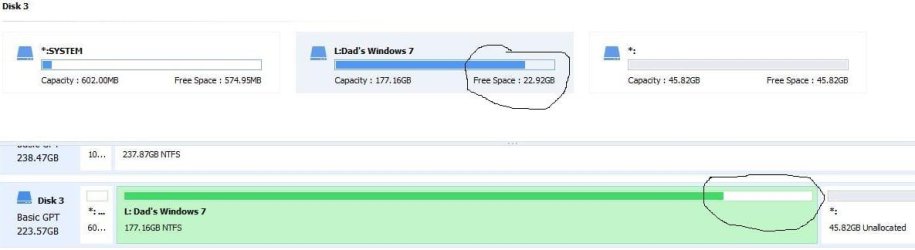
The free space is the space available on the partition/volume. I shrunk the volume and the result is less free space and unallocated. Unallocated can then be formatted.

The snippet is from AOMEI Partition Manager Free

Capture.JPG
 

My Computer

Computer type
PC/Desktop
Computer Manufacturer/Model Number
HP Desktop & Compaq Laptop
OS
Win 10 x64, Linux Lite, Win 7 x64, BlackArch, & Kali
Hard Drives
Samsung 850 Pro 256Gb,
Hitachi HDD 1Tb,
Crucial MX SSD 250Gb
Segate 3Tb USB 3.0 Ext. Backup HDD
Internet Speed
150Mbps dn, 20Mbps up
Antivirus
Avast Free, Malwarebytes Anti-Exploit & Anti-Ransomware
Browser
Firefox, Chrome, Opera, & VPN
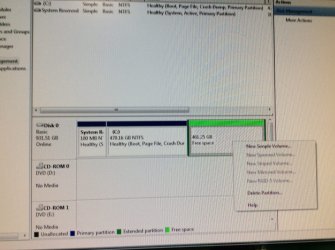
I am not getting resize options for that partition now.
Also, there should not be any files on that partition as I wiped it with kill disk to get rid of linux.
I did run disk check. looking for disk clean-up wizard now.
 

Attachments

  • 1C981D60-BDDD-4AFB-B59B-18378BE36C87.jpeg
    1C981D60-BDDD-4AFB-B59B-18378BE36C87.jpeg
    650.7 KB · Views: 0

My Computer

Computer type
PC/Desktop
Computer Manufacturer/Model Number
custom, HP case
OS
windows 7
CPU
Pintium 4 CPU 2,8 GHz
Memory
2.00 GB RAM
Antivirus
none
Are you talking about the warning that I will no longer be able to access the partition if I delete it? The options are yes or no, not next.

I want to shrink the space and then reinstall linux in it. Then i will enlarge the windows space.


To do that you will want to delete the previous linux partition like you where doing on post 19. When you get the popup shown in your post hit yes. That is just a warning and can be ignored. Then the partition will be gone (the partition will be black and show as unallocated) and you can increase the Windows partition. After resizing the windows partition I would leave that partition empty because the linux installer will set it up as needed. You do not need to decrease the linux partition. Warning: make sure that your data is off of it first.
 

My Computers

System One System Two

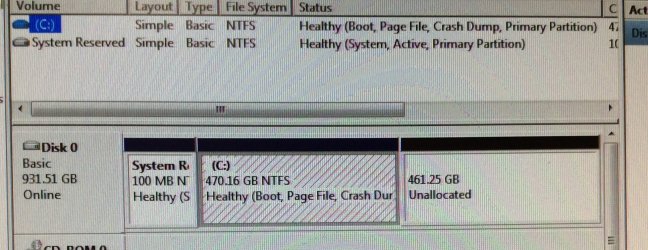
That worked. I now have unallocated space where the free space was. Still can’t expand primary portion, I suspect because it is not ntfs.
 

My Computer

Computer type
PC/Desktop
Computer Manufacturer/Model Number
custom, HP case
OS
windows 7
CPU
Pintium 4 CPU 2,8 GHz
Memory
2.00 GB RAM
Antivirus
none
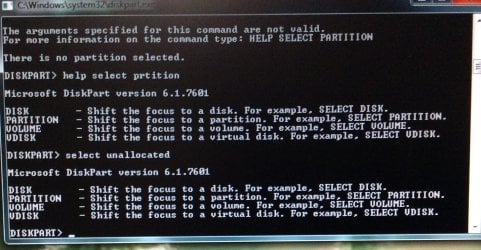
Tried diskpart, attempt to format unallocated partition.
 

Attachments

  • E6F9DE87-8853-40EA-9D23-E668108131E5.jpeg
    E6F9DE87-8853-40EA-9D23-E668108131E5.jpeg
    315.6 KB · Views: 0
  • 4457FF31-A399-4AC6-856A-BCBA1598F8B2.jpeg
    4457FF31-A399-4AC6-856A-BCBA1598F8B2.jpeg
    260.5 KB · Views: 0

My Computer

Computer type
PC/Desktop
Computer Manufacturer/Model Number
custom, HP case
OS
windows 7
CPU
Pintium 4 CPU 2,8 GHz
Memory
2.00 GB RAM
Antivirus
none
Too many issues with M$ Windows Diskpart & Disk Management! :rolleyes:

My opinion. :D

disk management > Right Click unallocated > New Simple Volume > next > next > next > format partition


Snick
 
Last edited:

My Computer

Computer type
PC/Desktop
Computer Manufacturer/Model Number
HP Desktop & Compaq Laptop
OS
Win 10 x64, Linux Lite, Win 7 x64, BlackArch, & Kali
Hard Drives
Samsung 850 Pro 256Gb,
Hitachi HDD 1Tb,
Crucial MX SSD 250Gb
Segate 3Tb USB 3.0 Ext. Backup HDD
Internet Speed
150Mbps dn, 20Mbps up
Antivirus
Avast Free, Malwarebytes Anti-Exploit & Anti-Ransomware
Browser
Firefox, Chrome, Opera, & VPN
What are you trying to do with diskpart? You can't change unallocated space because there isn't a partition there. If you are tying to increase C then right click on C and select extend volume. If you are trying to do something else then please explain exactly what because I'm confused as to what you are trying to do.
 

My Computers

System One System Two

shrink partition problem solved

disk mgr does work. My basic problem was that the free space was not ntfs format. I made a new “simple volume”, named it and formatted it. Still could not expand into it. Then I fooled around with diskpart a bit and finally went back to diskmgr, deleted the new volume which was now formatted, and expanded the desired amount into the unallocated space. The Linux installer found the proper partition and everything is installing. problem solved.
 

My Computer

Computer type
PC/Desktop
Computer Manufacturer/Model Number
custom, HP case
OS
windows 7
CPU
Pintium 4 CPU 2,8 GHz
Memory
2.00 GB RAM
Antivirus
none
Back
Top