dorothyr
Here's the step by step, I worked through the steps on my machine.
I use AOMEI Partition Assistant Standard, and AOMEI Backupper Free and Pro (they
were giving away free pro keys free)
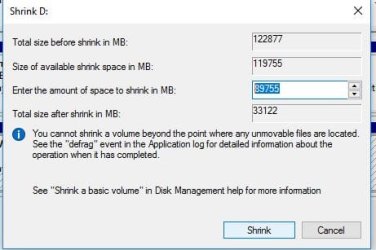
Free space is the space not filled on your drive, you cannot delete free space, you can shrink the size of the partition and then the remainder of the drive becomes unallocated, you create a new partition, then choose the format Ext4 is preferred for Linux. If you choose Ext3 it will work too, that is the old format like windows FAT32, & exFAT.
As I said I don't like/use Win Disk Management. My choice.
Remember if/when you reinstall Linux, you have to have a swap file/partition, Linux on all the distros I've installed do this and they give you choices.
- Download and install AOMEI Partition Assistant Standard. < click this link
- Install AOMEI
- Open AOMEI
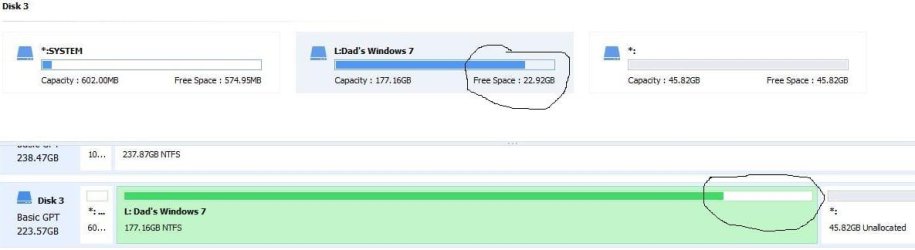
- Right-Click the partition that contains free space.
- Click resize/move partition.
- Grab the right side of the partition (the o) and move it to where you want it.
- This will shrink the size of your drive partition and create unallocated space.
- Click OK
- Upper left corner should say apply and an orange box with 01
- Click Apply, Click OK, if you have to restart yes.
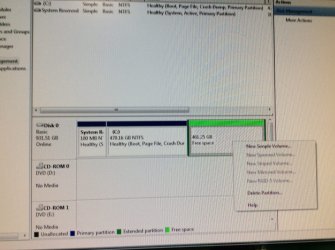
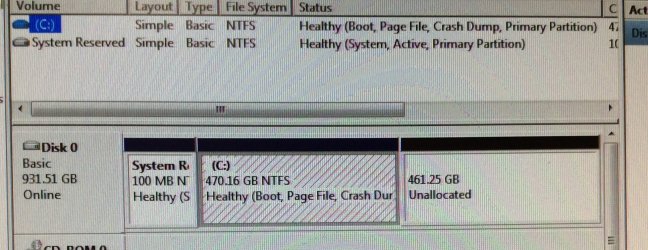
- You will now see unallocated space.
- Right click unallocated space, click create partition if you wish to create a partition.
- If you are creating a Linux partition, you want ext3 or (ext4 preferred) format. Ext4 is the new standard default format for Linux.
- Click OK
- Again the upper left corner apply with orange box 01
- Click OK. If you are prompted to restart yes.
There you have it, you have shrunk the drive free space, and an unallocated space is now prepared to create partition, and to format the partition as you wish.
Piece of Cake.
Snick