SSD / Backup - recovery

Barring hardware failure, I'm sure you will.
 

My Computers My Computers

System One System Two

  • Computer type
    PC/Desktop
    Computer Manufacturer/Model Number
    ALWAYS UNDER CONSTRUCTION
    OS
    Windows 11 Pro
    CPU
    Ryzen 9 5900X
    Motherboard
    Asus X570 Crosshair Viii Hero
    Memory
    32GB G Skill DDR4-3600
    Graphics Card(s)
    EVGA RTX 3080 FTW 3 Ultra
    Sound Card
    On Board/Sennheiser PC37X Headset
    Monitor(s) Displays
    3 X Asus 27"
    Screen Resolution
    2560x1440
    Hard Drives
    2 X 1 TB NVME drives
    PSU
    EVGA 850
    Case
    Phanteks Eclipse P400A
    Cooling
    EVGA 280 AIO
    Keyboard
    Logitech G510s/ Logitech G13
    Mouse
    Logitech G502
    Internet Speed
    24/1
    Antivirus
    ESET/MBAM Pro/SAS Pro
    Browser
    Chrome/ Firefox/ Edge
  • Computer type
    Laptop
    System Manufacturer/Model Number
    Dell 16 Plus
    OS
    Windows 11 Pro
    CPU
    Intel Ultra 9 288V
    Memory
    32 GB LPDDR5X 8533
    Monitor(s) Displays
    16" Mini-LED HDR600 Touch 90 Hz
    Screen Resolution
    2560X1600
    Hard Drives
    1 TB NVME
essenbe, please let me ask you something about Windows installation
Everytime when i installed Windows 7 ( i have 2 WD 6400 AAKS, and Friday, SSD, too ) the letters C / D / E were like this : C - OS partition and D - same HDD as D partition, and E the second HDD.
But the letters were : C - OS partition / D - the second HDD and E was the second partition from my first HDD. And everytime i went to Disk Management to change D with E.
Why is that happent this way ?
Friday when i get my new SSD, i can let those 2 HDD's connected when i make the fresh install, right ?
I hope that SSD will appear as C, HDD 1 as D and the second HDD as E
 

My Computer My Computer

Computer type
PC/Desktop
OS
Windows 7 Ultimate x64
CPU
Intel7 4790K
Motherboard
Gigabyte GA-Z97X UD5H
Memory
8 GB DDR3
Graphics Card(s)
GTX 980Ti G1
Sound Card
SoundBlaster X-FI XtremeGamer
Monitor(s) Displays
Samsung UE40JU6550 UHD
Screen Resolution
3840 X 2160
Hard Drives
1 SSD Intel 330
2 x Western Digital 6400 AAKS
1 x Western Digital 3200 AAKS
PSU
Corsair 750W
Case
Cooler Master HAF 922
The OS is always C drive. Hook the SSD to port 0. Disconnect the other hard drives. Once the SSD is installed and booting, you can turn off the computer and reconnect the other hard drives. You will find they have different drive letters. I always recommend a clean install. Windows will automatically recognize it as an SSD and properly align it and turn off defragmentation. The only other things that are really needed is to turn off Hibernate. You will not have that option in shutdown, but it will save space on the SSD. It saves the same space as the amt. of ram you have.
Here is a good tutorial on prepairing a SSD for installation although you do not need the 'clean all' command on a new SSD. To turn off Hibernate open an elevated command prompt (Start-type cmd-right click-select run as administrator) in the window type powercfg -h off then hit enter. It will look like it did nothing but it did. Don't listen to a lot of people tell you about SSD tweeks. You can tweek them to death. That is all that is necessary. It will run well as long as you are in AHCI mode.
 

My Computers My Computers

System One System Two

  • Computer type
    PC/Desktop
    Computer Manufacturer/Model Number
    ALWAYS UNDER CONSTRUCTION
    OS
    Windows 11 Pro
    CPU
    Ryzen 9 5900X
    Motherboard
    Asus X570 Crosshair Viii Hero
    Memory
    32GB G Skill DDR4-3600
    Graphics Card(s)
    EVGA RTX 3080 FTW 3 Ultra
    Sound Card
    On Board/Sennheiser PC37X Headset
    Monitor(s) Displays
    3 X Asus 27"
    Screen Resolution
    2560x1440
    Hard Drives
    2 X 1 TB NVME drives
    PSU
    EVGA 850
    Case
    Phanteks Eclipse P400A
    Cooling
    EVGA 280 AIO
    Keyboard
    Logitech G510s/ Logitech G13
    Mouse
    Logitech G502
    Internet Speed
    24/1
    Antivirus
    ESET/MBAM Pro/SAS Pro
    Browser
    Chrome/ Firefox/ Edge
  • Computer type
    Laptop
    System Manufacturer/Model Number
    Dell 16 Plus
    OS
    Windows 11 Pro
    CPU
    Intel Ultra 9 288V
    Memory
    32 GB LPDDR5X 8533
    Monitor(s) Displays
    16" Mini-LED HDR600 Touch 90 Hz
    Screen Resolution
    2560X1600
    Hard Drives
    1 TB NVME
I always disable hibernation with the command powercfg -h off, indexing service as well.
What about the option "Turn off dard disk" from Power Options ? I have it now to 150 minutes, it's 20 minutes by default.
To be honest, i don't understand the part Boot to Diskpart. Is that from Command Promt ? I don't know how to get in there when i install Windows.
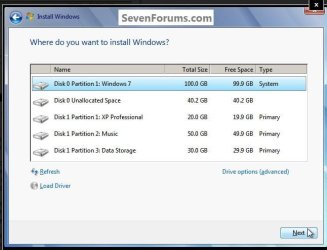
After i insert / install the DVD Windows OS, i have it like in the attached image but not those black windows.
LE : Shift and F10 :)
And one more question about Windows installation : is that okay to delete this 100 MB System Reserved ? Is that really necessary ?
 

Attachments

  • windows install.jpg
    windows install.jpg
    34.7 KB · Views: 3

My Computer My Computer

Computer type
PC/Desktop
OS
Windows 7 Ultimate x64
CPU
Intel7 4790K
Motherboard
Gigabyte GA-Z97X UD5H
Memory
8 GB DDR3
Graphics Card(s)
GTX 980Ti G1
Sound Card
SoundBlaster X-FI XtremeGamer
Monitor(s) Displays
Samsung UE40JU6550 UHD
Screen Resolution
3840 X 2160
Hard Drives
1 SSD Intel 330
2 x Western Digital 6400 AAKS
1 x Western Digital 3200 AAKS
PSU
Corsair 750W
Case
Cooler Master HAF 922
And one more question about Windows installation : is that okay to delete this 100 MB System Reserved ? Is that really necessary
If you do that, your system will not boot because the 100MB partition contains the bootmgr. I would leave it alone. But if you absolutely want to get rid of it, you have to set C as active partition and repair the bootmgr.

You might also have a look at my little SSD beginners tutorial: http://www.sevenforums.com/tutorials/149969-ssd-install-transfer-operating-system.html Although not everything applies to your case because you do a fresh install, there may be some useful hints anyhow.

Do not partition the SSD - it is too small (btw: why did you not get the 60GB Vertex2, it is cheaper than the 50GB model Newegg.com - OCZ Vertex Series OCZSSD2-1VTX60G 2.5" 60GB SATA II MLC Internal Solid State Drive (SSD) ).

For imaging the SSD I recommend free Macrium. It is a lot faster than Acronis: http://www.sevenforums.com/tutorials/73828-imaging-free-macrium.html?ltr=I
 

My Computer My Computer

Computer Manufacturer/Model Number
HP, Dell, Gateway, Toshiba - 4 laptops and 2 desktops
OS
Vista, Windows7, Mint Mate, Zorin, Windows 8
CPU
from 1.6GHz Duo to i7
Monitor(s) Displays
2x HP w2207
Hard Drives
5x HDD, 7x SSD, 12x Externals
Keyboard
with trackball - no mices
Mouse
Trackball mice
Internet Speed
DSL 6000
Thanks.
I'm not living in US, the prices here are a bit expensiver.
Anyway, 50 GB should be okay for C partition.
 

My Computer My Computer

Computer type
PC/Desktop
OS
Windows 7 Ultimate x64
CPU
Intel7 4790K
Motherboard
Gigabyte GA-Z97X UD5H
Memory
8 GB DDR3
Graphics Card(s)
GTX 980Ti G1
Sound Card
SoundBlaster X-FI XtremeGamer
Monitor(s) Displays
Samsung UE40JU6550 UHD
Screen Resolution
3840 X 2160
Hard Drives
1 SSD Intel 330
2 x Western Digital 6400 AAKS
1 x Western Digital 3200 AAKS
PSU
Corsair 750W
Case
Cooler Master HAF 922
The black window is what you need to use diskpart. When you get to the 1st window, do not select your language, hold down the shift key and press F10. A command prompt will come up. If you do that and create an aligned partition and format it, you will not have the 100MB partition.
 

My Computers My Computers

System One System Two

  • Computer type
    PC/Desktop
    Computer Manufacturer/Model Number
    ALWAYS UNDER CONSTRUCTION
    OS
    Windows 11 Pro
    CPU
    Ryzen 9 5900X
    Motherboard
    Asus X570 Crosshair Viii Hero
    Memory
    32GB G Skill DDR4-3600
    Graphics Card(s)
    EVGA RTX 3080 FTW 3 Ultra
    Sound Card
    On Board/Sennheiser PC37X Headset
    Monitor(s) Displays
    3 X Asus 27"
    Screen Resolution
    2560x1440
    Hard Drives
    2 X 1 TB NVME drives
    PSU
    EVGA 850
    Case
    Phanteks Eclipse P400A
    Cooling
    EVGA 280 AIO
    Keyboard
    Logitech G510s/ Logitech G13
    Mouse
    Logitech G502
    Internet Speed
    24/1
    Antivirus
    ESET/MBAM Pro/SAS Pro
    Browser
    Chrome/ Firefox/ Edge
  • Computer type
    Laptop
    System Manufacturer/Model Number
    Dell 16 Plus
    OS
    Windows 11 Pro
    CPU
    Intel Ultra 9 288V
    Memory
    32 GB LPDDR5X 8533
    Monitor(s) Displays
    16" Mini-LED HDR600 Touch 90 Hz
    Screen Resolution
    2560X1600
    Hard Drives
    1 TB NVME
Thanks.
I'm not living in US, the prices here are a bit expensiver.
Anyway, 50 GB should be okay for C partition.
Yeah, you are going to be OK if you move the user folders to the HDD and do little adjustments like eliminating the hiberfile.

Regarding the user folders I recommend to create new folders on the HDD for Documents, Music, Pictures, etc. and then INCLUDE those into the respective libraries. That gives you a clear seperation of your own files and the files that some programs create in e.g. Documents.

Usually you should expect C to stay in the 20 to 30GB range - unless you have very large programs (like some games).
 

My Computer My Computer

Computer Manufacturer/Model Number
HP, Dell, Gateway, Toshiba - 4 laptops and 2 desktops
OS
Vista, Windows7, Mint Mate, Zorin, Windows 8
CPU
from 1.6GHz Duo to i7
Monitor(s) Displays
2x HP w2207
Hard Drives
5x HDD, 7x SSD, 12x Externals
Keyboard
with trackball - no mices
Mouse
Trackball mice
Internet Speed
DSL 6000
The black window is what you need to use diskpart. When you get to the 1st window, do not select your language, hold down the shift key and press F10. A command prompt will come up. If you do that and create an aligned partition and format it, you will not have the 100MB partition.
And if i install Windows without using Diskpart, would that be okay ?
 

My Computer My Computer

Computer type
PC/Desktop
OS
Windows 7 Ultimate x64
CPU
Intel7 4790K
Motherboard
Gigabyte GA-Z97X UD5H
Memory
8 GB DDR3
Graphics Card(s)
GTX 980Ti G1
Sound Card
SoundBlaster X-FI XtremeGamer
Monitor(s) Displays
Samsung UE40JU6550 UHD
Screen Resolution
3840 X 2160
Hard Drives
1 SSD Intel 330
2 x Western Digital 6400 AAKS
1 x Western Digital 3200 AAKS
PSU
Corsair 750W
Case
Cooler Master HAF 922
The black window is what you need to use diskpart. When you get to the 1st window, do not select your language, hold down the shift key and press F10. A command prompt will come up. If you do that and create an aligned partition and format it, you will not have the 100MB partition.
And if i install Windows without using Diskpart, would that be okay ?

Yes, Windows will align it and create the 100MB partition. It will be just fine.
 

My Computers My Computers

System One System Two

  • Computer type
    PC/Desktop
    Computer Manufacturer/Model Number
    ALWAYS UNDER CONSTRUCTION
    OS
    Windows 11 Pro
    CPU
    Ryzen 9 5900X
    Motherboard
    Asus X570 Crosshair Viii Hero
    Memory
    32GB G Skill DDR4-3600
    Graphics Card(s)
    EVGA RTX 3080 FTW 3 Ultra
    Sound Card
    On Board/Sennheiser PC37X Headset
    Monitor(s) Displays
    3 X Asus 27"
    Screen Resolution
    2560x1440
    Hard Drives
    2 X 1 TB NVME drives
    PSU
    EVGA 850
    Case
    Phanteks Eclipse P400A
    Cooling
    EVGA 280 AIO
    Keyboard
    Logitech G510s/ Logitech G13
    Mouse
    Logitech G502
    Internet Speed
    24/1
    Antivirus
    ESET/MBAM Pro/SAS Pro
    Browser
    Chrome/ Firefox/ Edge
  • Computer type
    Laptop
    System Manufacturer/Model Number
    Dell 16 Plus
    OS
    Windows 11 Pro
    CPU
    Intel Ultra 9 288V
    Memory
    32 GB LPDDR5X 8533
    Monitor(s) Displays
    16" Mini-LED HDR600 Touch 90 Hz
    Screen Resolution
    2560X1600
    Hard Drives
    1 TB NVME
Thanks.
I'm not living in US, the prices here are a bit expensiver.
Anyway, 50 GB should be okay for C partition.
Yeah, you are going to be OK if you move the user folders to the HDD and do little adjustments like eliminating the hiberfile.

Regarding the user folders I recommend to create new folders on the HDD for Documents, Music, Pictures, etc. and then INCLUDE those into the respective libraries. That gives you a clear seperation of your own files and the files that some programs create in e.g. Documents.

Usually you should expect C to stay in the 20 to 30GB range - unless you have very large programs (like some games).
I always move only the "My Documents" folder to D partition,but i didn't know that it's recommended to move all the user folders to another partition.
The games i have installed on my PC, are always in D or E partition :D , i never install games on the OS partition.
 

My Computer My Computer

Computer type
PC/Desktop
OS
Windows 7 Ultimate x64
CPU
Intel7 4790K
Motherboard
Gigabyte GA-Z97X UD5H
Memory
8 GB DDR3
Graphics Card(s)
GTX 980Ti G1
Sound Card
SoundBlaster X-FI XtremeGamer
Monitor(s) Displays
Samsung UE40JU6550 UHD
Screen Resolution
3840 X 2160
Hard Drives
1 SSD Intel 330
2 x Western Digital 6400 AAKS
1 x Western Digital 3200 AAKS
PSU
Corsair 750W
Case
Cooler Master HAF 922
If you use Diskpart and create an aligned partition for the Win7 installation, you will not get the 100MB active partition. Instead your C partition will be the active partition. Some people prefer that setup because it is a bit easier for imaging, but for me it is neither here nor there.
 

My Computer My Computer

Computer Manufacturer/Model Number
HP, Dell, Gateway, Toshiba - 4 laptops and 2 desktops
OS
Vista, Windows7, Mint Mate, Zorin, Windows 8
CPU
from 1.6GHz Duo to i7
Monitor(s) Displays
2x HP w2207
Hard Drives
5x HDD, 7x SSD, 12x Externals
Keyboard
with trackball - no mices
Mouse
Trackball mice
Internet Speed
DSL 6000
Thanks.
I'm not living in US, the prices here are a bit expensiver.
Anyway, 50 GB should be okay for C partition.
Yeah, you are going to be OK if you move the user folders to the HDD and do little adjustments like eliminating the hiberfile.

Regarding the user folders I recommend to create new folders on the HDD for Documents, Music, Pictures, etc. and then INCLUDE those into the respective libraries. That gives you a clear seperation of your own files and the files that some programs create in e.g. Documents.

Usually you should expect C to stay in the 20 to 30GB range - unless you have very large programs (like some games).
I always move only the "My Documents" folder to D partition,but i didn't know that it's recommended to move all the user folders to another partition.
The games i have installed on my PC, are always in D or E partition :D , i never install games on the OS partition.
It depends - moving all the user data to a seperate partition is recommended because then you do not loose your data in case of a hard system crash And if you do not have images, you may have to reinstall which wipes out your user data (unless you find a way to first recover it with a live Linux CD).

For small SSDs, that is most always a must because of the space constraints. There you move the user data to the HDD (on desktops). And on a laptop with a small SSD, it is ususally required to move large user files (e.g. videos) to an external disk.
 

My Computer My Computer

Computer Manufacturer/Model Number
HP, Dell, Gateway, Toshiba - 4 laptops and 2 desktops
OS
Vista, Windows7, Mint Mate, Zorin, Windows 8
CPU
from 1.6GHz Duo to i7
Monitor(s) Displays
2x HP w2207
Hard Drives
5x HDD, 7x SSD, 12x Externals
Keyboard
with trackball - no mices
Mouse
Trackball mice
Internet Speed
DSL 6000
whs, please tell me the better way to move all the user folders to D partition.
I have there more folders, and i don't know which ones i should move to D.
My music ? My Pictures ? My Videos ? Saved Games ?
When i did that with My Documents, i moved that to D partition, to a new creted folder, called "My Documents"
Is that okay if i create a new folder on D partition, called "user" and i move one by one
My music / My Pictures / My Videos / Saved Games / etc to this folder ?
 

My Computer My Computer

Computer type
PC/Desktop
OS
Windows 7 Ultimate x64
CPU
Intel7 4790K
Motherboard
Gigabyte GA-Z97X UD5H
Memory
8 GB DDR3
Graphics Card(s)
GTX 980Ti G1
Sound Card
SoundBlaster X-FI XtremeGamer
Monitor(s) Displays
Samsung UE40JU6550 UHD
Screen Resolution
3840 X 2160
Hard Drives
1 SSD Intel 330
2 x Western Digital 6400 AAKS
1 x Western Digital 3200 AAKS
PSU
Corsair 750W
Case
Cooler Master HAF 922

My Computers My Computers

System One System Two

  • Computer type
    PC/Desktop
    Computer Manufacturer/Model Number
    ALWAYS UNDER CONSTRUCTION
    OS
    Windows 11 Pro
    CPU
    Ryzen 9 5900X
    Motherboard
    Asus X570 Crosshair Viii Hero
    Memory
    32GB G Skill DDR4-3600
    Graphics Card(s)
    EVGA RTX 3080 FTW 3 Ultra
    Sound Card
    On Board/Sennheiser PC37X Headset
    Monitor(s) Displays
    3 X Asus 27"
    Screen Resolution
    2560x1440
    Hard Drives
    2 X 1 TB NVME drives
    PSU
    EVGA 850
    Case
    Phanteks Eclipse P400A
    Cooling
    EVGA 280 AIO
    Keyboard
    Logitech G510s/ Logitech G13
    Mouse
    Logitech G502
    Internet Speed
    24/1
    Antivirus
    ESET/MBAM Pro/SAS Pro
    Browser
    Chrome/ Firefox/ Edge
  • Computer type
    Laptop
    System Manufacturer/Model Number
    Dell 16 Plus
    OS
    Windows 11 Pro
    CPU
    Intel Ultra 9 288V
    Memory
    32 GB LPDDR5X 8533
    Monitor(s) Displays
    16" Mini-LED HDR600 Touch 90 Hz
    Screen Resolution
    2560X1600
    Hard Drives
    1 TB NVME
whs, please tell me the better way to move all the user folders to D partition.
I have there more folders, and i don't know which ones i should move to D.
My music ? My Pictures ? My Videos ? Saved Games ?
When i did that with My Documents, i moved that to D partition, to a new creted folder, called "My Documents"
Is that okay if i create a new folder on D partition, called "user" and i move one by one
My music / My Pictures / My Videos / Saved Games / etc to this folder ?
Well, you have 2 options:

1. you move the default location of the existing folders via the Location tab in Properties - as described in the link that essenbee posted. Here you have to make sure that you move the folders to predefined folders (those can have any name - will be changed by the Move anyhow) in that partition - not to the root of the partition which creates a mess with the default location.

2. my preferred solution: you create a data partition and there you make new folders for Documents, Music, etc. You move your own data to those folders and then you right click on each folder and INCLUDE it into the appropriate library. Although it does not hurt, there is no need to create a folder "Users". Just make the individual folders.

Here is a little tutorial for solution #1 that I once recorded: http://www.sevenforums.com/tutorials/72427-data-partition.html
 

My Computer My Computer

Computer Manufacturer/Model Number
HP, Dell, Gateway, Toshiba - 4 laptops and 2 desktops
OS
Vista, Windows7, Mint Mate, Zorin, Windows 8
CPU
from 1.6GHz Duo to i7
Monitor(s) Displays
2x HP w2207
Hard Drives
5x HDD, 7x SSD, 12x Externals
Keyboard
with trackball - no mices
Mouse
Trackball mice
Internet Speed
DSL 6000
whs, please tell me the better way to move all the user folders to D partition.
I have there more folders, and i don't know which ones i should move to D.
My music ? My Pictures ? My Videos ? Saved Games ?
When i did that with My Documents, i moved that to D partition, to a new creted folder, called "My Documents"
Is that okay if i create a new folder on D partition, called "user" and i move one by one
My music / My Pictures / My Videos / Saved Games / etc to this folder ?

That's what I do. I create a folder on D named users, inside that folder I create another folder named 'my user name', inside that folder I create folders for my documents, my pictures, my downloads ect. Then move them from C drive to D drive. Then your documents which used to be located at C/users/your user name/my documents are now located at D/users/your user name/my documents.

It also makes it much easier to backup and to restore your user files. All you have to do is backup D/users. You will have all of your personal files and none will be on the OS drive which is the one most likely to crash. That's just my way. There are other ways to do it that work just as well.

Let us know how the install goes. You will love your SSD.
 
Last edited:

My Computers My Computers

System One System Two

  • Computer type
    PC/Desktop
    Computer Manufacturer/Model Number
    ALWAYS UNDER CONSTRUCTION
    OS
    Windows 11 Pro
    CPU
    Ryzen 9 5900X
    Motherboard
    Asus X570 Crosshair Viii Hero
    Memory
    32GB G Skill DDR4-3600
    Graphics Card(s)
    EVGA RTX 3080 FTW 3 Ultra
    Sound Card
    On Board/Sennheiser PC37X Headset
    Monitor(s) Displays
    3 X Asus 27"
    Screen Resolution
    2560x1440
    Hard Drives
    2 X 1 TB NVME drives
    PSU
    EVGA 850
    Case
    Phanteks Eclipse P400A
    Cooling
    EVGA 280 AIO
    Keyboard
    Logitech G510s/ Logitech G13
    Mouse
    Logitech G502
    Internet Speed
    24/1
    Antivirus
    ESET/MBAM Pro/SAS Pro
    Browser
    Chrome/ Firefox/ Edge
  • Computer type
    Laptop
    System Manufacturer/Model Number
    Dell 16 Plus
    OS
    Windows 11 Pro
    CPU
    Intel Ultra 9 288V
    Memory
    32 GB LPDDR5X 8533
    Monitor(s) Displays
    16" Mini-LED HDR600 Touch 90 Hz
    Screen Resolution
    2560X1600
    Hard Drives
    1 TB NVME
Hello, i am back again. And i need your help, please :)
I cannot install Windows 7 on my new SSD.
I wanna explain you step by step the way i proceeded.
First of all, i unplugged both hdd´s. Went to BIOS, changed to AHCI.
F 10 save and exit, reboot , starting Windows 7 installation.
The installation was very very slow. About 27 % in 2 hours.
I have there 5 options
Copying Windows files - about 1 minute
Expanding Windows files - hours :)
Installing features
Installing updates
Completing installation
On the menu Expanding Windows files after about 35 % installing, i received the error message
This installation was cancelled : Windows cannot install required files. Make sure all files required for installation are available, and restart the installation.
Error code : 0 x 80070037
You think that my new SSD could be damaged ? Do i miss something - settings - in BIOS ?
If i try to install it under IDE, i cannot. Right after i select the SSD ( where to install Windows ) i receive the message
Windows could not format a partition on disk 0, the error occured while preparing the partition selected for installation. Error code : 0x80070057
Please help me. I don´t know what to do anymore.
I think there is a problem with my DVD RW in AHCI. But im not sure.
If i try to install on IDE, on my HDD, everything goes perfect. No errors, nothing.
Shall i install Windows on HDD, and run a benchmark for my new SSD ?
 

My Computer My Computer

Computer type
PC/Desktop
OS
Windows 7 Ultimate x64
CPU
Intel7 4790K
Motherboard
Gigabyte GA-Z97X UD5H
Memory
8 GB DDR3
Graphics Card(s)
GTX 980Ti G1
Sound Card
SoundBlaster X-FI XtremeGamer
Monitor(s) Displays
Samsung UE40JU6550 UHD
Screen Resolution
3840 X 2160
Hard Drives
1 SSD Intel 330
2 x Western Digital 6400 AAKS
1 x Western Digital 3200 AAKS
PSU
Corsair 750W
Case
Cooler Master HAF 922
Hello, i am back again. And i need your help, please :)
I cannot install Windows 7 on my new SSD.
I wanna explain you step by step the way i proceeded.
First of all, i unplugged both hdd´s. Went to BIOS, changed to AHCI.
F 10 save and exit, reboot , starting Windows 7 installation.
The installation was very very slow. About 27 % in 2 hours.
I have there 5 options
Copying Windows files - about 1 minute
Expanding Windows files - hours :)
Installing features
Installing updates
Completing installation
On the menu Expanding Windows files after about 35 % installing, i received the error message
This installation was cancelled : Windows cannot install required files. Make sure all files required for installation are available, and restart the installation.
Error code : 0 x 80070037
You think that my new SSD could be damaged ? Do i miss something - settings - in BIOS ?
If i try to install it under IDE, i cannot. Right after i select the SSD ( where to install Windows ) i receive the message
Windows could not format a partition on disk 0, the error occured while preparing the partition selected for installation. Error code : 0x80070057
Please help me. I don´t know what to do anymore.
I think there is a problem with my DVD RW in AHCI. But im not sure.
If i try to install on IDE, on my HDD, everything goes perfect. No errors, nothing.
Shall i install Windows on HDD, and run a benchmark for my new SSD ?
I would create an aligned partition on the SSD and try to install into that partition. It looks like something is going wrong with the disk formatting during your installation attempts.
http://www.sevenforums.com/tutorials/113967-ssd-alignment.html?ltr=S
 

My Computer My Computer

Computer Manufacturer/Model Number
HP, Dell, Gateway, Toshiba - 4 laptops and 2 desktops
OS
Vista, Windows7, Mint Mate, Zorin, Windows 8
CPU
from 1.6GHz Duo to i7
Monitor(s) Displays
2x HP w2207
Hard Drives
5x HDD, 7x SSD, 12x Externals
Keyboard
with trackball - no mices
Mouse
Trackball mice
Internet Speed
DSL 6000
Please explain it to me how to do that
My DVD RW is very slow in AHCI mode, before i choice the SSD - where to install Windows.
For example : i insert the Windows 7 DVD, reboot, and after that i have a nice blue image with the text Setup Is Starting.
I didn´t already choice the SSD,and on this blue image i have to wait 2-3 minutes.After that im asked to choice the country, language, etc.
Is that normal to wait there 2-3 minutes ?
Something is wrong with my DVD RW ( on AHCI ) maybe .... i dont know.
Should i try to install Windows from USB stick ?
How could i open an Elevated Command Prompt if i don´t have OS Windows 7 installed ??


My Computer My Computer

Computer type
PC/Desktop
OS
Windows 7 Ultimate x64
CPU
Intel7 4790K
Motherboard
Gigabyte GA-Z97X UD5H
Memory
8 GB DDR3
Graphics Card(s)
GTX 980Ti G1
Sound Card
SoundBlaster X-FI XtremeGamer
Monitor(s) Displays
Samsung UE40JU6550 UHD
Screen Resolution
3840 X 2160
Hard Drives
1 SSD Intel 330
2 x Western Digital 6400 AAKS
1 x Western Digital 3200 AAKS
PSU
Corsair 750W
Case
Cooler Master HAF 922
Back
Top