SSD / HDD : Optimize for Windows Reinstallation

How to Optimize an SSD / HDD When You're Ready to Reinstall the Operating System

This will show how to remove / over-write all existing data from a Solid State Drive (SSD) or a Hard Disk Drive (HDD), it'll work for both, then how to create a partition and then format that partition before install begins so you have a clean drive to start the installation with.

   Note

Before you start this, in the Windows start menu search box type diskmgmt.msc right click the entry and click "Run as Administrator" if you get a User Account Control (UAC) prompt enter your user credentials and click Yes; make very sure you know the correct drive number of the drive you want to do this to if you have more than one SSD / HDD in the machine, you don't want to do the wrong one.
   Warning

Do not do this to any SSD or HDD that has data on it you don't want to lose, the first thing this does is to mark the drive as "Unallocated Space" and then writes zeroes ( 0's ) to the entire drive, it's known as a "Secure Erase" and it will make data un-recoverable, it cannot be done to just a single partition on a drive, it will do the whole drive.
You have been warned!
   Information

It may be a help to over-write the HDD Master Boot Record (MBR) before you start any other procedure using the diskpart clean command, rather than the clean all; it takes just seconds to complete so you will have "unallocated" space to use either the Windows installer to create and format the partition(s) or use diskpart for that, however you choose.

Let's get started!


Step One

Boot To DISKPART


If need be, view this tutorial at the link below for an out-line of the process.
How to Boot to DISKPART at PC Startup

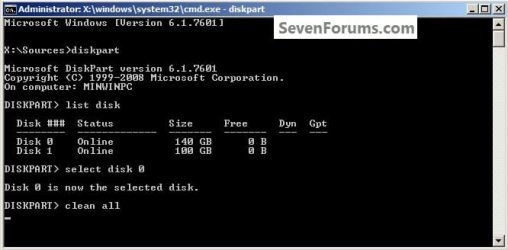
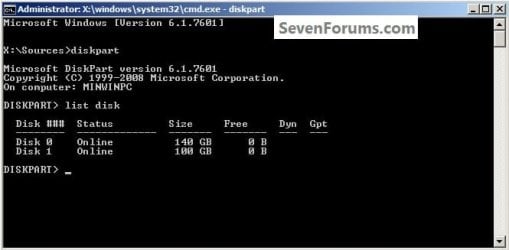
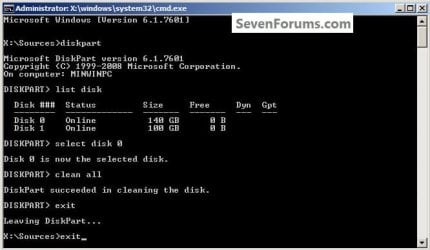
1) In the command window that opens type diskpart then hit the <enter> key then type list disk <enter> if you have more than one SSD / HDD in the machine it'll list them all.

Have a look here to view additional important information on this entire process.
click any image to enlarge
One_1.jpg
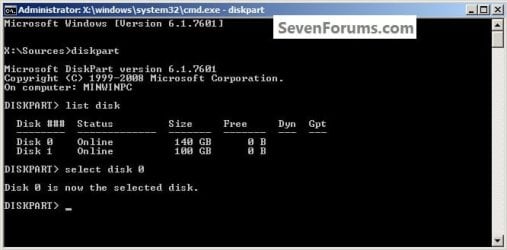
2) Now in the command window type select disk # (# = target disk number) then <enter>, you will get "Disk # is now the selected disk".
One_2.jpg
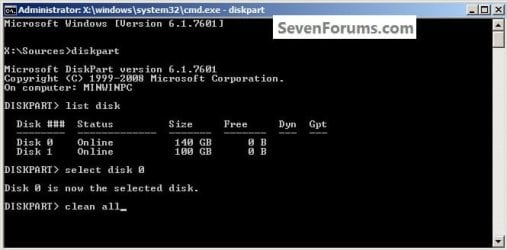
3) Now type clean <enter> you will get a blinking cursor telling you that clean all is working like in the second snip down, just relax and let it work.
One_3.1.jpg
One_3.2.jpg
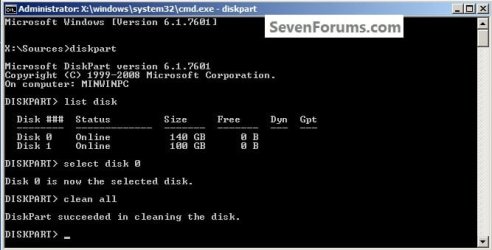
4) When it finishes you'll get "DiskPart succeeded in cleaning the disk" in the command window.
One_4.1.jpg
To leave diskpart at any time and return to the Windows 7 installer type exit two (2) separate times and hit <enter> after each and you will be returned to the installer to continue the installation process.
One_4.2.jpg


Step Two

Create a Partition


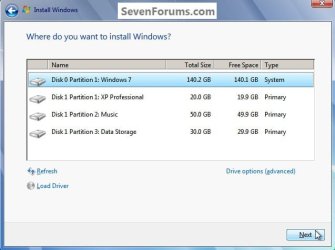
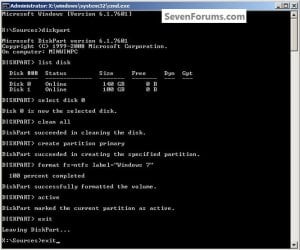
1) Create a single partition of the entire HDD / SSD

Still in the same command window, to create a partition of the entire HDD / SSD, it is suggested if you are using one of the larger, 1 - 2TB HDDs that you use the outline in #2 below to create a single 100GB partition to do the installation to or #3 below if you would like to include the new Windows 7 System Reserved partition, as we're now seeing serious issues with some trying to install to such large partitions.

Do not format the created partition(s) with the installer if you create them using this process as the installer will delete all this info, the second snip shows how to select "where to install" during the installation process, click to highlight/select the "Windows 7" partition and click next.

Now skip down to #5 below to start the installation.
click any image to enlarge
Two_1.1.jpg
Two_1.2.jpg
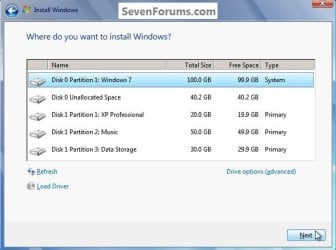
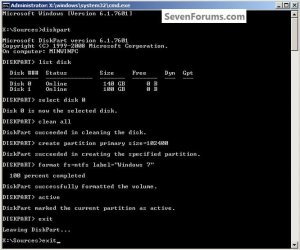
2) Create a specific size partition

If you wanted to create a specific size partition, say 100GB you would add the size you want to create in MBs like in the command below.
create partition primary size=102400 <enter>
1024MB = 1GB - 1024x100 = 102400, you can use/create any size you like.

You can always extend the Windows partition to include the remaining unallocated space on the HDD / SSD or create additional Primary partitions or an Extended partition after the installation completes if you choose.

Do not format the created partition(s) with the installer if you create them using this process as the installer will delete all this info, the second snip shows how to select "where to install" during the installation process, click to highlight/select the "Windows 7" partition and click next.

Now skip down to #5 below to start the installation.
Two_2.1.jpg
Two_2.2.jpg
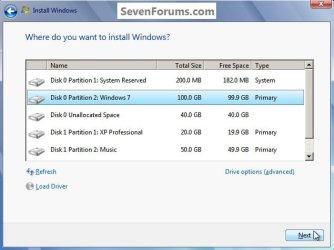
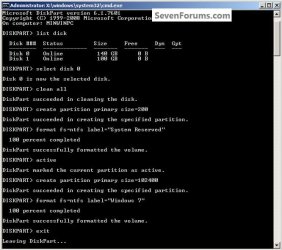
3) Create the System Reserved partition

If you should want to add the "System Reserved" partition back after the clean all, see this snip; of course you would have to select to install Windows 7 to the partition labeled as "Windows 7" during the install and do not format either partition with the installer.

The reason for suggesting to create the System Reserved at 200MB instead of the new default of 100MB is an attempt to curb some of the issues we're now seeing with the partition being too small when dual/multi booting and it also being needed for use with the Windows 7 Backup and Restore and BitLocker programs.

You can always extend the Windows partition to include the remaining unallocated space on the HDD / SSD or create additional Primary partitions or an Extended partition after the installation completes if you choose.

The second snip shows how to select "where to install" during the installation process, click to highlight/select the "Windows 7" partition and click next.
Two_3.1.jpg
Two_3.2.jpg
4) See this tutorial for the "align" argument

Align a Solid State Drive for Windows Installation
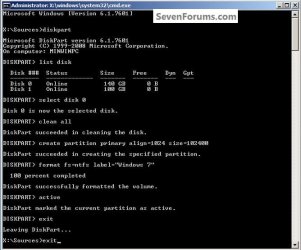
Two_4.1.jpg
5) That's it, you're now done with the command window, type exit <enter> to leave diskpart and exit <enter> again to close the command window; if you're using a Windows 7 full installer it will go to the "Select Language" screen to continue the installation process as usual.

For those using a created repair CD or a Vista installer type exit <enter> to leave diskpart and exit <enter> again to close the command window; at the System Recovery Options dialog box that's still open click Restart to finish the process.
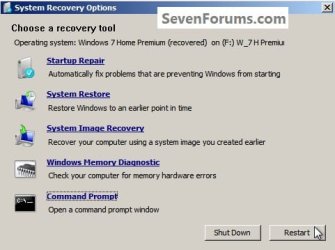
Restart.jpg
Enjoy! :)


Last edited by a moderator:
Hello Novice 4 Fun, welcome to Seven Forums!


Since you prefer simplicity I would suggest a single Primary partition using Step #1.

I'm pleased you like my site and thanks for the nod! ;)
 

My Computer My Computer

Computer Manufacturer/Model Number
* BFK Customs *
OS
W 7 64-bit Ultimate
CPU
Intel Q9550 Yorkfield
Motherboard
ASUS P5Q Pro
Memory
8GB Dominator 8500C5D
Graphics Card(s)
ATI : XFX 5870
Sound Card
Realtek HD Audio 7-1
Monitor(s) Displays
1x 47" LCD HDMI & 3x 26" LCD HDMI
Screen Resolution
1920x1080P & 1920x1200
Hard Drives
1x 80GB Intel X25-M G2 SSD : 1x 500GB & 1x 640GB WD Caviar Black(s)
PSU
Corsair 620HX
Case
Cooler Master RC-690
Cooling
Tuniq Tower 120, 2x 140mm and 3x 120mm case fans
Keyboard
Microsoft 500
Mouse
Razer Diamondback 3G
Internet Speed
14 Mb/s
Other Info
1x Koutech 3Gb/s SATA HDD Hot Swap Rack
Secure Erase or the Windows Diskpart tool?

I just finished building my rig. Installed windows & ran my tests, achieved the clocks I wanted, etc...
Now it's time for a clean final install of windows.

According to my knowledge when an SSD has some writes on it. It's always best to use secure erase to regain the Out of Box Experience. However, when I was reading this tutorial I found out that I can use the CLEAN command via Diskpart, during Win 7 installation.

So the question is, which is better? To boot from Parted Magic & use the secure erase tool, then proceed with the Windows 7 installation. Or if I used the Clean All command via Diskpart "accessing it by pressing SHIFT+F10 as described". Are they the same result in my case?
Will the clean all command restore the SSD to it's original state?

PLS note that my main goal is to get my SSD to its original performance. Not worried if someone can recover data. Not that I had lost any performance in the tests & benchmarks but there has been a fair amount of writes on the primary boot SSD.

Thank you for taking the time to write such a tutorial
 

My Computer My Computer

Computer type
PC/Desktop
Computer Manufacturer/Model Number
Custom Built
OS
Windows 7 Ultimate x64
CPU
i7-3820
Motherboard
DX79SR
Memory
Corsair Platinum 2133Mhz 4X4GB 9-11-10-30 "Quad Channel"
Graphics Card(s)
Gigabyte GTX 680 SOC "replaced by an EVGA 690"
Monitor(s) Displays
Asus
Screen Resolution
1080p,
Hard Drives
OWC Mercury Extreme Pro 6g 240GB "main boot drive",
OCZ Vertex 2 90GB,
Western Digital Black 1TB X2,
Seagate 1TB
PSU
XFX 850 Watts Black Edition
Case
Haf X
Cooling
Thermaltake Frio Advanced
Antivirus
None
Browser
Chrome
Hello Artman,

Current SSDs can be treated the same as any HDD these days.

To wipe the SSD, it would better to use the CLEAN command instead to minimize the number of unnecessary writes to it.

As far as performance goes, you could use any disk defrag program that supports TRIM for SSDs to keep it optimized. TRIM is the SSD version of defrag. Usually about once a month is good.

Hope this helps some, :)
Shawn
 

My Computer My Computer

Computer type
PC/Desktop
Computer Manufacturer/Model Number
Self built custom
OS
64-bit Windows 11 Pro for Workstations
CPU
Intel i7-8700K OC'd to 5 GHz
Motherboard
ASUS ROG Maximus XI Formula Z390
Memory
64 GB (4x16GB) G.SKILL TridentZ RGB DDR4 3600 MHz
Graphics Card(s)
ASUS ROG-STRIX-GTX1080TI-O11G-GAMING
Sound Card
Integrated
Monitor(s) Displays
2 x Samsung Odyssey G7 27"
Screen Resolution
2560x1440
Hard Drives
1TB Samsung 990 PRO M.2,
4TB Samsung 990 PRO PRO M.2,
TerraMaster F8 SSD Plus NAS
PSU
Seasonic Prime Titanium 850W
Case
Thermaltake Core P3
Cooling
Corsair Hydro H115i
Keyboard
Logitech wireless K800
Mouse
Logitech MX Master 4
Internet Speed
2 Gb/s Download and 100 Mb/s Upload
Antivirus
Malwarebyte Anti-Malware Premium
Browser
Google Chrome
Other Info
Logitech Z625 speaker system,
Logitech BRIO 4K Pro webcam,
HP Color LaserJet Pro MFP M477fdn,
APC SMART-UPS RT 1000 XL - SURT1000XLI,
Galaxy S23 Plus phone
Hello Artman,

Current SSDs can be treated the same as any HDD these days.

To wipe the SSD, it would better to use the CLEAN command instead to minimize the number of unnecessary writes to it.

As far as performance goes, you could use any disk defrag program that supports TRIM for SSDs to keep it optimized. TRIM is the SSD version of defrag. Usually about once a month is good.

Hope this helps some, :)
Shawn

Thanks Brink,
PLS correct me if I'm wrong:
So I'll just boot into the Win 7 DVD & wait till it loads then press Shift+F10 to Access the Command Prompt. Select the SSD #, then Clean all "Which will clear & resets everything on the NAND chips". Then exit, & continue with the Windows install, without the alignment procedure cause, it's like I'm installing Win. on a new SSD. Did I miss anything??

By the way, what did you mean by "you could use any disk defrag program that supports TRIM for SSDs"

Man I read your system specs & that's what I call a beast. I thought mine is nice until I read yours. How people choose their rigs says a lot about them
 

My Computer My Computer

Computer type
PC/Desktop
Computer Manufacturer/Model Number
Custom Built
OS
Windows 7 Ultimate x64
CPU
i7-3820
Motherboard
DX79SR
Memory
Corsair Platinum 2133Mhz 4X4GB 9-11-10-30 "Quad Channel"
Graphics Card(s)
Gigabyte GTX 680 SOC "replaced by an EVGA 690"
Monitor(s) Displays
Asus
Screen Resolution
1080p,
Hard Drives
OWC Mercury Extreme Pro 6g 240GB "main boot drive",
OCZ Vertex 2 90GB,
Western Digital Black 1TB X2,
Seagate 1TB
PSU
XFX 850 Watts Black Edition
Case
Haf X
Cooling
Thermaltake Frio Advanced
Antivirus
None
Browser
Chrome
A SSD can be treated just like a HDD for installations.

You would want to use "Clean" instead of "Clean all". "Clean" does the same thing as "Clean all", but without the long secure erase that uses a lot of read and writes on the SSD.

If you like, you could also just start the installation, delete all partitions at step 8 in the tutorial below, then continue on with installing Windows 7 on the SSD.
http://www.sevenforums.com/tutorials/1649-clean-install-windows-7-a.html

Normally, Windows 7 will auto-detect that it's a SSD and do what's in the link below automatically for you, but it wouldn't hurt to double check. This will also provide some more info about a SSD and Windows 7 to help.
Windows 7 & SSD: defragmentation, SuperFetch, prefetch
 

My Computer My Computer

Computer type
PC/Desktop
Computer Manufacturer/Model Number
Self built custom
OS
64-bit Windows 11 Pro for Workstations
CPU
Intel i7-8700K OC'd to 5 GHz
Motherboard
ASUS ROG Maximus XI Formula Z390
Memory
64 GB (4x16GB) G.SKILL TridentZ RGB DDR4 3600 MHz
Graphics Card(s)
ASUS ROG-STRIX-GTX1080TI-O11G-GAMING
Sound Card
Integrated
Monitor(s) Displays
2 x Samsung Odyssey G7 27"
Screen Resolution
2560x1440
Hard Drives
1TB Samsung 990 PRO M.2,
4TB Samsung 990 PRO PRO M.2,
TerraMaster F8 SSD Plus NAS
PSU
Seasonic Prime Titanium 850W
Case
Thermaltake Core P3
Cooling
Corsair Hydro H115i
Keyboard
Logitech wireless K800
Mouse
Logitech MX Master 4
Internet Speed
2 Gb/s Download and 100 Mb/s Upload
Antivirus
Malwarebyte Anti-Malware Premium
Browser
Google Chrome
Other Info
Logitech Z625 speaker system,
Logitech BRIO 4K Pro webcam,
HP Color LaserJet Pro MFP M477fdn,
APC SMART-UPS RT 1000 XL - SURT1000XLI,
Galaxy S23 Plus phone
Would either command; clean or clean all remap bad sectors? I am planning on doing a reinstall on a failing HDD but am trying to make it as stable as possible.
 

My Computer My Computer

Computer type
PC/Desktop
OS
Windows 7 x64
Hello Bancosrs,

If you have any bad sectors that cannot be recovered, then they will be marked to no longer be used when you format the drive.

If you have many, then you might consider replacing the drive before it dies and takes your data with it.
 

My Computer My Computer

Computer type
PC/Desktop
Computer Manufacturer/Model Number
Self built custom
OS
64-bit Windows 11 Pro for Workstations
CPU
Intel i7-8700K OC'd to 5 GHz
Motherboard
ASUS ROG Maximus XI Formula Z390
Memory
64 GB (4x16GB) G.SKILL TridentZ RGB DDR4 3600 MHz
Graphics Card(s)
ASUS ROG-STRIX-GTX1080TI-O11G-GAMING
Sound Card
Integrated
Monitor(s) Displays
2 x Samsung Odyssey G7 27"
Screen Resolution
2560x1440
Hard Drives
1TB Samsung 990 PRO M.2,
4TB Samsung 990 PRO PRO M.2,
TerraMaster F8 SSD Plus NAS
PSU
Seasonic Prime Titanium 850W
Case
Thermaltake Core P3
Cooling
Corsair Hydro H115i
Keyboard
Logitech wireless K800
Mouse
Logitech MX Master 4
Internet Speed
2 Gb/s Download and 100 Mb/s Upload
Antivirus
Malwarebyte Anti-Malware Premium
Browser
Google Chrome
Other Info
Logitech Z625 speaker system,
Logitech BRIO 4K Pro webcam,
HP Color LaserJet Pro MFP M477fdn,
APC SMART-UPS RT 1000 XL - SURT1000XLI,
Galaxy S23 Plus phone
Dear BFK and Brink,,

i recently use SSD... when i want to reinstall windows the 2nd 3rd or 4th time in the future with the same SSD, do i need to do secure erase or just installing from windows 7 installation enough...? there are differing opinions when i google this subject :(

Also regarding the TRIM functionality to works on the SSD during win 7 installation...when i reinstall... do i only need to go to drive options => delete,

or do i need to go drive options => delete => format,, to trigger the trim to work?

i dont partition my ssd


cheers,

KP

===
sorry to put the Qestion here instead of at this thread http://www.sevenforums.com/tutorial...ze-windows-reinstallation-31.html#post2372859
 
Last edited:

My Computer My Computer

Computer type
Laptop
Computer Manufacturer/Model Number
Asus K43S
OS
windows 7 home premium 64bit
CPU
Intel Core i3-2330m
Memory
6 Gib 10600 DDR3 RAM
Graphics Card(s)
Radeon 6730
Monitor(s) Displays
Generic PnP Monitor
Hard Drives
Intel SSD 330 Series 120 Gb
Seagate Momentus 750 Gb
Internet Speed
Slow, lol
Antivirus
KIS 2013

My Computer My Computer

Computer type
PC/Desktop
Computer Manufacturer/Model Number
Self built custom
OS
64-bit Windows 11 Pro for Workstations
CPU
Intel i7-8700K OC'd to 5 GHz
Motherboard
ASUS ROG Maximus XI Formula Z390
Memory
64 GB (4x16GB) G.SKILL TridentZ RGB DDR4 3600 MHz
Graphics Card(s)
ASUS ROG-STRIX-GTX1080TI-O11G-GAMING
Sound Card
Integrated
Monitor(s) Displays
2 x Samsung Odyssey G7 27"
Screen Resolution
2560x1440
Hard Drives
1TB Samsung 990 PRO M.2,
4TB Samsung 990 PRO PRO M.2,
TerraMaster F8 SSD Plus NAS
PSU
Seasonic Prime Titanium 850W
Case
Thermaltake Core P3
Cooling
Corsair Hydro H115i
Keyboard
Logitech wireless K800
Mouse
Logitech MX Master 4
Internet Speed
2 Gb/s Download and 100 Mb/s Upload
Antivirus
Malwarebyte Anti-Malware Premium
Browser
Google Chrome
Other Info
Logitech Z625 speaker system,
Logitech BRIO 4K Pro webcam,
HP Color LaserJet Pro MFP M477fdn,
APC SMART-UPS RT 1000 XL - SURT1000XLI,
Galaxy S23 Plus phone
@Brink
Thanks for the help. The reinstall process went like a charm. However, I'm wondering whether I install the Intel RST. There is no RAID in my rig. Just SSDs & JBOD
Any gain or no need??
 

My Computer My Computer

Computer type
PC/Desktop
Computer Manufacturer/Model Number
Custom Built
OS
Windows 7 Ultimate x64
CPU
i7-3820
Motherboard
DX79SR
Memory
Corsair Platinum 2133Mhz 4X4GB 9-11-10-30 "Quad Channel"
Graphics Card(s)
Gigabyte GTX 680 SOC "replaced by an EVGA 690"
Monitor(s) Displays
Asus
Screen Resolution
1080p,
Hard Drives
OWC Mercury Extreme Pro 6g 240GB "main boot drive",
OCZ Vertex 2 90GB,
Western Digital Black 1TB X2,
Seagate 1TB
PSU
XFX 850 Watts Black Edition
Case
Haf X
Cooling
Thermaltake Frio Advanced
Antivirus
None
Browser
Chrome
@Brink
Thanks for the help. The reinstall process went like a charm. However, I'm wondering whether I install the Intel RST. There is no RAID in my rig. Just SSDs & JBOD
Any gain or no need??


Hello Artman,

The Intel RST driver is for RAID, SATA, and AHCI. You would still want to install the latest version. :)

So far the latest 12.6.0.1028 WHQL version at Station Drivers have been working fine for me.
intel drivers pour Raid/Sata/Ata/Ahci
OR

11.2.0.1006 WHQL at Intel.
https://downloadcenter.intel.com/De...ng&OSVersion=Windows 7 (64-bit)*&DownloadType=
 
Last edited:

My Computer My Computer

Computer type
PC/Desktop
Computer Manufacturer/Model Number
Self built custom
OS
64-bit Windows 11 Pro for Workstations
CPU
Intel i7-8700K OC'd to 5 GHz
Motherboard
ASUS ROG Maximus XI Formula Z390
Memory
64 GB (4x16GB) G.SKILL TridentZ RGB DDR4 3600 MHz
Graphics Card(s)
ASUS ROG-STRIX-GTX1080TI-O11G-GAMING
Sound Card
Integrated
Monitor(s) Displays
2 x Samsung Odyssey G7 27"
Screen Resolution
2560x1440
Hard Drives
1TB Samsung 990 PRO M.2,
4TB Samsung 990 PRO PRO M.2,
TerraMaster F8 SSD Plus NAS
PSU
Seasonic Prime Titanium 850W
Case
Thermaltake Core P3
Cooling
Corsair Hydro H115i
Keyboard
Logitech wireless K800
Mouse
Logitech MX Master 4
Internet Speed
2 Gb/s Download and 100 Mb/s Upload
Antivirus
Malwarebyte Anti-Malware Premium
Browser
Google Chrome
Other Info
Logitech Z625 speaker system,
Logitech BRIO 4K Pro webcam,
HP Color LaserJet Pro MFP M477fdn,
APC SMART-UPS RT 1000 XL - SURT1000XLI,
Galaxy S23 Plus phone
@Brink

Man I installed the Intel RST "However, I didn't use the link you provided". The link says that this applies to boards like the Z77 but not ones with the X79 chipset. So I downloaded the RST Enterprise from the download page on Intel specific to my board. https://downloadcenter.intel.com/De...g&OSVersion=Windows 7 (64-bit)*&DownloadType=
AND the boot times went from something in the 20 seconds to 90 seconds. After the post the system just halts as if it is scanning for Hard Drives. Yet, I have the Rapid boot enabled & hard disk delay is set to 0.
I'm now in the process of returning everything to the way it was.
Any advice??? :)

NB:
It also changed the name of the drives in the Device Manager "eg. OWC Mercury Extreme Pro 6g 240GB to SCSI OWC Mercury Extrm"
 

My Computer My Computer

Computer type
PC/Desktop
Computer Manufacturer/Model Number
Custom Built
OS
Windows 7 Ultimate x64
CPU
i7-3820
Motherboard
DX79SR
Memory
Corsair Platinum 2133Mhz 4X4GB 9-11-10-30 "Quad Channel"
Graphics Card(s)
Gigabyte GTX 680 SOC "replaced by an EVGA 690"
Monitor(s) Displays
Asus
Screen Resolution
1080p,
Hard Drives
OWC Mercury Extreme Pro 6g 240GB "main boot drive",
OCZ Vertex 2 90GB,
Western Digital Black 1TB X2,
Seagate 1TB
PSU
XFX 850 Watts Black Edition
Case
Haf X
Cooling
Thermaltake Frio Advanced
Antivirus
None
Browser
Chrome
That stinks. :(

You could uninstall the listed "Intel...." drivers from "Programs and Features", or do a system restore using a restore point dated before they were installed.
 

My Computer My Computer

Computer type
PC/Desktop
Computer Manufacturer/Model Number
Self built custom
OS
64-bit Windows 11 Pro for Workstations
CPU
Intel i7-8700K OC'd to 5 GHz
Motherboard
ASUS ROG Maximus XI Formula Z390
Memory
64 GB (4x16GB) G.SKILL TridentZ RGB DDR4 3600 MHz
Graphics Card(s)
ASUS ROG-STRIX-GTX1080TI-O11G-GAMING
Sound Card
Integrated
Monitor(s) Displays
2 x Samsung Odyssey G7 27"
Screen Resolution
2560x1440
Hard Drives
1TB Samsung 990 PRO M.2,
4TB Samsung 990 PRO PRO M.2,
TerraMaster F8 SSD Plus NAS
PSU
Seasonic Prime Titanium 850W
Case
Thermaltake Core P3
Cooling
Corsair Hydro H115i
Keyboard
Logitech wireless K800
Mouse
Logitech MX Master 4
Internet Speed
2 Gb/s Download and 100 Mb/s Upload
Antivirus
Malwarebyte Anti-Malware Premium
Browser
Google Chrome
Other Info
Logitech Z625 speaker system,
Logitech BRIO 4K Pro webcam,
HP Color LaserJet Pro MFP M477fdn,
APC SMART-UPS RT 1000 XL - SURT1000XLI,
Galaxy S23 Plus phone
@Brink
I have the restore disabled. However, I did uninstall the RST, cleaned the registry thoroughly and restarted. Surely, at this point nothing in the device manager changed nor the boot times "still at 90 secs". Went into the device manager deleted Intel AHCI driver. Which was under something called "C600 series chipset SATA AHCI Controller". Replaced it with the MS AHCI driver & now it's almost back to the way it was.
Anything wrong with what I did??
Brink isn't it strange that the old MS driver behaves better than the new Intel driver?? I mean I did everything by the book

PS I love your Motherboard looool

Now it simply says Standard AHCI 1.0 Serial ATA controller "I think it was named differently but not sure". Doesn't matter but, any negative impact in your opinion??
 

My Computer My Computer

Computer type
PC/Desktop
Computer Manufacturer/Model Number
Custom Built
OS
Windows 7 Ultimate x64
CPU
i7-3820
Motherboard
DX79SR
Memory
Corsair Platinum 2133Mhz 4X4GB 9-11-10-30 "Quad Channel"
Graphics Card(s)
Gigabyte GTX 680 SOC "replaced by an EVGA 690"
Monitor(s) Displays
Asus
Screen Resolution
1080p,
Hard Drives
OWC Mercury Extreme Pro 6g 240GB "main boot drive",
OCZ Vertex 2 90GB,
Western Digital Black 1TB X2,
Seagate 1TB
PSU
XFX 850 Watts Black Edition
Case
Haf X
Cooling
Thermaltake Frio Advanced
Antivirus
None
Browser
Chrome
You didn't do anything wrong. Some driver versions perform better than others.

It has the 3.6.0.1093 RTS Enterprise version at the Intel download page for your Intel DX79SI motherboard. The one I posted above wasn't a RTSe version.

https://downloadcenter.intel.com/SearchResult.aspx?lang=eng&keyword=DX79SI

https://downloadcenter.intel.com/Detail_Desc.aspx?agr=Y&DwnldID=22584&lang=eng&OSVersion=Windows%207%20(64-bit)*&DownloadType=Drivers

If it's running fine for you now, then I wouldn't worry about it unless you just wanted to test it. Be sure to create a restore point first so that you could quickly undo it if you don't like the results.
 

My Computer My Computer

Computer type
PC/Desktop
Computer Manufacturer/Model Number
Self built custom
OS
64-bit Windows 11 Pro for Workstations
CPU
Intel i7-8700K OC'd to 5 GHz
Motherboard
ASUS ROG Maximus XI Formula Z390
Memory
64 GB (4x16GB) G.SKILL TridentZ RGB DDR4 3600 MHz
Graphics Card(s)
ASUS ROG-STRIX-GTX1080TI-O11G-GAMING
Sound Card
Integrated
Monitor(s) Displays
2 x Samsung Odyssey G7 27"
Screen Resolution
2560x1440
Hard Drives
1TB Samsung 990 PRO M.2,
4TB Samsung 990 PRO PRO M.2,
TerraMaster F8 SSD Plus NAS
PSU
Seasonic Prime Titanium 850W
Case
Thermaltake Core P3
Cooling
Corsair Hydro H115i
Keyboard
Logitech wireless K800
Mouse
Logitech MX Master 4
Internet Speed
2 Gb/s Download and 100 Mb/s Upload
Antivirus
Malwarebyte Anti-Malware Premium
Browser
Google Chrome
Other Info
Logitech Z625 speaker system,
Logitech BRIO 4K Pro webcam,
HP Color LaserJet Pro MFP M477fdn,
APC SMART-UPS RT 1000 XL - SURT1000XLI,
Galaxy S23 Plus phone
I'm a bit baffled which way to install Windows after reading the 2nd step, do you have to create partition through the cmd prompt or through the normal Windows installer? Does one of the ways have any exceptional benefits to the other?
 

My Computer My Computer

Computer type
PC/Desktop
Computer Manufacturer/Model Number
Custom build
OS
Windows 7 Ultimate 64-bit SP1
CPU
Intel Core i5 750
Motherboard
ASRock P55 Extreme (CPUSocket)
Memory
4.00GB Dual-Channel DDR3 @ 401MHz
Graphics Card(s)
GeForce GTX 560 Ti
Screen Resolution
1920x1200 pixels
Hard Drives
466GB Western Digital WDC WD5000AAKX-001CA0 ATA Device (SATA)
Mouse
Logitech MX518
Internet Speed
5MB/s
Antivirus
avast! Free Antivirus
Browser
Pale Moon
Hello Nanda, and welcome to Seven Forums.

Personally I prefer to make the disk unallocated through the normal Windows installer, and let it Windows setup the disk then.

This tutorial can be handy if you were unable to do the above normally, say if the SSD was a dynamic or GPT disk for example.
 

My Computer My Computer

Computer type
PC/Desktop
Computer Manufacturer/Model Number
Self built custom
OS
64-bit Windows 11 Pro for Workstations
CPU
Intel i7-8700K OC'd to 5 GHz
Motherboard
ASUS ROG Maximus XI Formula Z390
Memory
64 GB (4x16GB) G.SKILL TridentZ RGB DDR4 3600 MHz
Graphics Card(s)
ASUS ROG-STRIX-GTX1080TI-O11G-GAMING
Sound Card
Integrated
Monitor(s) Displays
2 x Samsung Odyssey G7 27"
Screen Resolution
2560x1440
Hard Drives
1TB Samsung 990 PRO M.2,
4TB Samsung 990 PRO PRO M.2,
TerraMaster F8 SSD Plus NAS
PSU
Seasonic Prime Titanium 850W
Case
Thermaltake Core P3
Cooling
Corsair Hydro H115i
Keyboard
Logitech wireless K800
Mouse
Logitech MX Master 4
Internet Speed
2 Gb/s Download and 100 Mb/s Upload
Antivirus
Malwarebyte Anti-Malware Premium
Browser
Google Chrome
Other Info
Logitech Z625 speaker system,
Logitech BRIO 4K Pro webcam,
HP Color LaserJet Pro MFP M477fdn,
APC SMART-UPS RT 1000 XL - SURT1000XLI,
Galaxy S23 Plus phone
@Brink

Thank you for your reply. The re-install works flawlessly. But I was wondering, is it normal when the installation had took me hours to complete? Because at that time, it was constantly stuck at 0% on 'Expanding Windows files' after I did the 'clean all' command. But after few hours later, the installation began to flow normally again until it finished.

Usually when I re-install normally without using any special optimization, the re-install process goes for only few minutes.
 

My Computer My Computer

Computer type
PC/Desktop
Computer Manufacturer/Model Number
Custom build
OS
Windows 7 Ultimate 64-bit SP1
CPU
Intel Core i5 750
Motherboard
ASRock P55 Extreme (CPUSocket)
Memory
4.00GB Dual-Channel DDR3 @ 401MHz
Graphics Card(s)
GeForce GTX 560 Ti
Screen Resolution
1920x1200 pixels
Hard Drives
466GB Western Digital WDC WD5000AAKX-001CA0 ATA Device (SATA)
Mouse
Logitech MX518
Internet Speed
5MB/s
Antivirus
avast! Free Antivirus
Browser
Pale Moon
I wouldn't worry about it Nanda,
From what I understood, you used the clean all command. Which will erase the entire HD. Hence, the long time "especially on a mechanical drive".
 

My Computer My Computer

Computer type
PC/Desktop
Computer Manufacturer/Model Number
Custom Built
OS
Windows 7 Ultimate x64
CPU
i7-3820
Motherboard
DX79SR
Memory
Corsair Platinum 2133Mhz 4X4GB 9-11-10-30 "Quad Channel"
Graphics Card(s)
Gigabyte GTX 680 SOC "replaced by an EVGA 690"
Monitor(s) Displays
Asus
Screen Resolution
1080p,
Hard Drives
OWC Mercury Extreme Pro 6g 240GB "main boot drive",
OCZ Vertex 2 90GB,
Western Digital Black 1TB X2,
Seagate 1TB
PSU
XFX 850 Watts Black Edition
Case
Haf X
Cooling
Thermaltake Frio Advanced
Antivirus
None
Browser
Chrome
Hello Nanda,

Sorry about the late reply.

The long time is normal for the "Clean All" command since it takes longer to do the secure erase (1x overwrite).

Normally you could just use the "Clean" command instead that does the same as "Clean All", but without the secure erase to finish a lot faster.
 

My Computer My Computer

Computer type
PC/Desktop
Computer Manufacturer/Model Number
Self built custom
OS
64-bit Windows 11 Pro for Workstations
CPU
Intel i7-8700K OC'd to 5 GHz
Motherboard
ASUS ROG Maximus XI Formula Z390
Memory
64 GB (4x16GB) G.SKILL TridentZ RGB DDR4 3600 MHz
Graphics Card(s)
ASUS ROG-STRIX-GTX1080TI-O11G-GAMING
Sound Card
Integrated
Monitor(s) Displays
2 x Samsung Odyssey G7 27"
Screen Resolution
2560x1440
Hard Drives
1TB Samsung 990 PRO M.2,
4TB Samsung 990 PRO PRO M.2,
TerraMaster F8 SSD Plus NAS
PSU
Seasonic Prime Titanium 850W
Case
Thermaltake Core P3
Cooling
Corsair Hydro H115i
Keyboard
Logitech wireless K800
Mouse
Logitech MX Master 4
Internet Speed
2 Gb/s Download and 100 Mb/s Upload
Antivirus
Malwarebyte Anti-Malware Premium
Browser
Google Chrome
Other Info
Logitech Z625 speaker system,
Logitech BRIO 4K Pro webcam,
HP Color LaserJet Pro MFP M477fdn,
APC SMART-UPS RT 1000 XL - SURT1000XLI,
Galaxy S23 Plus phone
Back
Top