Startup Programs - Change

How to Change, Add, or Remove Startup Programs in Windows 7

   Information
This will show you how to either add, remove, enable, or disable a startup program in Windows 7.
   Note
You can also view the startup logs in Event Viewer (C:\Windows\system32\eventvwr.msc) under Applications and Services Logs, Microsoft, Windows, Diagnostics-Performance, and Operational. The logs will be in the middle to show you what ran at startup, how long it took, and more.
   Warning
User Account Control prevents programs that require elevated (run as administrator) permission or an administrator password from running automatically when Windows 7 starts. If a program is blocked, you'll see a message in the notification area that says some startup programs need permission to run. You can then right click on the notification area message and either select to run the blocked program by giving UAC permission, remove the blocked program from the startup program list, or ignore the notification and not run the program.


:note: For the Windows 10 tutorial please see here - Startup Items - Add, Delete, Enable, Disable in Windows 10 - Windows 10 Tutorials


METHOD ONE

Through the Program Itself


NOTE: Some programs may have a setting in them to allow it to run at startup or not. You will need to consult the program's documentations on how to do this specifically for their program if it is available for that program.
1. Open the program's settings menu.

2. To Add the Program to Startup
A) Select the program's Run at startup type option.
3. To Remove the Program from Startup
A) Unselect the program's Run at startup type option.


METHOD TWO

Through the Startup Folder


NOTE: You can add or remove shortcuts to programs or files from the Startup folder to have them run or open at the startup of Windows 7.

1. Right click on the exe file of the program you want to run at startup, or file to open at startup, and click on Create Shortcut.
NOTE: This is the shortcut that you will add to the Startup folder in either Option One or Option Two below. Skip this step if you are only removing a shortcut from the Startup folder.
A) Do either OPTION ONE "Current User" or OPTION TWO "All Users" below for what you want.


OPTION ONE

For Current Single User Only


:note:NOTE: The single (current) user Startup folder is a hidden system folder located at:
C:\Users\(User-Name)\AppData\Roaming\Microsoft\Windows\Start Menu\Programs\Startup
2. Open the Start Menu, click on All Programs, right click on the Startup folder, click on Open or Explore, and go to step 4 below. (See screenshot below)
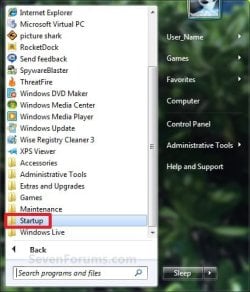
Start_Menu_Startup_Folder.jpg
OR

3. In the Start Menu search line, type shell:startup, press Enter, and go to step 4 below. (See screenshot below)
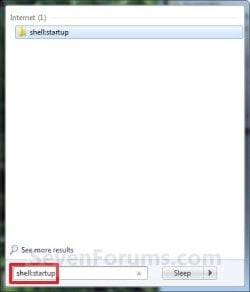
Start_Menu_shell-Startup.jpg
4. Do step 5 or 6 below for what you would like to do.

5. To Add a Startup Program or File Shortcut
A) Drag the shortcut created from step 1 to inside the Startup folder and drop it. (See screenshot below)
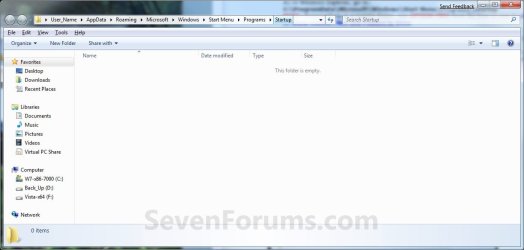
Startup_Folder.jpg
6. To Remove a Startup Program or File Shortcut
A) Right click on the shortcut in the Startup folder and click on Delete. (See screenshot above)
7. Close the Startup folder when done. (See screenshot below step 5A)


OPTION TWO

For All Users


:note:NOTE: The all users Startup folder is a hidden system folder located at:

C:\ProgramData\Microsoft\Windows\Start Menu\Programs\Startup
2. Open the Start Menu, click on All Programs, right click on the Startup folder, click on Open All Users or Explore All Users, and go to step 4 below. (See screenshot below)
Start_Menu_Startup_Folder.jpg
OR

3. In the Start Menu search line, type shell:common startup, press Enter, and go to step 4 below.

4. Do step 5 or 6 below for what you would like to do.

5. To Add a Startup Program or File Shortcut
A) Drag the shortcut created from step 1 to inside the Startup folder and drop it. (See screenshot below)
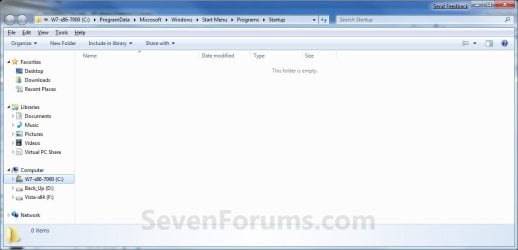
Startup_Folder_All.jpg
6. To Remove a Startup Program or File Shortcut
A) Right click on the shortcut in the Startup folder and click on Delete. (See screenshot above)
6. Close the Startup folder when done. (See screenshot below step 4A)


METHOD THREE

Through System Configuration (msconfig)


NOTE: Using the Selective Startup option in System Configuration (msconfig), you can enable or disable startup programs. You will need to be logged into an administator account, or provide the administrator password to open System Configuration.

WARNING: It would be best to also check the registry entries in METHOD FOUR below as well, since msconfig may not always show all startup programs.
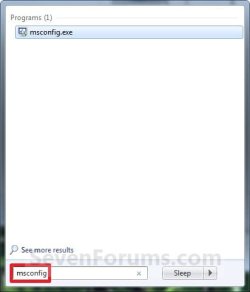
1. Open the Start Menu, type msconfig in the search box, press Enter, and go to step 3 below. (See screenshot below)
Start_Menu_msconfig.jpg
OR

2. Open the Control Panel (icons view) and click on the Administrative Tools icon, then click on System Configuration. Close the Control Panel and Administrative Tools windows.

3. If prompted, click on Continue for the UAC prompt, or type in the administrator's password.

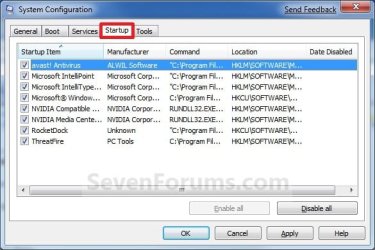
4. Click on the Startup tab. (See screenshot below)

   Tip
If you look under the Location column for the Start Item, you will see the registry location for it that you can use to remove the startup item using METHOD FOUR below instead.
System_Configuration_Startup_Tab.jpg
5. To Disable a Startup Program
A) Select a listed startup program and uncheck it. (See screenshot above)

B) Repeat to disable anymore listed startup programs.
6. To Enable a Startup Program
A) Select a listed startup program and check it. (See screenshot below step 4)

B) Repeat to enable anymore listed startup programs.
7. To Disable All Listed Startup Programs
A) Click on the Disable all button. (See screenshot below step 4)

B) Go to step 9.
8. To Enable All Listed Startup Programs
A) Click on the Enable all button. (See screenshot below step 4)
9. Click on Apply. (See screenshot below step 4)

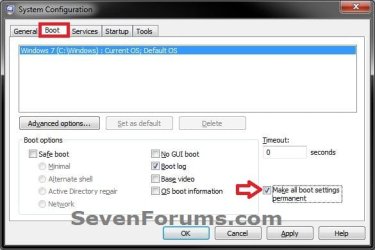
10. Click on the Boot tab, then check the Make all boot settings permanent box and click on OK. (See screenshot below)
Boot-1.jpg
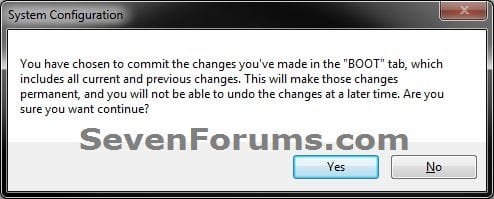
11. Click on Yes. (See screenshot below)
Boot-2.jpg
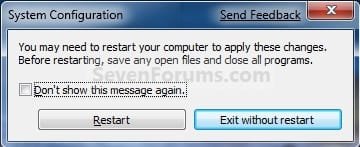
12. Click on the Restart button to apply. (See screenshot below)
WARNING: This will restart your computer immediately. Save and close anything that you are working on first.
Restart.jpg


METHOD FOUR

Manually in Registry Editor


NOTE: This will allow you to remove a startup program for either the current single user or all users. If you wanted to add a startup program, then METHOD TWO above would be a safer and easier way to do so.
1. Open the Start Menu.

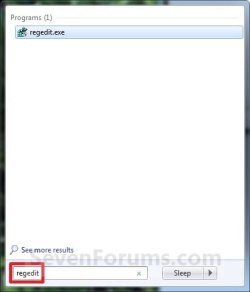
2. In the search line, type regedit and press Enter. (See screenshot below)
Start_Menu_regedit.jpg
3. For "Current User" Only Locations
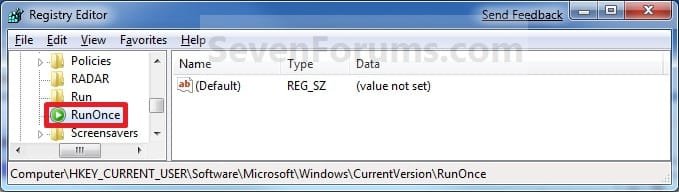
A) In regedit, go to: (See screenshots below)

HKEY_CURRENT_USER\Software\Microsoft\Windows\CurrentVersion\Run
AND
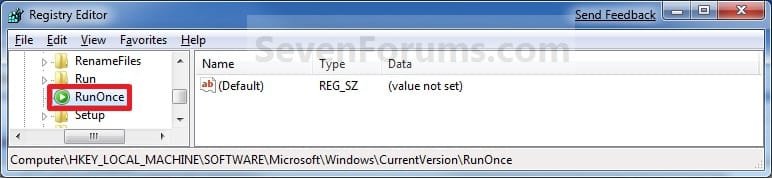
HKEY_CURRENT_USER\Software\Microsoft\Windows\CurrentVersion\RunOnce
Current_Reg_Run.jpg

Current_Reg_RunOnce.jpg
4. For "All Users" Locations
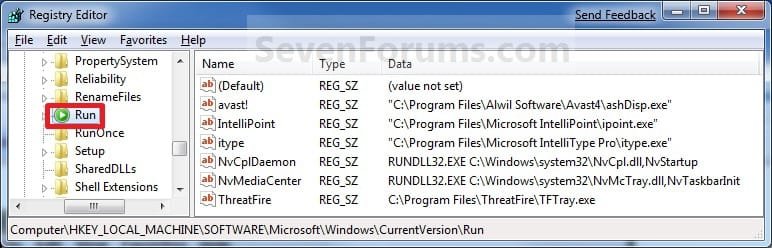
A) In regedit, go to: (See screenshots below)
For 32-bit and 64-bit Windows 7:
HKEY_LOCAL_MACHINE\SOFTWARE\Microsoft\Windows\CurrentVersion\Run
AND
HKEY_LOCAL_MACHINE\SOFTWARE\Microsoft\Windows\CurrentVersion\RunOnce
AND (If added by Group Policy)
HKEY_CURRENT_USER\Software\Microsoft\Windows\CurrentVersion\Policies\Explorer\Run
AND (If added by Group Policy)
HKEY_LOCAL_MACHINE\SOFTWARE\Microsoft\Windows\CurrentVersion\Policies\Explorer\Run
AND
For 64-bit Windows 7 only:
HKEY_LOCAL_MACHINE\SOFTWARE\Wow6432Node\Microsoft\Windows\CurrentVersion\Run
AND
HKEY_LOCAL_MACHINE\SOFTWARE\Wow6432Node\Microsoft\Windows\CurrentVersion\RunOnce
All_Users_Reg_Run.jpg

All_Users_Reg_RunOnce.jpg
5. In the right pane of Run and/or RunOnce, right click on the startup program you want to remove and click on Delete. (See screenshots above)
NOTE: RunOnce is only to run the program once for the next time that Windows 7 starts up. Run is to run the program everytime that Windows 7 starts up.

6. Click on Yes to confirm deletion.

7. When done, close regedit.


METHOD FIVE

Using CCleaner


1. If you have not already, download and install the free program CCleaner.

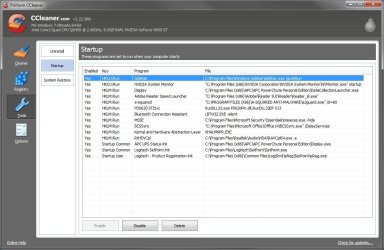
2. Open CCleaner, and click on the Tools icon (left side) and on the Startup button. (See screenshot below)
CCleaner.jpg
3. Select a startup item, then either enable, disable, or delete it from the Vista startup programs list. (See screenshot above)


METHOD SIX

Through Task Scheduler


   Note
By default, you cannot run a elevated (Run as administrator) program that requires UAC permission at startup using the normal Windows 7 startup programs above.

For a Administrator User Account:
You can have Run as administrator (elevated) programs run at startup for a administrator account by running it in a startup task in Task Scheduler.

For a Standard User Account:
You will not be able to run elevated programs at startup for a standard user account though. Only unelevated programs (ex: Notepad).


1. For how to create a startup task, see:

How to Create a Task to Run a Program at Startup and Log On in Windows 7
That's it,
Shawn


Last edited:
awesome post... i just registered to post this reply.. imgine how well this post addressed my issue...

thanks

Welcome to Seven Forums Vasumeesala. :)
 
Last edited:

My Computer

Computer type
PC/Desktop
Computer Manufacturer/Model Number
Self built custom
OS
64-bit Windows 11 Pro for Workstations
CPU
Intel i7-8700K OC'd to 5 GHz
Motherboard
ASUS ROG Maximus XI Formula Z390
Memory
64 GB (4x16GB) G.SKILL TridentZ RGB DDR4 3600 MHz
Graphics Card(s)
ASUS ROG-STRIX-GTX1080TI-O11G-GAMING
Sound Card
Integrated
Monitor(s) Displays
2 x Samsung Odyssey G7 27"
Screen Resolution
2560x1440
Hard Drives
1TB Samsung 990 PRO M.2,
4TB Samsung 990 PRO PRO M.2,
TerraMaster F8 SSD Plus NAS
PSU
Seasonic Prime Titanium 850W
Case
Thermaltake Core P3
Cooling
Corsair Hydro H115i
Keyboard
Logitech wireless K800
Mouse
Logitech MX Master 4
Internet Speed
2 Gb/s Download and 100 Mb/s Upload
Antivirus
Malwarebyte Anti-Malware Premium
Browser
Google Chrome
Other Info
Logitech Z625 speaker system,
Logitech BRIO 4K Pro webcam,
HP Color LaserJet Pro MFP M477fdn,
APC SMART-UPS RT 1000 XL - SURT1000XLI,
Galaxy S23 Plus phone
Take a look at the post count on this tutorial!

Capture.PNG

Imagine that: over a million users have learned how to tame bloatware and get more control over their Windows in just a few years time!

Bravo, Shawn! :geek:
 
Wow, it's hard to believe that many people already. :eek::party:
 

My Computer

Computer type
PC/Desktop
Computer Manufacturer/Model Number
Self built custom
OS
64-bit Windows 11 Pro for Workstations
CPU
Intel i7-8700K OC'd to 5 GHz
Motherboard
ASUS ROG Maximus XI Formula Z390
Memory
64 GB (4x16GB) G.SKILL TridentZ RGB DDR4 3600 MHz
Graphics Card(s)
ASUS ROG-STRIX-GTX1080TI-O11G-GAMING
Sound Card
Integrated
Monitor(s) Displays
2 x Samsung Odyssey G7 27"
Screen Resolution
2560x1440
Hard Drives
1TB Samsung 990 PRO M.2,
4TB Samsung 990 PRO PRO M.2,
TerraMaster F8 SSD Plus NAS
PSU
Seasonic Prime Titanium 850W
Case
Thermaltake Core P3
Cooling
Corsair Hydro H115i
Keyboard
Logitech wireless K800
Mouse
Logitech MX Master 4
Internet Speed
2 Gb/s Download and 100 Mb/s Upload
Antivirus
Malwarebyte Anti-Malware Premium
Browser
Google Chrome
Other Info
Logitech Z625 speaker system,
Logitech BRIO 4K Pro webcam,
HP Color LaserJet Pro MFP M477fdn,
APC SMART-UPS RT 1000 XL - SURT1000XLI,
Galaxy S23 Plus phone
Him thanks for your help in this matter I was unable to use one of the methods but the other one worked fine when I right-click on the EXT file and made the shortcut and then I tried to do the steps where you click on all programs right-click on the start up folder and click on open works for the it would just hang there I was able to put the file shortcut in the hidden location and my program open successfully I' running Windows 64 bit homepremium within Asus dual core Intel Pentium it's interesting that the help file tells you a certain way to do that and it doesn't work thank you for posting this as it offered me a workaround and I was able to you at this program to my start up sincerely Lance granum Lance the dude
 

My Computer

OS
winditous ultimate and home prenium both 64 and 32 b
You're most welcome Lance, and welcome to Seven Forums. :)
 

My Computer

Computer type
PC/Desktop
Computer Manufacturer/Model Number
Self built custom
OS
64-bit Windows 11 Pro for Workstations
CPU
Intel i7-8700K OC'd to 5 GHz
Motherboard
ASUS ROG Maximus XI Formula Z390
Memory
64 GB (4x16GB) G.SKILL TridentZ RGB DDR4 3600 MHz
Graphics Card(s)
ASUS ROG-STRIX-GTX1080TI-O11G-GAMING
Sound Card
Integrated
Monitor(s) Displays
2 x Samsung Odyssey G7 27"
Screen Resolution
2560x1440
Hard Drives
1TB Samsung 990 PRO M.2,
4TB Samsung 990 PRO PRO M.2,
TerraMaster F8 SSD Plus NAS
PSU
Seasonic Prime Titanium 850W
Case
Thermaltake Core P3
Cooling
Corsair Hydro H115i
Keyboard
Logitech wireless K800
Mouse
Logitech MX Master 4
Internet Speed
2 Gb/s Download and 100 Mb/s Upload
Antivirus
Malwarebyte Anti-Malware Premium
Browser
Google Chrome
Other Info
Logitech Z625 speaker system,
Logitech BRIO 4K Pro webcam,
HP Color LaserJet Pro MFP M477fdn,
APC SMART-UPS RT 1000 XL - SURT1000XLI,
Galaxy S23 Plus phone
Can't stop Sony PC Companion re-starting itself!

I like to keep my startup as lean as possible and keep trying to stop Sony PC Companion from running at bootup. I have tried everything the previous contributors have done, but after a while, PC Companion always inserts itself in the Startup list.

I have removed it using msconfig and disabled the service via Control Panel/Administrative Tools/Services, but after a while it always re-starts itself. There is obviously something still running that is re-inserting PC Companion into the Startup list, but what?

Any suggestions?
 
Last edited:

My Computer

OS
Windows 7 Ultimate 32-bit
You can do what many tech enthusiasts do and find a clean copy installation DVD for your version and clean reinstall without the bloatware, using the Product Key on COA sticker. Reinstalling Windows 7

Besides unchecking everything in msconfig>Startup except AV and gadgets, check back for those which write themselves back in and turn them off in msconfig>Services after hiding all MS Services. Even then some will need to be turned off in their Program Preferences or uninstalled. Clean up factory bloatware
 
Thanks for your response.

I'm not sure I'd want to go through the trauma of re-installing Windows as I've got lots of apps and the last time I performed a clean re-install, it took several weeks to get my system back the way I wanted it.

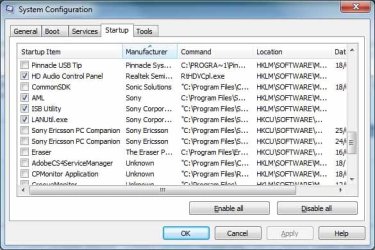
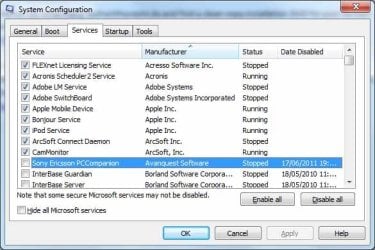
I've attached screen shots of part of my msconfig setup and you'll see that Sony PC Companion is listed twice in Startup (why?). It's also unchecked, so shouldn't run at startup, but after a while, if I open msconfig again, PC Companion will have become checked for some reason.

I've also disabled the PC Companion service, so I don't know what else to try, other than the suggested Windows re-install, which I'd rather not. Process Explorer does not reveal anything that is obviously suspicious, the only Sony items being Vaio processes for LAN, battery monitoring, etc.

Any more thoughts?
msconfig_1.jpg

msconfig_2.jpg
 
Last edited:

My Computer

OS
Windows 7 Ultimate 32-bit
Are you able to find access to PC Companion via any Sony listing in All Programs? Look for its Preferences to disable at Startup.

Apparently Sony PC Companion has its own Facebook page. :huh: There an engineer explains that to uninstall it you should delete its folders in Program Files. PC Companion | Facebook

I would instead rename to append .old to each and move them to desktop so they can be reinstated if need be.

You may need to take ownership: Take Ownership Shortcut
 
Wow - that was a quick response!

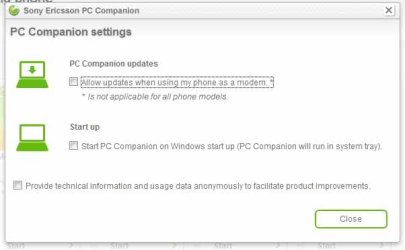
Here's a screen shot of my PC Companion settings, showing it is definitely not set to run at startup.

PC_CompanionSetup.jpg
 

My Computer

OS
Windows 7 Ultimate 32-bit
The Sony engineer says removing the Sony folders in Program files will uninstall the software. This is a dodgy way to do it so I'm kinda shocked to read that, especially on a Facebook page which apparently is their Support for PC Companion ~L:confused:L

I'd uninstall all the Sony bloatware in Programs and Features and see what that does first. Then you can try deleting the folders as suggested by Sony, but I'd save them in the Recycle Bin for awhile, or rename.
 
Thanks for that advice. So I set about un-installing PC Companion and towards the end it "blue screened" on me and I couldn't re-boot my PC!

After using my Windows recovery disc I managed to get things running again and found that PC Companion was in some odd state, neither installed nor un-installed. I then re-installed it and found that the old problem was still present.

To cut a long story short, the "Re-starting PC Companion" issue turned out to be caused by my copy of "Soluto" running in the background. I had set PC Companion to a "delayed" start, rather than "paused", i.e. stopped. In other words it did not run at startup, but was delayed until some time after boot had finished. This is why it kept coming back! I then changed its Soluto setting to "paused" and it no longer runs unless I ask it to.

By the way I can recommend Soluto to anyone interested in analysing and optimising their startup processes. It's a free download from here:
Soluto

Thanks again gregrocker :D
 

My Computer

OS
Windows 7 Ultimate 32-bit
Note that Soluto is in beta and really appreciates any feedback on these anomalies as they are actively shaping the program's database.

In your position I would wipe the HD to clean reinstall after making sure any Sony utilities (mainly hotkeys) are available for download on their Support Downloads webpage for your model and your Recovery Disks are made.

A clean install of just the WIn7 OS gives the best performance unhindered by sponsor's bloatware and useless factory utilities which have superior versions built into Win7.

If/When you're ready here's how to get a perfect clean reinstall of factory OEM: Reinstalling Windows 7
 
Another prompt response!

Yes I agree that for the ultimate in performance a clean re-install of Windows is probably the best bet. However for reasons explained previously, I don't think I'll be doing that unless I really have to.

My current best boot time is just over one minute (considerably less without Kaspersky AV running), which I don't thank is too bad. I've also replaced the hard drive with a Seagate Momentus XT 500GB, which is a hybrid drive with 4GB of flash. This has also speeded things up, as it puts commonly used files (e.g. bootup and favourite apps) onto the flash section for extra speed.

Thanks one more time!
 

My Computer

OS
Windows 7 Ultimate 32-bit
Try running MS Security Essentials or Avast 6 freeware which is most recommended here for best performance and seamless protection with the WIn7 Firewall kept updated.
 
Last edited:
OK thanks for that. My current KIS licence runs out in a couple of months, so I might give Avast a try.
I've also heard that Trend Titanium is a very good AV/Firewall package and is not too resource hungry. Do have a view on this one?
 

My Computer

OS
Windows 7 Ultimate 32-bit
Subject getting offtopic from tutorial. Please start a new thread in the appropriate forum area for offtopic issues instead. :geek:
 

My Computer

Computer type
PC/Desktop
Computer Manufacturer/Model Number
Self built custom
OS
64-bit Windows 11 Pro for Workstations
CPU
Intel i7-8700K OC'd to 5 GHz
Motherboard
ASUS ROG Maximus XI Formula Z390
Memory
64 GB (4x16GB) G.SKILL TridentZ RGB DDR4 3600 MHz
Graphics Card(s)
ASUS ROG-STRIX-GTX1080TI-O11G-GAMING
Sound Card
Integrated
Monitor(s) Displays
2 x Samsung Odyssey G7 27"
Screen Resolution
2560x1440
Hard Drives
1TB Samsung 990 PRO M.2,
4TB Samsung 990 PRO PRO M.2,
TerraMaster F8 SSD Plus NAS
PSU
Seasonic Prime Titanium 850W
Case
Thermaltake Core P3
Cooling
Corsair Hydro H115i
Keyboard
Logitech wireless K800
Mouse
Logitech MX Master 4
Internet Speed
2 Gb/s Download and 100 Mb/s Upload
Antivirus
Malwarebyte Anti-Malware Premium
Browser
Google Chrome
Other Info
Logitech Z625 speaker system,
Logitech BRIO 4K Pro webcam,
HP Color LaserJet Pro MFP M477fdn,
APC SMART-UPS RT 1000 XL - SURT1000XLI,
Galaxy S23 Plus phone
STARTUP COP PRO Reply

Hey there, I've still got a problem with StartupCop Pro on my Windows 7 installation. I can install and run it, but if I activate UAC, the program will refuse to launch on startup - no error messages or anything. I've checked everywhere, and there isn't any reason it shouldn't work, but if I disable UAC completely, it works fine. Is there any way to keep the program running on startup while also running UAC? I like the measure of security that UAC supplies, but I have been unable to use UAC for months since StartupCop pro is a necessity.

Thanks.

- 2 Bunny
 

My Computer

Computer type
Laptop
Computer Manufacturer/Model Number
Lenovo N200 0769-AUU
OS
Windows 7 64Bit
CPU
Intel Pentium T2390 1.87Ghz (Dual Core)
Motherboard
Lenovo IEL10
Memory
1.5GB DDR2 PC2-5300 (Soon to Upgrade)
Graphics Card(s)
Intel GMA X3100
Sound Card
Lenovo Motherboard Standard Built in (HD)
Monitor(s) Displays
Built in display (Usable Quality)
Screen Resolution
1280X800
Hard Drives
SEAGATE!
PSU
External Lenovo (20Volt, 65Watt)
Case
Lenovo stock case
Cooling
Generic Lenovo Cooler
Keyboard
Stock Standard Lenovo Keyboard (High quality)
Mouse
Built in high quality trackpad
Internet Speed
As fast as it goes
Antivirus
Avast! Free
Browser
Firefox (2006-2014), Pale Moon (2014-?)
Hello 2 Bunny,

You might give this a try to see if it may work.

First remove the StartupCop Pro from all of the startup program lists.

Create a elevated task shortcut using the tutorial below.
http://www.sevenforums.com/tutorials/11949-elevated-program-shortcut-without-uac-prompt-create.html
Next, use create a separate task using the tutorial below to run the elevated task shortcut created from above at startup and logon.
http://www.sevenforums.com/tutorials/67503-task-create-run-program-startup-log.html
Hope this helps,
Shawn
 

My Computer

Computer type
PC/Desktop
Computer Manufacturer/Model Number
Self built custom
OS
64-bit Windows 11 Pro for Workstations
CPU
Intel i7-8700K OC'd to 5 GHz
Motherboard
ASUS ROG Maximus XI Formula Z390
Memory
64 GB (4x16GB) G.SKILL TridentZ RGB DDR4 3600 MHz
Graphics Card(s)
ASUS ROG-STRIX-GTX1080TI-O11G-GAMING
Sound Card
Integrated
Monitor(s) Displays
2 x Samsung Odyssey G7 27"
Screen Resolution
2560x1440
Hard Drives
1TB Samsung 990 PRO M.2,
4TB Samsung 990 PRO PRO M.2,
TerraMaster F8 SSD Plus NAS
PSU
Seasonic Prime Titanium 850W
Case
Thermaltake Core P3
Cooling
Corsair Hydro H115i
Keyboard
Logitech wireless K800
Mouse
Logitech MX Master 4
Internet Speed
2 Gb/s Download and 100 Mb/s Upload
Antivirus
Malwarebyte Anti-Malware Premium
Browser
Google Chrome
Other Info
Logitech Z625 speaker system,
Logitech BRIO 4K Pro webcam,
HP Color LaserJet Pro MFP M477fdn,
APC SMART-UPS RT 1000 XL - SURT1000XLI,
Galaxy S23 Plus phone
Back
Top