Taskbar - Pin or Unpin a Folder

How to Pin or Unpin a Folder to Taskbar in Windows 7 and Windows 8


   Information
This will show you how to pin a folder to the taskbar directly or as a toolbar with a small or large custom icon, and with or without a text name in Windows 7 and Windows 8.

   Note
The pinned taskbar items are located in this hidden systen folder:

C:\Users\(User-Name)\AppData\Roaming\Microsoft\Internet Explorer\Quick Launch\User Pinned\TaskBar

   Tip
You can use this tutorial to pin either one of these hidden folders below to simulate the Classic Start Menu.
NOTE: Leave the arrows to expand the folder by.

Start Menu Used By Current User Account Only:
C:\Users\User-Name\AppData\Roaming\Microsoft\Windows\Start Menu\Programs

Start Menu Used By All User Accounts:
C:\ProgramData\Microsoft\Windows\Start Menu\Programs


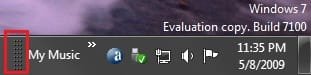
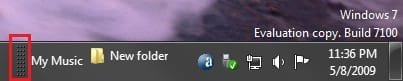
EXAMPLE: Folder Pinned on the Right Side of the Taskbar
NOTE: This with using OPTION TWO and the folder having a large icon with and without a text name.
Right_Side_Example.jpg

Right_Side_Text_Example.jpg
EXAMPLE: Folder Pinned on the Left Side of the Taskbar
NOTE: This with using OPTION TWO and the folder having a large icon with and without a text name.

Left_Side_Example.jpg

Left_Side_Text_Example.jpg


OPTION ONE

To Pin a Folder Directly to Taskbar


   Note
This option will show you a workaround to pin a folder directly to the taskbar that behaves the same as any other pinned program to the taskbar.


1. In Windows Explorer (Windows 7) or File Explorer (Windows 8), navigate to the folder that you want to pin to the taskbar.

2. Right click or swipe down on the folder, click/tap on Send to and Desktop (create shortcut), and close Explorer.

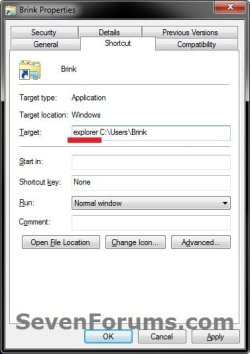
3. On your desktop, right click or swipe down on the folder shortcut, click/tap on Properties, Shortcut tab, type explorer in front of the Target path of the folder leaving a space inbetween them, and click/tap on Apply. (see example screenshots below)
target1.jpgtarget-2.jpg
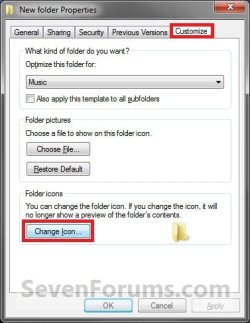
4. In the same Shortcut tab, click/tap on the Change Icon button. (see screenshots above)

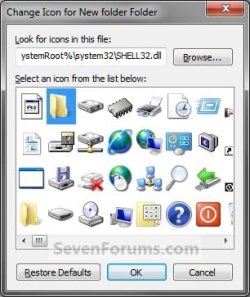
5. In the Change Icon window, type imageres.dll in the "look for" field and press Enter, then select the folder icon and click/tap on OK. (see screenshot below)
NOTE: You can use any icon that you would like to have displayed on the taskbar for this folder though.
icon.jpg
6. Click/tap on OK. (see screenshots below step 3)

7. Right click or swipe down on the folder shortcut on your desktop, and click/tap on Pin to Taskbar. You could also drag and drop the pinned folder icon to where you like within the other pinned icons on the taskbar.

8. When finished, you can delete the folder shortcut on your desktop if you like. It will not affect the pinned folder icon.


OPTION TWO

To Pin or Unpin a Folder as a Toolbar to Taskbar


   Note
You cannot pin a root folder directly to the taskbar using this option. Instead, you can only pin a subfolder in that root folder instead. You just need to make sure that there is only one subfolder in the root folder though. If not, then the other subfolders in the root folder will show up on the taskbar as well. For example, if you selected your C:\Users\(User-name) folder instead to pin the My Music in the example in step one below, then you would have all of the (User-Name) subfolders pinned to the taskbar as well since they are all subfolders in the C:\Users\(User-name) root folder.


1. Unlock the taskbar.

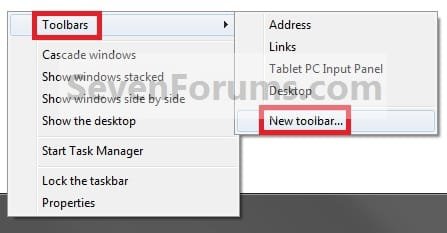
2. Right click or swipe down on an empty space on the taskbar, and click/tap on Toolbars and New toolbar. (see screenshot below)
Step2.jpg
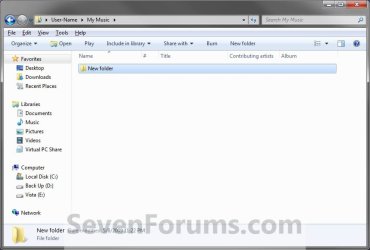
3. Navigate to the folder (ex: C:\Users\(user-name)\My Music) and select it, then click/tap on the Select Folder button. (see screenshot below)
Step3.jpg
4. Right click or swipe down on the dotted lines, then uncheck Show Title by clicking on it. (see screenshot below)
NOTE: If you leave Show Title checked, then the icon of the selected folder (step 3) will not show, and only the folder name would.
Step5.jpg
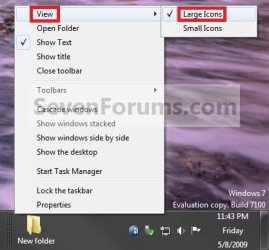
5. To Select a Small or Large Folder Icons
A) Right click or swipe down on the dotted separator line, then click/tap on View and select either Large Icons or Small Icons for the folder on the taskbar. (See screenshots below)
Step6A.jpgStep6B.jpg
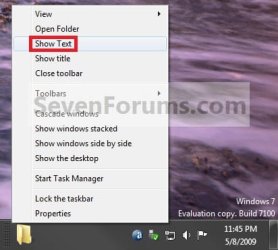
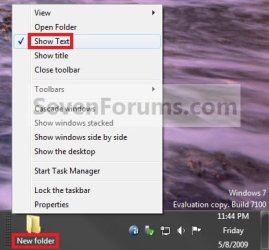
6. To Keep or Remove Folder Text Name
A) Right click or swipe down on the dotted separator line, then click/tap on View and click on Show Text to check (keep) or uncheck (remove) the folder name. (See screenshots below)
Step7A.jpgStep7B.jpg
7. To Keep the Folder on Right Side of Taskbar
A) Click/tap on the dotted separator line and hold, then drag it to the left and right to make any adjustments to how you want the folder positioned on the right side of the taskbar. (see screenshot below)

Step8.jpg
B) Release the left click when done.

C) Go to step 9.
8. To Have the Folder on Left Side of Taskbar
A) Click/tap on the dotted separator line of the pinned taskbar programs on the far left side and hold, then drag it to the right past the folder and release. (see screenshot below)

Step9A.jpg
B) Click/tap on the dotted separator line of the pinned taskbar programs on the now right side and hold, then drag it to the left next to the folder and release. (see screenshot below)

Step9B.jpg
9. Lock the taskbar.

10. You now have a pinned folder on the taskbar. (See example screenshots at the top of the tutorial)

11. You can now open the pinned folder and put whatever other files, folder, or shortcuts you want in this folder as you would any other folder for easy access to them from the taskbar.

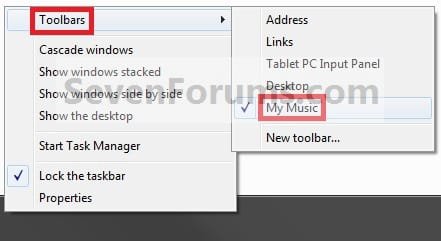
12. To Unpin a Folder from the Taskbar
A) Right click or swipe down on an empty space on the taskbar, click/tap on Toolbars, and click/tap on the pinned folder (step 3) to uncheck and remove it from the taskbar. (see screenshot below)
Step10.jpg
That's it,
Shawn


Attachments

  • Step1A.jpg
    Step1A.jpg
    39.7 KB · Views: 4,480
  • Step1B.jpg
    Step1B.jpg
    28 KB · Views: 866
  • Step1C.jpg
    Step1C.jpg
    24.2 KB · Views: 724
  • Step4A.jpg
    Step4A.jpg
    5.3 KB · Views: 531
  • Step4B.jpg
    Step4B.jpg
    6.5 KB · Views: 454
Last edited:
Hello ADJ,

It sounds like Option One may work better for you instead.

In Option Two, once you move the toolbar to the left, you would need to move the border of a pinned item to the right of the toolbar over to the left far enough to compress all the items in the Downloads toolbar until you only see the Downloads folder and the expand arrow above it to the right a bit.

Thanks, this sounds reasonable (though my problem arose when leaving the toolbar on the right, or am I misunderstanding again ?). Anyway I have a working solution for now so will quit while I'm ahead.
Thanks again for all your hard work, a
 

My Computer

OS
7 ultimate
CPU
AMD Phenom II x4 810 processor
Motherboard
Asus M4N78-AM
Memory
4096MB
Graphics Card(s)
NVIDIA GeForce 8200
Monitor(s) Displays
iiyama prolite B2409 HDS
Hard Drives
Asus 300gb x2
You're most welcome ADJ. :)

Using Option Two with the toolbar on the right, you should be able to drag it to the right until all you see is the folder and the expansion arrow above it.

Yeah, since Option One will work for you, then that'll make it easier to drag it where you like within the pinned program icons.
 

My Computer

Computer type
PC/Desktop
Computer Manufacturer/Model Number
Self built custom
OS
64-bit Windows 11 Pro for Workstations
CPU
Intel i7-8700K OC'd to 5 GHz
Motherboard
ASUS ROG Maximus XI Formula Z390
Memory
64 GB (4x16GB) G.SKILL TridentZ RGB DDR4 3600 MHz
Graphics Card(s)
ASUS ROG-STRIX-GTX1080TI-O11G-GAMING
Sound Card
Integrated
Monitor(s) Displays
2 x Samsung Odyssey G7 27"
Screen Resolution
2560x1440
Hard Drives
1TB Samsung 990 PRO M.2,
4TB Samsung 990 PRO PRO M.2,
TerraMaster F8 SSD Plus NAS
PSU
Seasonic Prime Titanium 850W
Case
Thermaltake Core P3
Cooling
Corsair Hydro H115i
Keyboard
Logitech wireless K800
Mouse
Logitech MX Master 4
Internet Speed
2 Gb/s Download and 100 Mb/s Upload
Antivirus
Malwarebyte Anti-Malware Premium
Browser
Google Chrome
Other Info
Logitech Z625 speaker system,
Logitech BRIO 4K Pro webcam,
HP Color LaserJet Pro MFP M477fdn,
APC SMART-UPS RT 1000 XL - SURT1000XLI,
Galaxy S23 Plus phone
Excellent Tutorial. I just came across it. Just what I needed. Thanks again,

Graham
 

My Computer

Computer type
PC/Desktop
Computer Manufacturer/Model Number
Custom Build
OS
Windows 7 Ultimate x64 SP1
CPU
4770K
Motherboard
Asus Maximus VI Hero
Memory
16 GB running at 2133
Graphics Card(s)
GTX 780
Sound Card
Onboard Motherboard
Monitor(s) Displays
Sony 32 inch TV
Screen Resolution
1920 x 1080
Hard Drives
1 x Crucial MX100 256GB
1 x Crucial M500 956GB
1 x Western Digital Black 3TB
Cooling
Corsair H110 for CPU, 3 x 140mm PWM Case Fans
Antivirus
Norton Internet Security
Browser
Default - Firefox 31.0
I honestly only registered here because of you and this thread.

I wan't to thank you for taking the time to make a very detailed tutorial on how to work the toolbar. Your thread helped me a lot.

Thank you sir.
 

My Computer

Computer type
Laptop
Computer Manufacturer/Model Number
Dell
OS
Windows 7
CPU
Intel Core 2 Duo U77000 1.33 Ghz
Motherboard
Dell DU076
Memory
2GB DDR2 SDRAM
Graphics Card(s)
Built-In Intel GMA 950
Hard Drives
60GB Samsung HS122JC ATA Device
Antivirus
CombotFix, Avast, AVG
Browser
FireFox
My two cents worth added

Just like @F4r3r, I too joined to say thank you for this tutorial/thread. For me, option 1 didn't work, but I tried option 2 and it worked great. Option 1 only kept showing me the contents of the folder in an opened Windows Explorer window. Option 2 let me cascade (and thus easily access) the items within the folder (aka toolbar) directly from my taskbar. This makes life much easier for me, especially when I have 10 or more apps opened full screen and I need to get to one of my commonly used items real quick (and I want to keep everything opened full screened without minimizing everything).

Also, I wanted to add an additional trick for anyone else who uses this thread. Once you complete the steps in this tutorial, also add the new folder shortcut to the following folder:

"C:\Users\<User Name>\AppData\Roaming\Microsoft\Windows\SendTo"
- replacing <User Name> with your user name

Now, whenever you want to add a new item to the folder/toolbar, all you have to do is "Sent To" the new folder and a copy of the item will be appear in the nicely cascaded list.


Thanks again
Good tutorial
 

My Computer

Computer type
PC/Desktop
OS
Windows 7 x64 Enterprise (AD domain)
Thank you for the turorial :) I'm experiencing the following issue,the settings are set to default when I restart the computer :confused: Any solutions?
 

My Computer

Computer type
PC/Desktop
OS
Win7 Ultimate/X84
CPU
Intel Celeron 336/2.8Ghz
Motherboard
MS-7592
Memory
DDR3/2GB
Hard Drives
ATA-100/160GB
Browser
FirefoX
Thank you for the turorial :) I'm experiencing the following issue,the settings are set to default when I restart the computer :confused: Any solutions?

I'm afraid that I need more details and screenshots about your issue. I don't understand what you mean.
 

My Computer

Computer type
PC/Desktop
Computer Manufacturer/Model Number
Self built custom
OS
64-bit Windows 11 Pro for Workstations
CPU
Intel i7-8700K OC'd to 5 GHz
Motherboard
ASUS ROG Maximus XI Formula Z390
Memory
64 GB (4x16GB) G.SKILL TridentZ RGB DDR4 3600 MHz
Graphics Card(s)
ASUS ROG-STRIX-GTX1080TI-O11G-GAMING
Sound Card
Integrated
Monitor(s) Displays
2 x Samsung Odyssey G7 27"
Screen Resolution
2560x1440
Hard Drives
1TB Samsung 990 PRO M.2,
4TB Samsung 990 PRO PRO M.2,
TerraMaster F8 SSD Plus NAS
PSU
Seasonic Prime Titanium 850W
Case
Thermaltake Core P3
Cooling
Corsair Hydro H115i
Keyboard
Logitech wireless K800
Mouse
Logitech MX Master 4
Internet Speed
2 Gb/s Download and 100 Mb/s Upload
Antivirus
Malwarebyte Anti-Malware Premium
Browser
Google Chrome
Other Info
Logitech Z625 speaker system,
Logitech BRIO 4K Pro webcam,
HP Color LaserJet Pro MFP M477fdn,
APC SMART-UPS RT 1000 XL - SURT1000XLI,
Galaxy S23 Plus phone
I'm afraid that I need more details and screenshots about your issue. I don't understand what you mean.
The issue's got fixed!
That was like : I followed the tutorial and succesfully pinned a folder to the taskbar, the task had been accomplished,but when I restarted the computer,there folder wasn't on the taskbar anymore, that's why I posted here.
 

My Computer

Computer type
PC/Desktop
OS
Win7 Ultimate/X84
CPU
Intel Celeron 336/2.8Ghz
Motherboard
MS-7592
Memory
DDR3/2GB
Hard Drives
ATA-100/160GB
Browser
FirefoX
Ok. I'm glad you got it sorted. :)
 

My Computer

Computer type
PC/Desktop
Computer Manufacturer/Model Number
Self built custom
OS
64-bit Windows 11 Pro for Workstations
CPU
Intel i7-8700K OC'd to 5 GHz
Motherboard
ASUS ROG Maximus XI Formula Z390
Memory
64 GB (4x16GB) G.SKILL TridentZ RGB DDR4 3600 MHz
Graphics Card(s)
ASUS ROG-STRIX-GTX1080TI-O11G-GAMING
Sound Card
Integrated
Monitor(s) Displays
2 x Samsung Odyssey G7 27"
Screen Resolution
2560x1440
Hard Drives
1TB Samsung 990 PRO M.2,
4TB Samsung 990 PRO PRO M.2,
TerraMaster F8 SSD Plus NAS
PSU
Seasonic Prime Titanium 850W
Case
Thermaltake Core P3
Cooling
Corsair Hydro H115i
Keyboard
Logitech wireless K800
Mouse
Logitech MX Master 4
Internet Speed
2 Gb/s Download and 100 Mb/s Upload
Antivirus
Malwarebyte Anti-Malware Premium
Browser
Google Chrome
Other Info
Logitech Z625 speaker system,
Logitech BRIO 4K Pro webcam,
HP Color LaserJet Pro MFP M477fdn,
APC SMART-UPS RT 1000 XL - SURT1000XLI,
Galaxy S23 Plus phone
Sorry if this was already addressed.

I followed method one and created the shortcut and have it pinned. BUT now when I click on the pinned shortcut, I have to choose which program to use to open it every time. "Open With" does not appear on the context menu to permanently assign a program to this shortcut.

Any help is appreciated.

PS: What I have pinned is the Windows Hosts text file, because I often add sites to block. This file has no file extension.
 

My Computer

Computer type
PC/Desktop
OS
Windows 8.1 64 bit
Hello dwsiddall, :)

Since the file you pinned to the taskbar doesn't have a file type or association assigned to it, this would be why you're having to select what to open it with.

You could create a Hosts file shortcut using the method in the tutorial below, and pin this shortcut to the taskbar instead. It will open the hosts file in notepad when used.

HOSTS File - Create a Shortcut - Windows 7 Help Forums
 

My Computer

Computer type
PC/Desktop
Computer Manufacturer/Model Number
Self built custom
OS
64-bit Windows 11 Pro for Workstations
CPU
Intel i7-8700K OC'd to 5 GHz
Motherboard
ASUS ROG Maximus XI Formula Z390
Memory
64 GB (4x16GB) G.SKILL TridentZ RGB DDR4 3600 MHz
Graphics Card(s)
ASUS ROG-STRIX-GTX1080TI-O11G-GAMING
Sound Card
Integrated
Monitor(s) Displays
2 x Samsung Odyssey G7 27"
Screen Resolution
2560x1440
Hard Drives
1TB Samsung 990 PRO M.2,
4TB Samsung 990 PRO PRO M.2,
TerraMaster F8 SSD Plus NAS
PSU
Seasonic Prime Titanium 850W
Case
Thermaltake Core P3
Cooling
Corsair Hydro H115i
Keyboard
Logitech wireless K800
Mouse
Logitech MX Master 4
Internet Speed
2 Gb/s Download and 100 Mb/s Upload
Antivirus
Malwarebyte Anti-Malware Premium
Browser
Google Chrome
Other Info
Logitech Z625 speaker system,
Logitech BRIO 4K Pro webcam,
HP Color LaserJet Pro MFP M477fdn,
APC SMART-UPS RT 1000 XL - SURT1000XLI,
Galaxy S23 Plus phone
Back
Top