User Folders - Change Default Location

How to Change the Default Location of User Folders in Windows 7 and Windows 8

   Information
This will show you how to change (move) the default location of your account's C:\Users\(user-name) folders to another location of your choice instead in Windows 7 and Windows 8, and still have access to the user folder from the Start Menu (Windows 7 only) location.

   Tip
If you are just wanting to save HDD space, then you might consider this below to be able to access the files from your libraries with the files actually located where you like instead. This way you will not have to worry about any potential issues that come with moving user folder locations. For example, whatever partition you move your user folders to will now be included in a system image in Windows 7 and Windows 8.

  • Create a new folder at any location you want.
  • Move any files you want into the new folder.
  • Include the new folder into a library (Windows 7 or Windows 8) of your choice.
  • If you like, you can also set the new folder to be the default save to location (Windows 7 or Windows 8) for the library as well.
   Warning
If you change the default location of your Favorites folder in Windows 8 or 8.1, your Favorites in Internet Explorer will no longer be available until you move your Favorites back to the default "C:\Users\(user-name)" location.


EXAMPLE: User Folders
NOTE: This is at the default C:\Users\(user-name) location.
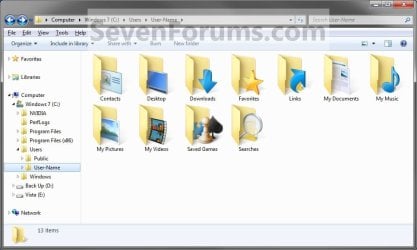
Example1.jpg

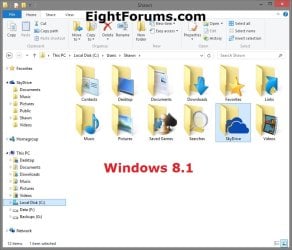
Windows_8.1.jpg


OPTION ONE

To Change Main User Profile Folder Location


1. For how, see:
http://www.sevenforums.com/tutorials/87555-user-profile-change-default-location.html

OR

How to Relocate User Profiles to another Partition or Disk in Windows 8


OPTION TWO

To Change User Folders Location from within User Profile Folder


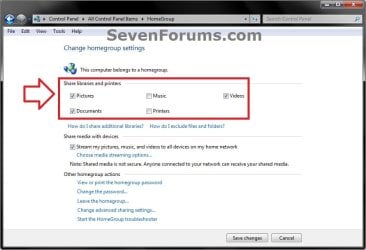
1. If you a part of a homegroup, then you will need to change the homegroup settings to no longer share the user folder (ex: My Music) that you want to move first by unchecking the folder and clicking on Save Changes. (see screenshot below)
NOTE: This is so the user folder (ex: My Music) will not be shared on the homegroup anymore.
Homegroup.jpg
2. In Windows Explorer, navigate to where (ex: D: drive) you want to move the default user folder (ex: My Music) location to.

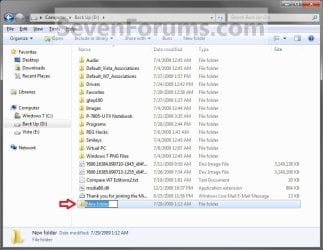
3. Create a New Folder by right clicking or press and hold on a empty space in the main window there, and click/tap on New and Folder. Name the new folder without spaces (ex: "Music" for My Music) for the user folder that you want to move there. (See screenshots below)
NOTE: The name that you type in for the new folder will be what you see as the user folder name in the Start Menu (shell:UsersFilesFolder) location when finished with all of these steps. It would be best to use the same name as the user folder to avoid confusion.
Rename1.jpg

Rename2.jpg

4. Close this window. (See screenshots above)

5. Press the Windows+R keys to open the Run dialog, type shell:UsersFilesFolder, and press enter.
NOTE: This will open your C:\Users\(user-name) folder.

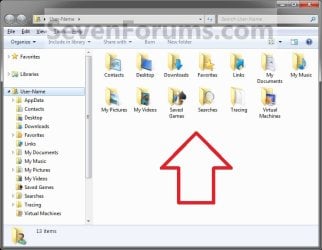
6. Right click or press and hold on a user folder (ex: My Music, My Documents, My Pictures, etc.....) that you want to move the default location for, and click/tap on Properties. (See screenshot below)
Right_Click_On_A_User_Folder.jpg
7. Click/tap on the Location tab, and Move button. (See screenshot below)
Properties1.jpg
8. Navigate to the same location as in step 2 and 3 above, then select the renamed new folder (ex: Music), and click/tap on the Select Folder button. (See screenshot below)
Properties2.jpg
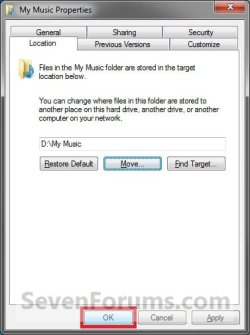
9. Click/tap on OK. (See screenshot below)
Properties3.jpg
10. Click/tap on Yes. (See screenshot below)
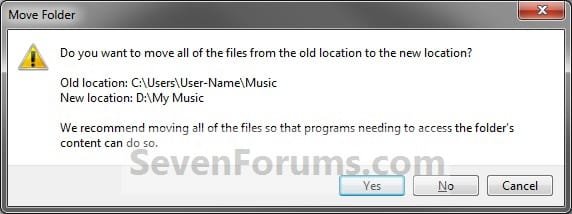
Properties4.jpg
11. After a few seconds when the location has been changed, the Properties window (screenshot under step 9) will then close.

12. Check back at the C:\Users\(user-name) location to make sure that the old user folder (ex: My Music) that you moved is no longer there. If it is, then make sure that the contents of the folder were moved to the new location, and delete it. (See screenshot below)
NOTE: If you are unable to delete the folder, then restart the computer and try again.
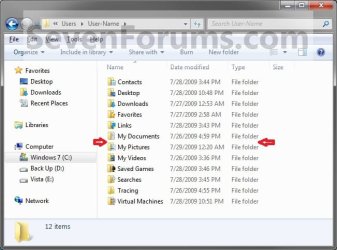
Finished2.jpg
13. You will notice that the folder at the shell:UsersFilesFolder location and the new location (ex: D drive) you moved the user folder to, now has the default user folder (ex: My Music) icon. (See screenshot below)
NOTE: The Start Menu in Windows 7 now opens the user folder from the new location (ex: D: drive) that you moved the user folder to.
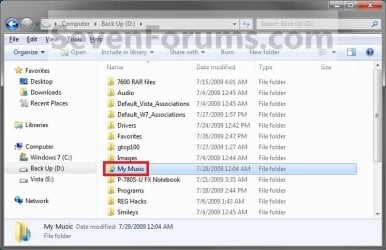
Finished.jpg
14. If you a part of a homegroup, then you can now change the homegroup settings back to share the user folder (ex: My Music) again if you like by checking the folder, and click/tap on Save Changes. (see screenshot below)
Homegroup.jpg
   Tip
If you wanted to restore the default location of the user folder, then see:

How to Restore the Default Location of User Folders in Windows 7 and Windows 8


That's it,
Shawn


Last edited:
  • Like
Reactions: Lee
Hello Mary,

Some programs are set to create a folder in that user folder location. Sometimes you have a option in the program to change it to the where you moved the user folder location. If not, then the program may just create a new folder in the default user folder location despite it being moved to another location.

Luckily for you, it's asking you where you want to save the files to. You might check the program's settings to see if there may be one for a default "Save To" location that you can use.

You shouldn't have a problem moving the Music and Videos folder as well if you like. :)

Hope this helps,
Shaw
 

My Computer

Computer type
PC/Desktop
Computer Manufacturer/Model Number
Self built custom
OS
64-bit Windows 11 Pro for Workstations
CPU
Intel i7-8700K OC'd to 5 GHz
Motherboard
ASUS ROG Maximus XI Formula Z390
Memory
64 GB (4x16GB) G.SKILL TridentZ RGB DDR4 3600 MHz
Graphics Card(s)
ASUS ROG-STRIX-GTX1080TI-O11G-GAMING
Sound Card
Integrated
Monitor(s) Displays
2 x Samsung Odyssey G7 27"
Screen Resolution
2560x1440
Hard Drives
1TB Samsung 990 PRO M.2,
4TB Samsung 990 PRO PRO M.2,
TerraMaster F8 SSD Plus NAS
PSU
Seasonic Prime Titanium 850W
Case
Thermaltake Core P3
Cooling
Corsair Hydro H115i
Keyboard
Logitech wireless K800
Mouse
Logitech MX Master 4
Internet Speed
2 Gb/s Download and 100 Mb/s Upload
Antivirus
Malwarebyte Anti-Malware Premium
Browser
Google Chrome
Other Info
Logitech Z625 speaker system,
Logitech BRIO 4K Pro webcam,
HP Color LaserJet Pro MFP M477fdn,
APC SMART-UPS RT 1000 XL - SURT1000XLI,
Galaxy S23 Plus phone
Thanks for the link to that tutorial. I think I will again take your advice and disable Admin until I need it once again.

I have to say, you guys are a wealth of information over here. Glad I found you. I am sure I will be coming back with more Q's, and hopefully find more A's! ;)

VSP

You're most welcome VSP. :)
 

My Computer

Computer type
PC/Desktop
Computer Manufacturer/Model Number
Self built custom
OS
64-bit Windows 11 Pro for Workstations
CPU
Intel i7-8700K OC'd to 5 GHz
Motherboard
ASUS ROG Maximus XI Formula Z390
Memory
64 GB (4x16GB) G.SKILL TridentZ RGB DDR4 3600 MHz
Graphics Card(s)
ASUS ROG-STRIX-GTX1080TI-O11G-GAMING
Sound Card
Integrated
Monitor(s) Displays
2 x Samsung Odyssey G7 27"
Screen Resolution
2560x1440
Hard Drives
1TB Samsung 990 PRO M.2,
4TB Samsung 990 PRO PRO M.2,
TerraMaster F8 SSD Plus NAS
PSU
Seasonic Prime Titanium 850W
Case
Thermaltake Core P3
Cooling
Corsair Hydro H115i
Keyboard
Logitech wireless K800
Mouse
Logitech MX Master 4
Internet Speed
2 Gb/s Download and 100 Mb/s Upload
Antivirus
Malwarebyte Anti-Malware Premium
Browser
Google Chrome
Other Info
Logitech Z625 speaker system,
Logitech BRIO 4K Pro webcam,
HP Color LaserJet Pro MFP M477fdn,
APC SMART-UPS RT 1000 XL - SURT1000XLI,
Galaxy S23 Plus phone
Terrific article, thanks to everyone who contributed.

The only thing I found lacking was something directed to SSD on Win7 users that discusses/suggests what we should move to our traditional-spinny D: drive without harming the SSD speed increase. I am unclear on whether it is a good idea to move everything listed in this article off the ssd... [From this article i learned what can be moved, and how to move these directories. But not: what should stay if room permits, what is regularly accessed by Win7, what directories (if moved) might make my interaction with the OS seem laggy, what directories are likely to be space hogs, etc.]
 

My Computer

Computer Manufacturer/Model Number
me :)
OS
Win7 Ultimate 64
CPU
intel i7
Motherboard
Gigabyte
Memory
16gb
Graphics Card(s)
gtx 285
Sound Card
x-fi
Monitor(s) Displays
two 26" lcd
Hard Drives
256gb ssd (main)
PSU
950w
Case
antec 902
Hello doodyhead, and welcome to Seven Forums.

You do not see a recommendation on what should stay since it is completely up to the user and and their needs. If space permits, I would say you would get better performance leaving them on the SSD than moving them to a standard spin HDD. As for what user folders are space hogs depens entirely on how much you save to what user folder though.

Hope this helps,
Shawn
 

My Computer

Computer type
PC/Desktop
Computer Manufacturer/Model Number
Self built custom
OS
64-bit Windows 11 Pro for Workstations
CPU
Intel i7-8700K OC'd to 5 GHz
Motherboard
ASUS ROG Maximus XI Formula Z390
Memory
64 GB (4x16GB) G.SKILL TridentZ RGB DDR4 3600 MHz
Graphics Card(s)
ASUS ROG-STRIX-GTX1080TI-O11G-GAMING
Sound Card
Integrated
Monitor(s) Displays
2 x Samsung Odyssey G7 27"
Screen Resolution
2560x1440
Hard Drives
1TB Samsung 990 PRO M.2,
4TB Samsung 990 PRO PRO M.2,
TerraMaster F8 SSD Plus NAS
PSU
Seasonic Prime Titanium 850W
Case
Thermaltake Core P3
Cooling
Corsair Hydro H115i
Keyboard
Logitech wireless K800
Mouse
Logitech MX Master 4
Internet Speed
2 Gb/s Download and 100 Mb/s Upload
Antivirus
Malwarebyte Anti-Malware Premium
Browser
Google Chrome
Other Info
Logitech Z625 speaker system,
Logitech BRIO 4K Pro webcam,
HP Color LaserJet Pro MFP M477fdn,
APC SMART-UPS RT 1000 XL - SURT1000XLI,
Galaxy S23 Plus phone
Hello doodyhead, and welcome to Seven Forums.

You do not see a recommendation on what should stay since it is completely up to the user and and their needs. If space permits, I would say you would get better performance leaving them on the SSD than moving them to a standard spin HDD. As for what user folders are space hogs depens entirely on how much you save to what user folder though.

Hope this helps,
Shawn
--------------------
Thanks for the reply. After purchasing a SSD, I started cleaning up the ole' hard drive in preparation for backing up data to the NAS. (Will have Win7 ultimate 64bit format the ssd and install the OS, and then i'll move my favorites and personal files to the SSD) As I was looking at individual folders in the \\users directory I was aghast at the quantity of quantity of files as well as the total capacity used. I found lots of directories and files that I had properly uninstalled, lots of curly bracket {randomletters} files, lots and lots of space-hogging files in the hidden ..\AppData\, etc.

At the same time, I investigated the recommended OS changes needed for Win7+SSD speedyness (turn off: disk defragmenter, drive indexing, system restore, hibernation, superfetch, prefetch,..). And it was the common SSD/Spinny two-drive theme (SSD C:\ drive for OS+regularly used program/user files, spinny D:\ drive for lessor used files) that brought me here wondering what I could move without incurring a performance hit. Common sense tells me that since I am the only user of my pc, that I could certainly move any \user\guest\ (or whatever) directories to the slower drive. And the gods know that I put all kinds of clutter onto my desktop that I don't need to have on my SSD. My Music, My Documents, My Pictures, My Music can all go to to the slow drive... But what else? ...I don't know enough about how Win7 uses the \profile, \roaming, \local, \locallow directories in order to know what impact moving them would have on speedyness. I think I can keep track of the files I personally save to the drive(s), what worries me is what the applications are doing in the background that I can't readily see the quantity nor capacity of files that they are saving.

So any musings on performance impact of moves would be highly appreciated.
 

My Computer

Computer Manufacturer/Model Number
me :)
OS
Win7 Ultimate 64
CPU
intel i7
Motherboard
Gigabyte
Memory
16gb
Graphics Card(s)
gtx 285
Sound Card
x-fi
Monitor(s) Displays
two 26" lcd
Hard Drives
256gb ssd (main)
PSU
950w
Case
antec 902
I wouldn't recommmend moving anything other the user folders that you deem would be better off on the spinny D drive. Anything moved to the slower drive will of course take a bit longer to load from and save to than from the SSD, so it's basically just a judgement call on speed vs space.
 

My Computer

Computer type
PC/Desktop
Computer Manufacturer/Model Number
Self built custom
OS
64-bit Windows 11 Pro for Workstations
CPU
Intel i7-8700K OC'd to 5 GHz
Motherboard
ASUS ROG Maximus XI Formula Z390
Memory
64 GB (4x16GB) G.SKILL TridentZ RGB DDR4 3600 MHz
Graphics Card(s)
ASUS ROG-STRIX-GTX1080TI-O11G-GAMING
Sound Card
Integrated
Monitor(s) Displays
2 x Samsung Odyssey G7 27"
Screen Resolution
2560x1440
Hard Drives
1TB Samsung 990 PRO M.2,
4TB Samsung 990 PRO PRO M.2,
TerraMaster F8 SSD Plus NAS
PSU
Seasonic Prime Titanium 850W
Case
Thermaltake Core P3
Cooling
Corsair Hydro H115i
Keyboard
Logitech wireless K800
Mouse
Logitech MX Master 4
Internet Speed
2 Gb/s Download and 100 Mb/s Upload
Antivirus
Malwarebyte Anti-Malware Premium
Browser
Google Chrome
Other Info
Logitech Z625 speaker system,
Logitech BRIO 4K Pro webcam,
HP Color LaserJet Pro MFP M477fdn,
APC SMART-UPS RT 1000 XL - SURT1000XLI,
Galaxy S23 Plus phone
You did not say what size your SSD is. I have an 80GB Intel on which I made 2 partitions of about 42GB and 32GB - one for the OS and one for the data. Works well for me. I would only move massive folders (e.g. Videos, Music - if you have a lot of those files) to the HDD. This is the current state - after 5 months:

2010-04-07_1350.png

2010-04-07_1351.png


PS: But install Win7 first on the SSD and then shrink C - that will make sure the Win7 installer does the proper alignment.
 

My Computer

Computer Manufacturer/Model Number
HP, Dell, Gateway, Toshiba - 4 laptops and 2 desktops
OS
Vista, Windows7, Mint Mate, Zorin, Windows 8
CPU
from 1.6GHz Duo to i7
Monitor(s) Displays
2x HP w2207
Hard Drives
5x HDD, 7x SSD, 12x Externals
Keyboard
with trackball - no mices
Mouse
Trackball mice
Internet Speed
DSL 6000
You did not say what size your SSD is. I have an 80GB Intel on which I made 2 partitions of about 42GB and 32GB - one for the OS and one for the data. Works well for me. I would only move massive folders (e.g. Videos, Music - if you have a lot of those files) to the HDD. This is the current state - after 5 months:

2010-04-07_1350.png

2010-04-07_1351.png


PS: But install Win7 first on the SSD and then shrink C - that will make sure the Win7 installer does the proper alignment.

These are the SSDs I have: a Crucial 256gb, Intel 160gb, and a SanDisk 16gb. I'm going to install the Crucial on my personal desktop pc, the Intel on my wife's and i'm not sure what I'm going to do with the little sandisk... make it the OS drive in the nas? main drive for the linux-based firewall? ...???

My capacity concerns are due to frequently installing and uninstalling games and apps, and the files left behind after uninstalling.

why did you partition your 80gb intel ssd?
 

My Computer

Computer Manufacturer/Model Number
me :)
OS
Win7 Ultimate 64
CPU
intel i7
Motherboard
Gigabyte
Memory
16gb
Graphics Card(s)
gtx 285
Sound Card
x-fi
Monitor(s) Displays
two 26" lcd
Hard Drives
256gb ssd (main)
PSU
950w
Case
antec 902
why did you partition your 80gb intel ssd?
For a variety of reasons:

1. It insulates my data from the OS. Should anything ever happen to my C, my data will be safe.
2. It allows me to image my OS and my data at different schedules (as required) - although right now I take an image of both every morning at boot time.
3. This data partition is shared between my Win7 and my Vista systems. Avoids unnecessary sync steps.

Btw: my Win7 is at about 16.6Gb now. And that after 5 months and a lot of programs installed and uninstalled (no games though). For uninstalling you should use Revo uninstaller. That gets rid of the leftover junk (advanced option). You may only be left with a few .ddls that the program dragged in.
 

My Computer

Computer Manufacturer/Model Number
HP, Dell, Gateway, Toshiba - 4 laptops and 2 desktops
OS
Vista, Windows7, Mint Mate, Zorin, Windows 8
CPU
from 1.6GHz Duo to i7
Monitor(s) Displays
2x HP w2207
Hard Drives
5x HDD, 7x SSD, 12x Externals
Keyboard
with trackball - no mices
Mouse
Trackball mice
Internet Speed
DSL 6000
I moved the user folders as per the script, but then ran into problems on networking them. It would appear that relocating these folders does not necessarily take the permissions with them I may be wrong on this as we always use separate partitions for data, so unable to verify this. This situation arose irrespective of the type of network we implememted.

For each folder properties, on the sharing tab, click share. type e name, or click on the adjacent arrow to select the relevant group, guest, or "everyone", and click add. The entry should appear in the table below: you then need to click on the adjacent arrow to select the type of permission, read, reade/write, or remove. then click on share below.

Any better suggestions?
 
Last edited:

My Computer

Computer type
PC/Desktop
Computer Manufacturer/Model Number
self build
OS
XP Pro - Vista - windows 7 ultimate/64 - 8.1 - 10
CPU
q8400
Motherboard
ga-ep35c-ds3r
Memory
4gb
Graphics Card(s)
nvidia 7300
Sound Card
integrated
Monitor(s) Displays
LG 206
Hard Drives
Samsung evo 500ssd
samsung 320gb sata
wd 160gb pata
PSU
hiper 580
I moved the user folders as per the script, but then ran into problems on networking them. It would appear that relocating these folders does not necessarily take the permissions with them I may be wrong on this as we always use separate partitions for data, so unable to verify this. This situation arose irrespective of the type of network we implememted.

For each folder properties, on the sharing tab, click share. type e name, or click on the adjacent arrow to select the relevant group, guest, or "everyone", and click add. The entry should appear in the table below: you then need to click on the adjacent arrow to select the type of permission, read, reade/write, or remove. then click on share below.

Any better suggestions?

Good question. I have not considered moving the directories so that they would be shared.

The way you tried it might be intuitive from a Windows user perspective, but as a networking guy, I would have first tried relocating the folders off the user hard drive entirely and onto a file server...

So instead of moving the directories from c:\users\doodyhead\documents to a different drive or partition (such as to d:\users\doodyhead\documents); I would try have tried relocating them to something like \\NAS3\Volume_2\usr\doodyhead\documents

Then setting files themselves, and the file permissions become a subset of your actual network, and you can manage them remotely far easier. You can back up data via network backups, the shared documents would be available even when that person does not have their pc turned on,...
 

My Computer

Computer Manufacturer/Model Number
me :)
OS
Win7 Ultimate 64
CPU
intel i7
Motherboard
Gigabyte
Memory
16gb
Graphics Card(s)
gtx 285
Sound Card
x-fi
Monitor(s) Displays
two 26" lcd
Hard Drives
256gb ssd (main)
PSU
950w
Case
antec 902
The way you tried it might be intuitive from a Windows user perspective, but as a networking guy, I would have first tried relocating the folders off the user hard drive entirely and onto a file server...

I totally agree with your suggestion as imminently sensible, however non-technical home users and small businesses, aren't always keen to invest in extra drives for backup, extra drives for networking etc. So sometimes we have to live/work within constraints. Secondly, users with laptops may need to hold data within their local drive for when they are out and about..

Windows 7 homegroups were supposed to be a doddle, however I am finding there are hidden issues, not sure at this stage whether the relocation of folders may contribute to these issues....
 

My Computer

Computer type
PC/Desktop
Computer Manufacturer/Model Number
self build
OS
XP Pro - Vista - windows 7 ultimate/64 - 8.1 - 10
CPU
q8400
Motherboard
ga-ep35c-ds3r
Memory
4gb
Graphics Card(s)
nvidia 7300
Sound Card
integrated
Monitor(s) Displays
LG 206
Hard Drives
Samsung evo 500ssd
samsung 320gb sata
wd 160gb pata
PSU
hiper 580
I'm trying to move the user accounts folders to another drive to save space on my SSD. However, i do not have a location tab when I right click on a user folder and select properties. Any idea what I might be doing wrong?
 

My Computer

Computer Manufacturer/Model Number
N/A
OS
Windows 7 Home Premium X64
CPU
Intel Q9550
Motherboard
Intel DP45SG
Memory
G Skill 4GB DDR3 SDRAM 1333
Graphics Card(s)
Sappire Radeon HD3870
Sound Card
N/A
Monitor(s) Displays
Samsung 26" LCD HDTV
Screen Resolution
1920x1200
Hard Drives
WD 1TB 7200 rpm
WD 640GB 7200 rpm
OCZ Vertex 2 60GB SSD
PSU
750w Cooler Master
Case
Cooler Master
Cooling
Cooler Master
Keyboard
Logitech Wireless Desktop
Mouse
Logitech Wireless Desktop
You are doing nothing wrong. There is no Location tab. How big is your SSD and how tight are you. Did you already explore other options to save space - e.g. delete the hiberfile.
 

My Computer

Computer Manufacturer/Model Number
HP, Dell, Gateway, Toshiba - 4 laptops and 2 desktops
OS
Vista, Windows7, Mint Mate, Zorin, Windows 8
CPU
from 1.6GHz Duo to i7
Monitor(s) Displays
2x HP w2207
Hard Drives
5x HDD, 7x SSD, 12x Externals
Keyboard
with trackball - no mices
Mouse
Trackball mice
Internet Speed
DSL 6000
Hello Jsettoon,

Did you open the Start Menu, and type shell:UsersFilesFolder in the search line and press enter to view the user files from this location?

The main user folder itself will not have a "Locations" tab, but the individual user folders (My Music, My Videos, etc...) should.
 

My Computer

Computer type
PC/Desktop
Computer Manufacturer/Model Number
Self built custom
OS
64-bit Windows 11 Pro for Workstations
CPU
Intel i7-8700K OC'd to 5 GHz
Motherboard
ASUS ROG Maximus XI Formula Z390
Memory
64 GB (4x16GB) G.SKILL TridentZ RGB DDR4 3600 MHz
Graphics Card(s)
ASUS ROG-STRIX-GTX1080TI-O11G-GAMING
Sound Card
Integrated
Monitor(s) Displays
2 x Samsung Odyssey G7 27"
Screen Resolution
2560x1440
Hard Drives
1TB Samsung 990 PRO M.2,
4TB Samsung 990 PRO PRO M.2,
TerraMaster F8 SSD Plus NAS
PSU
Seasonic Prime Titanium 850W
Case
Thermaltake Core P3
Cooling
Corsair Hydro H115i
Keyboard
Logitech wireless K800
Mouse
Logitech MX Master 4
Internet Speed
2 Gb/s Download and 100 Mb/s Upload
Antivirus
Malwarebyte Anti-Malware Premium
Browser
Google Chrome
Other Info
Logitech Z625 speaker system,
Logitech BRIO 4K Pro webcam,
HP Color LaserJet Pro MFP M477fdn,
APC SMART-UPS RT 1000 XL - SURT1000XLI,
Galaxy S23 Plus phone
Hello Jsettoon,

Did you open the Start Menu, and type shell:UsersFilesFolder in the search line and press enter to view the user files from this location?

The main user folder itself will not have a "Locations" tab, but the individual user folders (My Music, My Videos, etc...) should.

Thanks, this works now. I was wanting to move the folders for each user (Scott, Guest, Admin) to another location. Is this possible? I'm trying to keep my data on a separate drive while still utilizing windows libraries and shortcuts to user files. Btw my SSD is only 60G.
 

My Computer

Computer Manufacturer/Model Number
N/A
OS
Windows 7 Home Premium X64
CPU
Intel Q9550
Motherboard
Intel DP45SG
Memory
G Skill 4GB DDR3 SDRAM 1333
Graphics Card(s)
Sappire Radeon HD3870
Sound Card
N/A
Monitor(s) Displays
Samsung 26" LCD HDTV
Screen Resolution
1920x1200
Hard Drives
WD 1TB 7200 rpm
WD 640GB 7200 rpm
OCZ Vertex 2 60GB SSD
PSU
750w Cooler Master
Case
Cooler Master
Cooling
Cooler Master
Keyboard
Logitech Wireless Desktop
Mouse
Logitech Wireless Desktop

My Computer

Computer type
PC/Desktop
Computer Manufacturer/Model Number
Self built custom
OS
64-bit Windows 11 Pro for Workstations
CPU
Intel i7-8700K OC'd to 5 GHz
Motherboard
ASUS ROG Maximus XI Formula Z390
Memory
64 GB (4x16GB) G.SKILL TridentZ RGB DDR4 3600 MHz
Graphics Card(s)
ASUS ROG-STRIX-GTX1080TI-O11G-GAMING
Sound Card
Integrated
Monitor(s) Displays
2 x Samsung Odyssey G7 27"
Screen Resolution
2560x1440
Hard Drives
1TB Samsung 990 PRO M.2,
4TB Samsung 990 PRO PRO M.2,
TerraMaster F8 SSD Plus NAS
PSU
Seasonic Prime Titanium 850W
Case
Thermaltake Core P3
Cooling
Corsair Hydro H115i
Keyboard
Logitech wireless K800
Mouse
Logitech MX Master 4
Internet Speed
2 Gb/s Download and 100 Mb/s Upload
Antivirus
Malwarebyte Anti-Malware Premium
Browser
Google Chrome
Other Info
Logitech Z625 speaker system,
Logitech BRIO 4K Pro webcam,
HP Color LaserJet Pro MFP M477fdn,
APC SMART-UPS RT 1000 XL - SURT1000XLI,
Galaxy S23 Plus phone
Thanks Brink. I'll give that a try.
 

My Computer

Computer Manufacturer/Model Number
N/A
OS
Windows 7 Home Premium X64
CPU
Intel Q9550
Motherboard
Intel DP45SG
Memory
G Skill 4GB DDR3 SDRAM 1333
Graphics Card(s)
Sappire Radeon HD3870
Sound Card
N/A
Monitor(s) Displays
Samsung 26" LCD HDTV
Screen Resolution
1920x1200
Hard Drives
WD 1TB 7200 rpm
WD 640GB 7200 rpm
OCZ Vertex 2 60GB SSD
PSU
750w Cooler Master
Case
Cooler Master
Cooling
Cooler Master
Keyboard
Logitech Wireless Desktop
Mouse
Logitech Wireless Desktop
This method worked fine until I got to step 15 and tried to delete the user file from the C:\ drive. Windows would not delete the file because it said the file was in use by another program. Thanks again for the help, any suggestions?
 

My Computer

Computer Manufacturer/Model Number
N/A
OS
Windows 7 Home Premium X64
CPU
Intel Q9550
Motherboard
Intel DP45SG
Memory
G Skill 4GB DDR3 SDRAM 1333
Graphics Card(s)
Sappire Radeon HD3870
Sound Card
N/A
Monitor(s) Displays
Samsung 26" LCD HDTV
Screen Resolution
1920x1200
Hard Drives
WD 1TB 7200 rpm
WD 640GB 7200 rpm
OCZ Vertex 2 60GB SSD
PSU
750w Cooler Master
Case
Cooler Master
Cooling
Cooler Master
Keyboard
Logitech Wireless Desktop
Mouse
Logitech Wireless Desktop
When you get to step 15, double check to make sure that you did step 15A & 15B before trying to delete the old location. It will not let you delete it if you are currently logged into that account.
 

My Computer

Computer type
PC/Desktop
Computer Manufacturer/Model Number
Self built custom
OS
64-bit Windows 11 Pro for Workstations
CPU
Intel i7-8700K OC'd to 5 GHz
Motherboard
ASUS ROG Maximus XI Formula Z390
Memory
64 GB (4x16GB) G.SKILL TridentZ RGB DDR4 3600 MHz
Graphics Card(s)
ASUS ROG-STRIX-GTX1080TI-O11G-GAMING
Sound Card
Integrated
Monitor(s) Displays
2 x Samsung Odyssey G7 27"
Screen Resolution
2560x1440
Hard Drives
1TB Samsung 990 PRO M.2,
4TB Samsung 990 PRO PRO M.2,
TerraMaster F8 SSD Plus NAS
PSU
Seasonic Prime Titanium 850W
Case
Thermaltake Core P3
Cooling
Corsair Hydro H115i
Keyboard
Logitech wireless K800
Mouse
Logitech MX Master 4
Internet Speed
2 Gb/s Download and 100 Mb/s Upload
Antivirus
Malwarebyte Anti-Malware Premium
Browser
Google Chrome
Other Info
Logitech Z625 speaker system,
Logitech BRIO 4K Pro webcam,
HP Color LaserJet Pro MFP M477fdn,
APC SMART-UPS RT 1000 XL - SURT1000XLI,
Galaxy S23 Plus phone
Back
Top