Here's what I did to fix the weather gadget on my Windows 7 machine. I'm not an expert in writing script. In fact this is the first one I've attempted, but it seems to do the job. I'd advise not to use this until someone with script writing experience verifies that it is OK to do so. So if anyone out there is knowledgeable on the subject, please chime in. I can say that I've been running this for over a week and a half now and I can't even tell it's there and the weather gadget is running up to date so far.
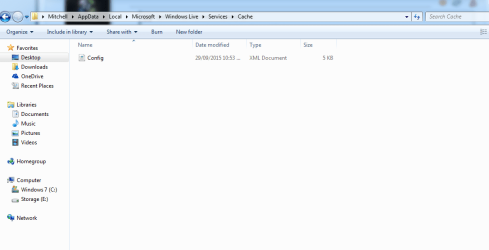
I read where someone said that you needed to save the config file every few days for the weather gadget to continue to work properly. I just figured if that was the case then why not write a script to do that automatically on start up so I Googled a bit and found some sample codes to open and save xml files. I changed the code a bit to fit my needs and so far it seems to work OK running over a week now and the weather gadget has stayed up to date.
How to:
Open notepad and paste the following four lines of code.
Set xmlDoc = CreateObject("Microsoft.XMLDOM")
xmlDoc.Async = "False"
xmlDoc.Load("C:\Users\M\AppData\Local\Microsoft\Windows Live\Services\Cache\Config.xml")
xmlDoc.Save("C:\Users\M\AppData\Local\Microsoft\Windows Live\Services\Cache\Config.xml")
Obviously, you will have to change the paths to your Config file. In most cases you will probably only have to substitute your User Name for "M" in the example above where M is located between 'Users' and 'AppData'. Also, make sure it is not an empty Config file. If it is empty, you will have to copy the file from another Windows 7 machine to your machine.
I'm not sure that the 2nd line is absolutely necessary but I didn't see where it would hurt anything.
Also, I couldn't find any code to close the file, but it doesn't appear to be open after the script runs and the examples I looked at ended the code with the xmlDoc.save command so I assume it's OK as is. (Here's where an expert should chime in if necessary)
Anywho...
Save the file with a .vbs extension.
Put the file or a shortcut to the file in the Startup folder.
Make sure you do not associate .vbs files with notebook or any other program. They are activated by Microsoft Windows Based Script Host. If you associate the file, it will simply open if for edit instead of runing the code. If you need to make changes, right click the file and choose edit. If you have accidentally associated .vbs files with another program then right click a .vbs file and choose Properties, Change, Microsoft Windows Based Script Host.
That's it. Now the .vbs file will run every time Windows starts up and the file will be saved with a new Modified time stamp.
or...
You could just put the .vbs file on the desktop and double click it once in a while. Personally, I prefer to let Windows do the work.
I'm attaching my vbs file if anyone wants to use it instead of making your own. Just remember to make sure the path to the config is correct for your machine.



 I've search for solution on here but none work. The main reason I use the gadgets is I have a battery gadget from the above site that tells me when the battery is low and it works great, as the Window 7 sound warning does nothing.


