
How to Extract and Modify WIM Files
Sometimes when some of the dll files gets deleted somehow or certain Windows features crashes due to corrupt file then we had use system Restore or have to perform clean installation to get those files back. But while we use System Restore or we perform clean installation some or all our installed gets deleted. install.wim file in your windows 7 or windows vista DVD contains a windows image. IF we could Extract it then we could use those files it to replace the corrupted file in our Windows.
Or you can also modify the .wim file to add or delete a program or file.
This tutorial is all about how to mount or modify install.wim or any .wim file.
Warning
Things you need:
1)ImageX.exe from the Windows Automated Installation Kit (WAIK)
2)install.wim file from you windows installation DVD.
3)More than 5GB of hdd space.
1)ImageX.exe from the Windows Automated Installation Kit (WAIK)
2)install.wim file from you windows installation DVD.
3)More than 5GB of hdd space.
Copy the install.wim file to you local hard disk(let say i copied it to f:\).
let say you have kept imagex.exe in c:\ drive. And you are going to mount the .wim file in d:\mount.
Note
You cannot mount .wim file directly to any drive
To mount .wim file in d:\mount at first we have to make a folder in d:\ named mount.
There are two process of mounting:
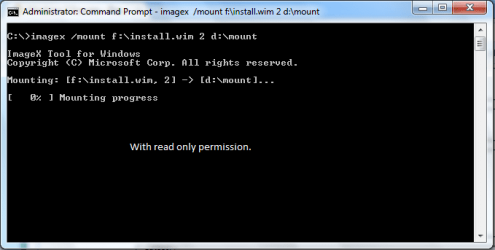
1)with read only permission(you can`t modify .wim file).
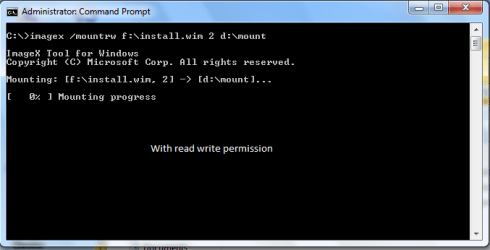
2)with read write permission(you can modify .wim file).
1) Mounting With read only permission:
Open command and go to c:\
then type: imagex /mount f:\install.wim 2 d:\mount
And install.wim will be mounted to d:\mount.
2) Mounting with read\write permission:
Open command and go to c:\
then type
imagex /mountrw f:\install.wim 2 d:\mount
Note
where d:\mount is the location of the mount directory, f:\install.wim is the name and the location of the .wim file to mount, and 2 is the reference number of the specific volume in the .wim file.
Modifying an Image
After you mount an image, the directory structure becomes available from a file-management tool, such as Windows Explorer. From the file-management tool, you can review your file and folder structure and add, edit, or delete files and folders.
To view files and folders
On yourcomputer, start Windows Explorer, and then open the mounted directory. For example,
d:\mount
Review the file and folder structure, including content.
To Add Files or Folders
If you must add an application or a device, verify that you included all of the required files. Although you can add application files and folders, you cannot install applications.
To edit files or folders
On your computer, start Windows Explorer, and then open the mounted directory. For example,
d:\mount
Edit the files and the folders. Move the files and the folders within your image, or open the files and view their contents.
To delete files or folders
On your computer, start Windows Explorer, and then open the mounted directory. For example,
C:\mount
To delete a file or a folder, press SHIFT+DELETE.
Note
You cannot delete an entire .wim file. However, you can delete all of the files contained within the image. The DELETE key alone will not delete any files or folders you have to use SHIFT+DELETE.
To Unmount an Image
On your computer, at a command prompt, open the ImageX directory(as on my computer i have kept it in c:\).
Then type: imagex /unmount /commit d:\mount
Note
where d:\mount is the location of the mount directory. If you do not specify the parameters to unmount, this option lists all of the mounted images but does not perform the unmount action.
If you use the /unmount option without the /commit option, your changes will be discarded. To save your changes, you must mount the image by using the /mountrw option and the /commit option when unmounting the image.
If you use the /unmount option without the /commit option, your changes will be discarded. To save your changes, you must mount the image by using the /mountrw option and the /commit option when unmounting the image.
Feel free to comment. And if i have done any mistake in the tutorial feel free to speak about it. Thanks for reading.
Attachments
Last edited by a moderator:

