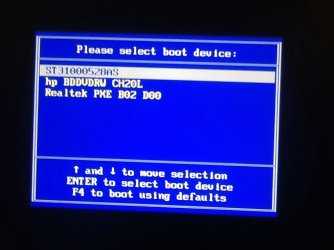
How are you booting the disk? I asked you specifically if it offers UEFI choices in the Boot menu? Is there a UEFI DVD drive choice or not?
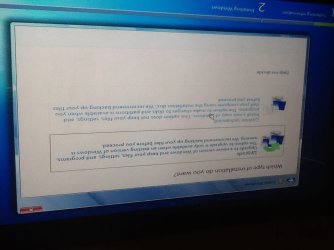
You're not Upgrading to a new Windows. You should do a Custom install.
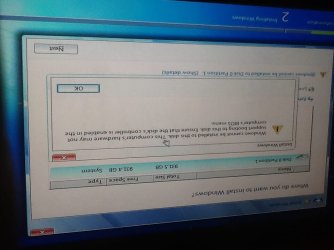
Click on the Drive Options at the bottom of the drive selection screen shown to Delete the partition and create a New one of 100gb size, Format and try install again.
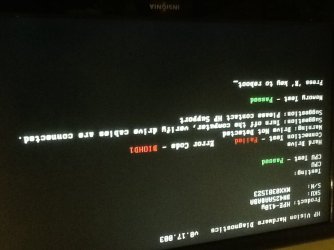
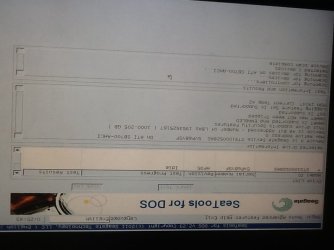
Strange that Diagnostics will run if the HD is not detected since they normally run from the Hard drive HP Tools partition. Perhaps some are loaded into your BIOS on that model. But check the cables to HD to make sure, and boot into BIOS setup using the ESC key to see if the HD is detected under Storage drives and Boot Priority menu - often giving it's Serial Number which you can google to interpret and then run bootable
HD Diagnostic CD.
While in BIOS setup look on all tabs for any settings for UEFI, EFI, CSM, Legacy BIOS, or similar, report back the settings choices.
Now let's see if Minimal Factory Recovery will run by tapping F11, or choosing REcovery from the ESC menu. This will be nearly a Clean Reinstall except you'll need to uninstall the HP Wireless Manager and connect using Win7's superior Wireless Manager in the bottom right System Tray.