
How to Export and Import Email Messages in Windows Live Mail
Information
This will show you how to export (backup) and import (restore) all or select message folders that contain your email messages, or only single email messages in Windows Live Mail.
METHOD ONE
To Export or Import All Email Messages in One or More Account Folders
Option One
Export (Backup) All Email Messages in One or More Account Folders
1. Create a New Folder on your desktop, and name it what you like.
NOTE: This is the folder that you will be exporting your message folders that contain your email messages into.
2. Open Windows Live Mail.
3. Click on the Tools icon drop down arrow, select Export email, and click on Email messages. (see screenshot below)
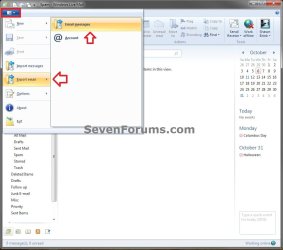
4. Select Microsoft Windows Live Mail, and click on Next. (see screenshot below)
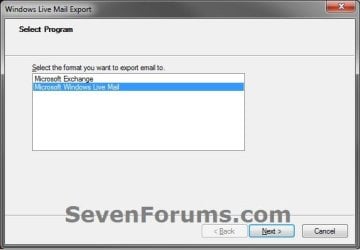
5. Click on the Browse button. (see screenshot below)
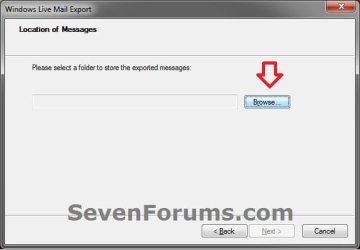
6. Navigate to and select the New Folder that you created in step 1, then click on OK. (see screenshot below)
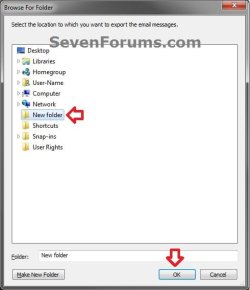
7. Click on the Next button. (see screenshot below)

8. To Export All Message Folders from All Email Accounts
A) Select (dot) All folders, and click on Next. (see screenshot below)
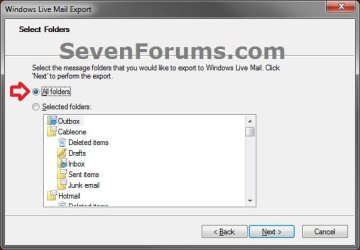
B) Go to step 10.
9. To Export Selected Message Folders from Selected Email Accounts
A) Select (dot) Selected folders, press and hold the CTRL key and select (left click on) the random message folders that you want to export, release the CTRL key, then click on Next. (see screenshot below)
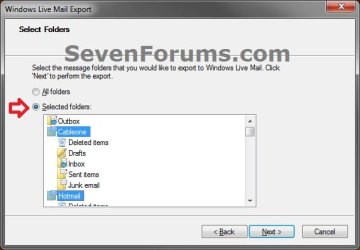
10. Click on the Finish button. (see screenshot below)

11. The selected message folders have now been exported into the New Folder from step 1. Save the New Folder to a safe location. This is the folder that is needed to be able to import or restore your messages in OPTION TWO below.
Option Two
Import (Restore) All Email Messages from One or More Exported Account Folders
1. Open Windows Live Mail.
2. Click on the Tools icon drop down arrow, and click on Import messages. (see screenshot below)
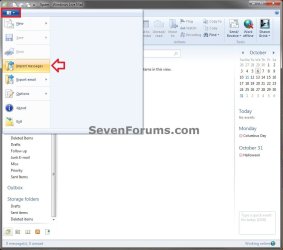
3. Select Windows Live Mail, and click on Next. (see screenshot below)
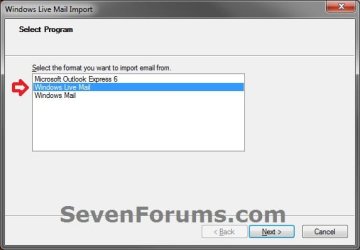
4. Click on the Browse button. (see screenshot below)
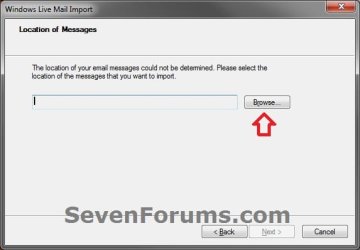
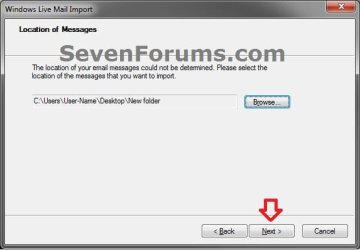
5. Navigate to and select the New Folder from OPTION ONE that contains your exported message folders, then click on OK. (see screenshot below)

6. Click on the Next button. (see screenshot below)
7. To Import All Message Folders
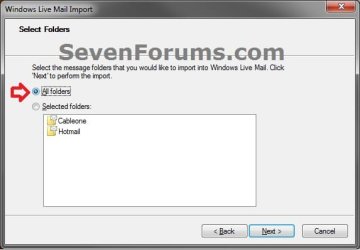
A) Select (dot) All folders, and click on Next. (see screenshot below)
B) Go to step 9.
8. To Import Selected Message Folders
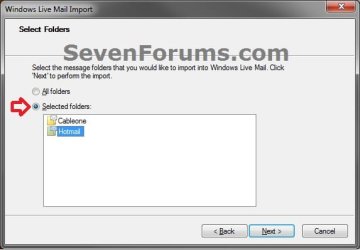
A) Select (dot) Selected folders, press and hold the CTRL key and select (left click on) the random message folders that you want to import, release the CTRL key, then click on Next. (see screenshot below)
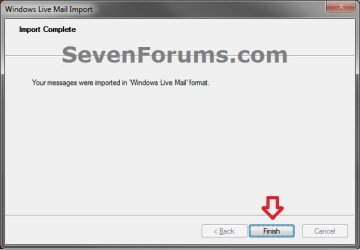
9. Click on the Finish button. (see screenshot below)
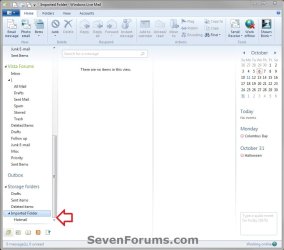
10. At the bottom of left pane of Windows Live Mail, expand (double click on) Storage folders and Imported Folder. Your imported messages folders from step 7 or 8 will be subfolders in Imported Folder. You can open each imported message folder to see your imported email messages, or move them to any other folder.
Tip
If you do not see Storage folders, then you can click on the View tab and click on the Storage folders toolbar item to highlight it and have it available now. (see screenshot below)

METHOD TWO
To Backup (Save) or Restore (Copy) Single Email Messages
Option One
Backup (Save) Single Email Messages from Windows Live Mail
1. Open Windows Live Mail, and open (double click) the email message that you want to backup (save).
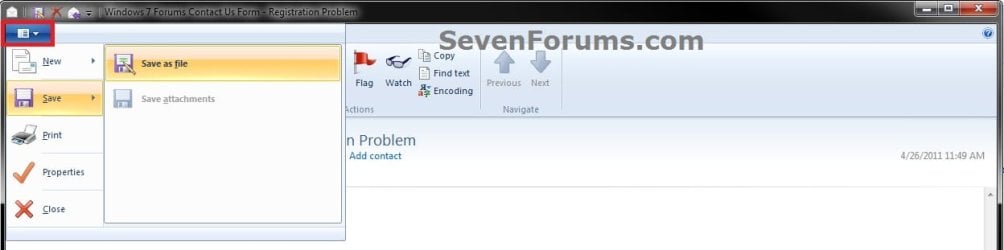
2. Click on the menu drop down arrow, select Save, and click on Save as file. (see screenshot below)
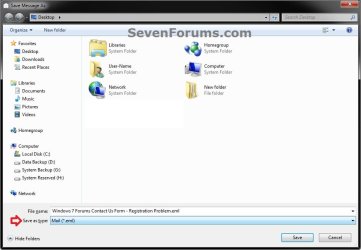
3. Navigate to where you want to save the email message to, leave the "Save as type" as Mail (*.eml), and click on Save. (see screenshot below)
4. Repeat these steps for any other single email messages that you would like to backup from Windows Live Mail.
Option Two
Restore (Copy) Single Email Messages Back into Windows Live Mail
1. In Windows Explorer, navigate to where you saved the email message at from Option One above.
2. Double click on the backed up (saved) email message to have it opened with Windows Live Mail.
3. In the opened email message, click on the Copy to button on the ribbon toolbar. (see screenshot below)

4. Select a message folder of a email account that you want to copy this email message to, and click on OK. (see screenshot below)
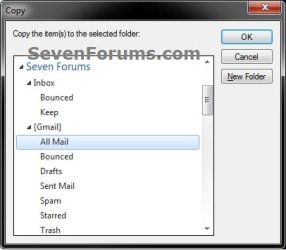
5. The saved message has now been copied into the selected message folder, and will display as unread.
6. Repeat these steps for any other single email messages that you would like to restore back into Windows Live Mail.
That's it,
Shawn
Related Tutorials
- How to Setup and Use Windows Live Mail as Email Client for your Messages
- How to Import Vista and Windows 7 Contacts and Contact Groups into Windows Live Mail
- How to Export and Import Contacts in Windows Live Mail
- How to Import "Windows Mail" Messages into Windows Live Mail
- How to Export and Import Email Accounts in Windows Live Mail
- How to See Messages in Conversation or List View in Windows Live Mail
- How to Hide or Show the Ribbon Toolbar in Windows Live Mail
- How to Minimize Windows Live Mail to the System Tray in Windows 7
- How to Backup and Restore Signatures in Windows Live Mail
- How to See All Email in One Inbox Folder in Windows Live Mail with "Quick Views"
Last edited:


