Solved BIOS Update - Boot Loader Missing

Ello folks.
First I apologize now as i've not slept much so my head isn't working too well .
I don't use the fast boot or boot manager myself and am still pretty lost in most area's of this bios. It's a scary sight the first time you see it.
Even asus mods recommend you don't use the in windows tool for flashing the bios. Did you set the bios to optimized defaults before flashing to the new bios? You should. I'm using bios 1301 and never had any problems.
The earlier bios's where .rom files but these newer one's are .cap. Before updating to the newer .cap bios's there is a change you have to make. ASUS Bios update - General-Motherboard - Motherboards-Memory

I recommend you start a thread on the ROG forums ASUS Republic of Gamers | The Choice of Champions – News, Guides, Overclocking, PC Gaming
These guys eat sleep and drink ROG bios's.

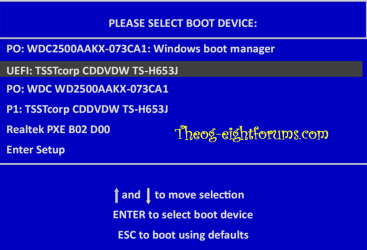
You have probably already tried but I'll ask anyway. During post hit the F8 button which will bring you to the boot menu. Select the drive to boot from and hit enter.
When you installed windows did you only have the drive that you were installing windows on connected? If more drives were connected then windows could have boot the MBR on a different disc. If you had more drives connected i recommend disconnecting all except the ssd you plan to install windows on and try again.

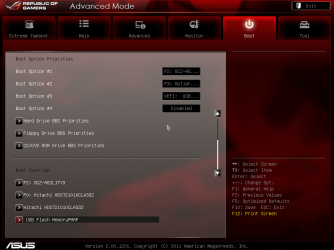
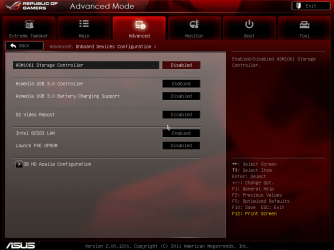
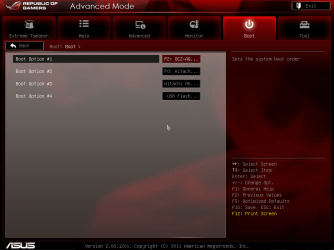
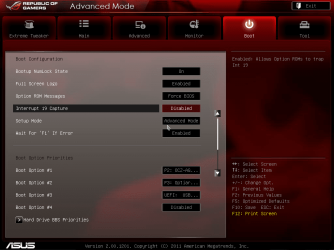
Here's a couple of screenies of our bios at stock settings. I'm really sorry i'm not much help but ROG bios is not soething i've delved right into.
The 3rd screeshot is the Asmedia sata port.
 

Attachments
  • 121225092648.png
    121225092648.png
    87.5 KB · Views: 5
  • 121225092715.png
    121225092715.png
    87.5 KB · Views: 5
  • 121225092800.png
    121225092800.png
    85.6 KB · Views: 4
  • 121225092952.png
    121225092952.png
    84.5 KB · Views: 4

My Computer

Computer type
PC/Desktop
Computer Manufacturer/Model Number
Custom build
OS
Win7 Home Premium x64 SP1
CPU
i7 4770k
Motherboard
Asus maximus VI Hero
Memory
8Gb Kingston HyperX Beast 2400MHz @2133MHz 11-12-11-30
Graphics Card(s)
MSI GTX 780ti Gaming Oc x2
Sound Card
Onboard ROG SupremeFX
Monitor(s) Displays
Asus VG248QE
Screen Resolution
3840X1080 144Hz
Hard Drives
Samung Evo 256Gb, OCZ Agility4 128Gb
1x1TB hitachi storage
PSU
EVGA Supernova 1000w Platinum
Case
Corsair Air 540
Cooling
Corsair H100i
Keyboard
Coolermaster Quickfire Pro
Mouse
Corsair M65 RGB
Internet Speed
74mb dwn/16up
Antivirus
MSE,Malwarebytes
Browser
Chrome
One more question. Does your bios have dual bios chips? If it does and you didn't flash both bioses, try switching bios chips. It should automatically update the second bios to the older bios version. I have dual bios chips on my board. The only difference in out boards is yours is the AMD version and mine is the Intel version, is my understanding, anyway. I have 2 bioses chips with a different bios on each chip. Once I switch and boot up, you should see a screen saying updating bios with a progress bar. It is loading the bios that is on that chip. Once there, it will allow me to copy bios 1 to bios 2 or vice versa. I can only assume that is the way yours is too.
 

My Computers

System One System Two

  • Computer type
    PC/Desktop
    Computer Manufacturer/Model Number
    ALWAYS UNDER CONSTRUCTION
    OS
    Windows 11 Pro
    CPU
    Ryzen 9 5900X
    Motherboard
    Asus X570 Crosshair Viii Hero
    Memory
    32GB G Skill DDR4-3600
    Graphics Card(s)
    EVGA RTX 3080 FTW 3 Ultra
    Sound Card
    On Board/Sennheiser PC37X Headset
    Monitor(s) Displays
    3 X Asus 27"
    Screen Resolution
    2560x1440
    Hard Drives
    2 X 1 TB NVME drives
    PSU
    EVGA 850
    Case
    Phanteks Eclipse P400A
    Cooling
    EVGA 280 AIO
    Keyboard
    Logitech G510s/ Logitech G13
    Mouse
    Logitech G502
    Internet Speed
    24/1
    Antivirus
    ESET/MBAM Pro/SAS Pro
    Browser
    Chrome/ Firefox/ Edge
  • Computer type
    Laptop
    System Manufacturer/Model Number
    Dell 16 Plus
    OS
    Windows 11 Pro
    CPU
    Intel Ultra 9 288V
    Memory
    32 GB LPDDR5X 8533
    Monitor(s) Displays
    16" Mini-LED HDR600 Touch 90 Hz
    Screen Resolution
    2560X1600
    Hard Drives
    1 TB NVME
Another one of the decent features left out on the v formula is dual bios :( no bios flash back either mate.
 

My Computer

Computer type
PC/Desktop
Computer Manufacturer/Model Number
Custom build
OS
Win7 Home Premium x64 SP1
CPU
i7 4770k
Motherboard
Asus maximus VI Hero
Memory
8Gb Kingston HyperX Beast 2400MHz @2133MHz 11-12-11-30
Graphics Card(s)
MSI GTX 780ti Gaming Oc x2
Sound Card
Onboard ROG SupremeFX
Monitor(s) Displays
Asus VG248QE
Screen Resolution
3840X1080 144Hz
Hard Drives
Samung Evo 256Gb, OCZ Agility4 128Gb
1x1TB hitachi storage
PSU
EVGA Supernova 1000w Platinum
Case
Corsair Air 540
Cooling
Corsair H100i
Keyboard
Coolermaster Quickfire Pro
Mouse
Corsair M65 RGB
Internet Speed
74mb dwn/16up
Antivirus
MSE,Malwarebytes
Browser
Chrome
Another one of the decent features left out on the v formula is dual bios :( no bios flash back either mate.

ganjiry, thanks for your help. Will your board allow you to flash the bios backward? Some boards will not. I honestly do not believe that is the problem. There has to be some setting on the board that will allow you to use UEFI or legacy with UEFI support. The latter one is what he wants and needs. My board is simple, but I am completely unfamiliar with your board. On Christmas Eve at the turn of midnight, I was reading the manual for this board. I read it twice and found nothing even remotely relating to his problem. Unless, I noticed a picture in the manual, it was of the easy bios. It showed 2 hard drives. 1 just showed a hard drive, the second showed that same hard drive with UEFI written on it. I am wondering if, which you pick has any effect on whether Windows installs as legacy or UEFI. I had a P67 motherboard once, In the boot menu it listed each drive twice, one was simply the drive, the other was the same drive with uefi. I never selected the UEFI one and it never installed the UEFI way, but I still had the UEFI options in bios. I am curious if which you choose determines which way windows installs. If you chose the UEFI one, it installs through the UEFI bios. If not, it installs legacy.
 

My Computers

System One System Two

  • Computer type
    PC/Desktop
    Computer Manufacturer/Model Number
    ALWAYS UNDER CONSTRUCTION
    OS
    Windows 11 Pro
    CPU
    Ryzen 9 5900X
    Motherboard
    Asus X570 Crosshair Viii Hero
    Memory
    32GB G Skill DDR4-3600
    Graphics Card(s)
    EVGA RTX 3080 FTW 3 Ultra
    Sound Card
    On Board/Sennheiser PC37X Headset
    Monitor(s) Displays
    3 X Asus 27"
    Screen Resolution
    2560x1440
    Hard Drives
    2 X 1 TB NVME drives
    PSU
    EVGA 850
    Case
    Phanteks Eclipse P400A
    Cooling
    EVGA 280 AIO
    Keyboard
    Logitech G510s/ Logitech G13
    Mouse
    Logitech G502
    Internet Speed
    24/1
    Antivirus
    ESET/MBAM Pro/SAS Pro
    Browser
    Chrome/ Firefox/ Edge
  • Computer type
    Laptop
    System Manufacturer/Model Number
    Dell 16 Plus
    OS
    Windows 11 Pro
    CPU
    Intel Ultra 9 288V
    Memory
    32 GB LPDDR5X 8533
    Monitor(s) Displays
    16" Mini-LED HDR600 Touch 90 Hz
    Screen Resolution
    2560X1600
    Hard Drives
    1 TB NVME
Well, Clever Ole Me. I never cease to amaze myself.

In order to be thorough I thought I'd bring the BIOS back to factory default settings. No way to do that within this particular Crosshair V Formula motherboard BIOS. I checked.

So I removed the CMOS battery, waited a few seconds and then replaced it.

Now, I have nothing. No action on the motherboard and no ability to get into the BIOS.

I am now on the other computer - got 3, so at least I can cry out for help. What to do?

I do know one thing for sure. When you grow up you all want to be like me. :party:
 

My Computer

OS
Win 7-64
No probs chap. Just sorry i can't help more. Yeah the manual isn't up to much is it :rolleyes:
I think the board is ok to flash to an older bios as its meant for overclocking and some of them are constantly using different bios versions.
I think this issue may relate to the microsoft boot manager that we had a post about not so long ago. I can't find it. Something about UEFI and boot manage stopping any none microsoft software/drivers from booting once the UEFI option was enabled.
There was a solution found to it then...
Check post 8 on this thread HELP !! How to install Win7 on a Win8 pre-loaded G75vw ? (Suicide mode almost ON!)!)

Edit: to default the v formula's bios hit F5 to laoad defaults and F10 to save n exit.
Edit 2: you can order a replacement bios chip online or from Asus customer service but it would be quicker to buy it from someone other than Asus..
Before you do anything drastic read the post in that thread i linked aswell as make a post on that forum. They are all super familliar with the bios. Plus some of the Asus mods use the forum too so you have a good chance of getting sorted
 

My Computer

Computer type
PC/Desktop
Computer Manufacturer/Model Number
Custom build
OS
Win7 Home Premium x64 SP1
CPU
i7 4770k
Motherboard
Asus maximus VI Hero
Memory
8Gb Kingston HyperX Beast 2400MHz @2133MHz 11-12-11-30
Graphics Card(s)
MSI GTX 780ti Gaming Oc x2
Sound Card
Onboard ROG SupremeFX
Monitor(s) Displays
Asus VG248QE
Screen Resolution
3840X1080 144Hz
Hard Drives
Samung Evo 256Gb, OCZ Agility4 128Gb
1x1TB hitachi storage
PSU
EVGA Supernova 1000w Platinum
Case
Corsair Air 540
Cooling
Corsair H100i
Keyboard
Coolermaster Quickfire Pro
Mouse
Corsair M65 RGB
Internet Speed
74mb dwn/16up
Antivirus
MSE,Malwarebytes
Browser
Chrome
In order to be thorough I thought I'd bring the BIOS back to factory default settings. No way to do that within this particular Crosshair V Formula motherboard BIOS. I checked.

So I removed the CMOS battery, waited a few seconds and then replaced it.

Now, I have nothing. No action on the motherboard and no ability to get into the BIOS.

I am now on the other computer - got 3, so at least I can cry out for help. What to do?
Despite my feeble attempt at levity (above), I am now officially scared. After taking out and replacing the CMOS battery, my computer is now dead in the water.

Geez, I thought that was about as benign a thing I could do. Just took out and replaced the battery.

And yes, this ASUS manual really stinks big time.

++++++++++++++++++
Edit:
to default the v formula's bios hit F5 to laoad defaults and F10 to save n exit.
I tried that and that's what gave me the screwball boot order. Ugh! This is truly a bad dream!

No Lights Flashing: CPU, RAM, etc. No Nothing now!
 

My Computer

OS
Win 7-64
OK. Check the PSU. Make sure it is plugged in and there is power coming from it. Make sure the on/off switch is selected as ON. (I know. I did that one myself and worked for 2 hours trying to figure out what I did). Make sure the battery is inserted correctly and completely. You should unplug the power and drain the battery, remove the CMOS battery. Leave it out for a minute or 2. Put it back in making sure it is seated and correctly installed. Plug the power supply back in. Wait for motherboard lights to light up. then go straight to bios. The only thing that should be wrong, is the power is not connected to the motherboard or the battery is not correctly seated and properly installed. It should have just made your BIOS forget every setting in it.
 

My Computers

System One System Two

  • Computer type
    PC/Desktop
    Computer Manufacturer/Model Number
    ALWAYS UNDER CONSTRUCTION
    OS
    Windows 11 Pro
    CPU
    Ryzen 9 5900X
    Motherboard
    Asus X570 Crosshair Viii Hero
    Memory
    32GB G Skill DDR4-3600
    Graphics Card(s)
    EVGA RTX 3080 FTW 3 Ultra
    Sound Card
    On Board/Sennheiser PC37X Headset
    Monitor(s) Displays
    3 X Asus 27"
    Screen Resolution
    2560x1440
    Hard Drives
    2 X 1 TB NVME drives
    PSU
    EVGA 850
    Case
    Phanteks Eclipse P400A
    Cooling
    EVGA 280 AIO
    Keyboard
    Logitech G510s/ Logitech G13
    Mouse
    Logitech G502
    Internet Speed
    24/1
    Antivirus
    ESET/MBAM Pro/SAS Pro
    Browser
    Chrome/ Firefox/ Edge
  • Computer type
    Laptop
    System Manufacturer/Model Number
    Dell 16 Plus
    OS
    Windows 11 Pro
    CPU
    Intel Ultra 9 288V
    Memory
    32 GB LPDDR5X 8533
    Monitor(s) Displays
    16" Mini-LED HDR600 Touch 90 Hz
    Screen Resolution
    2560X1600
    Hard Drives
    1 TB NVME
All of the stuff you suggested I of course did. I try not to overlook the obvious, though often do.

Put it back in making sure it is seated and correctly installed.
That's my question. All batteries have polarity. And this one being round, there is nevertheless a + sign indicating positive on the battery. Should that + sign be facing up, down or in any particular direction. Btw, the OC (overclock), Reset and Start Buttons all light up nicely. Just no flashing lights for the RAM, CPU, etc.

Oh, and the CMOS battery is not upside down. The shiny side with the info is of course facing up or visible.

Homie try not to be dat stupid. :eek:

++++++++++++++++++++++++++
I have replaced CMOS batteries before without incident, though quite awhile ago. Stupidly simple. Pop it out and pop it back in.

When you say + goes up, I assume you mean the obvious, facing upward and not facing upward and vertical with respect to the top of the case.

Why in the world though do fans spin, bottom buttons light up, graphic board lights on but NO CPU, RAM lights flashing - And this problem results from simply popping out the CMOS battery? Geez, I must be jinxed.

Note: All power connectors are connected to the board.
 
Last edited:

My Computer

OS
Win 7-64
As far as I know, the writing and the + side should be facing you after re installing the battery. Is it possible you loosened something when replacing the battery? Stranger things than than that have happened. As far as I am aware, there is nothing about replacing the battery that can damage the board.

Please give us an update and if nothing else, see if you can start it. I know, you've tried that a dozen times. I just looked at my CMOS battery and it is in with the writing and the + facing up. In other words, after installing it, I can see the writing and the + sign on the battery.
 

My Computers

System One System Two

  • Computer type
    PC/Desktop
    Computer Manufacturer/Model Number
    ALWAYS UNDER CONSTRUCTION
    OS
    Windows 11 Pro
    CPU
    Ryzen 9 5900X
    Motherboard
    Asus X570 Crosshair Viii Hero
    Memory
    32GB G Skill DDR4-3600
    Graphics Card(s)
    EVGA RTX 3080 FTW 3 Ultra
    Sound Card
    On Board/Sennheiser PC37X Headset
    Monitor(s) Displays
    3 X Asus 27"
    Screen Resolution
    2560x1440
    Hard Drives
    2 X 1 TB NVME drives
    PSU
    EVGA 850
    Case
    Phanteks Eclipse P400A
    Cooling
    EVGA 280 AIO
    Keyboard
    Logitech G510s/ Logitech G13
    Mouse
    Logitech G502
    Internet Speed
    24/1
    Antivirus
    ESET/MBAM Pro/SAS Pro
    Browser
    Chrome/ Firefox/ Edge
  • Computer type
    Laptop
    System Manufacturer/Model Number
    Dell 16 Plus
    OS
    Windows 11 Pro
    CPU
    Intel Ultra 9 288V
    Memory
    32 GB LPDDR5X 8533
    Monitor(s) Displays
    16" Mini-LED HDR600 Touch 90 Hz
    Screen Resolution
    2560X1600
    Hard Drives
    1 TB NVME
One of my students (IQ - 176) who tested the Intel MMX technology way back when told me there were 3 ways to fix a computer:

1) Use Logic and Systems (my words of course :D)
2) If that fails, read the manual
3) And if both of those fail, try Magic and Witchcraft, meaning try off the wall thinking.

Well, I did just that. The main power cables I simply grabbed them and moved them up and down. Never disconnected or reconnected them, just jiggled them up and down. Well, the motherboard came to life and I got into the BIOS which had been restored to factory specs of #1201.

Still the BIOS looks crazy in its boot order and I think that might have something to do with that 100 MB Win 7 sets aside for its own settings, which must be corrupted. Can't set it to Optical, then SSD as one would expect.

I think that ASUS EZ Update might have been the culprit. I remember reading somewhere that it could be a problem and that the BIOS should be flashed/updated the old fashioned way. Which is what I did after the EZ Update screwed up Win 7. My guess anyway.

What would you do next, that is if you haven't written me off as a bottomless basket case?

--------------

Oh, and my student told me that when he was only 13. Same age he was working for INTEL debugging their MMX chip. He wrote Assembler programs to crash it and documented his results. Intel flew two technicians down to meet with him. Don't get me started talking about my students. I had some really scary smart ones. More about that if you wish.

Thanks for your friendship and kindness over the holidays. I do appreciate you.
 

My Computer

OS
Win 7-64
Well, of course I haven't written you off and won't. I will be here to help as long as you would like, and I don't fall to sleep. And also, I am not a student of linguistics, and can barely spell it. I'm no youngster either. I wish. I would absolutely love to hear about your students, but probably not in this thread. We both may be booted off the site. But back to business.

First, These threads are very good. I am sure at some point in history, someone will have the same problem and will find this thread through a search. With any luck they may learn something that will work. My first inclination is there may be a short in your wiring. If jiggling the wire made the board power up, that would be my first inclination. I would fix that first. You will not know if that is the problem later on, if trouble arises.

What I would do is most likely not what I would tell you to do. I do not want to be responsible for bricking your motherboard. If it were mine, I would probably try and if it didn't work, chalk it up to experience and learn something in the process.

So, Since you have the old bios back (that is correct isn't it?) I would recommend the safest, but most time consuming, action. I would completely wipe the drive clean and do a clean install. If you want to pursue that course, I will give you instructions. I will also need to know if you are familar with the command prompt and diskpart. Either way, it will be simple.
 

My Computers

System One System Two

  • Computer type
    PC/Desktop
    Computer Manufacturer/Model Number
    ALWAYS UNDER CONSTRUCTION
    OS
    Windows 11 Pro
    CPU
    Ryzen 9 5900X
    Motherboard
    Asus X570 Crosshair Viii Hero
    Memory
    32GB G Skill DDR4-3600
    Graphics Card(s)
    EVGA RTX 3080 FTW 3 Ultra
    Sound Card
    On Board/Sennheiser PC37X Headset
    Monitor(s) Displays
    3 X Asus 27"
    Screen Resolution
    2560x1440
    Hard Drives
    2 X 1 TB NVME drives
    PSU
    EVGA 850
    Case
    Phanteks Eclipse P400A
    Cooling
    EVGA 280 AIO
    Keyboard
    Logitech G510s/ Logitech G13
    Mouse
    Logitech G502
    Internet Speed
    24/1
    Antivirus
    ESET/MBAM Pro/SAS Pro
    Browser
    Chrome/ Firefox/ Edge
  • Computer type
    Laptop
    System Manufacturer/Model Number
    Dell 16 Plus
    OS
    Windows 11 Pro
    CPU
    Intel Ultra 9 288V
    Memory
    32 GB LPDDR5X 8533
    Monitor(s) Displays
    16" Mini-LED HDR600 Touch 90 Hz
    Screen Resolution
    2560X1600
    Hard Drives
    1 TB NVME
Thanks for all.

I have enough shielded cables to swap the main power cable out. Right now that is not priority.

I know I need a reinstall. But I install to an SSD and not a traditional HDD.

I would therefore assume that I set the boot order to DVD, then SSD, with the other drives disabled and I would do all that after I flash the BIOS to the latest #1703. I really cannot believe I am asking questions about how to do an install, since I have to be pushing 1K of those by now. This BIOS problem, specifically the bizarre boot order choices, has destroyed my confidence - at least for the moment.
 

My Computer

OS
Win 7-64
That's great news. An SSD is fantastic. I own 6 of them and would never be without one (or 2 ). Your assumptions are correct. Disconnect all hard drives except the SSD. When you have finished the flash, do the disconnecting, change the boot order and I will tell you how I do it so that it will be properly aligned and you will not have the 100MB partition. Just, before you begin, make sure your SSD is connected to port 0 and your sata controller is in AHCI mode. And there is little for you to worry about. I'll try to make it as simple as possible. Is the SSD new or is there a previous OS installed on it?
 

My Computers

System One System Two

  • Computer type
    PC/Desktop
    Computer Manufacturer/Model Number
    ALWAYS UNDER CONSTRUCTION
    OS
    Windows 11 Pro
    CPU
    Ryzen 9 5900X
    Motherboard
    Asus X570 Crosshair Viii Hero
    Memory
    32GB G Skill DDR4-3600
    Graphics Card(s)
    EVGA RTX 3080 FTW 3 Ultra
    Sound Card
    On Board/Sennheiser PC37X Headset
    Monitor(s) Displays
    3 X Asus 27"
    Screen Resolution
    2560x1440
    Hard Drives
    2 X 1 TB NVME drives
    PSU
    EVGA 850
    Case
    Phanteks Eclipse P400A
    Cooling
    EVGA 280 AIO
    Keyboard
    Logitech G510s/ Logitech G13
    Mouse
    Logitech G502
    Internet Speed
    24/1
    Antivirus
    ESET/MBAM Pro/SAS Pro
    Browser
    Chrome/ Firefox/ Edge
  • Computer type
    Laptop
    System Manufacturer/Model Number
    Dell 16 Plus
    OS
    Windows 11 Pro
    CPU
    Intel Ultra 9 288V
    Memory
    32 GB LPDDR5X 8533
    Monitor(s) Displays
    16" Mini-LED HDR600 Touch 90 Hz
    Screen Resolution
    2560X1600
    Hard Drives
    1 TB NVME
Are we there yet? Or are we taking Christmas night off. I wouldn't blame you, sounds as though you need a rest.
 

My Computers

System One System Two

  • Computer type
    PC/Desktop
    Computer Manufacturer/Model Number
    ALWAYS UNDER CONSTRUCTION
    OS
    Windows 11 Pro
    CPU
    Ryzen 9 5900X
    Motherboard
    Asus X570 Crosshair Viii Hero
    Memory
    32GB G Skill DDR4-3600
    Graphics Card(s)
    EVGA RTX 3080 FTW 3 Ultra
    Sound Card
    On Board/Sennheiser PC37X Headset
    Monitor(s) Displays
    3 X Asus 27"
    Screen Resolution
    2560x1440
    Hard Drives
    2 X 1 TB NVME drives
    PSU
    EVGA 850
    Case
    Phanteks Eclipse P400A
    Cooling
    EVGA 280 AIO
    Keyboard
    Logitech G510s/ Logitech G13
    Mouse
    Logitech G502
    Internet Speed
    24/1
    Antivirus
    ESET/MBAM Pro/SAS Pro
    Browser
    Chrome/ Firefox/ Edge
  • Computer type
    Laptop
    System Manufacturer/Model Number
    Dell 16 Plus
    OS
    Windows 11 Pro
    CPU
    Intel Ultra 9 288V
    Memory
    32 GB LPDDR5X 8533
    Monitor(s) Displays
    16" Mini-LED HDR600 Touch 90 Hz
    Screen Resolution
    2560X1600
    Hard Drives
    1 TB NVME

My Computer

Computer type
PC/Desktop
Computer Manufacturer/Model Number
Custom build
OS
Win7 Home Premium x64 SP1
CPU
i7 4770k
Motherboard
Asus maximus VI Hero
Memory
8Gb Kingston HyperX Beast 2400MHz @2133MHz 11-12-11-30
Graphics Card(s)
MSI GTX 780ti Gaming Oc x2
Sound Card
Onboard ROG SupremeFX
Monitor(s) Displays
Asus VG248QE
Screen Resolution
3840X1080 144Hz
Hard Drives
Samung Evo 256Gb, OCZ Agility4 128Gb
1x1TB hitachi storage
PSU
EVGA Supernova 1000w Platinum
Case
Corsair Air 540
Cooling
Corsair H100i
Keyboard
Coolermaster Quickfire Pro
Mouse
Corsair M65 RGB
Internet Speed
74mb dwn/16up
Antivirus
MSE,Malwarebytes
Browser
Chrome
When boot with a uEFI/BIOS firmware, Windows Boot Manager is first boot.

Windows 8 Downgrade-006 SB.PNG
 

My Computer

OS
ME/XP/Vista/Win7
Hi guys. I've been lurking on this thread but I was unable to respond due to holiday madness.

Could you (OP) confirm for me the following timeline? I pieced this together from your posts but I want to be sure I understand this correctly. Please correct any errors in this timeline.

  • First, you installed a new, clean installation of W7 onto a blank SSD. (And, you aligned the SSD)
  • After the installation Windows started and ran normally.
  • Then you updated your BIOS using EZ Update from within Windows. The BIOS updated successfully.
  • After this update the system no longer started normally. You had to have the W7 installation disk in the optical drive to start Windows.
  • You then updated the BIOS again, this time using the USB method from within BIOS.
  • After this update you experienced an error: "Missing Boot Loader".
  • You then loaded the Optimized Defaults" in BIOS.
  • After this you discovered the Boot Order was scrambled, and you first noticed that the "Windows Boot Manager" was first in the boot list.
  • You then removed all the HDDs except for the SSD and the optical drive. This is when you first got the "Remove Disks...." error message and the system would not start.
  • You reconnected the other drives and the error message went away and Windows would start.


Q1: When you installed W7 fresh, did you have all other hard disk drives disconnected?


Q2: During the course of the problems after updating the BIOS, did the system always start and get to the point where it tries to start Windows (it completed the Boot routine)?


It would be very helpful if we could see your Disk Management window, expanded so we can see all the information on every drive in the top and bottom sections of the window.


It would also be important to know if what the file table format of all the drives is - MBR format or GPT format - particularly the SDD.
You can get that info with this procedure here:
http://www.sevenforums.com/tutorials/244566-hard-drive-gpt-mbr.html


My gut guess is that this problem has something to do with scrambled Windows boot files located on multiple drives and complicated by a UEFI system environment. That "Remove Disks..." error occurs when Windows boot files are missing or corrupted (Error message when you start your computer with a non-system disk). The fact that it occurs when one of the other drives is disconnected is a key clue, I believe.
If I am correct then your UEFI (BIOS) is only remotely involved.

Lets see what things look like.
 

My Computer

Computer type
PC/Desktop
Computer Manufacturer/Model Number
Home Built - Jan 2013
OS
Windows 7 64 Bit Home Premium SP1
CPU
i7-3820
Motherboard
Asus P9X79-PRO - Bios 4608
Memory
GSkill F3-14900CL9Q - 16GB
Graphics Card(s)
EVGA GeForce GTX660 - Driver 352.86
Sound Card
On board Realtek ALC898
Monitor(s) Displays
Acer S271HL
Screen Resolution
1920 x 1080
Hard Drives
#1- Samsung 840 Pro Series
#2- Western Digital WD1002FAEX Sata3 Black
#3- Western Digital WD1002FAEX Sata3 Black
PSU
Corsair CMPSU-850TX-V2 - 850 watt (by Seasonic)
Case
Corsair Obsidian 550D
Cooling
Standard 3 120mm case fans, Cooler Master Hyper 212 EVO
Keyboard
MS KC-0405
Mouse
Intellimouse 5-button
Internet Speed
56 Mbits/Sec (on a good day)
Antivirus
Avast & Malwarebytes
Browser
Firefox
Other Info
Asus DVD - DRW-24B1ST 24X
TVeblen, welcome to the party. I did have those thoughts myself, But I didn't believe the bios update had anything to do with the start up problem. I assumed it was the installation. From what little I know about the UEFI boot, the install has to be done in UEFI mode and the only way to change it is a clean install.... either way. I'm glad we have an expert on UEFI here.
 

My Computers

System One System Two

  • Computer type
    PC/Desktop
    Computer Manufacturer/Model Number
    ALWAYS UNDER CONSTRUCTION
    OS
    Windows 11 Pro
    CPU
    Ryzen 9 5900X
    Motherboard
    Asus X570 Crosshair Viii Hero
    Memory
    32GB G Skill DDR4-3600
    Graphics Card(s)
    EVGA RTX 3080 FTW 3 Ultra
    Sound Card
    On Board/Sennheiser PC37X Headset
    Monitor(s) Displays
    3 X Asus 27"
    Screen Resolution
    2560x1440
    Hard Drives
    2 X 1 TB NVME drives
    PSU
    EVGA 850
    Case
    Phanteks Eclipse P400A
    Cooling
    EVGA 280 AIO
    Keyboard
    Logitech G510s/ Logitech G13
    Mouse
    Logitech G502
    Internet Speed
    24/1
    Antivirus
    ESET/MBAM Pro/SAS Pro
    Browser
    Chrome/ Firefox/ Edge
  • Computer type
    Laptop
    System Manufacturer/Model Number
    Dell 16 Plus
    OS
    Windows 11 Pro
    CPU
    Intel Ultra 9 288V
    Memory
    32 GB LPDDR5X 8533
    Monitor(s) Displays
    16" Mini-LED HDR600 Touch 90 Hz
    Screen Resolution
    2560X1600
    Hard Drives
    1 TB NVME
Expert!! That's funny.

I'm thinking the same as you. But I suspect there is more going on then has been reported so far or that we understand. We need more information.

What I know:
In a pure UEFI system a GPT file table is required and an "EFI System Partition" (ESP) is created on the "primary" hard drive (usually 100MB and invisible to Windows) along with another (usually 100MB) "Windows System Reserved" partition (WSR) - (visible in Windows). The ESP contains the files needed by the UEFI to boot the machine. The WSR contains the files needed to boot Windows.

Here is what I don't know:
What happens if the ESP is installed on a different drive (other then the intended primary drive)?
What happens if the ESP and Windows System Reserved partitions are on different drives?
What happens if the ESP, Windows System Reserved partitions , and the OS files are on different drives?
What happens if you were to update the UEFI if any one of these conditions existed?

Just a working hypothesis. Given everything you have checked with him and the comparisons to your system settings it is the only thing that makes sense (to me).
We need more info from the OP me thinks.
 

My Computer

Computer type
PC/Desktop
Computer Manufacturer/Model Number
Home Built - Jan 2013
OS
Windows 7 64 Bit Home Premium SP1
CPU
i7-3820
Motherboard
Asus P9X79-PRO - Bios 4608
Memory
GSkill F3-14900CL9Q - 16GB
Graphics Card(s)
EVGA GeForce GTX660 - Driver 352.86
Sound Card
On board Realtek ALC898
Monitor(s) Displays
Acer S271HL
Screen Resolution
1920 x 1080
Hard Drives
#1- Samsung 840 Pro Series
#2- Western Digital WD1002FAEX Sata3 Black
#3- Western Digital WD1002FAEX Sata3 Black
PSU
Corsair CMPSU-850TX-V2 - 850 watt (by Seasonic)
Case
Corsair Obsidian 550D
Cooling
Standard 3 120mm case fans, Cooler Master Hyper 212 EVO
Keyboard
MS KC-0405
Mouse
Intellimouse 5-button
Internet Speed
56 Mbits/Sec (on a good day)
Antivirus
Avast & Malwarebytes
Browser
Firefox
Other Info
Asus DVD - DRW-24B1ST 24X
Back
Top