Attempt to speed up Boot
Well here's two things we could do to attempt to speed up boot.
But first please right click the Ultimate Windows Tweaker you downloaded before and click [Run as administrator].
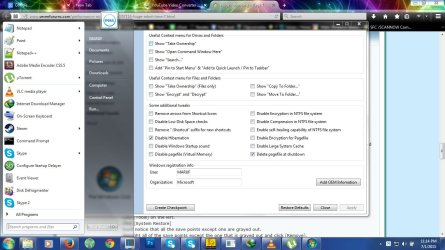
Click the [Additional Tweaks] tab and post a screenshot.
I'm looking to see if these options are checked because they slow boot and shutdown:
- Enable Encryption for Pagefile
- Enable Large System Cache
- Delete pagefile at shutdown
It's
very important that you follow these next steps in precisely the order I outline. Also, you should do this only when you have time. Maybe right before going to bed as the system will be unusable for a while.
Please close everything, every window, every program except for Ultimate Windows Tweaker. You're going to need to reboot at several points in this process and I don't want you to lose data.
Open Ultimate Windows Tweaker (if it's already open that's fine).
Click [Additional Tweaks].
We're going to create a Restore Point.
Click [Create Checkpoint].
After you click [Yes] wait a bit, and you'll get a notification that the System restore point has been created successfully.
Close Ultimate Windows Tweaker.
Open CCleaner.
Click [Tools] on the left.
Click [System Restore]
You'll notice that all the save points except one are grayed out.
Highlight all of the save points except the one that is grayed out and click [Remove].
Now we're going to disable Hibernation.
@SlartyBart suggested you use this tutorial to disable hibernation.
http://www.sevenforums.com/tutorials/819-hibernate-enable-disable.html
Feel free to do so.
For me, it's easier to use the Ultimate Windows Tweaker.
If you're using UWT, navigate to the [Additional Tweaks] tab.
First click [Create Checkpoint] so if something goes wrong you have a(nother) save point to revert to.
After you click [Yes] wait a bit, and you'll get a notification that the System restore point has been created successfully.
Check [Disable Hibernation]
Disable the Page file.
On the [Additional Tweaks] tab please also check the [Disable pagefile (Virtual Memory)] box.
Click [Apply].
Windows will tell you that you need to reboot. Allow it to reboot.
Run CCleaner
I want you to check these options:
Everything under the Windows Tab
EXCEPT [Network Passwords] or [Environment Path].
Do not check [Network Passwords] or [Environment Path].
Now full disclosure. As @slartybart mentioned before, it can be useful to burn the old event logs so we can isolate contemporary issues. This is precisely what we're going to do here. This will wipe all the event viewer logs. Now we can watch the event viewer and identify any issues as they arrive.
You are also going to lose any folder modifications you've made. If you have special folder modifications and you desperately need to keep them that way, you can feel free to uncheck [Custom Files and Folders].
Click the [Applications] tab.
Make sure nothing under [Games] is checked.
Make sure [Windows DRM Cache] is
NOT CHECKED. I'm sure you don't want to lose and need to reactivate any of your games.

If you don't have these options under the [Applications] tab in CCleaner, don't panic that's even better.
After checking all those options click [Analyze] and then click [Run Cleaner].
The Wipe Free Space portion is going to make this process take forever. I wouldn't be surprised if it needs 4-5 hours to complete this process. Maybe take a nap.

Reboot your machine.
This startup should be slightly slower than normal. It is even possible that the system will get hung on the shutdown part and need you to physically turn it off. Not a problem. However,
DO NOT manually power off the system while the GUI is still on the screen. The only way you power it off is if you have a black screen (or the Dell screen) and you move the mouse and the trackpad and there is absolutely no activity on the screen. To manually power off, hold down the power button until the system powers down.
After boot
Re-enable the Page file.
Ultimate Windows Tweaker
[Additional Tweaks]
Uncheck [Disable pagefile (Virtual Memory)]
Reboot the system.
Click the [Start] button.
Right click [Computer] -- It's on the right.
Click [Properties]. An explorer window should open.
Click [Advanced system settings] on the left.
Under [Performance] click [Settings].
Click the [Advanced] tab.
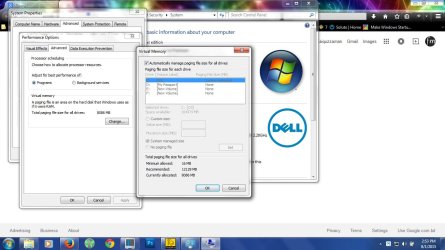
Under [Virtual memory] check and see if there is a number beside [Total paging size for all drives]
Click [Change] - It is likely [Automatically manage paging file size for all drives] is already checked.
I'm not going to argue what the optimal settings for a page file are, I just want to see that it's either system managed, or there is a number greater than 1000 beside C:.
Please screenshot and post this window.
Click [OK].
Run UltraDefrag.
Use Full Optimization on the C: drive. (This will take some time). Maybe another nap.
When that's done use the [Optimize Master File Table] option.
Then click the [Boot Time Scan] option. This will add a boot defrag operation and defrag those parts of the partition that defrag can't touch when the system has logged them for use.
I would leave the boot time scan on for the text 3 restarts. After that you can turn it off until you want it again.
Restart the Computer.
We should see some speed improvements in the boot process over the next 3 to 4 boot cycles. If we don't I'll gently remind that you that when the other two system scans come back clean you should reinstall Windows.




 There's nothing thus far that suggests that your system should be starting this slowly. Except this:
 That's 2 days every 2 months sitting at my other laptop hating every second of it, and watching this one update, and then re-installing all the programs I like to use. Then trying to remember how I had everything set up. Then trying to recreate what it was like last time and failing and being frustrated because after all the updates and installing it just didn't feel right.
  icnic: