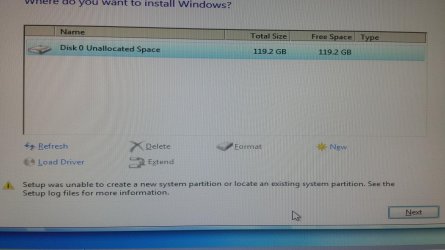
Solved Setup was unable to create a new system Partition

Ok. I think I have done it all... I formated whole HDD
Did the diskpart clean create active etc in many different variations.
Still same error.
I have 1 partition, there is nothing much I can change in Bios only Achi I could set is Raid.
No UEFI anywhere. No secure boot....
Can't find Csm or Legacy mode (I assume it's where you chose how to boot USB)
 

My Computer My Computer

At a glance

64bit Win 7 Pro
Computer type
PC/Desktop
OS
64bit Win 7 Pro
You probably don't have a UEFI BIOS then so not sure why you said you have same situation as this thread..

Try resetting BIOS to defaults then SATA to ACHI. Delete all partitions during install.
 
Last edited:
Did reset to defaults.. Can't find anything called UEFI
 

My Computer My Computer

At a glance

64bit Win 7 Pro
Computer type
PC/Desktop
OS
64bit Win 7 Pro
Could it be that I can't install win 7 sp1? Too old Bios? I might try to upgrade Bios tomorrow.
Maybe I should try win 7. I had it before and was able to install without any problems.
 

My Computer My Computer

At a glance

64bit Win 7 Pro
Computer type
PC/Desktop
OS
64bit Win 7 Pro
PROBLEM SOLVED
Simply Don't use USB. Burn your Windows ISO to DVD

- I wasn't able to xcopy or move files to my USB so I figured out that it could interfere with Windows installation processes to create whatever it needs. So I decided to burn a DVD. IT WORKED.

This way you won't have to Format your whole HDD and xcopy tons of files from partitions to different destinations.

Cheers

P.S Gregrocker I don't have anything in BIOS you mentioned. No AHCI, no Legacy Mode, no CMS ... I went through all options and couldn't find anything that mentions any of those parameters.
 

My Computer My Computer

At a glance

64bit Win 7 Pro
Computer type
PC/Desktop
OS
64bit Win 7 Pro
I am in a similar situation to the OP. I have tried all the methods he mentioned except turning off UEFI (since I can't work out how to do that)

I was following http://www.sevenforums.com/tutorial...e-firmware-interface-install-windows-7-a.html and it says that when you press new to create a partition it should make an MSR and a system partition. That doesn't happen for me. There already seem to be MSR and system partitions but these are on drives that have never had windows on them. Is that relevant?

This is what my drive setup looks like if that helps. I am trying ot put windows on disk 3
egOOjTN.jpg
 

My Computer My Computer

At a glance

7i5-3570KCorsair CMZ16GX3M4A1600C9B 16GB
Computer type
PC/Desktop
OS
7
CPU
i5-3570K
Motherboard
Asus P8Z77-V
Memory
Corsair CMZ16GX3M4A1600C9B 16GB
Problem solved. I read another thread that said you should unplug all the other drives. I tried that and it worked perfectly
 

My Computer My Computer

At a glance

7i5-3570KCorsair CMZ16GX3M4A1600C9B 16GB
Computer type
PC/Desktop
OS
7
CPU
i5-3570K
Motherboard
Asus P8Z77-V
Memory
Corsair CMZ16GX3M4A1600C9B 16GB
Hijacking this thread for a good cause: I've also had this problem, and I've managed to identify yet another cause and a solution. I was trying to install a clean windows to a clean sata drive from a usb stick. None of the suggestions worked, however I was lucky enough to have a DVD drive in my freshly bought Lenovo B590, and with a DVD, the installation went past the point of partitioning and finished as it was supposed.

But this was not an acceptable solution, so I went back to make it work with the USB. In my case, the problem seemed to arise from the fact that I was trying to use a usb 3.0 stick. However, as we all know, the installation process doesn't natively support usb 3.0 yet. But one would think it's not an issue, both the system and the os should fall back to 2.0, and this shouldn't cause any issues. WRONG!

I couldn't test it yet, but I guess it that for some strange reason, the 2.0 mode doesn't work properly if your stick is already 3.0 capable. When trying to use the 3.0 slot, i came to the point where it asked me for a driver, so then I assumed it's easier to use the 2.0 slot on the other side of the machine. Wrong path, as it turned out, as I then got to the infamous "'windows 7 setup was unable to create a new partition bla bla bla" error. Anyway, this is what I had to do.

- Grab enough beer
- Look for the usb 3.0 drivers, extract the inf files from the setup, copy them to some media (I preformatted my hard drive with gparted and copied the files onto a logical partition, so that I don't bring more unknown factors into the equation by using a second usb drive)
- put the usb drive into a slot which is 3.0 compatible
- try to boot from the usb (for some reason, I couldn't bring it to work in uefi mode, not with rufus, nor with anything else, it just refused to boot, but i don't care)
- once the BIOS hands over the controls to the windows installer (after language selection), the usb3 drive ceases to work. Then windows asks for the driver.
- browse to the previously copied inf file, and try to install it. It detects the intel host controller in my case, tries to install it, then reports back that there is no such device connected. Well, f*ck you, you are wrong. Instead of quitting, hit refresh at this point. Now suddenly, besides the host controller, the usb root hub shows up as an option. That's what we want
- once the hub is installed, it proceeds to the partition selection. I've had everything already preformatted, and one working copy of windows already installed from the dvd. But the latter doesn't make a difference, when i followed the regular installation steps without installing usb 3.0 and using a 2.0 port, i got the same error, so the existing installation didn't help.
- at this point, first, I got the usual error. But then I started to play around with the usb 3.0 compatibility setting in the bios, and finally, usb 3.0 "enabled" hit the jackpot. "disabled", "smart auto", nor "auto" seemed to work.
- Once I put it to "enabled", and then went on through the previous steps, the magic happened: windows started to copy files. I waited until 95% completion, but I didn't want another copy of the os on a second partition, so I abandoned setup at this point. I assume it would have finished from here on.

Anyway, I hope I could help, it really was an awkward but memorable experience!:cool:
 

My Computer My Computer

At a glance

windows 7 ultimate x64
Computer type
PC/Desktop
OS
windows 7 ultimate x64
The prompt for drivers is almost always caused by a bad installer. It would be rare for it to be USB3 related, but its possible.

Use a USB2 stick and port or use DVD drive.
 
Last edited:
USB 3.0 problem solved

During the install off of a USB 3.0 flash drive in a USB 2.0 port, when I got the "unable to create a new system Partition" message I unplugged the USB 3.0 flash drive and hit next. Then it errored with a different message, and I plugged it back and and when I hit next, it proceeded successfully.
 

My Computer My Computer

At a glance

Windows 7 Enterprise 64bit
Computer type
Laptop
Computer Manufacturer/Model Number
HP
OS
Windows 7 Enterprise 64bit
Usb 2.0

I know this is an older thread but I wanted to add to it because I felt it was relevant. I had all the same issues as outlined previously. Nothing was working, no tools were helping until I read the post by the guy who hijacked the thread.

I know its strange but USB 2.0 fixed it.

I am working on a NUC that is all USB 3.0 ports, my USB stick is USB 3.0, failed at every attempt no matter what. Grabbed a USB 2.0 stick, imaged (with the exact same image & settings as the 3.0). Sailed through first time.

Thanks for being a lifesaver!

-SForsberg
 

My Computer My Computer

At a glance

Windows 7 Professional x64
Computer Manufacturer/Model Number
Custom build
OS
Windows 7 Professional x64
Wanting to hijack this thread.
I currently have the same problems as other have mentioned.
I have tried all the the ides mentioned, gone though the disk formatting cmd,used Greg's guide to installing, am not using 3.0 usb, have had my hdd in the state that step 7 requires, have ran with bios set to default and then set to ahci. have none of my other hdd plugged in
I am using a image on a usb stick and creating the system on a completely wiped ssd.
at this current moment I am unable to burn the image onto a cd.
the reason I decided to change my of is I realised for some reason I was using 32bit and wanted to change to 64. I backed up my ssd and then completely wiped it.
if anyone has any other ideas they could put forward for me to try.
 

Attachments

  • 1426240430459.jpg
    1426240430459.jpg
    935.3 KB · Views: 0

My Computer My Computer

At a glance

windows 7 32biti3 210016gb ddr3radeon hd 7770 hd
Computer type
PC/Desktop
Computer Manufacturer/Model Number
custom
OS
windows 7 32bit
CPU
i3 2100
Motherboard
gigabyte ga-h61m-ds2
Memory
16gb ddr3
Graphics Card(s)
radeon hd 7770 hd
Hard Drives
1280ggb corsair force gs
What is the problem with burning a DVD? This may work better.

Do you have a UEFI BIOS? UEFI BIOS vs. Legacy BIOS - YouTube
Check in BIOS setup for EFI, UEFI, CSM, Legacy BIOS and BIOS Boot Priority order for evidence of this.

With EFI BIOS' you must format the flash stick using Option One of UEFI Bootable USB Flash Drive - Create in Windows.
The installation media must also be booted as an EFI device in Boot Menu.

Otherwise you can Bypass UEFI to Install WIn7 with BIOS set to CSM or Legacy, booting installer as a non-UEFI device.
 
I haven't had another computer to be able to burn the image to the cd, I have managed to just get my hands on one and will report back with my result.
It isn't a UEFI bios setup
 

Attachments

  • 20150314_130219.jpg
    20150314_130219.jpg
    951.7 KB · Views: 0
  • 20150314_130233.jpg
    20150314_130233.jpg
    716.3 KB · Views: 0

My Computer My Computer

At a glance

windows 7 32biti3 210016gb ddr3radeon hd 7770 hd
Computer type
PC/Desktop
Computer Manufacturer/Model Number
custom
OS
windows 7 32bit
CPU
i3 2100
Motherboard
gigabyte ga-h61m-ds2
Memory
16gb ddr3
Graphics Card(s)
radeon hd 7770 hd
Hard Drives
1280ggb corsair force gs
Yes you have an EFI BIOS as clearly shown by the choice in red on the Advanced tab. It would be helpful to see the Item Help shown on the right side when EFI is highlighted as I cannot read them now. This is usually self-explanatory.

So you'll boot the DVD using the one-time BIOS Boot menu (or set to EFI DVD drive first on same BIOS page) as an EFI device only. Again, with the DVD in the drive the choice is EFI or UEFI DVD drive, not plain DVD.

Then at the drive selection screen delete all partitions to clear the disk formatting so it can format the disk GPT if necessary.

I would enable HD SMART status so your BIOS monitors the HD condition - no reason not to.
 
ok my bad, I didn't think I had a UEFI bios. just ran it through Rufus and created the iso image. currently installing the windows. thanks for the emphasis on checking if I had UEFI.

just saw you had posted. I thought there was more to an UEFI bios. thanks for your help. will definitely remember that

(the efi descrption talks about having to enable efi if the hdd is bigger than 2.2tb and also if you are installing windows 7 64bit,that is why I had it enabled and didn't link it to being and UEFI bios)
 

My Computer My Computer

At a glance

windows 7 32biti3 210016gb ddr3radeon hd 7770 hd
Computer type
PC/Desktop
Computer Manufacturer/Model Number
custom
OS
windows 7 32bit
CPU
i3 2100
Motherboard
gigabyte ga-h61m-ds2
Memory
16gb ddr3
Graphics Card(s)
radeon hd 7770 hd
Hard Drives
1280ggb corsair force gs
All good, installed correctly and no issues.
thanks for the help
 

My Computer My Computer

At a glance

windows 7 32biti3 210016gb ddr3radeon hd 7770 hd
Computer type
PC/Desktop
Computer Manufacturer/Model Number
custom
OS
windows 7 32bit
CPU
i3 2100
Motherboard
gigabyte ga-h61m-ds2
Memory
16gb ddr3
Graphics Card(s)
radeon hd 7770 hd
Hard Drives
1280ggb corsair force gs
Back
Top