Upgrade from SSHD to SSD (Aspire s3 - 391-6497)

Metrolens

New member
Local time
8:06 PM
Messages
9
Hi, I am ready to upgrade my Acer Aspire s3's [500 GB + 20GB] SSHD hybrid drive to a SSD. The laptop is 5.5 years old, and still works flawlessly, but I thought I would upgrade the OS drive to extend life and get an inexpensive performance boost. (I bought a Crucial 240 GB SSD, so it will be smaller than my hybrid SSHD, but that would only be a concern if I am cloning, and there is a ton of empty space on the hybrid drive so I can shrink the partitions to easily fit the 240 GB SSD.)

Questions:
1. I'm led to think I should do a clean install of Windows 7, rather than clone my current installation, not only because of the benefits of a clean install, but also because I'm not sure the 20 GB portion of the hybrid drive would clone correctly. Is clean the best way to go? Or should I clone, and not include/not worry about the two 20 GB hybrid partitions (which aren't really partitions, are they, as they are on a seperate 20 GB SSD, hence my confusion about what would happen during cloning).

2. If a clean install is the best way to go: I have the original Acer System Disc, and the 4 Recovery DVDs, that shipped with the computer. When I boot into the System Disc, the factory reinstall choices appear, HOWEVER, it looks like I would first need to open the chassis and unplug my old hybrid SSHD, and replace it internally with the new blank SSD, because the System Disc utility apparently doesn't permit having more than one hard drive connected during the Windows 7 reinstall. Is this the case? Can I not route the factory install to the new SSD, connected via a USB/SATA adapter, while leaving the old hybrid SSHD installed inside the laptop? (The reason is, if something doesn't work, I wouldn't have had to open the chassis and remove and reinstall the hybrid SSHD; would be a less time consuming workflow, and less potentially damaging to my laptop).

3. Assuming I do have to first remove the SSHD, and the clean install to the SSD doesn't work, would I have any problem simply reinstalling the old hybrid SSHD? Obviously I would have removed it without formatting it; it would have been removed with Windows 7 unchanged and in perfect working condition. Is there any reason it would cease to work as a result of this procedure?

4. Last, is there a better way to do a clean install of Windows 7 than what I am describing above? I tried to get an ISO from Microsoft but it errored, saying I can't download it because my license is a pre-installed one and thus I would need to go through the OEM.
 

My Computer My Computer

At a glance

Windows 7 Home Premium 64bit
OS
Windows 7 Home Premium 64bit
As SSD need specific settings a clean install is the way to go so its setup correctly as you have the old disk any problems you can just plug that back in. SSD is so cheap now a 480gig is only £54
 

My Computer My Computer

At a glance

win 8 32 bit
Computer type
PC/Desktop
OS
win 8 32 bit
Thanks Samuria.

I found this - apparently the 20 GB in my hybrid drive is actually a seperate 24 GB mSATA drive inside the Aspire s3. It's not part of the 500 GB
Taking apart Acer Aspire S3-391-6497 – Inside my laptop

So... does this complicate the issue? Would I need to remove the mSATA? Could leaving it in cause boot issues? And, would removing it make going back to the original configuration (if necessary) impossible?
 

My Computer My Computer

At a glance

Windows 7 Home Premium 64bit
OS
Windows 7 Home Premium 64bit
apparently the 20 GB in my hybrid drive is actually a seperate 24 GB mSATA drive inside the Aspire s3. It's not part of the 500 GB
Taking apart Acer Aspire S3-391-6497 – Inside my laptop
So... does this complicate the issue? Would I need to remove the mSATA? Could leaving it in cause boot issues? And, would removing it make going back to the original configuration (if necessary) impossible?
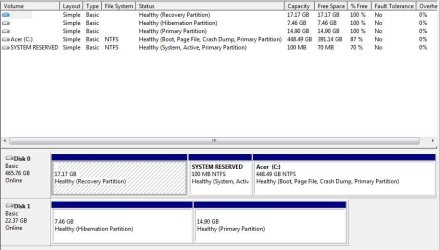
can you post a screenshot of your start > run > diskmgmt.msc ?

just to throw in my two cents, if I were in your shoes I would clone before resorting to a clean install. Saves all your tweaks, your programs, and your drivers. And when you buy a crucial SSD you get acronis for free and an SSD optimizer.
Crucial Storage Executive Tool | Firmware Download | Crucial.com
Getting Started With SSD Drives | Crucial.com

Since your laptop can only connect one sata drive at a time you will need this $9 cable to do the clone.
https://www.amazon.com/Sabrent-2-5-I...gateway&sr=8-3
 

My Computer My Computer

At a glance

Win7 pro x64stock i7 7700kCorsair Vengeance LPX 16GB (2x8GB) DDR4 @ 320...integrated Intel HD 630
Computer type
PC/Desktop
Computer Manufacturer/Model Number
diy
OS
Win7 pro x64
CPU
stock i7 7700k
Motherboard
Gigabyte Z270N-WIFI mini-ITX
Memory
Corsair Vengeance LPX 16GB (2x8GB) DDR4 @ 3200MHz
Graphics Card(s)
integrated Intel HD 630
Sound Card
onboard Realtek ALC1220
Monitor(s) Displays
two vertically mounted samsung 55" 4k un55mu8000
Screen Resolution
1920x1280
Hard Drives
256GB Samsung EVO 960 M.2 pci-e NVMe SSD
PSU
SilverStone Nightjar ST45NF 450Watt Fanless
Case
No case. Motherboard is mounted directly onto power supply
Cooling
Evercool low profile 815EP with Panaflow 12L fan at 7v
Keyboard
Ortek MCK-86 mini
Mouse
Belkin 5-button USB
Internet Speed
spectrum 400mbps
Thanks Johnhoh. Here's the screenshot of disk management. This is how the computer ships factory default; I didn't modify. Disk1 is the 24 GB mSATA, which is used as some sort of cache for quick resume from hibernate and possibly startup.
 

Attachments

  • Capture - Copy.JPG
    Capture - Copy.JPG
    61.9 KB · Views: 1

My Computer My Computer

At a glance

Windows 7 Home Premium 64bit
OS
Windows 7 Home Premium 64bit
That looks like I had hoped. It appears that disk 1 is only there to increase the performance of disk 0 but may not be required for booting, its just a speed enhancer. I would try physically removing disk 1 from the computer and see if it boots and operates normally (albeit slowly due to no cache) using only disk 0. If that works, then you know you can simply clone disk 0 to get a bootable ssd without having disk 1 even attached at clone time. Of course you would need the external adapter. btw here's a video of a guy doing that:

How to Upgrade Laptop Hard Drive to SSD without Reinstalling Windows - YouTube
 

My Computer My Computer

At a glance

Win7 pro x64stock i7 7700kCorsair Vengeance LPX 16GB (2x8GB) DDR4 @ 320...integrated Intel HD 630
Computer type
PC/Desktop
Computer Manufacturer/Model Number
diy
OS
Win7 pro x64
CPU
stock i7 7700k
Motherboard
Gigabyte Z270N-WIFI mini-ITX
Memory
Corsair Vengeance LPX 16GB (2x8GB) DDR4 @ 3200MHz
Graphics Card(s)
integrated Intel HD 630
Sound Card
onboard Realtek ALC1220
Monitor(s) Displays
two vertically mounted samsung 55" 4k un55mu8000
Screen Resolution
1920x1280
Hard Drives
256GB Samsung EVO 960 M.2 pci-e NVMe SSD
PSU
SilverStone Nightjar ST45NF 450Watt Fanless
Case
No case. Motherboard is mounted directly onto power supply
Cooling
Evercool low profile 815EP with Panaflow 12L fan at 7v
Keyboard
Ortek MCK-86 mini
Mouse
Belkin 5-button USB
Internet Speed
spectrum 400mbps
Thanks again john.

Could I clone Disk 0 using an adapter, and then just try to boot from the cloned drive via the USB adapter? If I can test this way, without first having to open the chassis and remove either the SSHD or the mSATA drive, that would be ideal. Unfortunately this laptop isn't what I would call "easy access" for getting to the drives, and furthermore, I'm a little freaked about removing that mSATA, in the event something doesn't quite work and I need to revert back to the original drives.
 

My Computer My Computer

At a glance

Windows 7 Home Premium 64bit
OS
Windows 7 Home Premium 64bit
Thanks again john.
Could I clone using an adapter, and then just try to boot from the cloned drive via the USB adapter?
Unfortunately no, for two reasons. One is Win7 requires a fixed drive for its boot drive (though Win8/Win10 have this thing called Windows to Go that allows removable boot drives), and the second is that right after you clone a disk, the VERY next step is to immediately shut down and remove one of the disks before powering back up. Because if you boot from a machine that has a newly cloned boot drive in it that has never booted on its own, windows will perceive that drive to be a data drive and overwrite its boot sector such that its no longer bootable.

Just to note, it is possible to have two bootable drives on one system where their boot sectors stay intact. To do this, you:
1) clone your boot drive.
2) shut down, disconnect one of the drives.
3) power up with only one drive.
4) power down.
5) disconnect the drive you just booted from and connect the other drive.
6) power up with only that second drive.
7) power down.
8) connect the other drive.
9) from then on you can boot the machine and choose whichever drive you want and it will detect the second dive and use it as a data drive without messing up its boot sector. The key is giving each drive a maiden boot as the only drive in the system.

What this means of course is that you do have to dismantle the laptop to make this happen.
 

My Computer My Computer

At a glance

Win7 pro x64stock i7 7700kCorsair Vengeance LPX 16GB (2x8GB) DDR4 @ 320...integrated Intel HD 630
Computer type
PC/Desktop
Computer Manufacturer/Model Number
diy
OS
Win7 pro x64
CPU
stock i7 7700k
Motherboard
Gigabyte Z270N-WIFI mini-ITX
Memory
Corsair Vengeance LPX 16GB (2x8GB) DDR4 @ 3200MHz
Graphics Card(s)
integrated Intel HD 630
Sound Card
onboard Realtek ALC1220
Monitor(s) Displays
two vertically mounted samsung 55" 4k un55mu8000
Screen Resolution
1920x1280
Hard Drives
256GB Samsung EVO 960 M.2 pci-e NVMe SSD
PSU
SilverStone Nightjar ST45NF 450Watt Fanless
Case
No case. Motherboard is mounted directly onto power supply
Cooling
Evercool low profile 815EP with Panaflow 12L fan at 7v
Keyboard
Ortek MCK-86 mini
Mouse
Belkin 5-button USB
Internet Speed
spectrum 400mbps
John, thanks again - this clarifies greatly.

I do still worry about removing that mSATA, and what that would mean about reverting should the SSD not work out. Thing is, this laptop works flawlessly now, and boot time from button press to desktop is around 20 seconds. I wouldn't call that slow (even though I'm guessing the SSD boot would be much quicker.)

If my laptop were broken or limping, then it would be a no brainer. But this is a perfectly working laptop. I'm having modders remorse...
 

My Computer My Computer

At a glance

Windows 7 Home Premium 64bit
OS
Windows 7 Home Premium 64bit
I'm having modders remorse...
I hear ya, there are no riskless mods. Is your data backed up at least?

My bet is you will safely remove the msata drive and re-assemble the computer without breaking anything, which means the only risk is that when you boot from only the HDD, if that boot fails, something will get overwritten on that drive during that failed boot such that even after re-installing the msata, your machine is hosed. Fwiw, I don't believe such overwriting ever happens. And if somehow it did, selecting "repair" from a bootable windows installation USB would likely fix it.

But if you really want to belt-and-suspenders this, create a backup system image and a system repair disk. Probably overkill, but its an option.

https://www.howtogeek.com/howto/4241/how-to-create-a-system-image-in-windows-7/
 

My Computer My Computer

At a glance

Win7 pro x64stock i7 7700kCorsair Vengeance LPX 16GB (2x8GB) DDR4 @ 320...integrated Intel HD 630
Computer type
PC/Desktop
Computer Manufacturer/Model Number
diy
OS
Win7 pro x64
CPU
stock i7 7700k
Motherboard
Gigabyte Z270N-WIFI mini-ITX
Memory
Corsair Vengeance LPX 16GB (2x8GB) DDR4 @ 3200MHz
Graphics Card(s)
integrated Intel HD 630
Sound Card
onboard Realtek ALC1220
Monitor(s) Displays
two vertically mounted samsung 55" 4k un55mu8000
Screen Resolution
1920x1280
Hard Drives
256GB Samsung EVO 960 M.2 pci-e NVMe SSD
PSU
SilverStone Nightjar ST45NF 450Watt Fanless
Case
No case. Motherboard is mounted directly onto power supply
Cooling
Evercool low profile 815EP with Panaflow 12L fan at 7v
Keyboard
Ortek MCK-86 mini
Mouse
Belkin 5-button USB
Internet Speed
spectrum 400mbps
I hear ya, there are no riskless mods. Is your data backed up at least?

My bet is you will safely remove the msata drive and re-assemble the computer without breaking anything, which means the only risk is that when you boot from only the HDD, if that boot fails, something will get overwritten on that drive during that failed boot such that even after re-installing the msata, your machine is hosed. Fwiw, I don't believe such overwriting ever happens. And if somehow it did, selecting "repair" from a bootable windows installation USB would likely fix it.

But if you really want to belt-and-suspenders this, create a backup system image and a system repair disk. Probably overkill, but its an option.

https://www.howtogeek.com/howto/4241/how-to-create-a-system-image-in-windows-7/

Good thoughts.

I suppose the worst case scenario would be, I somehow brick my HDD and mSATA, and would have to do a clean Win 7 install to the SSD using the Acer Recovery Disks. In theory, this would result in a clean factory default install to the SSD, which would be a good thing (unless the recovery disks install improperly because they would expect the mSATA to be present, which of course in this scenario, would have been removed). This wouldn't be a clone, of course, but all the drivers etc should be installed correctly because of the Acer factory disks. And I only have a handful of programs installed - tweaks have been minimal - and god yes my data is backed up - so arguably this scenario would end up even better. Does this thinking sound correct?

I still balk to perform the operation because of risk/reward. There is a lot of time involved to do any of the scenarios above, and this is a 5.5 year old perfectly working laptop, but one where something else could break in the near future, so that figures into the risk/reward equation.
 

My Computer My Computer

At a glance

Windows 7 Home Premium 64bit
OS
Windows 7 Home Premium 64bit
Good point, as long as your data is backed up you always have a factory install on original hardware as a backup plan.

The thought process you are going through reminds me of my first mod which was an offbrand sidecar of 512KB memory for my first PC, an IBM PCjr. The computer was cartridge based, wouldn't even benefit from the additional memory, and taking it apart was probably voiding the warranty. I had no idea what I was doing. But life is for the living, so you dive in and try something new because the intangible upside of stretching yourself pretty much always exceeds the downside.
 

My Computer My Computer

At a glance

Win7 pro x64stock i7 7700kCorsair Vengeance LPX 16GB (2x8GB) DDR4 @ 320...integrated Intel HD 630
Computer type
PC/Desktop
Computer Manufacturer/Model Number
diy
OS
Win7 pro x64
CPU
stock i7 7700k
Motherboard
Gigabyte Z270N-WIFI mini-ITX
Memory
Corsair Vengeance LPX 16GB (2x8GB) DDR4 @ 3200MHz
Graphics Card(s)
integrated Intel HD 630
Sound Card
onboard Realtek ALC1220
Monitor(s) Displays
two vertically mounted samsung 55" 4k un55mu8000
Screen Resolution
1920x1280
Hard Drives
256GB Samsung EVO 960 M.2 pci-e NVMe SSD
PSU
SilverStone Nightjar ST45NF 450Watt Fanless
Case
No case. Motherboard is mounted directly onto power supply
Cooling
Evercool low profile 815EP with Panaflow 12L fan at 7v
Keyboard
Ortek MCK-86 mini
Mouse
Belkin 5-button USB
Internet Speed
spectrum 400mbps
Back
Top