User Folders - Change Default Location

How to Change the Default Location of User Folders in Windows 7 and Windows 8

   Information
This will show you how to change (move) the default location of your account's C:\Users\(user-name) folders to another location of your choice instead in Windows 7 and Windows 8, and still have access to the user folder from the Start Menu (Windows 7 only) location.

   Tip
If you are just wanting to save HDD space, then you might consider this below to be able to access the files from your libraries with the files actually located where you like instead. This way you will not have to worry about any potential issues that come with moving user folder locations. For example, whatever partition you move your user folders to will now be included in a system image in Windows 7 and Windows 8.

  • Create a new folder at any location you want.
  • Move any files you want into the new folder.
  • Include the new folder into a library (Windows 7 or Windows 8) of your choice.
  • If you like, you can also set the new folder to be the default save to location (Windows 7 or Windows 8) for the library as well.
   Warning
If you change the default location of your Favorites folder in Windows 8 or 8.1, your Favorites in Internet Explorer will no longer be available until you move your Favorites back to the default "C:\Users\(user-name)" location.


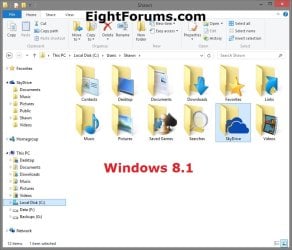
EXAMPLE: User Folders
NOTE: This is at the default C:\Users\(user-name) location.
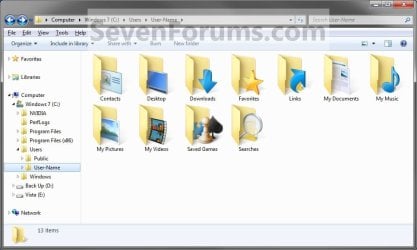
Example1.jpg

Windows_8.1.jpg


OPTION ONE

To Change Main User Profile Folder Location


1. For how, see:
http://www.sevenforums.com/tutorials/87555-user-profile-change-default-location.html

OR

How to Relocate User Profiles to another Partition or Disk in Windows 8


OPTION TWO

To Change User Folders Location from within User Profile Folder


1. If you a part of a homegroup, then you will need to change the homegroup settings to no longer share the user folder (ex: My Music) that you want to move first by unchecking the folder and clicking on Save Changes. (see screenshot below)
NOTE: This is so the user folder (ex: My Music) will not be shared on the homegroup anymore.
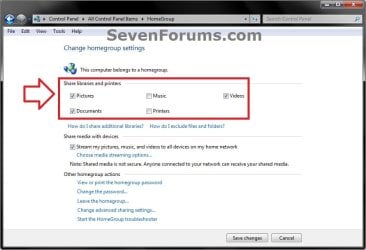
Homegroup.jpg
2. In Windows Explorer, navigate to where (ex: D: drive) you want to move the default user folder (ex: My Music) location to.

3. Create a New Folder by right clicking or press and hold on a empty space in the main window there, and click/tap on New and Folder. Name the new folder without spaces (ex: "Music" for My Music) for the user folder that you want to move there. (See screenshots below)
NOTE: The name that you type in for the new folder will be what you see as the user folder name in the Start Menu (shell:UsersFilesFolder) location when finished with all of these steps. It would be best to use the same name as the user folder to avoid confusion.
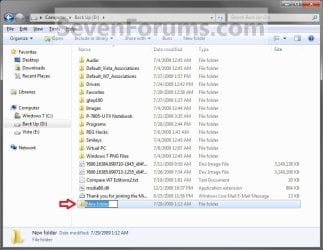
Rename1.jpg

Rename2.jpg

4. Close this window. (See screenshots above)

5. Press the Windows+R keys to open the Run dialog, type shell:UsersFilesFolder, and press enter.
NOTE: This will open your C:\Users\(user-name) folder.

6. Right click or press and hold on a user folder (ex: My Music, My Documents, My Pictures, etc.....) that you want to move the default location for, and click/tap on Properties. (See screenshot below)
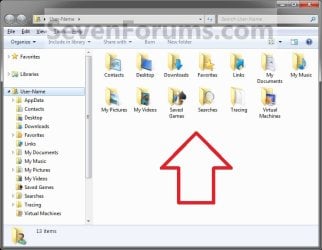
Right_Click_On_A_User_Folder.jpg
7. Click/tap on the Location tab, and Move button. (See screenshot below)
Properties1.jpg
8. Navigate to the same location as in step 2 and 3 above, then select the renamed new folder (ex: Music), and click/tap on the Select Folder button. (See screenshot below)
Properties2.jpg
9. Click/tap on OK. (See screenshot below)
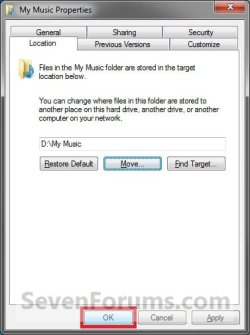
Properties3.jpg
10. Click/tap on Yes. (See screenshot below)
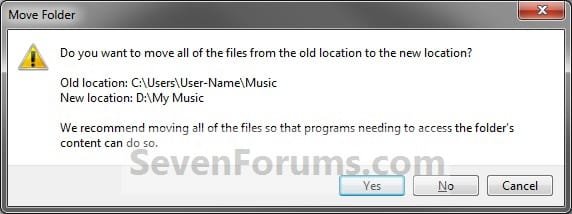
Properties4.jpg
11. After a few seconds when the location has been changed, the Properties window (screenshot under step 9) will then close.

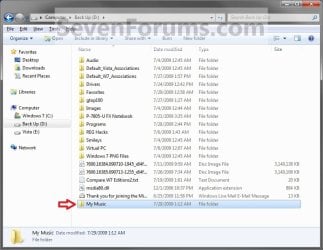
12. Check back at the C:\Users\(user-name) location to make sure that the old user folder (ex: My Music) that you moved is no longer there. If it is, then make sure that the contents of the folder were moved to the new location, and delete it. (See screenshot below)
NOTE: If you are unable to delete the folder, then restart the computer and try again.
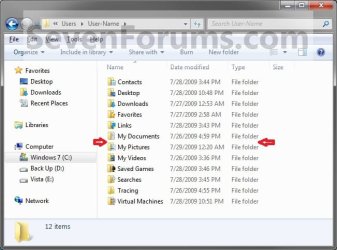
Finished2.jpg
13. You will notice that the folder at the shell:UsersFilesFolder location and the new location (ex: D drive) you moved the user folder to, now has the default user folder (ex: My Music) icon. (See screenshot below)
NOTE: The Start Menu in Windows 7 now opens the user folder from the new location (ex: D: drive) that you moved the user folder to.
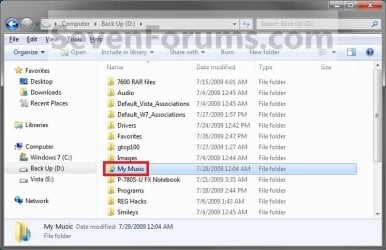
Finished.jpg
14. If you a part of a homegroup, then you can now change the homegroup settings back to share the user folder (ex: My Music) again if you like by checking the folder, and click/tap on Save Changes. (see screenshot below)
Homegroup.jpg
   Tip
If you wanted to restore the default location of the user folder, then see:

How to Restore the Default Location of User Folders in Windows 7 and Windows 8


That's it,
Shawn


Last edited:
  • Like
Reactions: Lee
What are the benefits of using one method over the other? ...is what I meant.

*Thinking out loud here*: Option 1 does an all in one move, while with Option 2 one can pick and choose which folder(s) to move(?) Just wondering why one would choose to move everything off the system drive/partition and someone else would choose to move some folders out but keep the profile folder home.

Thanks:o

Edit in: Okay did more reading on these boards and hopefully answered my own question. Someone please correct me if I'm wrong but here is what I got: The other difference between moving just folders and moving the whole profile folder to another drive/partition is that with the latter, it is now considered a system partition and will be included in a system image. While the folders only method allows you to make a much smaller system image with the ability to backup the folders separately.:huh:

Almost. Whether you move the main user profile folder or just one of the sub user folders, whatever drive/partition you move it to will be considered a system drive afterwards.

As for as benefits on why use one method over the other really just depends on the user's needs. Do they want to only move one or more sub user folders say due to a large collection of say music and pictures, or do they want to move the main user profile folder. The only real benefit with using either method would be to have the HDD space used by the folder(s) used on another drive/partition instead of the Windows 7 drive.
 
Last edited:

My Computer My Computer

Computer type
PC/Desktop
Computer Manufacturer/Model Number
Self built custom
OS
64-bit Windows 11 Pro for Workstations
CPU
Intel i7-8700K OC'd to 5 GHz
Motherboard
ASUS ROG Maximus XI Formula Z390
Memory
64 GB (4x16GB) G.SKILL TridentZ RGB DDR4 3600 MHz
Graphics Card(s)
ASUS ROG-STRIX-GTX1080TI-O11G-GAMING
Sound Card
Integrated
Monitor(s) Displays
2 x Samsung Odyssey G7 27"
Screen Resolution
2560x1440
Hard Drives
1TB Samsung 990 PRO M.2,
4TB Samsung 990 PRO PRO M.2,
TerraMaster F8 SSD Plus NAS
PSU
Seasonic Prime Titanium 850W
Case
Thermaltake Core P3
Cooling
Corsair Hydro H115i
Keyboard
Logitech wireless K800
Mouse
Logitech MX Master 4
Internet Speed
2 Gb/s Download and 100 Mb/s Upload
Antivirus
Malwarebyte Anti-Malware Premium
Browser
Google Chrome
Other Info
Logitech Z625 speaker system,
Logitech BRIO 4K Pro webcam,
HP Color LaserJet Pro MFP M477fdn,
APC SMART-UPS RT 1000 XL - SURT1000XLI,
Galaxy S23 Plus phone
Thanks Brink. I'm sure glad I found this forum.
 

My Computer My Computer

OS
Windows 7 Home Premium 64-bit
CPU
i5 2500K
Motherboard
Asus P8Z68-V PRO
Memory
Corsair Vengeance 8GB
Graphics Card(s)
Sapphire Radeon HD6850
Hard Drives
Crucial M4 SSD 64GB
Seagate Barracuda 1TB
PSU
Corsair HX750
Case
Antec 300
Cooling
Stock
Keyboard
Microsoft Ergonomic
Mouse
5 year old Logitech MX518
You're most welcome. :)
 

My Computer My Computer

Computer type
PC/Desktop
Computer Manufacturer/Model Number
Self built custom
OS
64-bit Windows 11 Pro for Workstations
CPU
Intel i7-8700K OC'd to 5 GHz
Motherboard
ASUS ROG Maximus XI Formula Z390
Memory
64 GB (4x16GB) G.SKILL TridentZ RGB DDR4 3600 MHz
Graphics Card(s)
ASUS ROG-STRIX-GTX1080TI-O11G-GAMING
Sound Card
Integrated
Monitor(s) Displays
2 x Samsung Odyssey G7 27"
Screen Resolution
2560x1440
Hard Drives
1TB Samsung 990 PRO M.2,
4TB Samsung 990 PRO PRO M.2,
TerraMaster F8 SSD Plus NAS
PSU
Seasonic Prime Titanium 850W
Case
Thermaltake Core P3
Cooling
Corsair Hydro H115i
Keyboard
Logitech wireless K800
Mouse
Logitech MX Master 4
Internet Speed
2 Gb/s Download and 100 Mb/s Upload
Antivirus
Malwarebyte Anti-Malware Premium
Browser
Google Chrome
Other Info
Logitech Z625 speaker system,
Logitech BRIO 4K Pro webcam,
HP Color LaserJet Pro MFP M477fdn,
APC SMART-UPS RT 1000 XL - SURT1000XLI,
Galaxy S23 Plus phone
Brink is a incredible resource and I wish he was my next door neighbor.
Thanks for the Tutorial!
 

My Computer My Computer

Computer Manufacturer/Model Number
Home Brew
OS
Windows 7 Pro 64bit
CPU
Intel i5 2500K ( 4.2 GHz)
Motherboard
GIGABYTE GA-Z77X-UD5H LGA 1155 Z77 ATX
Memory
Mushkin Enhanced 8GB (2x4GB) DDR3 PC3-12800 9-9-9-24 Blackli
Graphics Card(s)
GIGABYTE GeForce GTX 560 1GB GDDR5 (GV-N56GOC-1GI)
Monitor(s) Displays
ASUS VH242H
Screen Resolution
1080p, 1920x1080
Hard Drives
Mushkin Enhanced Chronos Deluxe MKNSSDCR120GB-DX 2.5" 120GB SATA III MLC Internal Solid State Drive ( OS & Photoshop CS-5)
Intel 320 Series 40 GB SATA 3.0 Gb-s 2.5-Inch SSD
WD Caviar Black 500GB Serial ATA HD 7200/32MB/SATA-3G
Seagate 1TB
Seaga
PSU
Mushkin Enhanced Joule 700 W
Case
Corsair Carbide 400R
Cooling
Scythe Mugen 3, COUGAR CF-V14H (x6), COUGAR CF-V12H (x2)
Keyboard
Microsoft Sidewinder X4
Mouse
Gigabyte M6800
Other Info
Scythe 4 CH fan controller
Aft Pro57U USB3.0 Media card reader
Mushkin Enhanced Ventura 32GB USB 3.0 Flash Drive
You're most welcome 1foxracing. Thank you. :)
 

My Computer My Computer

Computer type
PC/Desktop
Computer Manufacturer/Model Number
Self built custom
OS
64-bit Windows 11 Pro for Workstations
CPU
Intel i7-8700K OC'd to 5 GHz
Motherboard
ASUS ROG Maximus XI Formula Z390
Memory
64 GB (4x16GB) G.SKILL TridentZ RGB DDR4 3600 MHz
Graphics Card(s)
ASUS ROG-STRIX-GTX1080TI-O11G-GAMING
Sound Card
Integrated
Monitor(s) Displays
2 x Samsung Odyssey G7 27"
Screen Resolution
2560x1440
Hard Drives
1TB Samsung 990 PRO M.2,
4TB Samsung 990 PRO PRO M.2,
TerraMaster F8 SSD Plus NAS
PSU
Seasonic Prime Titanium 850W
Case
Thermaltake Core P3
Cooling
Corsair Hydro H115i
Keyboard
Logitech wireless K800
Mouse
Logitech MX Master 4
Internet Speed
2 Gb/s Download and 100 Mb/s Upload
Antivirus
Malwarebyte Anti-Malware Premium
Browser
Google Chrome
Other Info
Logitech Z625 speaker system,
Logitech BRIO 4K Pro webcam,
HP Color LaserJet Pro MFP M477fdn,
APC SMART-UPS RT 1000 XL - SURT1000XLI,
Galaxy S23 Plus phone
Request

Thanks for a helpful guide - I've used this procedure myself ever since Windows 7 beta I believe but it's nice to have a tutorial to link friends to :)

Now, to my request. I've been looking through this thread and some others to see if I could find something that meets my needs. Let me explain.

I have the My Documents folder pointed directly at my Dropbox folder. Inside the Dropbox folder I also have the My Pictures folder (and at some point I'll probably move My Music in there as well). I also map my libraries to those folders (and those folders only; I do not use shared or public folders). This is all very handy, it keeps my documents and pictures/graphics in sync across all my devices. However, it's a bit tedious to do all the remapping manually every time I set up a new device (or reinstall windows on my main box, for that matter).

What I want is this - a batch script that changes the location of the My Documents folder to the folder in which the batch script is run from, and My Pictures to a specified folder within that folder. What I want is to be able to reinstall Windows, install Dropbox, go to my Dropbox folder, run the script and hey presto I'm all set.

I could probably figure out a way to do that myself but to be honest I don't really want to :P
 

My Computer My Computer

OS
Windows 7 Professional x64

My Computer My Computer

Computer type
PC/Desktop
Computer Manufacturer/Model Number
Self built custom
OS
64-bit Windows 11 Pro for Workstations
CPU
Intel i7-8700K OC'd to 5 GHz
Motherboard
ASUS ROG Maximus XI Formula Z390
Memory
64 GB (4x16GB) G.SKILL TridentZ RGB DDR4 3600 MHz
Graphics Card(s)
ASUS ROG-STRIX-GTX1080TI-O11G-GAMING
Sound Card
Integrated
Monitor(s) Displays
2 x Samsung Odyssey G7 27"
Screen Resolution
2560x1440
Hard Drives
1TB Samsung 990 PRO M.2,
4TB Samsung 990 PRO PRO M.2,
TerraMaster F8 SSD Plus NAS
PSU
Seasonic Prime Titanium 850W
Case
Thermaltake Core P3
Cooling
Corsair Hydro H115i
Keyboard
Logitech wireless K800
Mouse
Logitech MX Master 4
Internet Speed
2 Gb/s Download and 100 Mb/s Upload
Antivirus
Malwarebyte Anti-Malware Premium
Browser
Google Chrome
Other Info
Logitech Z625 speaker system,
Logitech BRIO 4K Pro webcam,
HP Color LaserJet Pro MFP M477fdn,
APC SMART-UPS RT 1000 XL - SURT1000XLI,
Galaxy S23 Plus phone
Thanks for the info

I did not succeeded yet to move my folder

I want to move the entire c:\Users that contain 3 users + there appropriate files to f:\Users

c:\Users property look to be locked and I don't have the location option for it. I do have the location option for individual files.

Should I modify them separately or is there another solution?

My C: partition is nearly full and my F: drive, who reside on the same hard disk is empty. I need space badly....

Martin :o
 

My Computer My Computer

Computer Manufacturer/Model Number
Home made
OS
windows 7 Pro x64
CPU
Intel I5 3450
Motherboard
Gefabye B75M-D3H
Memory
8 GB DDR3 dual chanel
Graphics Card(s)
Asus Radeon 4870 Nevedi Gforce GTX 500Ti
Sound Card
None
Monitor(s) Displays
4 L206W, Synckmaster, Acer X203W, X223W
Screen Resolution
1680 X 1050
Hard Drives
SSD 120G from Intel

640 GB
PSU
Cooler Master 600W
Case
Antec
Cooling
Regular fan
Keyboard
Microsoft Multimedia Bilingual
Mouse
Microsoft Optical 3000

My Computer My Computer

Computer type
PC/Desktop
Computer Manufacturer/Model Number
Self built custom
OS
64-bit Windows 11 Pro for Workstations
CPU
Intel i7-8700K OC'd to 5 GHz
Motherboard
ASUS ROG Maximus XI Formula Z390
Memory
64 GB (4x16GB) G.SKILL TridentZ RGB DDR4 3600 MHz
Graphics Card(s)
ASUS ROG-STRIX-GTX1080TI-O11G-GAMING
Sound Card
Integrated
Monitor(s) Displays
2 x Samsung Odyssey G7 27"
Screen Resolution
2560x1440
Hard Drives
1TB Samsung 990 PRO M.2,
4TB Samsung 990 PRO PRO M.2,
TerraMaster F8 SSD Plus NAS
PSU
Seasonic Prime Titanium 850W
Case
Thermaltake Core P3
Cooling
Corsair Hydro H115i
Keyboard
Logitech wireless K800
Mouse
Logitech MX Master 4
Internet Speed
2 Gb/s Download and 100 Mb/s Upload
Antivirus
Malwarebyte Anti-Malware Premium
Browser
Google Chrome
Other Info
Logitech Z625 speaker system,
Logitech BRIO 4K Pro webcam,
HP Color LaserJet Pro MFP M477fdn,
APC SMART-UPS RT 1000 XL - SURT1000XLI,
Galaxy S23 Plus phone
Is it possible to change the defualt location of a user folder to an external hard drive or a network attached hard drive?
 

My Computer My Computer

OS
Windows 7 Ultimate 32bit
Hello Joseph, and welcome to Seven Forums.

I would strongly recommend to not even try it though to prevent some serious issues if something should go wrong.

Instead, I would recommend to use libraries for this. You could have a folder on the external drive, and include that folder in a library of your choice (ex: Music). This way you will be able to access every included folder at that single library location, and still have everything stored at the folder's location (ex: folder on external drive).

http://www.sevenforums.com/tutorials/4617-libraries-include-network-folder.html

and

http://www.sevenforums.com/tutorials/585-library-include-folder.html

Hope this helps,
Shawn
 

My Computer My Computer

Computer type
PC/Desktop
Computer Manufacturer/Model Number
Self built custom
OS
64-bit Windows 11 Pro for Workstations
CPU
Intel i7-8700K OC'd to 5 GHz
Motherboard
ASUS ROG Maximus XI Formula Z390
Memory
64 GB (4x16GB) G.SKILL TridentZ RGB DDR4 3600 MHz
Graphics Card(s)
ASUS ROG-STRIX-GTX1080TI-O11G-GAMING
Sound Card
Integrated
Monitor(s) Displays
2 x Samsung Odyssey G7 27"
Screen Resolution
2560x1440
Hard Drives
1TB Samsung 990 PRO M.2,
4TB Samsung 990 PRO PRO M.2,
TerraMaster F8 SSD Plus NAS
PSU
Seasonic Prime Titanium 850W
Case
Thermaltake Core P3
Cooling
Corsair Hydro H115i
Keyboard
Logitech wireless K800
Mouse
Logitech MX Master 4
Internet Speed
2 Gb/s Download and 100 Mb/s Upload
Antivirus
Malwarebyte Anti-Malware Premium
Browser
Google Chrome
Other Info
Logitech Z625 speaker system,
Logitech BRIO 4K Pro webcam,
HP Color LaserJet Pro MFP M477fdn,
APC SMART-UPS RT 1000 XL - SURT1000XLI,
Galaxy S23 Plus phone
Thanks that's great, I've sorted it now. Thanks for your help.
 

My Computer My Computer

OS
Windows 7 Ultimate 32bit
You're most welcome Joseph. :)
 

My Computer My Computer

Computer type
PC/Desktop
Computer Manufacturer/Model Number
Self built custom
OS
64-bit Windows 11 Pro for Workstations
CPU
Intel i7-8700K OC'd to 5 GHz
Motherboard
ASUS ROG Maximus XI Formula Z390
Memory
64 GB (4x16GB) G.SKILL TridentZ RGB DDR4 3600 MHz
Graphics Card(s)
ASUS ROG-STRIX-GTX1080TI-O11G-GAMING
Sound Card
Integrated
Monitor(s) Displays
2 x Samsung Odyssey G7 27"
Screen Resolution
2560x1440
Hard Drives
1TB Samsung 990 PRO M.2,
4TB Samsung 990 PRO PRO M.2,
TerraMaster F8 SSD Plus NAS
PSU
Seasonic Prime Titanium 850W
Case
Thermaltake Core P3
Cooling
Corsair Hydro H115i
Keyboard
Logitech wireless K800
Mouse
Logitech MX Master 4
Internet Speed
2 Gb/s Download and 100 Mb/s Upload
Antivirus
Malwarebyte Anti-Malware Premium
Browser
Google Chrome
Other Info
Logitech Z625 speaker system,
Logitech BRIO 4K Pro webcam,
HP Color LaserJet Pro MFP M477fdn,
APC SMART-UPS RT 1000 XL - SURT1000XLI,
Galaxy S23 Plus phone
I'm having great difficulty changing the location of folders. My Documents and Downloads work fine, but doing My Music, My Videos and My Pictures creates duplicate folders despite saying 'Yes'. These are without icons and can't be deleted as permission is denied. A System Restore gets things back to default, but how do I fix the problem?
 

My Computer My Computer

OS
Windows 7 Home Premium 64bit
Hello John,

Instead of moving the user folders, I would recommend to use libraries for this instead. You could have folders at any another location to have your files in, and include a folder in a library of your choice (ex: Music, Pictures, or Videos). You could even set any included folder to be the default library save to folder. This way you will be able to access every included folder in the library location, and still have everything stored at the folder's location.

Hope this helps,
Shawn
 

My Computer My Computer

Computer type
PC/Desktop
Computer Manufacturer/Model Number
Self built custom
OS
64-bit Windows 11 Pro for Workstations
CPU
Intel i7-8700K OC'd to 5 GHz
Motherboard
ASUS ROG Maximus XI Formula Z390
Memory
64 GB (4x16GB) G.SKILL TridentZ RGB DDR4 3600 MHz
Graphics Card(s)
ASUS ROG-STRIX-GTX1080TI-O11G-GAMING
Sound Card
Integrated
Monitor(s) Displays
2 x Samsung Odyssey G7 27"
Screen Resolution
2560x1440
Hard Drives
1TB Samsung 990 PRO M.2,
4TB Samsung 990 PRO PRO M.2,
TerraMaster F8 SSD Plus NAS
PSU
Seasonic Prime Titanium 850W
Case
Thermaltake Core P3
Cooling
Corsair Hydro H115i
Keyboard
Logitech wireless K800
Mouse
Logitech MX Master 4
Internet Speed
2 Gb/s Download and 100 Mb/s Upload
Antivirus
Malwarebyte Anti-Malware Premium
Browser
Google Chrome
Other Info
Logitech Z625 speaker system,
Logitech BRIO 4K Pro webcam,
HP Color LaserJet Pro MFP M477fdn,
APC SMART-UPS RT 1000 XL - SURT1000XLI,
Galaxy S23 Plus phone
Hello John,

Instead of moving the user folders, I would recommend to use libraries for this instead. You could have folders at any another location to have your files in, and include a folder in a library of your choice (ex: Music, Pictures, or Videos). You could even set any included folder to be the default library save to folder. This way you will be able to access every included folder in the library location, and still have everything stored at the folder's location.

Hope this helps,
Shawn

Thanks for the quick reply, I'll consider this option. I have found a work round to get rid of the duplicate empty folders - I can delete them in Safe Mode in order to clean things up. Presume this is OK?

Cheers

John
 

My Computer My Computer

OS
Windows 7 Home Premium 64bit
Yep, that would be perfectly safe to do. :)
 

My Computer My Computer

Computer type
PC/Desktop
Computer Manufacturer/Model Number
Self built custom
OS
64-bit Windows 11 Pro for Workstations
CPU
Intel i7-8700K OC'd to 5 GHz
Motherboard
ASUS ROG Maximus XI Formula Z390
Memory
64 GB (4x16GB) G.SKILL TridentZ RGB DDR4 3600 MHz
Graphics Card(s)
ASUS ROG-STRIX-GTX1080TI-O11G-GAMING
Sound Card
Integrated
Monitor(s) Displays
2 x Samsung Odyssey G7 27"
Screen Resolution
2560x1440
Hard Drives
1TB Samsung 990 PRO M.2,
4TB Samsung 990 PRO PRO M.2,
TerraMaster F8 SSD Plus NAS
PSU
Seasonic Prime Titanium 850W
Case
Thermaltake Core P3
Cooling
Corsair Hydro H115i
Keyboard
Logitech wireless K800
Mouse
Logitech MX Master 4
Internet Speed
2 Gb/s Download and 100 Mb/s Upload
Antivirus
Malwarebyte Anti-Malware Premium
Browser
Google Chrome
Other Info
Logitech Z625 speaker system,
Logitech BRIO 4K Pro webcam,
HP Color LaserJet Pro MFP M477fdn,
APC SMART-UPS RT 1000 XL - SURT1000XLI,
Galaxy S23 Plus phone
Followed Exactly Windows copied My Pics not moved

I followed the above instructions and when I hit the Yes button a box popped up stating that Windows is preparing to copy My Pics and it proceeded to copy the list of folders and then the pictures into my D drive instead of moving them into the designated drive. The Properties box for My Pics did not close after Windows started copying the My Pics folder it instead turned a blank gray.

Any advice?

Thanks
 

My Computer My Computer

Computer Manufacturer/Model Number
Asus Notebook N73SV
OS
Microsoft Windows 7 Home Premium 64-bit
CPU
Intel(R) Core(TM) i7-2630QM CPU @ 2.00GHz
Motherboard
AsusTek Computer Inc. N73SV
Memory
8GB SODIMM (4GB in two banks)
Graphics Card(s)
(1) Intel(R) HD Graphics Family (2) NVIDIA GeForce GT 540M
Sound Card
(1) Realtek High Definition Audio (2) Intel(R) Display Aud
Hard Drives
1. ST9500420AS 465.78GB w/ 3 Partitions
2. ST9500420AS 465.76GB w/ 2 Partitions
Case
N/A
Cooling
N/A
Keyboard
QWERTY
Mouse
N/A
Internet Speed
Cable DSL
Other Info
BIOS Date: 03/21/11 11:18:03 Ver: 04.06.03
Logical Disks (1-4 Local Fixed Disk)
1. C: OS NTFS 197.55GB
2. D: Data NTFS 243.21GB
3. E: SDATA1 NTFS 232.88GB
4. F: SDATA2 NTFS 232.87GB
5. G: CD-ROM Disc removable
Create empty folders on the designated drive - as many as you want to move. Call then F1, F2, etc. (or anything, it does not matter) and Move your folders to any of those predefined folders.
 

My Computer My Computer

Computer Manufacturer/Model Number
HP, Dell, Gateway, Toshiba - 4 laptops and 2 desktops
OS
Vista, Windows7, Mint Mate, Zorin, Windows 8
CPU
from 1.6GHz Duo to i7
Monitor(s) Displays
2x HP w2207
Hard Drives
5x HDD, 7x SSD, 12x Externals
Keyboard
with trackball - no mices
Mouse
Trackball mice
Internet Speed
DSL 6000
Back
Top