Convert MBR Disk to GPT Disk

How to Convert a MBR Disk to a GPT Disk

   Information
A disk is a separate physical hard drive. This will show you how to convert a MBR (Master Boot Record) disk to a GPT (GUID - Globally Unique Identifer) disk in Windows Disk Manager or in a command prompt. By default Windows uses MBR disks.

While all Windows can boot from a MBR disk, you can only boot from a GPT disk if your motherboard has an enabled UEFI BIOS and you have an operating system (Windows 7 or Windows 8) that supports booting to GPT that is installed with UEFI.

You can still have a separate GPT disk as a data disk if your operating system (see below) supports reading a GPT disk, even if your system disk that Windows is installed on is still a MBR disk.


   Note
Differences Between MBR and GPT Disks:
  • MBR disks are supported (readable) by all Windows operating systems.
    • GPT disks are only supported (readable) by Windows server 2003 SP1 +, XP 64-bit, Vista, Windows 7, Windows Server 2008, Windows 8, and above.
  • MBR disks use the standard BIOS partition table.
    • GPT disks use UEFI.
  • MBR disks supports up to 2TB per single partition.
    • GPT disks supports up to 256TB per single partition in Windows.
  • MBR disks supports up to 4 Primary partitions or 3 Primary partitions and 1 Extended partition with up to 128 logical volumes in the extended partition.
    • GPT disks supports up to 128 Primary partitions.
  • Removable disks are MBR disks by default.
    • Removable disks cannot be converted into a GPT disk.
   Warning

  • You must be an administrator to do this in Windows.
  • Before you convert a disk, close any programs that are running on or from that disk.
  • Before you convert a disk, be sure to backup anything that you do not want to lose on that disk to a separate physical disk location first. Converting the disk requires that all partitions and volumes are deleted on the disk.
  • If you disable the Disk Defragmenter service, then you will get the error below when you try to do anything in Disk Management. If you get this error, then make sure that the Disk Defragmenter service is set to only Manual.
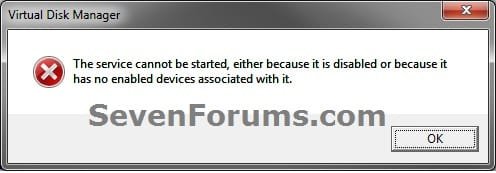
Error.jpg
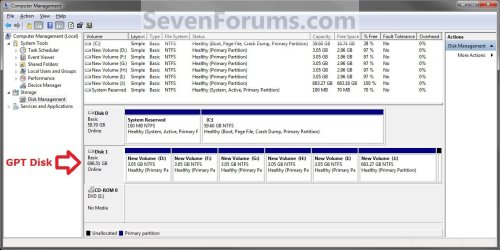
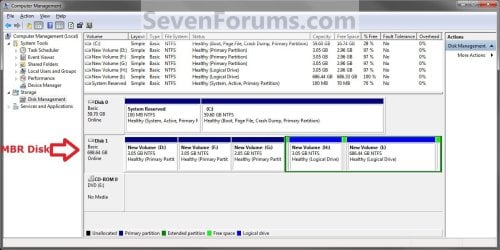
EXAMPLE: GPT disk vs MBR disk in Disk Management
GPT_Disk_Example.jpg

MBR_Disk_Example.jpg


OPTION ONE

In Disk Management


1. Open the Control Panel (icons view), and click on the Administrative Tools icon, then close the Control Panel window.

2. Click on Computer Management in Administrative Tools, then close the Administrative Tools window.

3. If prompted by UAC, click on Yes.

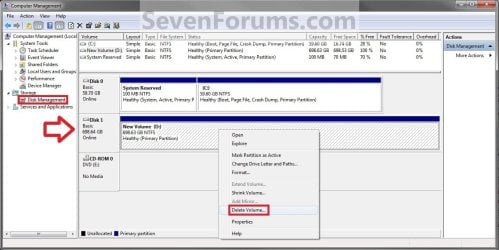
4. In the left pane under Storage, click on Disk Management. (See screenshot below)
Step1.jpg
5. In the disk (ex: Disk 1) that you want to convert to a GPT disk, right click on each partition and volume on the disk and click on Delete Volume until the whole disk is unallocated space. (See screenshot above)

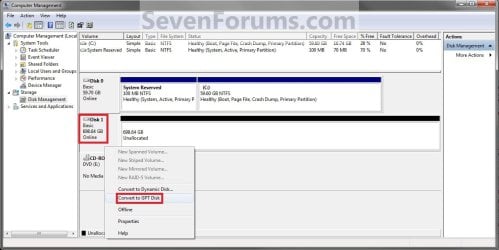
6. Right click on the disk (ex: Disk 1) that you want to convert to a GPT disk, and click on Convert to GPT Disk. (See screenshot below)
Step2.jpg
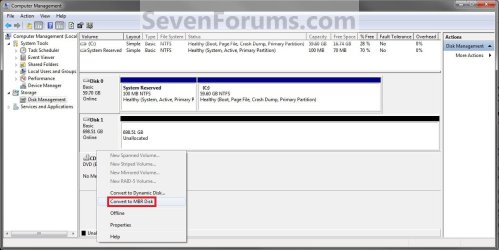
7. When finished shortly, you can confirm that the disk is a GPT disk if you right click on the disk and it has Convert to MPR Disk instead now. (See screenshot below)
Step3.jpg
8. You can now create partitions on the now GPT disk if you like.

9. When done, close Disk Management.


OPTION TWO

In a Command Prompt


1. Open an elevated command prompt, and go to step 3 below.

OR

2. Open a command prompt at boot, and go to step 3 below.
Command_GPT.jpg
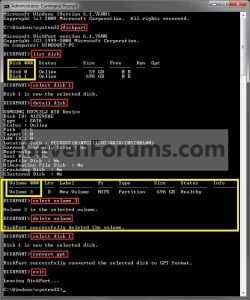
3. In the command prompt, type diskpart and press enter. (See screenshot above)

4. Type list disk and press enter.
NOTE: Make note of the disk number (ex: Disk 1) that you want to convert to a GPT disk.

5. Type select disk # and press enter.
NOTE: Substitute # with the actual disk number that you want to convert to a GPT disk. For example, select disk 1.

6. Do step 7 or 8 below for what you would like to do.

7. To Use the "Clean" Command to make Disk Unallocated
NOTE: This is the easiest method. It will wipe the disk clean all at once leaving it as unallocated space afterwards.
A) In the command prompt, type clean and press enter.

B) Go to step 9 below.
8. To Manually make Disk Unallocated
NOTE: This method has you manually delete each volume on the disk before converting the disk to GPT.
A) Type detail disk and press enter. If the disk does not have any volumes listed, then you can go to step 8E below.
NOTE: This will give you a list of all the volume numbers on the selected disk number that you will need to delete in steps 7 and 8 below.

B) Type select volume # and press enter.
NOTE: Substitute # with a volume number listed in step 8A. For example, select volume 3.

C) Type delete volume and press enter.

D) Repeat steps 8B and 8C for each volume # listed in step 8A until you have deleted all volume #'s.

E) When done, type select disk # and press enter.
NOTE: You would use the same one from step 5 above. For example, select disk 1.
9. Type convert gpt and press enter.

10. When done, type exit and press enter.

11. Close the command prompt.

12. You can now create partitions on the now GPT disk if you like for a data disk, or start installing the supported Windows if you like. (See information box at the top of the tutorial.).
NOTE: Restart the computer if you did step 2 instead.
That's it,
Shawn


Last edited:
When I right click the unallocated space, all the options are greyed out, preventing me from creating a new volume of any type...
 

My Computer

Computer Manufacturer/Model Number
Two Guys and a Twelve Pack
OS
Windows 7 Pro 64-bit SP1
CPU
Intel i7 2600k
Motherboard
ASUS P8P67 Deluxe
Memory
Corsair Dominator, 16GB Dual Channel DDR3, 1333Mhz
Graphics Card(s)
NVIDIA GeForce GTX 580 OC
Sound Card
<none> HD 7.1 Native to MoBo!
Monitor(s) Displays
Acer 22" LED
Screen Resolution
1920x1080
Hard Drives
SeaGate Barracuda XT 3TB
PSU
Ultra X3 1000W
Case
Corsair Special Edition White Graphite
Cooling
Corsair Hydro H80 Liquid Cooling
Keyboard
Logitech WAVE USB Wireless
Mouse
Logitetech WAVE USB Wireless
Internet Speed
20+ Mbps
Winefly,

Well it was worth a try. Looks like you will need to use step 2 in OPTION TWO of this tutorial to convert the disk to GPT in a command prompt at boot. Afterwards, do a clean install of Windows 7 on it. Be sure to backup anything that you do not want to lose first though. :(
 

My Computer

Computer type
PC/Desktop
Computer Manufacturer/Model Number
Self built custom
OS
64-bit Windows 11 Pro for Workstations
CPU
Intel i7-8700K OC'd to 5 GHz
Motherboard
ASUS ROG Maximus XI Formula Z390
Memory
64 GB (4x16GB) G.SKILL TridentZ RGB DDR4 3600 MHz
Graphics Card(s)
ASUS ROG-STRIX-GTX1080TI-O11G-GAMING
Sound Card
Integrated
Monitor(s) Displays
2 x Samsung Odyssey G7 27"
Screen Resolution
2560x1440
Hard Drives
1TB Samsung 990 PRO M.2,
4TB Samsung 990 PRO PRO M.2,
TerraMaster F8 SSD Plus NAS
PSU
Seasonic Prime Titanium 850W
Case
Thermaltake Core P3
Cooling
Corsair Hydro H115i
Keyboard
Logitech wireless K800
Mouse
Logitech MX Master 4
Internet Speed
2 Gb/s Download and 100 Mb/s Upload
Antivirus
Malwarebyte Anti-Malware Premium
Browser
Google Chrome
Other Info
Logitech Z625 speaker system,
Logitech BRIO 4K Pro webcam,
HP Color LaserJet Pro MFP M477fdn,
APC SMART-UPS RT 1000 XL - SURT1000XLI,
Galaxy S23 Plus phone
All up and running, new partitions in gpt. Thanks for your help, Brink.
 

Attachments

  • newHDD.jpg
    newHDD.jpg
    165.2 KB · Views: 1,884

My Computer

Computer Manufacturer/Model Number
Two Guys and a Twelve Pack
OS
Windows 7 Pro 64-bit SP1
CPU
Intel i7 2600k
Motherboard
ASUS P8P67 Deluxe
Memory
Corsair Dominator, 16GB Dual Channel DDR3, 1333Mhz
Graphics Card(s)
NVIDIA GeForce GTX 580 OC
Sound Card
<none> HD 7.1 Native to MoBo!
Monitor(s) Displays
Acer 22" LED
Screen Resolution
1920x1080
Hard Drives
SeaGate Barracuda XT 3TB
PSU
Ultra X3 1000W
Case
Corsair Special Edition White Graphite
Cooling
Corsair Hydro H80 Liquid Cooling
Keyboard
Logitech WAVE USB Wireless
Mouse
Logitetech WAVE USB Wireless
Internet Speed
20+ Mbps
You're most welcome Winefly. :)
 

My Computer

Computer type
PC/Desktop
Computer Manufacturer/Model Number
Self built custom
OS
64-bit Windows 11 Pro for Workstations
CPU
Intel i7-8700K OC'd to 5 GHz
Motherboard
ASUS ROG Maximus XI Formula Z390
Memory
64 GB (4x16GB) G.SKILL TridentZ RGB DDR4 3600 MHz
Graphics Card(s)
ASUS ROG-STRIX-GTX1080TI-O11G-GAMING
Sound Card
Integrated
Monitor(s) Displays
2 x Samsung Odyssey G7 27"
Screen Resolution
2560x1440
Hard Drives
1TB Samsung 990 PRO M.2,
4TB Samsung 990 PRO PRO M.2,
TerraMaster F8 SSD Plus NAS
PSU
Seasonic Prime Titanium 850W
Case
Thermaltake Core P3
Cooling
Corsair Hydro H115i
Keyboard
Logitech wireless K800
Mouse
Logitech MX Master 4
Internet Speed
2 Gb/s Download and 100 Mb/s Upload
Antivirus
Malwarebyte Anti-Malware Premium
Browser
Google Chrome
Other Info
Logitech Z625 speaker system,
Logitech BRIO 4K Pro webcam,
HP Color LaserJet Pro MFP M477fdn,
APC SMART-UPS RT 1000 XL - SURT1000XLI,
Galaxy S23 Plus phone
GPT Data Disk Confusion

At the start you say that you can still use a GPT disk for data even if your boot disk is a MBR. But is it still required to have an EFI BIOS in this setting? Or is the EFI BIOS only needed for booting from a GPT disk? Thanks.
 
Last edited:

My Computer

OS
Windows 7 Pro x64
Hello XrayDoc, and welcome to Seven Forums.

A EFI BIOS would only be required if your were booting from a GPT disk. :)
 

My Computer

Computer type
PC/Desktop
Computer Manufacturer/Model Number
Self built custom
OS
64-bit Windows 11 Pro for Workstations
CPU
Intel i7-8700K OC'd to 5 GHz
Motherboard
ASUS ROG Maximus XI Formula Z390
Memory
64 GB (4x16GB) G.SKILL TridentZ RGB DDR4 3600 MHz
Graphics Card(s)
ASUS ROG-STRIX-GTX1080TI-O11G-GAMING
Sound Card
Integrated
Monitor(s) Displays
2 x Samsung Odyssey G7 27"
Screen Resolution
2560x1440
Hard Drives
1TB Samsung 990 PRO M.2,
4TB Samsung 990 PRO PRO M.2,
TerraMaster F8 SSD Plus NAS
PSU
Seasonic Prime Titanium 850W
Case
Thermaltake Core P3
Cooling
Corsair Hydro H115i
Keyboard
Logitech wireless K800
Mouse
Logitech MX Master 4
Internet Speed
2 Gb/s Download and 100 Mb/s Upload
Antivirus
Malwarebyte Anti-Malware Premium
Browser
Google Chrome
Other Info
Logitech Z625 speaker system,
Logitech BRIO 4K Pro webcam,
HP Color LaserJet Pro MFP M477fdn,
APC SMART-UPS RT 1000 XL - SURT1000XLI,
Galaxy S23 Plus phone
GPT and RAID

This is a little off topic, but is there any advantage or reason to use GPT disks if you're building a RAID 5 array with five 2 TB hard drives? It seems like either way, you could still have a single huge partition, correct?
 

My Computer

OS
Windows 7 Pro x64
Not unless you wanted any part of the RAID to be over 2 TB in size.
 

My Computer

Computer type
PC/Desktop
Computer Manufacturer/Model Number
Self built custom
OS
64-bit Windows 11 Pro for Workstations
CPU
Intel i7-8700K OC'd to 5 GHz
Motherboard
ASUS ROG Maximus XI Formula Z390
Memory
64 GB (4x16GB) G.SKILL TridentZ RGB DDR4 3600 MHz
Graphics Card(s)
ASUS ROG-STRIX-GTX1080TI-O11G-GAMING
Sound Card
Integrated
Monitor(s) Displays
2 x Samsung Odyssey G7 27"
Screen Resolution
2560x1440
Hard Drives
1TB Samsung 990 PRO M.2,
4TB Samsung 990 PRO PRO M.2,
TerraMaster F8 SSD Plus NAS
PSU
Seasonic Prime Titanium 850W
Case
Thermaltake Core P3
Cooling
Corsair Hydro H115i
Keyboard
Logitech wireless K800
Mouse
Logitech MX Master 4
Internet Speed
2 Gb/s Download and 100 Mb/s Upload
Antivirus
Malwarebyte Anti-Malware Premium
Browser
Google Chrome
Other Info
Logitech Z625 speaker system,
Logitech BRIO 4K Pro webcam,
HP Color LaserJet Pro MFP M477fdn,
APC SMART-UPS RT 1000 XL - SURT1000XLI,
Galaxy S23 Plus phone
Oh, so if you were to use five 3 TB MBR drives in a RAID array, the array would only see five 2 TB drives?
 

My Computer

OS
Windows 7 Pro x64
Correct, unless you broke them down to smaller sizes in Disk Management, or used GPT to use over 2 TB.
 

My Computer

Computer type
PC/Desktop
Computer Manufacturer/Model Number
Self built custom
OS
64-bit Windows 11 Pro for Workstations
CPU
Intel i7-8700K OC'd to 5 GHz
Motherboard
ASUS ROG Maximus XI Formula Z390
Memory
64 GB (4x16GB) G.SKILL TridentZ RGB DDR4 3600 MHz
Graphics Card(s)
ASUS ROG-STRIX-GTX1080TI-O11G-GAMING
Sound Card
Integrated
Monitor(s) Displays
2 x Samsung Odyssey G7 27"
Screen Resolution
2560x1440
Hard Drives
1TB Samsung 990 PRO M.2,
4TB Samsung 990 PRO PRO M.2,
TerraMaster F8 SSD Plus NAS
PSU
Seasonic Prime Titanium 850W
Case
Thermaltake Core P3
Cooling
Corsair Hydro H115i
Keyboard
Logitech wireless K800
Mouse
Logitech MX Master 4
Internet Speed
2 Gb/s Download and 100 Mb/s Upload
Antivirus
Malwarebyte Anti-Malware Premium
Browser
Google Chrome
Other Info
Logitech Z625 speaker system,
Logitech BRIO 4K Pro webcam,
HP Color LaserJet Pro MFP M477fdn,
APC SMART-UPS RT 1000 XL - SURT1000XLI,
Galaxy S23 Plus phone
System Reserved??

Hello,
I've run into some trouble. I have a 3TB Seagate HDD and a 120GB SSD. Today I install Windows onto the PC, I built the entire thing myself, it had no pre-existing OS. Like a dummy, I didn't realize the whole MBR cant use more than 2 TB. Long story short, the OS is installed on the SSD, Windows 8 put the System Reserved onto the 3TB HDD...Now I can't convert the drive to GPT because I can't delete the System Reserved. What should I do? Please help, Thanks.
 

My Computer

OS
Windows 8 x64
CPU
AMD FX-8350 EIGHT-CORE 4GHZ
Motherboard
Asus Sabertooth 990FX R2.0
Memory
CORSAIR DOMINATOR GT 32GB
Graphics Card(s)
Radeon HD 7850
Sound Card
Integrated
Hard Drives
3TB Seagate
120GB Corsair SSD
PSU
1200W Thermaltake
Case
CoolerMaster HAF 922M

My Computer

Computer type
PC/Desktop
Computer Manufacturer/Model Number
Golden Mk. I.4
OS
Windows 10 Pro x64 ; Xubuntu x64
CPU
Intel i7 860 @ 2.80 GHz O/C'ed to 4.0GHz
Motherboard
Gigabyte P55A-UD3R Rev.1. Award BIOS F13
Memory
16GB Corsair Vengance DDR3 @ 661 MHz Dual Channel (9-9-9-24)
Graphics Card(s)
EVGA NVidia GTX 560 1024MB
Sound Card
Realtek Integrated
Monitor(s) Displays
Dual Samsung SyncMaster 2494HS
Screen Resolution
1920*1080 and 1920*1080
Hard Drives
1*Samsung 840 EVO 120GB SSD;
1*OCZ Vertex 2 60GB SSD;
2*Samsung F3 SpinPoint 1TB in RAID0;
1*Samsung F1 SpinPoint 1TB;
2*Western Digital 1TB External USB 3.0
1*Western Digital 500GB External USB 3.0
1*Seagate 500GB External USB 2.0
PSU
Thermaltake ToughPower QFan 750W
Case
Thermaltake Element S VK60001W2Z
Cooling
Corsair H60 Water Cooling, 2*230mm and 2*80mm case fans
Keyboard
Logitech G110
Mouse
Logitech MX518
May sound stupid but, 1. this will indeed work with windows 8? & 2. This will still have no effect on the boot process?
Also, would it make sense to move the System Reserved back to the original location after I have Converted to GPT and all of that?
 

My Computer

OS
Windows 8 x64
CPU
AMD FX-8350 EIGHT-CORE 4GHZ
Motherboard
Asus Sabertooth 990FX R2.0
Memory
CORSAIR DOMINATOR GT 32GB
Graphics Card(s)
Radeon HD 7850
Sound Card
Integrated
Hard Drives
3TB Seagate
120GB Corsair SSD
PSU
1200W Thermaltake
Case
CoolerMaster HAF 922M
Hi,

I dont think you can move the partition. Ideally, you want to restart the installation after having unplugged everything but the SSD.

Try the EasyBCD method and let us know if it works - it copies over the boot manager to C: so the computer should still boot once System Reserved has been deleted.

Regards,
Golden
 

My Computer

Computer type
PC/Desktop
Computer Manufacturer/Model Number
Golden Mk. I.4
OS
Windows 10 Pro x64 ; Xubuntu x64
CPU
Intel i7 860 @ 2.80 GHz O/C'ed to 4.0GHz
Motherboard
Gigabyte P55A-UD3R Rev.1. Award BIOS F13
Memory
16GB Corsair Vengance DDR3 @ 661 MHz Dual Channel (9-9-9-24)
Graphics Card(s)
EVGA NVidia GTX 560 1024MB
Sound Card
Realtek Integrated
Monitor(s) Displays
Dual Samsung SyncMaster 2494HS
Screen Resolution
1920*1080 and 1920*1080
Hard Drives
1*Samsung 840 EVO 120GB SSD;
1*OCZ Vertex 2 60GB SSD;
2*Samsung F3 SpinPoint 1TB in RAID0;
1*Samsung F1 SpinPoint 1TB;
2*Western Digital 1TB External USB 3.0
1*Western Digital 500GB External USB 3.0
1*Seagate 500GB External USB 2.0
PSU
Thermaltake ToughPower QFan 750W
Case
Thermaltake Element S VK60001W2Z
Cooling
Corsair H60 Water Cooling, 2*230mm and 2*80mm case fans
Keyboard
Logitech G110
Mouse
Logitech MX518
Thank you very much! I'll keep you posted as I execute tomorrow!:D
 

My Computer

OS
Windows 8 x64
CPU
AMD FX-8350 EIGHT-CORE 4GHZ
Motherboard
Asus Sabertooth 990FX R2.0
Memory
CORSAIR DOMINATOR GT 32GB
Graphics Card(s)
Radeon HD 7850
Sound Card
Integrated
Hard Drives
3TB Seagate
120GB Corsair SSD
PSU
1200W Thermaltake
Case
CoolerMaster HAF 922M
question. I have an ssd for my c drive with 4 other drives. C drive is windows 7 x64, D Drive is windows 8 x64. the other drives are just data.
I'm upgrading my MB to uefi (switching to amd cpu also).
From what I understand so far I HAVE TO delete everything on my c drive and do a clean install of windows 7 or 8 correct?
If that's the case then I would need to convert that drive to gpt and then install windows right? Is there any advantage to converting the other drives to gpt or can I just leave them as mbr?

Thanks in advance for your help!
 

My Computer

OS
win 7 x64

My Computer

Computer type
PC/Desktop
Computer Manufacturer/Model Number
Self built custom
OS
64-bit Windows 11 Pro for Workstations
CPU
Intel i7-8700K OC'd to 5 GHz
Motherboard
ASUS ROG Maximus XI Formula Z390
Memory
64 GB (4x16GB) G.SKILL TridentZ RGB DDR4 3600 MHz
Graphics Card(s)
ASUS ROG-STRIX-GTX1080TI-O11G-GAMING
Sound Card
Integrated
Monitor(s) Displays
2 x Samsung Odyssey G7 27"
Screen Resolution
2560x1440
Hard Drives
1TB Samsung 990 PRO M.2,
4TB Samsung 990 PRO PRO M.2,
TerraMaster F8 SSD Plus NAS
PSU
Seasonic Prime Titanium 850W
Case
Thermaltake Core P3
Cooling
Corsair Hydro H115i
Keyboard
Logitech wireless K800
Mouse
Logitech MX Master 4
Internet Speed
2 Gb/s Download and 100 Mb/s Upload
Antivirus
Malwarebyte Anti-Malware Premium
Browser
Google Chrome
Other Info
Logitech Z625 speaker system,
Logitech BRIO 4K Pro webcam,
HP Color LaserJet Pro MFP M477fdn,
APC SMART-UPS RT 1000 XL - SURT1000XLI,
Galaxy S23 Plus phone
Thanks for the response.
So could I just install windows 8 under uefi then...
After that, plug in my other (data) drives and all would be fine? I'm not that concerned about the dual boot into windows 7 at this point. I can deal with that later.


Hello sl2222,

Yes, you could still reinstall them as usual using "legacy BIOS" and a MBR disk.

If you would like to install them as UEFI with a GPT disk, then the tutorials below can help show you how to. I find that it's easier to do a dual boot with UEFI when you use separate hard drives per OS.

http://www.sevenforums.com/tutorial...e-firmware-interface-install-windows-7-a.html

and

UEFI (Unified Extensible Firmware Interface) - Install Windows 8 with

Hope this helps, :)
Shawn
 

My Computer

OS
win 7 x64
You're welcome.

Sure if you like, that would work.
 

My Computer

Computer type
PC/Desktop
Computer Manufacturer/Model Number
Self built custom
OS
64-bit Windows 11 Pro for Workstations
CPU
Intel i7-8700K OC'd to 5 GHz
Motherboard
ASUS ROG Maximus XI Formula Z390
Memory
64 GB (4x16GB) G.SKILL TridentZ RGB DDR4 3600 MHz
Graphics Card(s)
ASUS ROG-STRIX-GTX1080TI-O11G-GAMING
Sound Card
Integrated
Monitor(s) Displays
2 x Samsung Odyssey G7 27"
Screen Resolution
2560x1440
Hard Drives
1TB Samsung 990 PRO M.2,
4TB Samsung 990 PRO PRO M.2,
TerraMaster F8 SSD Plus NAS
PSU
Seasonic Prime Titanium 850W
Case
Thermaltake Core P3
Cooling
Corsair Hydro H115i
Keyboard
Logitech wireless K800
Mouse
Logitech MX Master 4
Internet Speed
2 Gb/s Download and 100 Mb/s Upload
Antivirus
Malwarebyte Anti-Malware Premium
Browser
Google Chrome
Other Info
Logitech Z625 speaker system,
Logitech BRIO 4K Pro webcam,
HP Color LaserJet Pro MFP M477fdn,
APC SMART-UPS RT 1000 XL - SURT1000XLI,
Galaxy S23 Plus phone
Yo Brink, thanks for the article.

Tell me though, do you know if it's possible or not to have W7 64 install and boot on MBR and then if I have say 300GB unallocated on the same disk, partition that unallocated space as GPT but keep my first Windows partition as MBR? I have a laptop that I need to do this on for certain purposes that only support GPT. The laptop does not have UEFI.

Actually, just read this, interesting:
Booting from GPT
See towards the bottom in the Windows section. Looks like I might need to create a Hybrid MBR or DUET system, sounds painful but I think I'm going to give it a go.
 

My Computer

OS
Windows 7 Pro SP1
Back
Top